Categories
Modern JavaScript

Best of Modern JavaScript — Core Features

Since 2015, JavaScript has improved immensely.

It’s much more pleasant to use it now than ever.

In this article, we’ll look at the core features of JavaScript.

From var to const/let

var is no longer the only keyword used to declare variables.

There’re the better alternatives which are let and const .

var is function scoped and can be hoisted.

This makes determining where a variable declared with var hard.

On the other than, determining where a variable declared with let or const is easy.

They’re both block-scoped, so we know they’re only available within a block.,

For instance, if we have:

var x = 100;

function foo(randomize) {
  if (randomize) {
    var x = Math.random();
    return x;
  }
  return x;
}
foo(false);

Then we don’t know what x would be without looking at the each line.

On the other hand, if we have:

let x = 100;

function foo(randomize) {
  if (randomize) {
    let x = Math.random();
    return x;
  }
  return x;
}
foo(false);

Then we know x on the outside has nothing to with x on the inside.

x outside the function is 100.

And x inside the function is the random number.

Therefore, we should declare variables with let or const .

If we don’t want to change the variable’s value after it’s declared, then we declare it with const .

We can’t blinding replace var with let or const .

We got to make sure the logic is still correct after replacement.

But from now in, we use const most of the time, let for variables that can change, and never use var .

IIFEs to blocks

To make private variables before ES6, we put them in IIFEs.

IIFEs stands for immediately invoked function expression.

It’s an expression that looks like:

(function() {
  var foo = '...'
}());

We have a function that we wrap around parentheses and called.

tmp isn’t available outside the function.

With ES6, we can use blocks with let or const keywords to create private variables:

{
  let foo = '..';
}

We created the variable foo which is only available inside the block.

Concatenating Strings to Template Literals

With ES6, we finally have template literals.

They let us interpolate expressions in our strings.

This is much better than concatenation since they’re easier to ready and debug.

For instance, instead of writing:

function getDimensions(width, height) {
  console.log('width: ' + width + ', height: ' + height);
}

We write:

function getDimensions(width, height) {
  console.log(`width: ${width},  height: ${height}`);
}

Multi-line Strings

We can make multiline strings easily with template literals.

We just have to put them in the string the way we want them.

For instance, instead of writing:

let html = '<!doctype html>\n' +
  '<html>\n' +
  '<head>\n' +
  '    <meta charset="UTF-8">\n' +
  '    <title></title>\n' +
  '</head>\n' +
  '<body>\n' +
  '</body>\n' +
  '</html>\n

We write:

let html = `
<!doctype html>
<html>

  <head>
    <meta charset="UTF-8">
    <title></title>
  </head>

  <body>
  </body>

</html>

It’s much cleaner and we don’t have to do any concatenation anymore.

Conclusion

The core features of modern JavaScript are let , const and template strings.

Categories
Vue 3

Vue 3 — Vue Instance Properties and Templates

Vue 3 is in beta and it’s subject to change.

Vue 3 is the up and coming version of Vue front end framework.

It builds on the popularity and ease of use of Vue 2.

In this article, we’ll look at Vue instance hooks and create simple templates with Vue 3.

Vue Instance Properties

The Vue instance has some properties that are built into th app.

The $data property has the data that our Vue instance has.

For instance, we can write:

<!DOCTYPE html>
<html lang="en">
  <head>
    <title>App</title>
    <script src="https://unpkg.com/vue@next"></script>
  </head>
  <body>
    <div id="app">
      {{a}}
    </div>
    <script>
      const data = { a: 1 };

      const vm = Vue.createApp({
        data() {
          return data;
        }
      }).mount("#app");

      console.log(vm.$data.a);
    </script>
  </body>
</html>

We have the vm.$data.a property which is the same as what we return in the data method.

a would be 1.

Instance Lifecycle Hooks

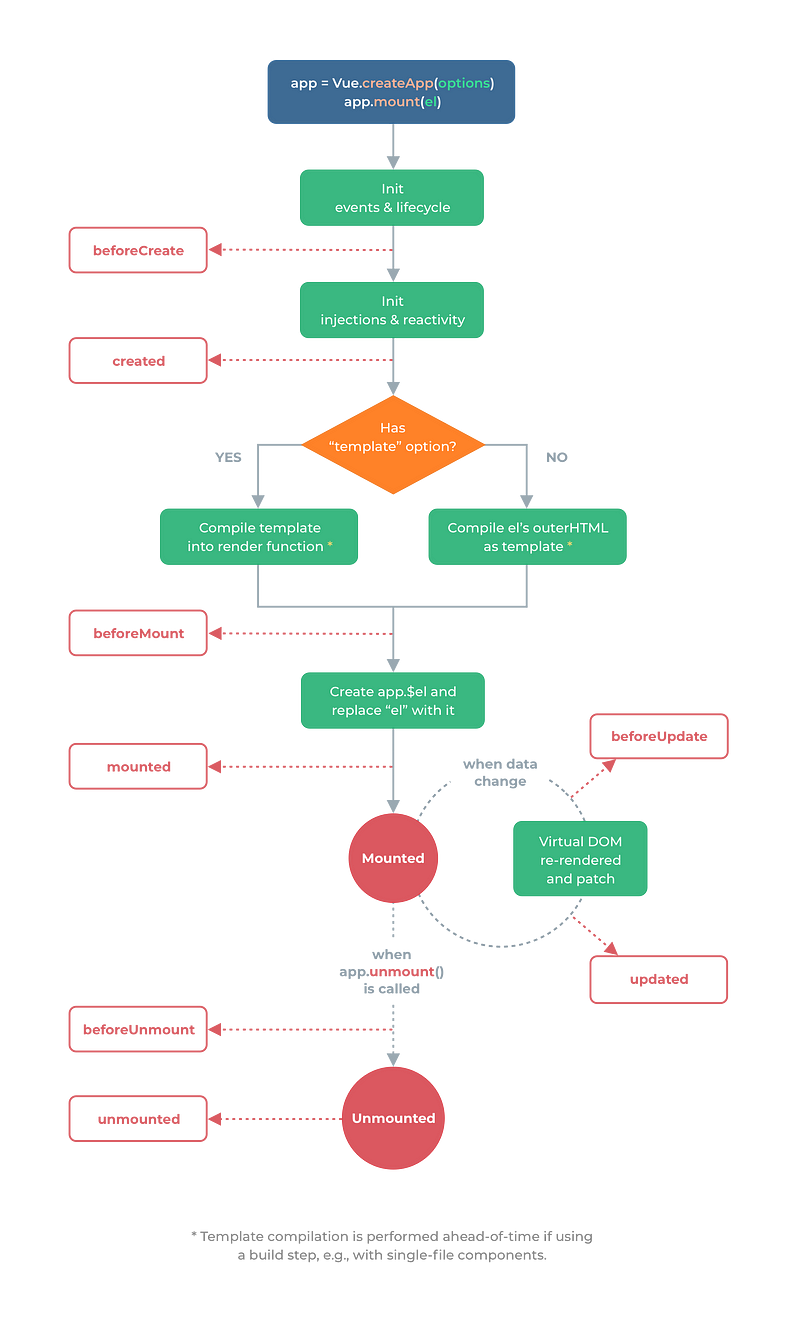
A Vue instance has various lifecycle hooks that it goes through from the initial load to being destroyed.

The following is the lifecycle diagram:

Courtesy of https://v3.vuejs.org/guide/instance.html#lifecycle-diagram

When the Vue instance is created, it starts with the init events and lifecycle stage, which calls the beforeCreate method in the Vue instance.

Event listeners are attached and the lifecycle begins at this stage.

Then it initializes the injections and reactivity stage and calls the created method.

This stage is where Vue starts listening for changes for data changes in the Vue instance.

Then one of 2 things can happen depending on if there’s a template in our Vue instance.

If there is, then template is compiled.

Otherwise, it compiles the content of the element we mounted pour Vue instance to HTML.

Once either of those is done, then beforeMount method is run.

Then the $el property is added to the Vue instance. Then element’s content is replaced with the compiled content.

The mounted method is then run.

When the state changes, then beforeUpdate is run.

Once the Virtual DOM is updated, the updated method is run.

Once app.unmount is called, which means the component will be unmounted.

Then beforeUnmount is run.

And when it’s unmounted, the unmounted method is run.

The methods are optional in our component.

We only need to add them if we want to run something in those lifecycle stages.

For example, we can write:

<!DOCTYPE html>
<html lang="en">
  <head>
    <title>App</title>
    <script src="https://unpkg.com/vue@next"></script>
  </head>
  <body>
    <div id="app">
      {{a}}
    </div>
    <script>
      const vm = Vue.createApp({
        data() {
          return {
            a: 1
          };
        },
        created() {
          console.log(this.a);
        }
      }).mount("#app");
    </script>
  </body>
</html>

to add our own code to the created hook, which runs when the component first listen to state changes.

Therefore, this.a ‘s value will be logged.

Template Syntax

Vue uses a HTML-base template syntax that lets us bind the value between the template and the Vue instance’s data.

Vue compiles the templates into Virtual DOM render functions.

This lets Vue figure out the least amount of changes to change the real DOM to render the latest data.

Interpolations

The most basic kind of data binding is text interpolation.

For example, we can write:

<!DOCTYPE html>
<html lang="en">
  <head>
    <title>App</title>
    <script src="https://unpkg.com/vue@next"></script>
  </head>
  <body>
    <div id="app">
      {{a}}
    </div>
    <script>
      const vm = Vue.createApp({
        data() {
          return {
            a: 1
          };
        }
      }).mount("#app");
    </script>
  </body>
</html>

Then we see that a is 1, which is displayed on the screen.

This interpolate is updated every time a changes.

We can make the interpolation only update once with the v-once directive.

For instance, we can write:

<!DOCTYPE html>
<html lang="en">
  <head>
    <title>App</title>
    <script src="https://unpkg.com/vue@next"></script>
  </head>
  <body>
    <div id="app">
      <div v-once>{{a}}</div>
    </div>
    <script>
      const vm = Vue.createApp({
        data() {
          return {
            a: 1
          };
        }
      }).mount("#app");
    </script>
  </body>
</html>

{{a}} will still be displayed as 1 even if the value changes.

Conclusion

The Vue instance has its own lifecycle hook.

We can add the code needed to run code during various stages of a Vue instance lifecycle.

Vue has an easy to use template syntax for rendering data.

Categories
Vue 3

Vue 3 — HTML and Directives

Vue 3 is in beta and it’s subject to change.

Vue 3 is the up and coming version of Vue front end framework.

It builds on the popularity and ease of use of Vue 2.

In this article, we’ll look at how to create templates with Vue 3.

Raw HTML

We can render raw HTML with the v-html directive.

For example, we can write:

<!DOCTYPE html>
<html lang="en">
  <head>
    <title>App</title>
    <script src="https://unpkg.com/vue@next"></script>
  </head>
  <body>
    <div id="app">
      <p>{{ rawHtml }}</p>
      <p><span v-html="rawHtml"></span></p>
    </div>
    <script>
      const vm = Vue.createApp({
        data() {
          return {
            rawHtml: `<b>foo</b>`
          };
        }
      }).mount("#app");
    </script>
  </body>
</html>

We have the rawHtml property returned with the object we return in the data method.

If we pass raw HTML into the mustache, it’ll be sanitized. This means the raw code will be displayed.

If we pass it into the v-html directive, it’ll be displayed as HTML, so it’ll be bold.

Therefore, if we use v-html , we should be careful of cross-site scripting vulnerabilities.

We should only display trusted content with v-html .

Attributes

If we want to set attribute values dynamically, we’ve to use the v-bind directive.

For instance, we can write:

<!DOCTYPE html>
<html lang="en">
  <head>
    <title>App</title>
    <script src="https://unpkg.com/vue@next"></script>
  </head>
  <body>
    <div id="app">
      <div v-bind:id="dynamicId"></div>
    </div>
    <script>
      const vm = Vue.createApp({
        data() {
          return {
            dynamicId: `foo`
          };
        }
      }).mount("#app");
    </script>
  </body>
</html>

to set the id attribute of the div to foo by using v-bind .

If we have boolean attributes, its existence means we set the value totrue .

For example, we can write:

<!DOCTYPE html>
<html lang="en">
  <head>
    <title>App</title>
    <script src="https://unpkg.com/vue@next"></script>
  </head>
  <body>
    <div id="app">
      <button v-bind:disabled="disabled">Button</button>
    </div>
    <script>
      const vm = Vue.createApp({
        data() {
          return {
            disabled: true
          };
        }
      }).mount("#app");
    </script>
  </body>
</html>

We disabled the button by passing in the disabled value to v-bind:disabled , which is true .

JavaScript Expressions

We can put JavaScript expressions between the double curly braces.

For instance, we can write:

<!DOCTYPE html>
<html lang="en">
  <head>
    <title>App</title>
    <script src="https://unpkg.com/vue@next"></script>
  </head>
  <body>
    <div id="app">
      {{message.split('').reverse().join('')}}
    </div>
    <script>
      const vm = Vue.createApp({
        data() {
          return {
            message: "hello world"
          };
        }
      }).mount("#app");
    </script>
  </body>
</html>

to reverse 'hello world' in the template.

We can only put in single expressions and not statements, so we can’t write:

<!DOCTYPE html>
<html lang="en">
  <head>
    <title>App</title>
    <script src="https://unpkg.com/vue@next"></script>
  </head>
  <body>
    <div id="app">
      {{ var a = 1 }}}
    </div>
    <script>
      const vm = Vue.createApp({
        data() {
          return {
            message: "hello world"
          };
        }
      }).mount("#app");
    </script>
  </body>
</html>

The Vue template compiler will give us an error.

Directives

Directives are special attributes that starts with v- .

The values they expect are single JavaScript expressions.

v-for and v-on are exceptions to this.

We reactively apply the side effects to the DOM when the value of its expression changes.

For instance, we can write:

<!DOCTYPE html>
<html lang="en">
  <head>
    <title>App</title>
    <script src="https://unpkg.com/vue@next)"></script>
  </head>
  <body>
    <div id="app">
      <p v-if="show">hello world</p>
    </div>
    <script>
      const vm = Vue.createApp({
        data() {
          return {
            show: true
          };
        }
      }).mount("#app");
    </script>
  </body>
</html>

to show the ‘hello world’ message with v-if since show is true .

v-if is a directive that shows something when its value is truthy.

Conclusion

Templates can have raw HTML, attributes, and directives.

Directives are special attributes that take values.

Categories
Vue 3

Vue 3 — Inputs, Loops. and Components

Vue 3 is in beta and it’s subject to change.

Vue 3 is the up and coming version of Vue front end framework.

It builds on the popularity and ease of use of Vue 2.

In this article, we’ll look at how to handle user interactions with Vue 3.

Handling User Input

The v-model directive lets us bind our input value to a model property.

For instance, we can write:

<!DOCTYPE html>
<html lang="en">
  <head>
    <title>App</title>
    <script src="https://unpkg.com/vue@next"></script>
  </head>
  <body>
    <div id="app">
      <input v-model="name" />
      <p>{{ name }}</p>
    </div>
    <script>
      const app = {
        data() {
          return {
            name: ""
          };
        }
      };

      Vue.createApp(app).mount("#app");
    </script>
  </body>
</html>

We added the name property to the object we return in the data method in app .

Now we can use the name variable as the value in v-model .

Also, we added interpolation of the name value to our template.

Now when we type in something into the input box, we get the same value displayed below it.

This is because v-model does the hard work getting the input value, setting it as the value name and vice versa.

Conditionals and Loops

We can render something conditionally with the v-if directive.

For instance, we can write:

<!DOCTYPE html>
<html lang="en">
  <head>
    <title>App</title>
    <script src="https://unpkg.com/vue@next"></script>
  </head>
  <body>
    <div id="app">
      <button v-on:click="toggle">toggle</button>
      <p v-if="seen">Now you see me</p>
    </div>
    <script>
      const app = {
        data() {
          return {
            seen: true
          };
        },
        methods: {
          toggle() {
            this.seen = !this.seen;
          }
        }
      };

      Vue.createApp(app).mount("#app");
    </script>
  </body>
</html>

We have the button which calls toggle .

The toggle method toggles the rthis.seen state to its opposite value.

Since we used that with v-if , it’ll render the p element if seen is true and not rendering it if it’s false .

We can also use it with transition effects.

Loops

We can display items in an array with the v-for directive.

For example, we can use it by writing:

<!DOCTYPE html>
<html lang="en">
  <head>
    <title>App</title>
    <script src="https://unpkg.com/vue@next"></script>
  </head>
  <body>
    <div id="app">
      <ol>
        <li v-for="p in people">
          {{ p.name }}
        </li>
      </ol>
    </div>
    <script>
      const app = {
        data() {
          return {
            people: [{ name: "mary" }, { name: "jane" }, { name: "bob" }]
          };
        },
        methods: {
          toggle() {
            this.seen = !this.seen;
          }
        }
      };

      Vue.createApp(app).mount("#app");
    </script>
  </body>
</html>

We have the people array in the data method.

This is used with the v-for directive to loop through the array and display the items.

p is the loop variable, we use to display the array items.

Components

Components let us component multiple parts of a Vue 3 app.

Each component is a small part of the app.

We can create components by writing:

<!DOCTYPE html>
<html lang="en">
  <head>
    <title>App</title>
    <script src="https://unpkg.com/vue@next"></script>
  </head>
  <body>
    <div id="app">
      <hello />
    </div>
    <script>
      const root = {};

      const app = Vue.createApp(root);

      app.component("hello", {
        template: `<p>hello</p>`
      });

      app.mount("#app");
    </script>
  </body>
</html>

We have the root object.

Then we pass in root to Vue.createApp to create our Vue 3 app.

And then we create our hello component by calling the app.component method with the component and the component object.

template has the template content we want to display.

Then we call mount with the selector string to mount our app to that component.

Conclusion

We can add Vue components with the app.component method.

The v-model directive binds input values to variables.

v-for lets us loop through arrays and render its entries’ data.

Categories
Vue 3

Vue 3 — Component and Vue Instance

Vue 3 is in beta and it’s subject to change.*

Vue 3 is the up and coming version of Vue front end framework.

It builds on the popularity and ease of use of Vue 2.

In this article, we’ll look at how to create components with Vue 3.

Components and Props

Props are attributes that we can add to components to pass data to them.

To create a component that takes a prop, we can write:

<!DOCTYPE html>
<html lang="en">
  <head>
    <title>App</title>
    <script src="https://unpkg.com/vue@next"></script>
  </head>
  <body>
    <div id="app">
      <hello name="mary" />
    </div>
    <script>
      const root = {};

      const app = Vue.createApp(root);

      app.component("hello", {
        props: ["name"],
        template: `<p>hello {{name}}</p>`
      });

      app.mount("#app");
    </script>
  </body>
</html>

We have the name prop that takes a string and we display it.

We can use v-for to render multiple items and render a component for each.

For instance, we can write:

<!DOCTYPE html>
<html lang="en">
  <head>
    <title>App</title>
    <script src="[https://unpkg.com/vue@next](https://unpkg.com/vue@next)"></script>
  </head>
  <body>
    <div id="app">
      <hello v-for="p in people" v-bind:person="p" v-bind:key="p.id" />
    </div>
    <script>
      const root = {
        data() {
          return {
            people: [
              { id: 0, name: "mary" },
              { id: 1, name: "jane" },
              { id: 2, name: "bob" }
            ]
          };
        }
      };

      const app = Vue.createApp(root);

      app.component("hello", {
        props: ["person"],
        template: `<p>hello {{person.name}}</p>`
      });

      app.mount("#app");
    </script>
  </body>
</html>

Since we aren’t passing a string prop, we need the v-bind directive to let us pass non-string values to our component.

The key prop is needed so that Vue 3 can track the items properly.

In the app.component call, we have the props property with a prop name that’s accepted by our component.

And we can get the name property from the object.

Vue 3 components resemble web component spec’s custom elements.

It also implements the slot API so that we can use slots to add different content to our components.

The Vue Instance

The Vue instance is the root of our app.

We create it with the createApp method.

For instance, we can write:

<!DOCTYPE html>
<html lang="en">
  <head>
    <title>App</title>
    <script src="https://unpkg.com/vue@next"></script>
  </head>
  <body>
    <div id="app">
      {{a}}
    </div>
    <script>
      const data = { a: 1 };

      const vm = Vue.createApp({
        data() {
          return data;
        }
      }).mount("#app");
    </script>
  </body>
</html>

We have our data object we which we return in the data method.

Then we can use the a property in our template.

The Vue.createApp method returns the Vue instance.

It should contain the properties of the data object as properties.

If we have:

<!DOCTYPE html>
<html lang="en">
  <head>
    <title>App</title>
    <script src="https://unpkg.com/vue@next"></script>
  </head>
  <body>
    <div id="app">
      {{a}}
    </div>
    <script>
      const data = { a: 1 };

      const vm = Vue.createApp({
        data() {
          return data;
        }
      }).mount("#app");

      console.log(vm.a === data.a);
    </script>
  </body>
</html>

The console log should log true .

And if we change the value of vm.a :

<!DOCTYPE html>
<html lang="en">
  <head>
    <title>App</title>
    <script src="https://unpkg.com/vue@next"></script>
  </head>
  <body>
    <div id="app">
      {{a}}
    </div>
    <script>
      const data = { a: 1 };

      const vm = Vue.createApp({
        data() {
          return data;
        }
      }).mount("#app");

      vm.a = 2;

      console.log(data.a);
    </script>
  </body>
</html>

Then the value of a in the template and the data object should both change to 2.

Conclusion

Components can take props so we can populate it with data dynamically from the outside.

The Vue instance is the root of a Vue app.

It contains the data which can be changed and the change will be reflected everywhere.