React’s most popular code generator, Create React App, creates a client side rendered app, which means everyone that loads your page downloads the whole app and all front end code is ran on client side. This means that there is not as good for search engine optimization as JavaScript has to be run for web crawlers to index the page. It is also slower than rendering on client side because running JavaScript on client side is not very fast.
Setting up a server side rendered app with the default code generated by Create React App is not easy. You have to do lots of changes to the default code to get anything working. Getting it to work exactly the way you want is even harder, so developers came up with some solutions. One of the best options is Next.js.
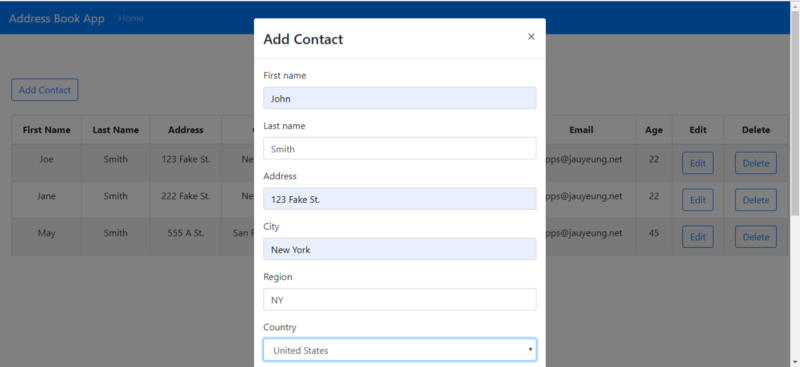
In this story, we will build an address book app, which uses those libraries, plus React Bootstrap, which has great integration with those libraries above to create forms. To start we need to run Next.js CLI to scaffold the app. We run npx create-next-app to create the app project folder with the initial files. The app will have a home page to display the contacts and let us open a modal to add a contact. There will be a table that displays all the contacts and Edit and Delete buttons on each row to edit or delete each contact. The contacts will store in a central Redux store to store the contacts in a central place, making them easy to access. React Router will be used for routing. Contacts will be saved in the back end spawned using the JSON server package.
For form validation, then you need to use a third-party library. Formik and Yup work great together to allow us to take care of most form validation needs. Formik let us build the forms and display the errors, and handle form value changes, which is another thing we have to do all my hand otherwise. Yup let us write a schema for validating our form fields. It can check almost anything, with common validation code like email and required fields available as built-in functions. It can also check for fields that depend on other fields, like the postal code format depending on the country. Bootstrap forms can be used seamlessly with Formik and Yup.
Once that is done, we have to install some libraries. To install the libraries we mentioned above, we run npm i axios bootstrap formik react-bootstrap react-redux react-router-dom yup . Axios is the HTTP client that we use for making HTTP requests to back end. react-router-dom is the package name for the latest version of React Router.
Now that we have all the libraries installed, we can start building the app. We create a store folder and create a file called actionCreator.js in it and add the following:
import { SET_CONTACTS } from './actions';

const setContacts = (contacts) => {
    return {
        type: SET_CONTACTS,
        payload: contacts
    }
};

export { setContacts };
This is the action creator for creating the action for storing the contacts in the store.
We create another file called actions.js in the same folder and add:
const SET_CONTACTS = 'SET_CONTACTS';

export { SET_CONTACTS };
This just have the type constant for dispatching the action.
Then in the store folder, we create index.js and add:
import { contactsReducer } from "./reducers";
import { createStore, combineReducers } from "redux";

const addressBookApp = combineReducers({
  contacts: contactsReducer,
});

const makeStore = (initialState, options) => {
  return createStore(addressBookApp, initialState);
};

export { makeStore };
We will use it in the main entry point file, which will be called _app.js in the pages folder to allow us to use the same Redux store in this multi-page, server side rendered app.
Then we make a file called reducers.js , and add:
import { SET_CONTACTS } from './actions';

function contactsReducer(state = {}, action) {
    switch (action.type) {
        case SET_CONTACTS:
            state = JSON.parse(JSON.stringify(action.payload));
            return state;
        default:
            return state
    }
}

export { contactsReducer };
This is the reducer where we store the contacts that we dispatch by calling the prop provided by the mapDispatchToProps function in our components.
Next we add some code files to the pages folder.
In index.js , we replace what is existing with the following:
import React from "react";
import Head from "next/head";
import { Router, Route } from "react-router-dom";
import { createMemoryHistory as createHistory } from "history";
import Navbar from "react-bootstrap/Navbar";
import Nav from "react-bootstrap/Nav";
import HomePage from "./HomePage";
import { contactsReducer } from "../store/reducers";
import { Provider } from "react-redux";
import { createStore, combineReducers } from "redux";

const history = createHistory();

const addressBookApp = combineReducers({
  contacts: contactsReducer,
});

const store = createStore(addressBookApp);

const Home = () => (
  <div>
    <Head>
      <title>Address Book</title>
      <link
        href="https://maxcdn.bootstrapcdn.com/bootstrap/4.3.1/css/bootstrap.min.css)"
        rel="stylesheet"
        integrity="sha384-ggOyR0iXCbMQv3Xipma34MD+dH/1fQ784/j6cY/iJTQUOhcWr7x9JvoRxT2MZw1T"
        crossOrigin="anonymous"
      />
    </Head>
    <div className="App">
      <Router history={history}>
        <Navbar bg="primary" expand="lg" variant="dark">
          <Navbar.Brand href="#home">Address Book App</Navbar.Brand>
          <Navbar.Toggle aria-controls="basic-navbar-nav" />
          <Navbar.Collapse id="basic-navbar-nav">
            <Nav className="mr-auto">
              <Nav.Link href="/">Home</Nav.Link>
            </Nav>
          </Navbar.Collapse>
        </Navbar>
        <Route path="/" exact component={HomePage} />
      </Router>
    </div>

    <style jsx>{`
      .App {
        text-align: center;
      }
    `}</style>
  </div>
);

export default Home;
This is where we add the navigation bar and show our routes routed by the React Router. In the styles element, we replace the existing code with:
.App {
  text-align: center;
}
to center some text.
Next we build our contact form. This is the most logic heavy part of our app. We create a file called ContactForm.js in the components folder and add:
import React from 'react';
import { Formik } from 'formik';
import Form from 'react-bootstrap/Form';
import Col from 'react-bootstrap/Col';
import InputGroup from 'react-bootstrap/InputGroup';
import Button from 'react-bootstrap/Button';
import * as yup from 'yup';
import { COUNTRIES } from '../helpers/exports';
import PropTypes from 'prop-types';
import { addContact, editContact, getContacts } from '../helpers/requests';
import { connect } from 'react-redux';
import { setContacts } from '../store/actionCreators';

const schema = yup.object({
  firstName: yup.string().required('First name is required'),
  lastName: yup.string().required('Last name is required'),
  address: yup.string().required('Address is required'),
  city: yup.string().required('City is required'),
  region: yup.string().required('Region is required'),
  country: yup.string().required('Country is required').default('Afghanistan'),
  postalCode: yup
    .string()
    .when('country', {
      is: 'United States',
      then: yup.string().matches(/^[0-9]{5}(?:-[0-9]{4})?$/, 'Invalid postal code'),
    })
    .when('country', {
      is: 'Canada',
      then: yup.string().matches(/^[A-Za-z]d[A-Za-z][ -]?d[A-Za-z]d$/, 'Invalid postal code'),
    })
    .required(),
  phone: yup
    .string()
    .when('country', {
      is: country => ["United States", "Canada"].includes(country),
      then: yup.string().matches(/^[2-9]d{2}[2-9]d{2}d{4}$/, 'Invalid phone nunber')
    })
    .required(),
  email: yup.string().email('Invalid email').required('Email is required'),
  age: yup.number()
    .required('Age is required')
    .min(0, 'Minimum age is 0')
    .max(200, 'Maximum age is 200'),
});

function ContactForm({
  edit,
  onSave,
  setContacts,
  contact,
  onCancelAdd,
  onCancelEdit,
}) {
  const handleSubmit = async (evt) => {
    const isValid = await schema.validate(evt);
    if (!isValid) {
      return;
    }
    if (!edit) {
      await addContact(evt);
    }
    else {
      await editContact(evt);
    }
    const response = await getContacts();
    setContacts(response.data);
    onSave();
  }

return (
    <div className="form">
      <Formik
        validationSchema={schema}
        onSubmit={handleSubmit}
        initialValues={contact || {}}
      >
        {({
          handleSubmit,
          handleChange,
          handleBlur,
          values,
          touched,
          isInvalid,
          errors,
        }) => (
            <Form noValidate onSubmit={handleSubmit}>
              <Form.Row>
                <Form.Group as={Col} md="12" controlId="firstName">
                  <Form.Label>First name</Form.Label>
                  <Form.Control
                    type="text"
                    name="firstName"
                    placeholder="First Name"
                    value={values.firstName || ''}
                    onChange={handleChange}
                    isInvalid={touched.firstName && errors.firstName}
                  />
                  <Form.Control.Feedback type="invalid">
                    {errors.firstName}
                  </Form.Control.Feedback>
                </Form.Group>
                <Form.Group as={Col} md="12" controlId="lastName">
                  <Form.Label>Last name</Form.Label>
                  <Form.Control
                    type="text"
                    name="lastName"
                    placeholder="Last Name"
                    value={values.lastName || ''}
                    onChange={handleChange}
                    isInvalid={touched.firstName && errors.lastName}
                  />

<Form.Control.Feedback type="invalid">
                    {errors.lastName}
                  </Form.Control.Feedback>
                </Form.Group>
                <Form.Group as={Col} md="12" controlId="address">
                  <Form.Label>Address</Form.Label>
                  <InputGroup>
                    <Form.Control
                      type="text"
                      placeholder="Address"
                      aria-describedby="inputGroupPrepend"
                      name="address"
                      value={values.address || ''}
                      onChange={handleChange}
                      isInvalid={touched.address && errors.address}
                    />
                    <Form.Control.Feedback type="invalid">
                      {errors.address}
                    </Form.Control.Feedback>
                  </InputGroup>
                </Form.Group>
              </Form.Row>
              <Form.Row>
                <Form.Group as={Col} md="12" controlId="city">
                  <Form.Label>City</Form.Label>
                  <Form.Control
                    type="text"
                    placeholder="City"
                    name="city"
                    value={values.city || ''}
                    onChange={handleChange}
                    isInvalid={touched.city && errors.city}
                  />

<Form.Control.Feedback type="invalid">
                    {errors.city}
                  </Form.Control.Feedback>
                </Form.Group>
                <Form.Group as={Col} md="12" controlId="region">
                  <Form.Label>Region</Form.Label>
                  <Form.Control
                    type="text"
                    placeholder="Region"
                    name="region"
                    value={values.region || ''}
                    onChange={handleChange}
                    isInvalid={touched.region && errors.region}
                  />
                  <Form.Control.Feedback type="invalid">
                    {errors.region}
                  </Form.Control.Feedback>
                </Form.Group>

<Form.Group as={Col} md="12" controlId="country">
                  <Form.Label>Country</Form.Label>
                  <Form.Control
                    as="select"
                    placeholder="Country"
                    name="country"
                    onChange={handleChange}
                    value={values.country || ''}
                    isInvalid={touched.region && errors.country}>
                    {COUNTRIES.map(c => <option key={c} value={c}>{c}</option>)}
                  </Form.Control>
                  <Form.Control.Feedback type="invalid">
                    {errors.country}
                  </Form.Control.Feedback>
                </Form.Group>

<Form.Group as={Col} md="12" controlId="postalCode">
                  <Form.Label>Postal Code</Form.Label>
                  <Form.Control
                    type="text"
                    placeholder="Postal Code"
                    name="postalCode"
                    value={values.postalCode || ''}
                    onChange={handleChange}
                    isInvalid={touched.postalCode && errors.postalCode}
                  />

<Form.Control.Feedback type="invalid">
                    {errors.postalCode}
                  </Form.Control.Feedback>
                </Form.Group>

<Form.Group as={Col} md="12" controlId="phone">
                  <Form.Label>Phone</Form.Label>
                  <Form.Control
                    type="text"
                    placeholder="Phone"
                    name="phone"
                    value={values.phone || ''}
                    onChange={handleChange}
                    isInvalid={touched.phone && errors.phone}
                  />

<Form.Control.Feedback type="invalid">
                    {errors.phone}
                  </Form.Control.Feedback>
                </Form.Group>

<Form.Group as={Col} md="12" controlId="email">
                  <Form.Label>Email</Form.Label>
                  <Form.Control
                    type="text"
                    placeholder="Email"
                    name="email"
                    value={values.email || ''}
                    onChange={handleChange}
                    isInvalid={touched.email && errors.email}
                  />

<Form.Control.Feedback type="invalid">
                    {errors.email}
                  </Form.Control.Feedback>
                </Form.Group>

<Form.Group as={Col} md="12" controlId="age">
                  <Form.Label>Age</Form.Label>
                  <Form.Control
                    type="text"
                    placeholder="Age"
                    name="age"
                    value={values.age || ''}
                    onChange={handleChange}
                    isInvalid={touched.age && errors.age}
                  />

<Form.Control.Feedback type="invalid">
                    {errors.age}
                  </Form.Control.Feedback>
                </Form.Group>
              </Form.Row>
              <Button type="submit" style={{ 'marginRight': '10px' }}>Save</Button>
              <Button type="button" onClick={edit ? onCancelEdit : onCancelAdd}>Cancel</Button>
            </Form>
          )}
      </Formik>
    </div>
  );
}

ContactForm.propTypes = {
  edit: PropTypes.bool,
  onSave: PropTypes.func,
  onCancelAdd: PropTypes.func,
  onCancelEdit: PropTypes.func,
  contact: PropTypes.object
}

const mapStateToProps = state => {
  return {
    contacts: state.contacts,
  }
}

const mapDispatchToProps = dispatch => ({
  setContacts: contacts => dispatch(setContacts(contacts))
})

export default connect(
  mapStateToProps,
  mapDispatchToProps
)(ContactForm);
We use Formik to facilitate building our contact form here, with our Boostrap Form component nested in the Formik component so that we can use Formik’s handleChange , handleSubmit , values , touched and errors parameters. handleChange is a function that let us update the form field data from the inputs without writing the code ourselves. handleSubmit is the function that we passed into the onSubmit handler of the Formik component. The parameter in the function is the data we entered, with the field name as the key, as defined by the name attribute of each field and the value of each field as the value of those keys. Notice that in each value prop, we have ||'' so we do not get undefined values and prevent uncontrolled form warnings from getting triggered.
To display form validation messages, we have to pass in the isInvalid prop to each Form.Control component. The schema object is what Formik will check against for form validation. The argument in the required function is the validation error message. The second argument of the matches , min and max functions are also validation messages.
The parameter of the ContactForm function are props, which we will pass in from the HomePage component that we will build later. The handleSubmit function checks if the data is valid, then if it is then it will proceed to saving according to whether it is adding or editing a contact. Then when saving is successful we set the contacts in the store and call onSave prop, which is a function to close the modal the form is in. The modal will be defined in the home page.
mapStateToProps is a function provided by React Redux so that we can map the state directly to the props of our component as the function name suggests. mapDispatchToProps allows us to call function in the props of the component called setContacts to dispatch the action as we defined in actionCreators.js .
Next we create a file called exports.js after creating the helpers folder, and put:
export const COUNTRIES = [
  "Afghanistan",
  "Albania",
  "Algeria",
  "Andorra",
  "Angola",
  "Anguilla",
  "Antigua & Barbuda",
  "Argentina",
  "Armenia",
  "Aruba",
  "Australia",
  "Austria",
  "Azerbaijan",
  "Bahamas",
  "Bahrain",
  "Bangladesh",
  "Barbados",
  "Belarus",
  "Belgium",
  "Belize",
  "Benin",
  "Bermuda",
  "Bhutan",
  "Bolivia",
  "Bosnia & Herzegovina",
  "Botswana",
  "Brazil",
  "British Virgin Islands",
  "Brunei",
  "Bulgaria",
  "Burkina Faso",
  "Burundi",
  "Cambodia",
  "Cameroon",
  "Canada",
  "Cape Verde",
  "Cayman Islands",
  "Chad",
  "Chile",
  "China",
  "Colombia",
  "Congo",
  "Cook Islands",
  "Costa Rica",
  "Cote D Ivoire",
  "Croatia",
  "Cruise Ship",
  "Cuba",
  "Cyprus",
  "Czech Republic",
  "Denmark",
  "Djibouti",
  "Dominica",
  "Dominican Republic",
  "Ecuador",
  "Egypt",
  "El Salvador",
  "Equatorial Guinea",
  "Estonia",
  "Ethiopia",
  "Falkland Islands",
  "Faroe Islands",
  "Fiji",
  "Finland",
  "France",
  "French Polynesia",
  "French West Indies",
  "Gabon",
  "Gambia",
  "Georgia",
  "Germany",
  "Ghana",
  "Gibraltar",
  "Greece",
  "Greenland",
  "Grenada",
  "Guam",
  "Guatemala",
  "Guernsey",
  "Guinea",
  "Guinea Bissau",
  "Guyana",
  "Haiti",
  "Honduras",
  "Hong Kong",
  "Hungary",
  "Iceland",
  "India",
  "Indonesia",
  "Iran",
  "Iraq",
  "Ireland",
  "Isle of Man",
  "Israel",
  "Italy",
  "Jamaica",
  "Japan",
  "Jersey",
  "Jordan",
  "Kazakhstan",
  "Kenya",
  "Kuwait",
  "Kyrgyz Republic",
  "Laos",
  "Latvia",
  "Lebanon",
  "Lesotho",
  "Liberia",
  "Libya",
  "Liechtenstein",
  "Lithuania",
  "Luxembourg",
  "Macau",
  "Macedonia",
  "Madagascar",
  "Malawi",
  "Malaysia",
  "Maldives",
  "Mali",
  "Malta",
  "Mauritania",
  "Mauritius",
  "Mexico",
  "Moldova",
  "Monaco",
  "Mongolia",
  "Montenegro",
  "Montserrat",
  "Morocco",
  "Mozambique",
  "Namibia",
  "Nepal",
  "Netherlands",
  "Netherlands Antilles",
  "New Caledonia",
  "New Zealand",
  "Nicaragua",
  "Niger",
  "Nigeria",
  "Norway",
  "Oman",
  "Pakistan",
  "Palestine",
  "Panama",
  "Papua New Guinea",
  "Paraguay",
  "Peru",
  "Philippines",
  "Poland",
  "Portugal",
  "Puerto Rico",
  "Qatar",
  "Reunion",
  "Romania",
  "Russia",
  "Rwanda",
  "Saint Pierre & Miquelon",
  "Samoa",
  "San Marino",
  "Satellite",
  "Saudi Arabia",
  "Senegal",
  "Serbia",
  "Seychelles",
  "Sierra Leone",
  "Singapore",
  "Slovakia",
  "Slovenia",
  "South Africa",
  "South Korea",
  "Spain",
  "Sri Lanka",
  "St Kitts & Nevis",
  "St Lucia",
  "St Vincent",
  "St. Lucia",
  "Sudan",
  "Suriname",
  "Swaziland",
  "Sweden",
  "Switzerland",
  "Syria",
  "Taiwan",
  "Tajikistan",
  "Tanzania",
  "Thailand",
  "Timor L'Este",
  "Togo",
  "Tonga",
  "Trinidad & Tobago",
  "Tunisia",
  "Turkey",
  "Turkmenistan",
  "Turks & Caicos",
  "Uganda",
  "Ukraine",
  "United Arab Emirates",
  "United Kingdom",
  "United States",
  "United States Minor Outlying Islands",
  "Uruguay",
  "Uzbekistan",
  "Venezuela",
  "Vietnam",
  "Virgin Islands (US)",
  "Yemen",
  "Zambia",
  "Zimbabwe",
];
These are countries for the countries field in the form.
Then we make a file called requests.js in the same folder, and add:
const APIURL = '[http://localhost:3000'](http://localhost:3000%27);
const axios = require('axios');

export const getContacts = () => axios.get(`${APIURL}/contacts`);

export const addContact = (data) => axios.post(`${APIURL}/contacts`, data);

export const editContact = (data) => axios.put(`${APIURL}/contacts/${data.id}`, data);

export const deleteContact = (id) => axios.delete(`${APIURL}/contacts/${id}`);
These are functions are making our HTTP requests to the back end to save and delete contacts.
In HomePage.js , we put:
import React from 'react';
import { useState, useEffect } from 'react';
import Table from 'react-bootstrap/Table'
import ButtonToolbar from 'react-bootstrap/ButtonToolbar';
import Button from 'react-bootstrap/Button';
import Modal from 'react-bootstrap/Modal'
import ContactForm from './ContactForm';
import './HomePage.css';
import { connect } from 'react-redux';
import { getContacts, deleteContact } from './requests';

function HomePage() {
  const [openAddModal, setOpenAddModal] = useState(false);
  const [openEditModal, setOpenEditModal] = useState(false);
  const [initialized, setInitialized] = useState(false);
  const [selectedId, setSelectedId] = useState(0);
  const [selectedContact, setSelectedContact] = useState({});
  const [contacts, setContacts] = useState([]);

  const openModal = () => {
    setOpenAddModal(true);
  }

  const closeModal = () => {
    setOpenAddModal(false);
    setOpenEditModal(false);
    getData();
  }

  const cancelAddModal = () => {
    setOpenAddModal(false);
  }

  const editContact = (contact) => {
    setSelectedContact(contact);
    setOpenEditModal(true);
  }

  const cancelEditModal = () => {
    setOpenEditModal(false);
  }

  const getData = async () => {
    const response = await getContacts();
    setContacts(response.data);
    setInitialized(true);
  }

  const deleteSelectedContact = async (id) => {
    await deleteContact(id);
    getData();
  }

  useEffect(() => {
    if (!initialized) {
      getData();
    }
  })

  return (
    <div className="home-page">
      <h1>Contacts</h1>
      <Modal show={openAddModal} onHide={closeModal} >
        <Modal.Header closeButton>
          <Modal.Title>Add Contact</Modal.Title>
        </Modal.Header>
        <Modal.Body>
          <ContactForm edit={false} onSave={closeModal.bind(this)} onCancelAdd={cancelAddModal} />
        </Modal.Body>
      </Modal>

<Modal show={openEditModal} onHide={closeModal}>
        <Modal.Header closeButton>
          <Modal.Title>Edit Contact</Modal.Title>
        </Modal.Header>
        <Modal.Body>
          <ContactForm edit={true} onSave={closeModal.bind(this)} contact={selectedContact} onCancelEdit={cancelEditModal} />
        </Modal.Body>
      </Modal>
      <ButtonToolbar onClick={openModal}>
        <Button variant="outline-primary">Add Contact</Button>
      </ButtonToolbar>
      <br />
      <Table striped bordered hover>
        <thead>
          <tr>
            <th>First Name</th>
            <th>Last Name</th>
            <th>Address</th>
            <th>City</th>
            <th>Country</th>
            <th>Postal Code</th>
            <th>Phone</th>
            <th>Email</th>
            <th>Age</th>
            <th>Edit</th>
            <th>Delete</th>
          </tr>
        </thead>
        <tbody>
          {contacts.map(c => (
            <tr key={c.id}>
              <td>{c.firstName}</td>
              <td>{c.lastName}</td>
              <td>{c.address}</td>
              <td>{c.city}</td>
              <td>{c.country}</td>
              <td>{c.postalCode}</td>
              <td>{c.phone}</td>
              <td>{c.email}</td>
              <td>{c.age}</td>
              <td>
                <Button variant="outline-primary" onClick={editContact.bind(this, c)}>Edit</Button>
              </td>
              <td>
                <Button variant="outline-primary" onClick={deleteSelectedContact.bind(this, c.id)}>Delete</Button>
              </td>
            </tr>
          ))}
        </tbody>
      </Table>
    </div>
  );
}

const mapStateToProps = state => {
  return {
    contacts: state.contacts,
  }
}

export default connect(
  mapStateToProps,
  null
)(HomePage);
It has the table to display the contacts and buttons to add, edit, and delete contacts. It gets data on the first load with the getData function call in the useEffect’s callback function. useEffect’s callback is called on every render so we want to set a initialized flag and check that it loads only if it’s true .
Note that we pass in all the props in this component to the ContactForm component. To pass an argument a onClick handler function, we have to call bind on the function and pass in the argument for the function as a second argument to bind . For example, in this file, we have editContact.bind(this, c) , where c is the contact object. The editContact function is defined as follows:
const editContact = (contact) => {
    setSelectedContact(contact);
    setOpenEditModal(true);
  }
c is the contact parameter we pass in.
In the styles block, we have:
.home-page {
  padding: 20px;
}
to add some padding.
In index.js in the pages folder, we replace the existing code with:
import React from "react";
import Head from "next/head";
import { Router, Route } from "react-router-dom";
import { createMemoryHistory as createHistory } from "history";
import Navbar from "react-bootstrap/Navbar";
import Nav from "react-bootstrap/Nav";
import HomePage from "./HomePage";
import { contactsReducer } from "../store/reducers";
import { Provider } from "react-redux";
import { createStore, combineReducers } from "redux";

const history = createHistory();

const addressBookApp = combineReducers({
  contacts: contactsReducer,
});

const store = createStore(addressBookApp);

const Home = () => (
  <div>
    <Head>
      <title>Address Book</title>
      <link
        href="https://maxcdn.bootstrapcdn.com/bootstrap/4.3.1/css/bootstrap.min.css)"
        rel="stylesheet"
        integrity="sha384-ggOyR0iXCbMQv3Xipma34MD+dH/1fQ784/j6cY/iJTQUOhcWr7x9JvoRxT2MZw1T"
        crossOrigin="anonymous"
      />
    </Head>
    <div className="App">
      <Router history={history}>
        <Navbar bg="primary" expand="lg" variant="dark">
          <Navbar.Brand href="#home">Address Book App</Navbar.Brand>
          <Navbar.Toggle aria-controls="basic-navbar-nav" />
          <Navbar.Collapse id="basic-navbar-nav">
            <Nav className="mr-auto">
              <Nav.Link href="/">Home</Nav.Link>
            </Nav>
          </Navbar.Collapse>
        </Navbar>
        <Route path="/" exact component={HomePage} />
      </Router>
    </div>

    <style jsx>{`
      .App {
        text-align: center;
      }
    `}</style>
  </div>
);

export default Home;
This is the entry point of the app, we add the navigation menu here and also the route for the home page here. Since we do not have an index.html in a server side rendered app, we render the head tag of the page by putting the Head component here, along with the title and link components inside the Head . We include these to change the title and add the Bootstrap stylesheet respectively.
We have to add a file called _app.js in the pages folder to let us use our Redux store in all our components since this is not a normal client side rendered app. This file overrides the default App class in Next.js . The class is used for loading initialization code in our pages. There is no ReactDOM.render call with the topmost component where we can wrap the Provider component around it to let us use our Redux store everywhere, so we have to add:
// pages/_app.js
import React from "react";
import { Provider } from "react-redux";
import App, { Container } from "next/app";
import withRedux from "next-redux-wrapper";
import { contactsReducer } from "../store/reducers";
import { createStore, combineReducers } from "redux";

const addressBookApp = combineReducers({
  contacts: contactsReducer,
});

const makeStore = (initialState, options) => {
  return createStore(addressBookApp, initialState);
};

class MyApp extends App {
  static async getInitialProps({ Component, ctx }) {
    const pageProps = Component.getInitialProps
      ? await Component.getInitialProps(ctx)
      : {};

    return { pageProps };
  }

  render() {
    const { Component, pageProps, store } = this.props;
    return (
      <Container>
        <Provider store={store}>
          <Component {...pageProps} />
        </Provider>
      </Container>
    );
  }
}

export default withRedux(makeStore)(MyApp);
to wrap our Redux store around all our components. Component is any component in our app. We use the next-redux-wrapper package to pass the store object down to all of our components by allowing us to wrap Provider with the store prop around our components.
Now we can run the app by running npm run build then npm run start -- --port 3001 .
To start back end, we first install the json-server package by running npm i json-server . Them go to our project folder and run:
json-server --watch db.json
In db.json , change the text to:
{
  "contacts": [
  ]
}
so that we have the contacts endpoints defined in requests.js available.
At the end, we have the following: