Koa is a simple web framework for building backend applications. By default, it comes with nothing. You get what you need by adding packages that extend the default functionality. This makes building apps easy and keeps the code as simple as possible.
In this article, we will build an address book app. Users can add, edit, and remove contacts and also view them in a table. We build the back end with Koa and a simple frontend with React.
To start the project, we create folder for it and inside it, we create a backend directory.
Back End
Now we can build the back end, we run npm init and answer the questions by entering the default values. Then we install our own packages. Koa comes with nothing, so we need to install a request body parser, a router, and a CORS add-on to enable cross domain requests. We also need to add libraries for the database.
To install all these packages, run npm i @babel/cli @babel/core @babel/node @babel/preset-env @koa/cors koa-bodyparser koa-router sequelize sqlite3. We need the Babel packages for running with the latest JavaScript features. Sequelize and SQLite are the ORM and database that we will use respectively. The Koa packages are for enabling CORS, parsing JSON request body, and enable routing respectively.
Next run:
npx sequelize-cli init
This creates the database boilerplate code.
Then we run:
npx sequelize-cli --name Contact --attributes firstName:string,lastName:string,address:string.city:string,region:string,country:string,postalCode:string,phone:string,email:string,age:number
This creates a Contacts table with the fields and data types listed in the attributes option.
After that is done, run npx sequelize-cli db:migrate to create the database.
Next create app.js in the root of the backend folder and add:
const Koa = require("koa");
const cors = require("@koa/cors");
const Router = require("koa-router");
const models = require("./models");
const bodyParser = require("koa-bodyparser");

const app = new Koa();
app.use(bodyParser());
app.use(cors());
const router = new Router();

router.get("/contacts", async (ctx, next) => {
  const contacts = await models.Contact.findAll();
  ctx.body = contacts;
});

router.post("/contacts", async (ctx, next) => {
  const contact = await models.Contact.create(ctx.request.body);
  ctx.body = contact;
});

router.put("/contacts/:id", async (ctx, next) => {
  const { id, ...body } = ctx.request.body;
  const contact = await models.Contact.update(body, { where: { id } });
  ctx.body = contact;
});

router.delete("/contacts/:id", async (ctx, next) => {
  const id = ctx.params.id;
  await models.Contact.destroy({ where: { id } });
  ctx.body = {};
});

app.use(router.routes()).use(router.allowedMethods());

app.listen(3000);
This is the file with all the logic for our app. We use the Sequelize model we created by importing the models module that is created by running sequelize-cli init.
Then we enable CORS by adding app.use(cors()); JSON request body parsing is enabled by adding app.use(bodyParser());. We add a router by adding: const router = new Router(); .
In the GET contacts route, we get all the contacts. The POST is for adding a contact. The PUT route is used for updating an existing contact by looking it up by ID. And the DELETE route is for deleting a contact by ID.
Now the back end is done. It is that simple.
Front End
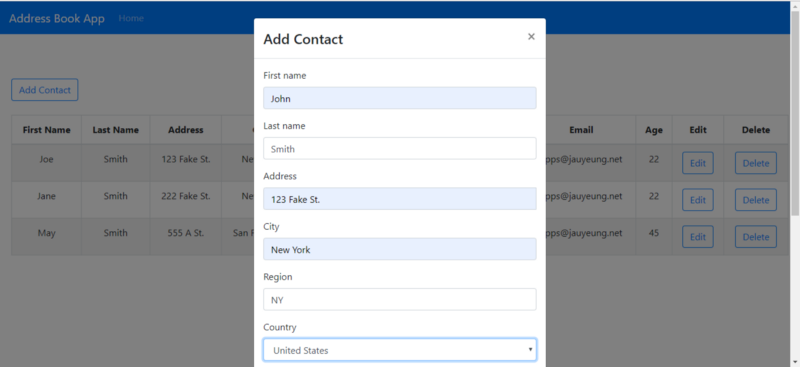
To start we need to run Create React App to scaffold the app. We run npx create-react-app address-book to create the app project folder with the initial files. The app will have a home page to display the contacts and let us open a modal to add a contact. There will be a table that displays all the contacts and Edit and Delete buttons on each row to edit or delete each contact. The contacts will store in a central Redux store to store the contacts in a central place, making them easy to access. React Router will be used for routing. Contacts will be saved in the back end spawned using the JSON server package, located at https://github.com/typicode/json-server.
For form validation, then you need to use a third party library. Formik and Yup work great together to allow us to take care of most form validation needs. Formik lets us build the forms and display the errors, and handle form value changes, which is another thing we have to do all my hand otherwise. Yup let us write a schema for validating our form fields. It can check almost anything, with common validation code like email and required fields available as built in functions. It can also check for fields that depend on other fields, like the postal code format depending on country. Bootstrap forms can be used seamlessly with Formik and Yup.
Once that is done, we have to install some libraries. To install the libraries we mentioned above, we run npm i axios bootstrap formik react-bootstrap mobx mobx-react react-router-dom yup . Axios is the HTTP client that we use for making HTTP requests to back end. react-router-dom is the package name for the latest version of React Router.
Now that we have all the libraries installed, we can start building the app. All files will be in the src folder except mentioned otherwise. First we work on the MobX store. We create a file called store.js in the src folder and add the following:
import { observable, action, decorate } from "mobx";

class ContactsStore {
  contacts = [];

  setContacts(contacts) {
    this.contacts = contacts;
  }
}

ContactsStore = decorate(ContactsStore, {
  contacts: observable,
  setContacts: action,
});

export { ContactsStore };
This is a simple store which stores the contacts the contacts array is where we store the contacts for the whole app. The setContacts function let us set contacts from any component where we pass in the this store object to.
This block:
ContactsStore = decorate(ContactsStore, {
  contacts: observable,
  setContacts: action,
});
designates the contacts array in ContactsStore as the entity that can be watched by components for changes. The setContacts is designated as the function that can be used to set the contacts array in the store.
In App.js , we replace what is existing with the following:
import React from "react";
import { Router, Route } from "react-router-dom";
import HomePage from "./HomePage";
import { createBrowserHistory as createHistory } from "history";
import Navbar from "react-bootstrap/Navbar";
import Nav from "react-bootstrap/Nav";
import "./App.css";
const history = createHistory();

function App({ contactsStore }) {
  return (
    <div className="App">
      <Router history={history}>
        <Navbar bg="primary" expand="lg" variant="dark">
          <Navbar.Brand href="#home">Address Book App</Navbar.Brand>
          <Navbar.Toggle aria-controls="basic-navbar-nav" />
          <Navbar.Collapse id="basic-navbar-nav">
            <Nav className="mr-auto">
              <Nav.Link href="/">Home</Nav.Link>
            </Nav>
          </Navbar.Collapse>
        </Navbar>
        <Route
          path="/"
          exact
          component={props => (
            <HomePage {...props} contactsStore={contactsStore} />
          )}
        />
      </Router>
    </div>
  );
}

export default App;
We pass the store into any component that needs it like the HomePage , which will pass the component to the ContactForm .
This is where we add the navigation bar and show our routes routed by the React Router. In App.css , we replace the existing code with:
.App {
  text-align: center;
}
This centers the text.
Next we build our contact form. This is the most logic heavy part of our app. We create a file called ContactForm.js and add:
import React from "react";
import { Formik } from "formik";
import Form from "react-bootstrap/Form";
import Col from "react-bootstrap/Col";
import InputGroup from "react-bootstrap/InputGroup";
import Button from "react-bootstrap/Button";
import * as yup from "yup";
import { COUNTRIES } from "./exports";
import PropTypes from "prop-types";
import { addContact, editContact, getContacts } from "./requests";

const schema = yup.object({
  firstName: yup.string().required("First name is required"),
  lastName: yup.string().required("Last name is required"),
  address: yup.string().required("Address is required"),
  city: yup.string().required("City is required"),
  region: yup.string().required("Region is required"),
  country: yup
    .string()
    .required("Country is required")
    .default("Afghanistan"),
  postalCode: yup
    .string()
    .when("country", {
      is: "United States",
      then: yup
        .string()
        .matches(/^[0-9]{5}(?:-[0-9]{4})?$/, "Invalid postal code"),
    })
    .when("country", {
      is: "Canada",
      then: yup
        .string()
        .matches(
          /^[A-Za-z]d[A-Za-z][ -]?d[A-Za-z]d$/,
          "Invalid postal code"
        ),
    })
    .required(),
  phone: yup
    .string()
    .when("country", {
      is: country => ["United States", "Canada"].includes(country),
      then: yup
        .string()
        .matches(/^[2-9]d{2}[2-9]d{2}d{4}$/, "Invalid phone nunber"),
    })
    .required(),
  email: yup
    .string()
    .email("Invalid email")
    .required("Email is required"),
  age: yup
    .number()
    .required("Age is required")
    .min(0, "Minimum age is 0")
    .max(200, "Maximum age is 200"),
});

function ContactForm({
  edit,
  onSave,
  contact,
  onCancelAdd,
  onCancelEdit,
  contactsStore,
}) {
  const handleSubmit = async evt => {
    const isValid = await schema.validate(evt);
    if (!isValid) {
      return;
    }
    if (!edit) {
      await addContact(evt);
    } else {
      await editContact(evt);
    }
    const response = await getContacts();
    contactsStore.setContacts(response.data);
    onSave();
  };

  return (
    <div className="form">
      <Formik
        validationSchema={schema}
        onSubmit={handleSubmit}
        initialValues={contact || {}}
      >
        {({
          handleSubmit,
          handleChange,
          handleBlur,
          values,
          touched,
          isInvalid,
          errors,
        }) => (
          <Form noValidate onSubmit={handleSubmit}>
            <Form.Row>
              <Form.Group as={Col} md="12" controlId="firstName">
                <Form.Label>First name</Form.Label>
                <Form.Control
                  type="text"
                  name="firstName"
                  placeholder="First Name"
                  value={values.firstName || ""}
                  onChange={handleChange}
                  isInvalid={touched.firstName && errors.firstName}
                />
                <Form.Control.Feedback type="invalid">
                  {errors.firstName}
                </Form.Control.Feedback>
              </Form.Group>
              <Form.Group as={Col} md="12" controlId="lastName">
                <Form.Label>Last name</Form.Label>
                <Form.Control
                  type="text"
                  name="lastName"
                  placeholder="Last Name"
                  value={values.lastName || ""}
                  onChange={handleChange}
                  isInvalid={touched.firstName && errors.lastName}
                />

                <Form.Control.Feedback type="invalid">
                  {errors.lastName}
                </Form.Control.Feedback>
              </Form.Group>
              <Form.Group as={Col} md="12" controlId="address">
                <Form.Label>Address</Form.Label>
                <InputGroup>
                  <Form.Control
                    type="text"
                    placeholder="Address"
                    aria-describedby="inputGroupPrepend"
                    name="address"
                    value={values.address || ""}
                    onChange={handleChange}
                    isInvalid={touched.address && errors.address}
                  />
                  <Form.Control.Feedback type="invalid">
                    {errors.address}
                  </Form.Control.Feedback>
                </InputGroup>
              </Form.Group>
            </Form.Row>
            <Form.Row>
              <Form.Group as={Col} md="12" controlId="city">
                <Form.Label>City</Form.Label>
                <Form.Control
                  type="text"
                  placeholder="City"
                  name="city"
                  value={values.city || ""}
                  onChange={handleChange}
                  isInvalid={touched.city && errors.city}
                />

                <Form.Control.Feedback type="invalid">
                  {errors.city}
                </Form.Control.Feedback>
              </Form.Group>
              <Form.Group as={Col} md="12" controlId="region">
                <Form.Label>Region</Form.Label>
                <Form.Control
                  type="text"
                  placeholder="Region"
                  name="region"
                  value={values.region || ""}
                  onChange={handleChange}
                  isInvalid={touched.region && errors.region}
                />
                <Form.Control.Feedback type="invalid">
                  {errors.region}
                </Form.Control.Feedback>
              </Form.Group>

              <Form.Group as={Col} md="12" controlId="country">
                <Form.Label>Country</Form.Label>
                <Form.Control
                  as="select"
                  placeholder="Country"
                  name="country"
                  onChange={handleChange}
                  value={values.country || ""}
                  isInvalid={touched.region && errors.country}
                >
                  {COUNTRIES.map(c => (
                    <option key={c} value={c}>
                      {c}
                    </option>
                  ))}
                </Form.Control>
                <Form.Control.Feedback type="invalid">
                  {errors.country}
                </Form.Control.Feedback>
              </Form.Group>

              <Form.Group as={Col} md="12" controlId="postalCode">
                <Form.Label>Postal Code</Form.Label>
                <Form.Control
                  type="text"
                  placeholder="Postal Code"
                  name="postalCode"
                  value={values.postalCode || ""}
                  onChange={handleChange}
                  isInvalid={touched.postalCode && errors.postalCode}
                />

                <Form.Control.Feedback type="invalid">
                  {errors.postalCode}
                </Form.Control.Feedback>
              </Form.Group>

              <Form.Group as={Col} md="12" controlId="phone">
                <Form.Label>Phone</Form.Label>
                <Form.Control
                  type="text"
                  placeholder="Phone"
                  name="phone"
                  value={values.phone || ""}
                  onChange={handleChange}
                  isInvalid={touched.phone && errors.phone}
                />

                <Form.Control.Feedback type="invalid">
                  {errors.phone}
                </Form.Control.Feedback>
              </Form.Group>

              <Form.Group as={Col} md="12" controlId="email">
                <Form.Label>Email</Form.Label>
                <Form.Control
                  type="text"
                  placeholder="Email"
                  name="email"
                  value={values.email || ""}
                  onChange={handleChange}
                  isInvalid={touched.email && errors.email}
                />

                <Form.Control.Feedback type="invalid">
                  {errors.email}
                </Form.Control.Feedback>
              </Form.Group>

              <Form.Group as={Col} md="12" controlId="age">
                <Form.Label>Age</Form.Label>
                <Form.Control
                  type="text"
                  placeholder="Age"
                  name="age"
                  value={values.age || ""}
                  onChange={handleChange}
                  isInvalid={touched.age && errors.age}
                />

                <Form.Control.Feedback type="invalid">
                  {errors.age}
                </Form.Control.Feedback>
              </Form.Group>
            </Form.Row>
            <Button type="submit" style={{ marginRight: "10px" }}>
              Save
            </Button>
            <Button type="button" onClick={edit ? onCancelEdit : onCancelAdd}>
              Cancel
            </Button>
          </Form>
        )}
      </Formik>
    </div>
  );
}

ContactForm.propTypes = {
  edit: PropTypes.bool,
  onSave: PropTypes.func,
  onCancelAdd: PropTypes.func,
  onCancelEdit: PropTypes.func,
  contact: PropTypes.object,
  contactsStore: PropTypes.object
};

export default ContactForm;
We pass in the contactsStore from the HomePage component, allowing us to use the data and functions in contactsStore.
For form validation, we use Formik to facilitate building our contact form here, with our Boostrap Form component nested in the Formik component so that we can use Formik’s handleChange, handleSubmit, values, touched, and errors parameters. handleChange is a function that let us update the form field data from the inputs without writing the code ourselves. handleSubmit is the function that we passed into the onSubmit handler of the Formik component. The parameter in the function is the data we entered, with the field name as the key, as defined by the name attribute of each field and the value of each field as the value of those keys. Notice that in each value prop, we have ||'' so we do not get undefined values and prevent uncontrolled form warnings from getting triggered.
To display form validation messages, we have to pass in the isInvalid prop to each Form.Control component. The schema object is what Formik will check against for form validation. The argument in the required function is the validation error message. The second argument of the matches , min and max functions are also validation messages.
The parameter of the ContactForm function are props, which we will pass in from the HomePage component that we will build later. The handleSubmit function checks if the data is valid, then if it is then it will proceed to saving according to whether it is adding or editing a contact. Then when saving is successful we set the contacts in the store and call onSave prop, which is a function to close the modal the form is in. The modal will be defined in the home page.
Next we create a file called exports.js , and put:
export const COUNTRIES = [
  "Afghanistan",
  "Albania",
  "Algeria",
  "Andorra",
  "Angola",
  "Anguilla",
  "Antigua & Barbuda",
  "Argentina",
  "Armenia",
  "Aruba",
  "Australia",
  "Austria",
  "Azerbaijan",
  "Bahamas",
  "Bahrain",
  "Bangladesh",
  "Barbados",
  "Belarus",
  "Belgium",
  "Belize",
  "Benin",
  "Bermuda",
  "Bhutan",
  "Bolivia",
  "Bosnia & Herzegovina",
  "Botswana",
  "Brazil",
  "British Virgin Islands",
  "Brunei",
  "Bulgaria",
  "Burkina Faso",
  "Burundi",
  "Cambodia",
  "Cameroon",
  "Canada",
  "Cape Verde",
  "Cayman Islands",
  "Chad",
  "Chile",
  "China",
  "Colombia",
  "Congo",
  "Cook Islands",
  "Costa Rica",
  "Cote D Ivoire",
  "Croatia",
  "Cruise Ship",
  "Cuba",
  "Cyprus",
  "Czech Republic",
  "Denmark",
  "Djibouti",
  "Dominica",
  "Dominican Republic",
  "Ecuador",
  "Egypt",
  "El Salvador",
  "Equatorial Guinea",
  "Estonia",
  "Ethiopia",
  "Falkland Islands",
  "Faroe Islands",
  "Fiji",
  "Finland",
  "France",
  "French Polynesia",
  "French West Indies",
  "Gabon",
  "Gambia",
  "Georgia",
  "Germany",
  "Ghana",
  "Gibraltar",
  "Greece",
  "Greenland",
  "Grenada",
  "Guam",
  "Guatemala",
  "Guernsey",
  "Guinea",
  "Guinea Bissau",
  "Guyana",
  "Haiti",
  "Honduras",
  "Hong Kong",
  "Hungary",
  "Iceland",
  "India",
  "Indonesia",
  "Iran",
  "Iraq",
  "Ireland",
  "Isle of Man",
  "Israel",
  "Italy",
  "Jamaica",
  "Japan",
  "Jersey",
  "Jordan",
  "Kazakhstan",
  "Kenya",
  "Kuwait",
  "Kyrgyz Republic",
  "Laos",
  "Latvia",
  "Lebanon",
  "Lesotho",
  "Liberia",
  "Libya",
  "Liechtenstein",
  "Lithuania",
  "Luxembourg",
  "Macau",
  "Macedonia",
  "Madagascar",
  "Malawi",
  "Malaysia",
  "Maldives",
  "Mali",
  "Malta",
  "Mauritania",
  "Mauritius",
  "Mexico",
  "Moldova",
  "Monaco",
  "Mongolia",
  "Montenegro",
  "Montserrat",
  "Morocco",
  "Mozambique",
  "Namibia",
  "Nepal",
  "Netherlands",
  "Netherlands Antilles",
  "New Caledonia",
  "New Zealand",
  "Nicaragua",
  "Niger",
  "Nigeria",
  "Norway",
  "Oman",
  "Pakistan",
  "Palestine",
  "Panama",
  "Papua New Guinea",
  "Paraguay",
  "Peru",
  "Philippines",
  "Poland",
  "Portugal",
  "Puerto Rico",
  "Qatar",
  "Reunion",
  "Romania",
  "Russia",
  "Rwanda",
  "Saint Pierre & Miquelon",
  "Samoa",
  "San Marino",
  "Satellite",
  "Saudi Arabia",
  "Senegal",
  "Serbia",
  "Seychelles",
  "Sierra Leone",
  "Singapore",
  "Slovakia",
  "Slovenia",
  "South Africa",
  "South Korea",
  "Spain",
  "Sri Lanka",
  "St Kitts & Nevis",
  "St Lucia",
  "St Vincent",
  "St. Lucia",
  "Sudan",
  "Suriname",
  "Swaziland",
  "Sweden",
  "Switzerland",
  "Syria",
  "Taiwan",
  "Tajikistan",
  "Tanzania",
  "Thailand",
  "Timor L'Este",
  "Togo",
  "Tonga",
  "Trinidad & Tobago",
  "Tunisia",
  "Turkey",
  "Turkmenistan",
  "Turks & Caicos",
  "Uganda",
  "Ukraine",
  "United Arab Emirates",
  "United Kingdom",
  "United States",
  "United States Minor Outlying Islands",
  "Uruguay",
  "Uzbekistan",
  "Venezuela",
  "Vietnam",
  "Virgin Islands (US)",
  "Yemen",
  "Zambia",
  "Zimbabwe",
];
These are countries for the countries field in the form.
In HomePage.js , we put:
import React from "react";
import { useState, useEffect } from "react";
import Table from "react-bootstrap/Table";
import ButtonToolbar from "react-bootstrap/ButtonToolbar";
import Button from "react-bootstrap/Button";
import Modal from "react-bootstrap/Modal";
import ContactForm from "./ContactForm";
import "./HomePage.css";
import { getContacts, deleteContact } from "./requests";
import { observer } from "mobx-react";

function HomePage({ contactsStore }) {
  const [openAddModal, setOpenAddModal] = useState(false);
  const [openEditModal, setOpenEditModal] = useState(false);
  const [initialized, setInitialized] = useState(false);
  const [selectedContact, setSelectedContact] = useState({});

const openModal = () => {
    setOpenAddModal(true);
  };

const closeModal = () => {
    setOpenAddModal(false);
    setOpenEditModal(false);
    getData();
  };

const cancelAddModal = () => {
    setOpenAddModal(false);
  };

const editContact = contact => {
    setSelectedContact(contact);
    setOpenEditModal(true);
  };

const cancelEditModal = () => {
    setOpenEditModal(false);
  };

const getData = async () => {
    const response = await getContacts();
    contactsStore.setContacts(response.data);
    setInitialized(true);
  };

const deleteSelectedContact = async id => {
    await deleteContact(id);
    getData();
  };

useEffect(() => {
    if (!initialized) {
      getData();
    }
  });

return (
    <div className="home-page">
      <h1>Contacts</h1>
      <Modal show={openAddModal} onHide={closeModal}>
        <Modal.Header closeButton>
          <Modal.Title>Add Contact</Modal.Title>
        </Modal.Header>
        <Modal.Body>
          <ContactForm
            edit={false}
            onSave={closeModal.bind(this)}
            onCancelAdd={cancelAddModal}
            contactsStore={contactsStore}
          />
        </Modal.Body>
      </Modal>

<Modal show={openEditModal} onHide={closeModal}>
        <Modal.Header closeButton>
          <Modal.Title>Edit Contact</Modal.Title>
        </Modal.Header>
        <Modal.Body>
          <ContactForm
            edit={true}
            onSave={closeModal.bind(this)}
            contact={selectedContact}
            onCancelEdit={cancelEditModal}
            contactsStore={contactsStore}
          />
        </Modal.Body>
      </Modal>
      <ButtonToolbar onClick={openModal}>
        <Button variant="outline-primary">Add Contact</Button>
      </ButtonToolbar>
      <br />
      <Table striped bordered hover>
        <thead>
          <tr>
            <th>First Name</th>
            <th>Last Name</th>
            <th>Address</th>
            <th>City</th>
            <th>Country</th>
            <th>Postal Code</th>
            <th>Phone</th>
            <th>Email</th>
            <th>Age</th>
            <th>Edit</th>
            <th>Delete</th>
          </tr>
        </thead>
        <tbody>
          {contactsStore.contacts.map(c => (
            <tr key={c.id}>
              <td>{c.firstName}</td>
              <td>{c.lastName}</td>
              <td>{c.address}</td>
              <td>{c.city}</td>
              <td>{c.country}</td>
              <td>{c.postalCode}</td>
              <td>{c.phone}</td>
              <td>{c.email}</td>
              <td>{c.age}</td>
              <td>
                <Button
                  variant="outline-primary"
                  onClick={editContact.bind(this, c)}
                >
                  Edit
                </Button>
              </td>
              <td>
                <Button
                  variant="outline-primary"
                  onClick={deleteSelectedContact.bind(this, c.id)}
                >
                  Delete
                </Button>
              </td>
            </tr>
          ))}
        </tbody>
      </Table>
    </div>
  );
}
export default observer(HomePage);
Notice that we have export default observer(HomePage); instead of export default HomePage; . We need to wrap HomePage by the observer function call so that the latest data from the store will be propagated into this component.
It has the table to display the contacts and buttons to add, edit, and delete a contact. It gets data once on the first load with the getData function called in the useEffect’s callback function. useEffect’s callback is called on every render so we want to set a initialized flag and check that it loads only if it’s true.
Note that we pass in all the props in this component to the ContactForm component. To pass an argument a onClick handler function, we have to call bind on the function and pass in the argument for the function as a second argument to bind. For example, in this file, we have editContact.bind(this, c), where c is the contact object. The editContact function is defined as follows:
const editContact = (contact) => {
    setSelectedContact(contact);
    setOpenEditModal(true);
  }
c is the contact parameter we pass in.
Next we create a file called HomePage.css and put:
.home-page {
  padding: 20px;
}
This adds padding to our home page.
In index.js, we replace the existing code with:
import React from "react";
import ReactDOM from "react-dom";
import "./index.css";
import App from "./App";
import * as serviceWorker from "./serviceWorker";
import { ContactsStore } from "./store";
const contactsStore = new ContactsStore();

ReactDOM.render(
  <App contactsStore={contactsStore} />,
  document.getElementById("root")
);

// If you want your app to work offline and load faster, you can change
// unregister() to register() below. Note this comes with some pitfalls.
// Learn more about service workers: [https://bit.ly/CRA-PWA](https://bit.ly/CRA-PWA)
serviceWorker.unregister();
Then we make a file called requests.js, and add:
const APIURL = '[http://localhost:3000'](http://localhost:3000%27);
const axios = require('axios');
export const getContacts = () => axios.get(`${APIURL}/contacts`);
export const addContact = (data) => axios.post(`${APIURL}/contacts`, data);
export const editContact = (data) => axios.put(`${APIURL}/contacts/${data.id}`, data);
export const deleteContact = (id) => axios.delete(`${APIURL}/contacts/${id}`);
These are functions are making our HTTP requests to the back end to save and delete contacts.
Finally, in public/index.html, we replace the existing code with:
<!DOCTYPE html>
<html lang="en">

<head>
  <meta charset="utf-8" />
  <link rel="shortcut icon" href="%PUBLIC_URL%/favicon.ico" />
  <meta name="viewport" content="width=device-width, initial-scale=1" />
  <meta name="theme-color" content="#000000" />
  <meta name="description" content="Web site created using create-react-app" />
  <link rel="apple-touch-icon" href="logo192.png" />
  <link rel="manifest" crossorigin="use-credentials" href="%PUBLIC_URL%/manifest.json" />

<!--
      manifest.json provides metadata used when your web app is installed on a
      user's mobile device or desktop. See [https://developers.google.com/web/fundamentals/web-app-manifest/](https://developers.google.com/web/fundamentals/web-app-manifest/)
    -->
  <!--
      Notice the use of %PUBLIC_URL% in the tags above.
      It will be replaced with the URL of the `public` folder during the build.
      Only files inside the `public` folder can be referenced from the HTML.

Unlike "/favicon.ico" or "favicon.ico", "%PUBLIC_URL%/favicon.ico" will
      work correctly both with client-side routing and a non-root public URL.
      Learn how to configure a non-root public URL by running `npm run build`.
    -->
  <title>React Address Book App</title>
  <link rel="stylesheet" href="https://maxcdn.bootstrapcdn.com/bootstrap/4.3.1/css/bootstrap.min.css"
    integrity="sha384-ggOyR0iXCbMQv3Xipma34MD+dH/1fQ784/j6cY/iJTQUOhcWr7x9JvoRxT2MZw1T" crossorigin="anonymous" />
</head>

<body>
  <noscript>You need to enable JavaScript to run this app.</noscript>
  <div id="root"></div>
  <!--
      This HTML file is a template.
      If you open it directly in the browser, you will see an empty page.

You can add webfonts, meta tags, or analytics to this file.
      The build step will place the bundled scripts into the <body> tag.

To begin the development, run `npm start` or `yarn start`.
      To create a production bundle, use `npm run build` or `yarn build`.
    -->
</body>

</html>
This changes the title and adds the Bootstrap stylesheet.
After writing all that code, we can run our app. Before running anything, install nodemon by running npm i -g nodemon so that we don’t have to restart back end ourselves when files change.
Then run back end by running npm start in the backend folder and npm start in the frontend folder, then choose ‘yes’ if you’re asked to run it from a different port.
At the end, we have the following: