Categories
GraphQL

An Introduction to GraphQL

GraphQL is a query language for our API and a server-side runtime for running queries by using a type system for our data.

In this article, we’ll look at how to make basic queries to a GraphQL API.

Defining the API

We define an API by defining the types and fields for those types and provide functions for each field on each type.

For example, if we have the following type:

type Query {
  person: Person
}

Then we have to create a function for the corresponding type to return the data:

function Query_person(request) {
  return request.person;
}

Making Queries

Once we have a GraphQL service running, we can send GraphQL queries to validate and execute on the server.

For example, we can make a query as follows:

{
  person {
    firstName
  }
}

Then we may get JSON like the following:

{
  "person": {
    "firstName": "Joe"
  }
}

Queries and Mutations

Queries are for getting data from the GraphQL server and mutations are used for manipulating data stored on the server.

For example, the following is a query to get a person’s name:

{
  person {
    name
  }
}

Then we may get the following JSON from the server:

{
  "data": {
    "person": {
      "name": "Joe"
    }
  }
}

The field name returns a String type.

We can change the query as we wish if we want to get more data. For example, if we write the following query:

{
  person {
    name
    friends {
      name
    }
  }
}

Then we may get something like the following as a response:

{
  "data": {
    "person": {
      "name": "Joe",
      "friends": [
        {
          "name": "Jane"
        },
        {
          "name": "John"
        }
      ]
    }
  }
}

The example above has friends being an array. They look the same from the query perspectively, but the server knows what to return based on the type specified.

Arguments

We can pass in arguments to queries and mutations. We can do a lot more with queries if we pass in arguments to it.

For example, we can pass in an argument as follows:

{
  person(id: "1000") {
    name
  }
}

Then we get something like:

{
  "data": {
    "person": {
      "name": "Luke"
    }
  }
}

from the server.

With GraphQL, we can pass in arguments to nested objects. For example, we can write:

{
  person(id: "1000") {
    name
    height(unit: METER)
  }
}

Then we may get the following response:

{
  "data": {
    "person": {
      "name": "Luke",
      "height": 1.9
    }
  }
}

In the example, the height field has a unit which is an enum type that represents a finite set of values.

unit may either be METER or FOOT.

Photo by Giorgio Tomassetti on Unsplash

Fragments

We can define fragments to let us reuse complex queries.

For example, we can define a fragment and use it as follows:

{
  leftComparison: person(episode: FOO) {
    ...comparisonFields
  }
  rightComparison: person(episode: BAR) {
    ...comparisonFields
  }
}
​
fragment comparisonFields on Character {
  name
  appearsIn
  friends {
    name
  }
}

In the code above, we defined the comparisonFields fragment which has the list of fields we want to include in each query.

Then we have the leftComparison and rightComparison queries which include the fields of the comparisonFields fragment by using the ... operator.

Then we get something like:

{
  "data": {
    "leftComparison": {
      "name": "Luke",
      "appearsIn": [
        "FOO",
        "BAR"
      ],
      "friends": [
        {
          "name": "Jane"
        },
        {
          "name": "John"
        }
      ]
    },
    "rightComparison": {
      "name": "Mary",
      "appearsIn": [
        "FOO",
        "BAR"
      ],
      "friends": [
        {
          "name": "Mary"
        },
        {
          "name": "Alex"
        }
      ]
    }
  }
}

Using variables inside fragments

We can pass in variables into fragments as follows:

query PersonComparison($first: Int = 3){
  leftComparison: person(episode: FOO) {
    ...comparisonFields
  }
  rightComparison: person(episode: BAR) {
    ...comparisonFields
  }
}
​
fragment comparisonFields on Character {
  name
  appearsIn
  friends(first: $first) {
    name
  }
}

Then we may get something like:

{
  "data": {
    "leftComparison": {
      "name": "Luke",
      "appearsIn": [
        "FOO",
        "BAR"
      ],
      "friends": [
        {
          "name": "Jane"
        },
        {
          "name": "John"
        }
      ]
    },
    "rightComparison": {
      "name": "Mary",
      "appearsIn": [
        "FOO",
        "BAR"
      ],
      "friends": [
        {
          "name": "Mary"
        },
        {
          "name": "Alex"
        }
      ]
    }
  }
}

as a response.

The operation type may either be a query, mutation, or subscription and describes what operator we’re intending to do. It’s required unless we’re using the query shorthand syntax. In that case, we can’t supply a name or variable definition for our operation.

The operation name is a meaningful and explicit name for our operation. It’s required in multi-operation documents. But its use is encouraged because it’s helpful for debugging and server-side logging.

It’s easy to identify the operation with a name.

Conclusion

GraphQL is a query language that lets us send requests to a server in a clear way. It works by sending nested objects with operation type and name along with any variables to the server.

Then the server will return us the response that we’re looking for.

Operation types include queries for getting data and mutations for making changes to data on the server.

Categories
GraphQL Vue

How To Use GraphQL APIs in Vue.js Apps

GraphQL is a query language made by Facebook for sending requests over the internet. It uses its own query but still sends data over HTTP. It uses one endpoint only for sending data.

The benefits of using GraphQL include being able to specify data types for the data fields you are sending and being able to specify the types of data fields that are returned.

The syntax is easy to understand, and it is simple. The data are still returned in JSON for easy access and manipulation. This is why GraphQL has been gaining traction in recent years.

GraphQL requests are still HTTP requests. However, you are always sending and getting data over one endpoint. Usually, this is the graphql endpoint. All requests are POST requests, no matter if you are getting, manipulating, or deleting data.

To distinguish between getting and manipulating data, GraphQL requests can be classified as queries and mutations. Below is one example of a GraphQL request:

{
  getPhotos(page: 1) {
    photos {
      id
      fileLocation
      description
      tags
    }
    page
    totalPhotos
  }
}

In this story, we will build a Vue.js app that uses the GraphQL Jobs API located at https://graphql.jobs /to display jobs data. To start building the app, we first install the Vue CLI by running npm i @vue/cli. We need the latest version of Node.js LTS installed. After that, we run vue create jobs-app to create new Vue.js project files for our app.

Then, we install some libraries we need for our app, which include a GraphQL client, Vue Material, and VeeValidate for form validation. We run:

npm i vue-apollo vue-material vee-validate@2.2.14 graphql-tag

This installs the packages. Vue Apollo is the GraphQL client, and graphQL-tag converts GraphQL query strings into queries that are usable by Vue Apollo.

Next, we are ready to write some code. First, we write some helper code for our components. We add a mixin for making the GraphQL queries to the Jobs API. Create a new folder called mixins, and add a file called jobMixins.js to it. Then in the file, we add:

import { gql } from "apollo-boost";

export const jobsMixin = {
  methods: {
    getJobs(type) {
      const getJobs = gql`
      query jobs(
          $input: JobsInput,
        ){
          jobs(
            input: $input
          ) {
            id,
            title,
            slug,
            commitment {
              id,
              title,
              slug
            },
            cities {
              name
            },
            countries {
              name
            },
            remotes {
              name
            },
            description,
            applyUrl,
            company {
              name
            }
          }
        }
      `;
      return this.$apollo.query({
        query: getJobs,
        variables: {
          type
        }
      });
    },

    getCompanies() {
      const getCompanies = gql`
      query companies{
          companies {
            id,
            name,
            slug,
            websiteUrl,
            logoUrl,
            twitter,
            jobs {
              id,
              title
            }
          }
        }
      `;
      return this.$apollo.query({
        query: getCompanies
      });
    }
  }
}

These functions will get the data we require from the GraphQL Jobs API. The gql in front of the string is a tag. A tag is an expression, which is usually a function that is run to map a string into something else.

In this case, it will map the GraphQL query string into a query object that can be used by the Apollo client.

this.$apollo is provided by the Vue Apollo library. It is available since we will include it in main.js.

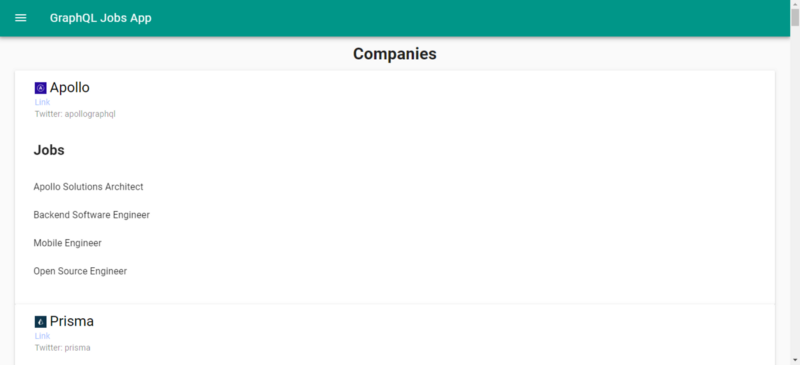
Next, in the view folder, we create a file called Companies.vue, and we add:

<template>
  <div class="home">
    <div class="center">
      <h1>Companies</h1>
    </div>
    <md-card md-with-hover v-for="c in companies" :key="c.id">
      <md-card-header>
        <div class="md-title">
          <img :src="c.logoUrl" class="logo" />
          {{c.name}}
        </div>
        <div class="md-subhead">
          <a :href="c.websiteUrl">Link</a>
        </div>
        <div class="md-subhead">Twitter: {{c.twitter}}</div>
      </md-card-header>

<md-card-content>
        <md-list>
          <md-list-item>
            <h2>Jobs</h2>
          </md-list-item>
          <md-list-item v-for="j in c.jobs" :key="j.id">{{j.title}}</md-list-item>
        </md-list>
      </md-card-content>
    </md-card>
  </div>
</template>

<script>
import { jobsMixin } from "../mixins/jobsMixin";
import { photosUrl } from "../helpers/exports";

export default {
  name: "home",
  mixins: [jobsMixin],
  computed: {
    isFormDirty() {
      return Object.keys(this.fields).some(key => this.fields[key].dirty);
    }
  },
  async beforeMount() {
    const response = await this.getCompanies();
    this.companies = response.data.companies;
  },
  data() {
    return {
      companies: []
    };
  },
  methods: {}
};
</script>

<style lang="scss" scoped>
.logo {
  width: 20px;
}

.md-card-header {
  padding: 5px 34px;
}
</style>

It uses the mixin function that we created to get the companies’ data and displays it to the user.

In Home.vue, we replace the existing code with the following:

<template>
  <div class="home">
    <div class="center">
      <h1>Home</h1>
    </div>
    <form [@submit](http://twitter.com/submit "Twitter profile for @submit")="search" novalidate>
      <md-field :class="{ 'md-invalid': errors.has('term') }">
        <label for="term">Search</label>
        <md-input type="text" name="term" v-model="searchData.type" v-validate="'required'"></md-input>
        <span class="md-error" v-if="errors.has('term')">{{errors.first('term')}}</span>
      </md-field>

      <md-button class="md-raised" type="submit">Search</md-button>
    </form>
    <br />
    <md-card md-with-hover v-for="j in jobs" :key="j.id">
      <md-card-header>
        <div class="md-title">{{j.title}}</div>
        <div class="md-subhead">{{j.company.name}}</div>
        <div class="md-subhead">{{j.commitment.title}}</div>
        <div class="md-subhead">Cities: {{j.cities.map(c=>c.name).join(', ')}}</div>
      </md-card-header>

      <md-card-content>
        <p>{{j.description}}</p>
      </md-card-content>

<md-card-actions>
        <md-button v-on:click.stop.prevent="goTo(j.applyUrl)">Apply</md-button>
      </md-card-actions>
    </md-card>
  </div>
</template>

<script>
import { jobsMixin } from "../mixins/jobsMixin";
import { photosUrl } from "../helpers/exports";

export default {
  name: "home",
  mixins: [jobsMixin],
  computed: {
    isFormDirty() {
      return Object.keys(this.fields).some(key => this.fields[key].dirty);
    }
  },
  beforeMount() {},
  data() {
    return {
      searchData: {
        type: ""
      },
      jobs: []
    };
  },
  methods: {
    async search(evt) {
      evt.preventDefault();
      if (!this.isFormDirty || this.errors.items.length > 0) {
        return;
      }
      const { type } = this.searchData;
      const response = await this.getJobs(this.searchData.type);
      this.jobs = response.data.jobs;
    },

    goTo(url) {
      window.open(url, "_blank");
    }
  }
};
</script>

<style lang="scss">
.md-card-header {
  .md-title {
    color: black !important;
  }
}

.md-card {
  width: 95vw;
  margin: 0 auto;
}
</style>

In the code above, we have a search form to let users search for jobs with the keyword they entered. The results are displayed in the card.

In App.vue, we replace the existing code with the following:

<template>
  <div id="app">
    <md-toolbar>
      <md-button class="md-icon-button" [@click](http://twitter.com/click "Twitter profile for @click")="showNavigation = true">
        <md-icon>menu</md-icon>
      </md-button>
      <h3 class="md-title">GraphQL Jobs App</h3>
    </md-toolbar>
    <md-drawer :md-active.sync="showNavigation" md-swipeable>
      <md-toolbar class="md-transparent" md-elevation="0">
        <span class="md-title">GraphQL Jobs App</span>
      </md-toolbar>

<md-list>
        <md-list-item>
          <router-link to="/">
            <span class="md-list-item-text">Home</span>
          </router-link>
        </md-list-item>

<md-list-item>
          <router-link to="/companies">
            <span class="md-list-item-text">Companies</span>
          </router-link>
        </md-list-item>
      </md-list>
    </md-drawer>

<router-view />
  </div>
</template>

<script>
export default {
  name: "app",
  data: () => {
    return {
      showNavigation: false
    };
  }
};
</script>

<style lang="scss">
.center {
  text-align: center;
}

form {
  width: 95vw;
  margin: 0 auto;
}

.md-toolbar.md-theme-default {
  background: #009688 !important;
  height: 60px;
}

.md-title,
.md-toolbar.md-theme-default .md-icon {
  color: #fff !important;
}
</style>

This adds a top bar and left menu to our app and allows us to toggle the menu. It also allows us to display the pages we created in the router-view element.

In main.js, we put:

import Vue from 'vue'
import App from './App.vue'
import router from './router'
import store from './store'
import VueMaterial from 'vue-material';
import VeeValidate from 'vee-validate';
import 'vue-material/dist/vue-material.min.css'
import 'vue-material/dist/theme/default.css'
import VueApollo from 'vue-apollo';
import ApolloClient from 'apollo-boost';

Vue.config.productionTip = false
Vue.use(VeeValidate);
Vue.use(VueMaterial);
Vue.use(VueApollo);

const client = new ApolloClient({
  uri: '[https://api.graphql.jobs'](https://api.graphql.jobs%27),
  request: operation => {
    operation.setContext({
      headers: {
        authorization: ''
      },
    });
  }
});

const apolloProvider = new VueApollo({
  defaultClient: client,
})

new Vue({
  router,
  store,
  apolloProvider,
  render: h => h(App)
}).$mount('#app')

This adds the libraries we use in the app (such as Vue Material) and adds the Apollo Client to our app so we can use them in our app.

The this.$apollo object is available in our components and mixins because we inserted apolloProvider in the object we use in the argument of new Vue.

In router.js, we put:

import Vue from 'vue'
import Router from 'vue-router'
import Home from './views/Home.vue'
import Companies from './views/Companies.vue'

Vue.use(Router)

export default new Router({
  mode: 'history',
  base: process.env.BASE_URL,
  routes: [
    {
      path: '/',
      name: 'home',
      component: Home
    },
    {
      path: '/companies',
      name: 'companies',
      component: Companies
    }
  ]
})

Now we can see the pages we created when we navigate to them.

Categories
React

React Tips — Component Organization and Web Components

React is the most used front end library for building modern, interactive front end web apps. It can also be used to build mobile apps. In this article, we’ll look at some tips and tricks to make building apps with React easier.

Keeping Components Small

Keeping components small making them easy to read, change, and test. They’re also easier to debug and maintain. It’s more than 30 lines of code, it’s probably too big.

We can easily split up components into smaller ones by passing props between them if they’re parent and child.

If they aren’t related, we can also use a state management solution like Redux or the context API.

They do less and so they’re more likely to be reused since they fit more use cases.

For example, the following is a small component:

import React from "react";

export default function App() { const [count, setCount] = React.useState(0); return ( <div className="App"> <button onClick={() => setCount(count + 1)}>Increment</button> <p>{count}</p> </div> ); }


It’s short and it doesn’t do much on its own.

### Avoid Components That are Too Small

Components that are too small are also a problem. We don’t want lots of components that are one or 2 lines. Also, we don’t want every div, span, or paragraph to be its own component.

We should make them reusable by letting them accept props. For instance, we shouldn’t have components that are like this everywhere in our app:

const Foo = <p>foo</p>;


### Using Web Components in React

We can put web components straight into React components and use them.

For instance, we can define a web component and then use it as follows:

import React from "react";

class FooParagraph extends HTMLElement {
  constructor() {
    super();
  }

connectedCallback() { const shadow = this.attachShadow({ mode: "open" }); const p = document.createElement("p"); p.setAttribute("class", "wrapper"); p.textContent = this.getAttribute("text"); shadow.appendChild(p); } }

customElements.define("foo-paragraph", FooParagraph);

export default function App() { return ( <div className="App"> <foo-paragraph text="abc" /> </div> ); }


In the code above, we have the `FooParagraph` web component class. Inside the class, we have the `connectedCallback` , which gets the attribute value for `text` and then add a p tag with the `text` ‘s value into the shadow DOM.

Then we call `customElements.define` to define a new web component. And then we put it straight into the `App` React component.

![](https://cdn-images-1.medium.com/max/800/0*GGc2W5L_iWcQ4e1R)Photo by [Lydia Torrey](https://unsplash.com/@soulsaperture?utm_source=medium&utm_medium=referral) on [Unsplash](https://unsplash.com?utm_source=medium&utm_medium=referral)

### Using React in Our Web Components

We can also create web components with React by mounting our React component inside a web component as follows:

`src/index.js` :

import React from "react"; import ReactDOM from "react-dom";

class XParagraph extends HTMLElement {
  connectedCallback() {
    const mountPoint = document.createElement("div");
    this.attachShadow({ mode: "open" }).appendChild(mountPoint);
const text = this.getAttribute("text");
ReactDOM.render(<p>{text}</p>, mountPoint);

} } customElements.define("x-paragraph", XParagraph);


`index.html` :

<!DOCTYPE html> <html> <head> <title>App</title> <meta charset="UTF-8" /> </head>

  <body>
    <div id="app"></div>
    <x-paragraph text="foo"></x-paragraph>
    <script src="src/index.js"></script>
  </body>
</html>
```

The code above are parts of a project that’s created with Parcel. Therefore, we can use modules in a script.

We have a `XParagraph` web component that has the `ReactDOM.render` call to render a p React element with the `text` attribute’s value taken from the attribute of the web component.

Then we defined the web component with `customElements.define` with the name of the element as the first argument, and the `HTMLElement` class as the second argument.

In `index.html` , we added the `x-paragraph` web component with the `text` attribute set to `foo` , so that we display the text content inside the element by calling `this.getAttribute('text')` and then passing in the returned value to `ReactDOM.render` .

Therefore, we see the word ‘foo’ on the screen.

### Conclusion

To make development, testing, and reading the code easy, we should keep components small. Around 30 lines or less is a good size.

However, they shouldn’t be too small, like 1 or 2 lines, since we would have to manage too many of them. That’s even worse if they don’t take any props. To make sure that they’re reusable, we should make sure that they take props if they share any data.

React components can be embedded into web components to create easily reusable web components with React.

Also, we can embed web components in a React component so that we can take advantage of standards-compliant custom HTML elements that we can use anywhere.
Categories
Angular Web Components

Creating Web Components with Angular

Angular is a popular front-end framework made by Google. Like other popular front-end frameworks, it uses a component-based architecture to structure apps.

In this article, we’ll look at how to create Angular Elements, which are packaged as Web Components.

Angular Elements

Web Components are supported by most browsers like Chrome, Firefox, Opera or Safari.

We can transform Angular components to Web Components to make all the Angular infrastructure available to the browser.

Features like data-binding and other Angular functionalities are mapped to their HTML equivalents.

Creating and Using Custom Elements

We can create a Web Component by creating an Angular component, then building it into a Web Component.

To create a Web Component with Angular, we have to do a few things.

First, we create a component to build into Web Components. Then we have to set the component we created as the entry point.

Then we can add it to the DOM.

We’ll make a custom component to get a joke. To do this, we first run:

ng g component customJoke
ng g service joke

to create our component and service to get our joke and display it.

Then we run:

ng add @angular/element

to add the Angular Element files to create our Web Component.

Then injoke.service.ts , we add:

import { Injectable } from '@angular/core';

@Injectable({
  providedIn: 'root'
})
export class JokeService {

  constructor() { }

  async getJokeById(id: number) {
    const response = await fetch(`http://api.icndb.com/jokes/${id}`)
    const joke = await response.json();
    return joke;
  }
}

The code above gets a joke from the Chuck Norris API by ID.

Next, we write our component code as follows:

app.module.ts :

import { BrowserModule } from '@angular/platform-browser';
import { NgModule, Injector } from '@angular/core';
import { AppComponent } from './app.component';
import { CustomJokeComponent } from './custom-joke/custom-joke.component';
import { JokeService } from './joke.service';

@NgModule({
  declarations: [
    CustomJokeComponent,
    AppComponent
  ],
  imports: [
    BrowserModule,
  ],
  providers: [JokeService],
  bootstrap: [AppComponent],
  entryComponents: [CustomJokeComponent]
})
export class AppModule {

}

In AppModule , we add CustomJokeComponent to entryComponents so that it’ll be the entry point component instead of AppComponent .

It’ll load when custom-joke element is created.

app.component.ts :

import { Component, Injector } from '@angular/core';
import { createCustomElement, WithProperties, NgElement } from '@angular/elements';
import { CustomJokeComponent } from './custom-joke/custom-joke.component';

@Component({
  selector: 'app-root',
  template: ''
})
export class AppComponent {
  constructor(injector: Injector) {
    const JokeElement = createCustomElement(CustomJokeComponent, { injector });
    customElements.define('custom-joke', JokeElement);
    this.showAsElement(20);
  }

  showAsElement(id: number) {
    const jokeEl: WithProperties<CustomJokeComponent> = document.createElement('custom-joke') as any;
    jokeEl.id = id;
    document.body.appendChild(jokeEl as any);
  }
}

The code in the constructor creates the custom component and attaches it to the DOM with our showAsElement method.

createCustomElement is from our @angular/element code.

The showAsElement method loads our custom-joke Web Component that we defined earlier.

custom-joke.component.ts :

import { Component, OnInit, ViewEncapsulation, Input } from '@angular/core';
import { JokeService } from '../joke.service';

@Component({
  selector: 'custom-joke',
  template: `<p>{{joke?.value?.joke}}</p>`,
  styles: [`p { font-size: 20px }`],
  encapsulation: ViewEncapsulation.Native
})
export class CustomJokeComponent implements OnInit {
  @Input() id: number = 1;
  joke: any = {};

  constructor(private jokeService: JokeService) { }

  async ngOnInit() {
    this.joke = await this.jokeService.getJokeById(this.id)
  }

}

We put everything in one file so they can all be included in our custom-joke Web Component.

The @Input will be converted to an attribute that we can pass a number into and get the joke by its ID.

We leave custom-joke.component.html and app.component.html blank.

Conclusion

We use the @angular/element package to create a Web Component that we can use.

The difference is that we include the template and styles inline.

Also, we have to register the component and attach it to the DOM.

Categories
Angular TypeScript

How to Build a Barcode Scanner App That Gets Prices From eBay

eBay has a free API for accessing their listing data, and HTML has a camera API for getting images from a camera via a web page. This means that we can create apps that scan barcodes from your web app, get the code, and send it to the eBay API for querying.

In this story, we will build a PHP app for querying the eBay API, and then we will build a web app for getting the barcode and sending it to our API. The back end is simple. It is just a script for getting data from the eBay API via the ISBN code. Create a folder for the back-end app and put in the following:

<?php
use SymfonyComponentHttpFoundationRequest;
use SymfonyComponentHttpFoundationResponse;
use GuzzleHttpClient;

$ebay = $app['controllers_factory'];
$ebayAppId = $_ENV['EBAY_APP_ID'];
$client = new Client([
    'base_uri' => '[http://svcs.ebay.com'](http://svcs.ebay.com%27)
]);

$ebay->get('/find-by-code/{code}/{page}', function ($code, $page) use ($app, $client, $ebayAppId) {
    if (strlen($code) == 10 || strlen($code) == 13){
        $type = 'ISBN';
    }
    else if (strlen($code) == 12){
        $type = 'UPC';
    }
    else{
        return $app->json(['error' => 'invalid code'], 400);
    }

    if (!is_int(intval($page)) || $page <= 0){
        return $app->json(['error' => 'invalid page'], 400);
    }

$response = $client->request('GET', "/services/search/FindingService/v1?OPERATION-NAME=findItemsByProduct&SERVICE-VERSION=1.0.0&SECURITY-APPNAME=$ebayAppId&RESPONSE-DATA-FORMAT=JSON&REST-PAYLOAD&paginationInput.entriesPerPage=10&productId.[@type](http://twitter.com/type "Twitter profile for @type")=$type&productId=$code&paginationInput.pageNumber=$page");
    return $app->json(json_decode($response->getBody(), true));
});

return $ebay;

We call that ebay.php. The function ($code, $page) use ($app, $client, $ebayAppId) part allows the route to access outside variables since the callback is in a different scope that the outside variables.

Then in index.php, we put

<?php
require_once 'vendor/autoload.php';

$app = new SilexApplication();
$dotenv = new DotenvDotenv('.');
$dotenv->load();
$app->register(new JDesrosiersSilexProviderCorsServiceProvider(), [
    "cors.allowOrigin" => "*",
]);

$app['debug']= true;

$app->get('/hello/{name}', function($name) use($app) {
    return 'Hello '.$app->escape($name);
});

$app->mount('/ebay', include 'ebay.php');
$app["cors-enabled"]($app);
$app->run();

so that we can access our routes.

In composer.json, we put

{
    "require": {
        "silex/silex": "^2.0",
        "vlucas/phpdotenv": "^2.4",
        "jdesrosiers/silex-cors-provider": "~1.0",
        "guzzlehttp/guzzle": "~6.0"
    }
}

so we can run composer install to install our dependencies if Composer is installed.

Now that we have the back end done. We can do the front end. The app is going to be built with Angular. We scaffold the app with the Angular CLI. We run ng new frontend to scaffold the app.

The only things different from our typical apps is that HTTPS is required to access the camera, so we have to generate our own HTTPS certificate for our development server. We should have theserver.crt and server.key file in the same folder as the front-end app files.

The serve section of our angular.json should have:

"serve": {
  "builder": "[@angular](http://twitter.com/angular "Twitter profile for @angular")-devkit/build-angular:dev-server",
  "options": {
    "browserTarget": "frontend:build",
    "sslKey": "server.key",
    "sslCert": "server.cert"
  },
  "configurations": {
    "production": {
      "browserTarget": "frontend:build:production"
    },
    "mobile": {
      "browserTarget": "frontend:build:mobile"
    }
  }
},

where

"sslKey": "server.key",
"sslCert": "server.cert"

should be referencing the path of your certificates.

Then to run the Angular CLI development server, we run:

ng serve --ssl

When you go to https://localhost:4200, you will see an insecure connection error in most browsers. Click proceed to continue.

If your camera is on your Android device, we can debug remotely. In Chrome, press F12 to open the console, click on the top-right menu with the three vertical dots. Then click Remote Devices, connect your Android device to your computer, and enable remote debugging according to the instructions.

Instead of running ng serve --ssl, you run ng serve --ssl --host 0.0.0.0

Once all that is done, you should see the following:
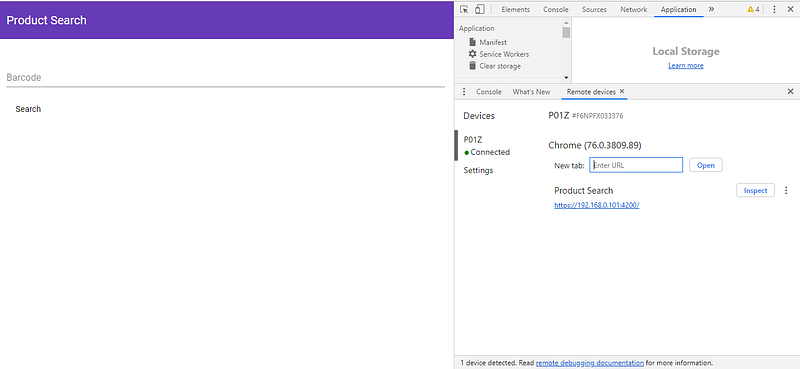
once the app is built.

We install a library for accessing the device’s camera and our flux store by running:

npm i @zxing/ngx-scanner @ngrx/store @angular/material @angular/cdk

In app.module.ts, we put:

import { BrowserModule } from '@angular/platform-browser';
import { NgModule } from '@angular/core';
import { ZXingScannerModule } from '@zxing/ngx-scanner';
import { BrowserAnimationsModule } from '@angular/platform-browser/animations';
import { MatToolbarModule } from '@angular/material/toolbar';
import { MatInputModule } from '@angular/material/input';
import { MatButtonModule } from '@angular/material/button';
import { MatTabsModule } from '@angular/material/tabs';
import { MatCardModule } from '@angular/material/card';
import { HttpClientModule } from '@angular/common/http';
import { MatPaginatorModule } from '@angular/material/paginator';
import { MatTableModule } from '@angular/material/table';
import { MatSelectModule } from '@angular/material/select';

import { AppRoutingModule } from './app-routing.module';
import { AppComponent } from './app.component';
import { HomePageComponent } from './home-page/home-page.component';
import { StoreModule } from '[@ngrx/store](http://twitter.com/ngrx/store "Twitter profile for @ngrx/store")';
import { barCodeReducer } from './bar-code-reducer';
import { FormsModule } from '@angular/forms';
import { EbayTabComponent } from './ebay-tab/ebay-tab.component';

@NgModule({
  declarations: [
    AppComponent,
    HomePageComponent,
    EbayTabComponent
  ],
  imports: [
    BrowserModule,
    AppRoutingModule,
    ZXingScannerModule,
    BrowserAnimationsModule,
    MatButtonModule,
    MatToolbarModule,
    MatInputModule,
    MatTabsModule,
    StoreModule.forRoot({ barCode: barCodeReducer }),
    FormsModule,
    MatCardModule,
    HttpClientModule,
    MatPaginatorModule,
    MatTableModule,
    MatSelectModule
  ],
  providers: [],
  bootstrap: [AppComponent]
})
export class AppModule { }

This incorporates the Angular Material components and our flux store.

Now we have to make a centralized store for our data. We create a file called bar-code-reducer.ts and add the following:

export const SET_BARCODE = 'SET_BARCODE';

export function barCodeReducer(state: string = '', action) {
    switch (action.type) {
        case SET_BARCODE:
            return action.payload;
        default:
            return state;
    }
}

Now we can add our front-end components. We run:

ng g component ebayTab
ng g component homePage

This adds the page to display our barcode scanner and a section to display our eBay data.

Next, we create a service to create our HTTP request by running:

ng g service productSearch

After that, we should have produce-search.service.ts. We put the following in there:

import { Injectable } from '@angular/core';
import { HttpClient } from '@angular/common/http';
import { environment } from 'src/environments/environment';

@Injectable({
  providedIn: 'root'
})
export class ProductSearchService {

  constructor(
    private http: HttpClient
  ) { }

  searchProduct(barcode: string, currentPage: number) {
    return this.http.get(`${environment.apiUrl}/ebay/find-by-code/${barcode}/${currentPage}`)
  }
}

In ebay-tab.component.ts, we put:

import { Component, OnInit } from '@angular/core';
import { Store, select } from '@ngrx/store';
import { Observable } from 'rxjs';
import { ProductSearchService } from '../product-search.service';
import { ConstantPool } from '@angular/compiler';

@Component({
  selector: 'app-ebay-tab',
  templateUrl: './ebay-tab.component.html',
  styleUrls: ['./ebay-tab.component.css']
})
export class EbayTabComponent implements OnInit {

barcode$: Observable<string>;
  barcodeValue: string;
  products: any[] = [];
  totalPages: number = 0;
  totalEntries: number = 0;
  entriesPerPage: number = 0;
  currentPage: number = 1;
  displayedColumns: string[] = [
    'itemId',
    'title',
    'location',
    'country',
    'shippingServiceCost',
    'currentPrice',
    'convertedCurrentPrice',
    'bestOfferEnabled',
    'buyItNowAvailable',
    'listingType'
  ];

constructor(
    private store: Store<any>,
    private productSearchService: ProductSearchService
  ) {
    this.barcode$ = store.pipe(select('barCode'))
    this.barcode$.subscribe(barcode => {
      this.barcodeValue = barcode;
      this.products = [];
      this.searchProduct(this.barcodeValue, this.currentPage);
    }, err => {

})
  }

  ngOnInit() {
  }

  searchProduct(barcodeValue, currentPage) {
    this.productSearchService.searchProduct(barcodeValue, currentPage)
      .subscribe((res: any) => {
        try {
          this.products = res.findItemsByProductResponse[0].searchResult[0].item as any[];
          this.products = this.products.map(p => {
            let shippingServiceCost = p.shippingInfo[0].shippingServiceCost;
            let sellingStatus = p.sellingStatus;
            return {
              itemId: p.itemId,
              title: p.title,
              country: p.country,
              location: p.location,
              shippingServiceCost: Array.isArray(shippingServiceCost) ? `${shippingServiceCost[0]['__value__']} ${shippingServiceCost[0]['@currencyId`]} : '',
              currentPrice: Array.isArray(sellingStatus) ? `${sellingStatus[0].currentPrice[0]['__value__']} ${sellingStatus[0].currentPrice[0]['@currencyId']}` : '',
              convertedCurrentPrice: Array.isArray(sellingStatus) ? `${sellingStatus[0].convertedCurrentPrice[0]['__value__']} ${sellingStatus[0].convertedCurrentPrice[0]['@currencyId']}` : '',
              bestOfferEnabled: p.listingInfo[0].bestOfferEnabled[0],
              buyItNowAvailable: p.listingInfo[0].buyItNowAvailable[0],
              listingType: p.listingInfo[0].listingType[0]
            }
          })
          this.totalPages = res.findItemsByProductResponse[0].paginationOutput[0].totalPages[0];
          this.totalEntries = res.findItemsByProductResponse[0].paginationOutput[0].totalEntries[0];
          this.entriesPerPage = res.findItemsByProductResponse[0].paginationOutput[0].entriesPerPage[0];
        }
        catch (ex) {
          this.products = [];
        }
      }, err => {
        this.products = [];
      })
  }

getProducts(event) {
    this.currentPage = event.pageIndex + 1;
    this.searchProduct(this.barcodeValue, this.currentPage);
  }
}

And in ebay-tab.component.html, we have:

<div *ngIf='products.length > 0'>
  <table mat-table [dataSource]="products" class="mat-elevation-z8">
    <ng-container matColumnDef="itemId">
      <th mat-header-cell *matHeaderCellDef> Item ID </th>
      <td mat-cell *matCellDef="let element"> {{element.itemId}} </td>
    </ng-container>

    <ng-container matColumnDef="title">
      <th mat-header-cell *matHeaderCellDef> Title </th>
      <td mat-cell *matCellDef="let element"> {{element.title}} </td>
    </ng-container>

    <ng-container matColumnDef="location">
      <th mat-header-cell *matHeaderCellDef> Location </th>
      <td mat-cell *matCellDef="let element"> {{element.location}} </td>
    </ng-container>

    <ng-container matColumnDef="country">
      <th mat-header-cell *matHeaderCellDef> Country </th>
      <td mat-cell *matCellDef="let element"> {{element.country}} </td>
    </ng-container>

    <ng-container matColumnDef="shippingServiceCost">
      <th mat-header-cell *matHeaderCellDef> Shipping Cost </th>
      <td mat-cell *matCellDef="let element"> {{element.shippingServiceCost}} </td>
    </ng-container>

    <ng-container matColumnDef="currentPrice">
      <th mat-header-cell *matHeaderCellDef> Current Price </th>
      <td mat-cell *matCellDef="let element"> {{element.currentPrice}} </td>
    </ng-container>

    <ng-container matColumnDef="convertedCurrentPrice">
      <th mat-header-cell *matHeaderCellDef> Converted Current Price </th>
      <td mat-cell *matCellDef="let element"> {{element.convertedCurrentPrice}} </td>
    </ng-container>

    <ng-container matColumnDef="bestOfferEnabled">
      <th mat-header-cell *matHeaderCellDef> Best Offer Enabled </th>
      <td mat-cell *matCellDef="let element"> {{element.bestOfferEnabled}} </td>
    </ng-container>

    <ng-container matColumnDef="buyItNowAvailable">
      <th mat-header-cell *matHeaderCellDef> Buy It Now </th>
      <td mat-cell *matCellDef="let element"> {{element.buyItNowAvailable}} </td>
    </ng-container>

    <ng-container matColumnDef="listingType">
      <th mat-header-cell *matHeaderCellDef> Listing Type </th>
      <td mat-cell *matCellDef="let element"> {{element.listingType}} </td>
    </ng-container>

    <tr mat-header-row *matHeaderRowDef="displayedColumns"></tr>
    <tr mat-row *matRowDef="let row; columns: displayedColumns;"></tr>
  </table>

<mat-paginator [length]="totalEntries" [pageSize]="entriesPerPage" (page)='getProducts($event)'>
  </mat-paginator>
</div>
<div *ngIf='products.length == 0' class="center">
  <h1>No Results</h1>
</div>

In home-page.component.ts, we put:

import { Component, OnInit, ViewChild } from '@angular/cor';
import { Store } from '@ngrx/store';
import { Observable } from 'rxjs';
import { SET_BARCODE } from '../bar-code-reducer';
import { NgForm } from '@angular/forms")';
import { BarcodeFormat } from '@zxing/library';
import { ZXingScannerComponent } from '@zxing/ngx-scanner';

@Component({
  selector: 'app-home-page',
  templateUrl: './home-page.component.html',
  styleUrls: ['./home-page.component.css']
})
export class HomePageComponent implements OnInit {

  barcodeValue: number;
  webCamAvailable: boolean = true;
  barcode$: Observable<string>;
  searching: boolean = false;
  allowedFormats = [
    BarcodeFormat.QR_CODE,
    BarcodeFormat.EAN_13,
    BarcodeFormat.CODE_128,
    BarcodeFormat.DATA_MATRIX,
    BarcodeFormat.UPC_A,
    BarcodeFormat.UPC_E,
    BarcodeFormat.UPC_EAN_EXTENSION,
    BarcodeFormat.CODABAR,
    BarcodeFormat.CODE_39,
    BarcodeFormat.CODE_93
  ];
  hasCameras = false;
  hasPermission: boolean;
  qrResultString: string;

  availableDevices: MediaDeviceInfo[];
  selectedDevice: MediaDeviceInfo;
  [@ViewChild](http://twitter.com/ViewChild "Twitter profile for @ViewChild")('scanner')
  scanner: ZXingScannerComponent;

  constructor(
    private store: Store<any>
  ) {

  }

  ngOnInit() {
    this.scanner.camerasFound.subscribe((devices: MediaDeviceInfo[]) => {
      this.hasCameras = true;
      this.availableDevices = devices;

});

    this.scanner.permissionResponse.subscribe((answer: boolean) => {
      this.hasPermission = answer;
    });
  }

  onValueChanges(result) {
    this.barcodeValue = result.codeResult.code;
    this.searching = true;
    this.store.dispatch({ type: SET_BARCODE, payload: this.barcodeValue });
  }

  searchProduct(barCodeForm: NgForm) {
    this.searching = false;
    if (barCodeForm.invalid) {
      return;
    }
    this.searching = true;
    this.store.dispatch({ type: SET_BARCODE, payload: this.barcodeValue });
  }

  scanSuccessHandler(event) {
    console.log(event);
    this.barcodeValue = event;
    this.store.dispatch({ type: SET_BARCODE, payload: this.barcodeValue });
  }

  onDeviceSelectChange(selectedValue: string) {
    this.selectedDevice = this.scanner.getDeviceById(selectedValue);
  }

  scanErrorHandler(event) {
    console.log(event);
  }

  scanFailureHandler(event) {
    console.log(event);
  }

  scanCompleteHandler(event) {
    console.log(event);
    this.barcodeValue = event.text;
    this.store.dispatch({ type: SET_BARCODE, payload: this.barcodeValue });
  }
}

In addition to scanning, you can also enter the barcode manually. If a camera is present, you should see a preview box. After scanning, we get the barcode value and propagate that to the ebay-tab component that we created via the flux store.