Categories
JavaScript Nodejs

How to Use NPM to Manage JavaScript Dependencies

NPM is the most popular package manager for Node.js. It is often used for installing and uninstalling packages. but can also be used for running custom scripts and performing other operations to packages.

The most common operations for developers are installation, clean up, removing duplicates, and running scripts.

npm install

npm install , or npm i for short, is used to install packages. If you don’t put a package name after install, it downloads all the packages listed in package.json if the dependencies aren’t installed yet or the version installed is outdated. If you put a package name after npm install, it will install the package with that name as long as it finds the package. During the installation process, npm will run npm run link and npm run build to compile the packages. You can install packages globally by running npm install -g packageName

npm audit

npm audit is used for running a security audit of the npm packages you installed. It will display the results of the audit in various formats. You can also fix any security vulnerabilities with npm audit fix. To do a dry run, you can do npm audit fix --dry-run .

Both the audit and fix can be displayed in JSON by including --json to the command, such as npm audit --json and npm audit fix --json.

Example output:

=== npm audit security report ===
# Run  npm update set-value --depth 12  to resolve 66 vulnerabilities
High            Prototype Pollution
Package         set-value
Dependency of   @angular-devkit/build-angular [dev]
Path            @angular-devkit/build-angular > sass > chokidar > anymatch >
                  micromatch > braces > snapdragon > base > cache-base >
                  set-value
More info       https://npmjs.com/advisories/1012
High            Prototype Pollution
Package         set-value
Dependency of   @angular-devkit/build-angular [dev]
Path            @angular-devkit/build-angular > webpack > watchpack >
                  chokidar > anymatch > micromatch > braces > snapdragon >
                  base > cache-base > set-value
More info       https://npmjs.com/advisories/1012
High            Prototype Pollution
Package         set-value
Dependency of   @angular-devkit/build-angular [dev]
Path            @angular-devkit/build-angular > webpack-dev-server >
                  chokidar > anymatch > micromatch > braces > snapdragon >
                  base > cache-base > set-value
More info       https://npmjs.com/advisories/1012
High            Prototype Pollution
Package         set-value
Dependency of   @angular/compiler-cli [dev]
Path            @angular/compiler-cli > chokidar > anymatch > micromatch >
                  braces > snapdragon > base > cache-base > set-value
More info       https://npmjs.com/advisories/1012
...

npm bin

npm bin prints the folder where packages are installed.

Example output:

c:\math-calculator>npm bin  
c:\math-calculator\node\_modules\.bin

npm ci

npm ci is used to install all packages from scratch from package-lock.json. If there are any discrepancies between package.json and package-lock.json, it will fail. node_modules will be deleted and everything will be installed from scratch.

You can tab completion to npm by including npm completion in your ~/.bashrc or ~/.zshrc.

npm-config

npm-config is used for saving configuration key-value pairs to npmrc . To set a key-value pair in npmrc, we put:

npm config set key value

To get a value from the key, we run:

npm config get key

We can list all values by running:

npm config list

We can delete the key-value pair by running:

npm config delete key

and we can edit the key-value pair by running:

npm config edit

You can append — global to the above commands to change global config.

npm dedupe

npm dedupe will remove duplicate dependencies from your node_modules folder by moving the dependencies up the dependency tree, allowing common dependencies for multiple packages to reference one dependency.

npm doctor

npm doctor runs checks to make sure your environment has everything to manage Git packages. It checks if Node.js and Git can be run. It also checks if the primary npm registry or an alternative is accessible. node_modules is checked if it can be accessed and is writable, and it checks if the npm cache exists and there are no corrupt packages:

Example output of npm doctor:

npm notice PING https://registry.npmjs.org/
npm WARN verifyCachedFiles Content garbage-collected: 1328 (139761056 bytes)
npm WARN verifyCachedFiles Missing content: 5
npm WARN verifyCachedFiles Cache issues have been fixed
Check                               Value                             Recommendation
npm ping                            OK
npm -v                              v6.9.0                            Use npm v6.10.3
node -v                             v10.16.0                          Use node v10.16.2
npm config get registry             https://registry.npmjs.org/
which git                           C:\Program Files\Git\cmd\git.EXE
Perms check on cached files         ok
Perms check on global node_modules  ok
Perms check on local node_modules   ok
Verify cache contents               verified 8899 tarballs

npm explore

npm explore is used when you need to browse for an installed package. Once you’re in the package directory, you can run commands there.

npm help

npm help-search and npm help commands are used to find help with npm commands.

npm init

npm init is used for adding package.json to a project if it doesn’t already exist. npm init -y is used for skipping all the questions asked before creating the file.

npm outdated

npm outdated is used for checking for outdated packages.

Example output:

Package                            Current   Wanted   Latest  Location
@angular-devkit/build-angular      0.800.3  0.800.6  0.802.1  math-calculator
@angular/animations                  8.0.2    8.2.1    8.2.1  math-calculator
@angular/cdk                         8.0.1    8.1.2    8.1.2  math-calculator
@angular/cli                         8.0.3    8.0.6    8.2.1  math-calculator
@angular/common                      8.0.2    8.0.3    8.2.1  math-calculator
@angular/compiler                    8.0.2    8.0.3    8.2.1  math-calculator
@angular/compiler-cli                8.0.2    8.0.3    8.2.1  math-calculator
@angular/core                        8.0.2    8.0.3    8.2.1  math-calculator
@angular/forms                       8.0.2    8.0.3    8.2.1  math-calculator
@angular/language-service            8.0.2    8.0.3    8.2.1  math-calculator
@angular/material                    8.0.1    8.1.2    8.1.2  math-calculator
@angular/platform-browser            8.0.2    8.0.3    8.2.1  math-calculator
@angular/platform-browser-dynamic    8.0.2    8.0.3    8.2.1  math-calculator
@angular/router                      8.0.2    8.0.3    8.2.1  math-calculator
@ngrx/store                          8.0.1    8.2.0    8.2.0  math-calculator
@types/jasmine                      3.3.13   3.3.16    3.4.0  math-calculator
@types/node                          8.9.5    8.9.5   12.7.1  math-calculator
karma                                4.1.0    4.1.0    4.2.0  math-calculator
karma-chrome-launcher                2.2.0    2.2.0    3.0.0  math-calculator
karma-coverage-istanbul-reporter     2.0.5    2.0.6    2.1.0  math-calculator
mathjs                               6.0.2    6.0.4    6.0.4  math-calculator
rxjs                                 6.4.0    6.4.0    6.5.2  math-calculator
ts-node                              7.0.1    7.0.1    8.3.0  math-calculator
tslint                              5.15.0   5.15.0   5.18.0  math-calculator
typescript                           3.4.5    3.4.5    3.5.3  math-calculator
zone.js                              0.9.1    0.9.1   0.10.1  math-calculator

npm ls

npm ls lists installed packages in the current project. npm list and npm la are aliases of this command.

npm prune

npm prune removes unused packages. npm run --production is used to delete packages from the devDependencies section. The --dry-run option is used for checking which packages will be deleted before the actual run. The --json option can be used to display results in JSON. With package-lock enabled, pruning is automatic.

npm root

npm root displays the root folder for Node packages in the project.

npm run

npm run-script lets you run custom scripts that you write. npm run is an alias of this command.

npm start

npm start starts a package by running the command you define.

npm search

npm search is used to search for packages by name.

npm shrinkwrap

npm shrinkwrap creates npm-shrinkwrap.json by repurposing package-lock.json or creating from scratch. npm-shrinkwrap.json takes precedence over package-lock.json .

npm stop

npm stop stops a package by running stop command that you define.

npm test

npm test allows you to run tests with a script that you define.

npm uninstall

npm uninstall is used for uninstalling packages. You can add -g at the end to remove global packages.

npm update

npm updateupdates packages in the project. npm update packageName updates only the package with the name packageName . It will record the latest version to package-lock.json .

To upgrade npm to the latest version, run npm install -g npm.

Categories
JavaScript Vue

Adding Form Validation with vue-form-generator

Creating forms with validation can be a pain in a Vue.js project.

Therefore, solutions exists to let us create forms easily.

One of them if the vue-form-generator package.

To use it, we install the package by running:

npm install vue-form-generator

Then we can use it by including the library in our app:

main.js

import Vue from "vue";
import App from "./App.vue";
import VueFormGenerator from "vue-form-generator";
import "vue-form-generator/dist/vfg.css";

Vue.use(VueFormGenerator);
Vue.config.productionTip = false;

new Vue({
  render: h => h(App)
}).$mount("#app");

We include the CSS file that comes with the package.

Also, we call Vue.use with the package name to include the package.

Then we in App.vue, we write:

<template>
  <div id="app">
    <vue-form-generator :schema="schema" :model="model" :options="formOptions"></vue-form-generator>
    <p>{{model}}</p>
  </div>
</template>

<script>
import VueFormGenerator from "vue-form-generator";
VueFormGenerator.validators.email = value => {
  if (!/\S+@\S+\.\S+/.test(value)) {
    return ["invalid email"];
  } else {
    return [];
  }
};

export default {
  name: "App",
  data() {
    return {
      model: {
        id: 1,
        name: "jane smith",
        skills: ["Javascript"],
        email: "janesmith@example.com",
        status: true
      },
      schema: {
        fields: [
          {
            type: "input",
            inputType: "text",
            label: "ID ",
            model: "id",
            readonly: true,
            disabled: true
          },
          {
            type: "input",
            inputType: "text",
            label: "Name",
            model: "name",
            placeholder: "name",
            featured: true,
            required: true
          },
          {
            type: "select",
            label: "Skills",
            model: "skills",
            values: ["Javascript", "VueJS", "CSS3", "HTML5"]
          },
          {
            type: "input",
            inputType: "email",
            label: "E-mail",
            model: "email",
            placeholder: "e-mail address",
            validator: VueFormGenerator.validators.email
          },
          {
            type: "checkbox",
            label: "Status",
            model: "status",
            default: true
          }
        ]
      },
      formOptions: {
        validateAfterLoad: true,
        validateAfterChanged: true,
        validateAsync: true
      }
    };
  }
};
</script>

We import the vue-form-generator package’s VueFormGenerator component, then we add our own validator function by writing:

VueFormGenerator.validators.email = value => {
  if (!/\S+@\S+\.\S+/.test(value)) {
    return ["invalid email"];
  } else {
    return [];
  }
};

We just check if what we entered matched the email format and return an array with our form validation error message if it doesn’t.

Otherwise, we return an empty array, which indicates that what we entered is valid.

Then in our data method, we return:

{
  model: {
    id: 1,
    name: "jane smith",
    skills: ["Javascript"],
    email: "janesmith@example.com",
    status: true
  },
  schema: {
    fields: [{
        type: "input",
        inputType: "text",
        label: "ID ",
        model: "id",
        readonly: true,
        disabled: true
      },
      {
        type: "input",
        inputType: "text",
        label: "Name",
        model: "name",
        placeholder: "name",
        featured: true,
        required: true
      },
      {
        type: "select",
        label: "Skills",
        model: "skills",
        values: ["Javascript", "VueJS", "CSS3", "HTML5"]
      },
      {
        type: "input",
        inputType: "email",
        label: "E-mail",
        model: "email",
        placeholder: "e-mail address",
        validator: VueFormGenerator.validators.email
      },
      {
        type: "checkbox",
        label: "Status",
        model: "status",
        default: true
      }
    ]
  },
  formOptions: {
    validateAfterLoad: true,
    validateAfterChanged: true,
    validateAsync: true
  }
};

We use the validator function we created as the value of the validator property.

The schema property is used to define the form field behavior with various properties.

The model property will be the value that’s populated when we enter something into the form.

formOptions includes form options for changing validation behavior. We specified that we want to validate after the form is loaded or changed, and do both asynchronously

In the template, we have the vue-form-generator component, with the schema and model returned in the object returned by the data method.

In the end, we get:

https://thewebdev.info/wp-content/uploads/2020/05/form.png

It’s easy to create a form with validation with the vue-form-generator package.

All we have to do is to pass in some objects as props into the vue-form-generator component including the models and form field options and then we’re set.

Categories
JavaScript React

Create Good Looking Charts with the React Chartkick NPM Package

To create charts in React apps, wd can use the React Chartkick NPM package.

We can get started easily.

Create Charts

We run the following commands to install the packages we need:

yarn add react-chartkick chart.js

Chart.js is a dependency required for React Chartkick, so we have to install it.

Then we can create our chart as follows:

import React from "react";
import { LineChart } from "react-chartkick";
import "chart.js";

const data = { "2020-01-01": 11, "2020-01-02": 6, "2020-01-03": 10 };
export default function App() {
  return (
    <div className="App">
      <LineChart data={data} />
    </div>
  );
}

We just create an object with the x-axis labels as the keys and the corresponding values for the y-axis.

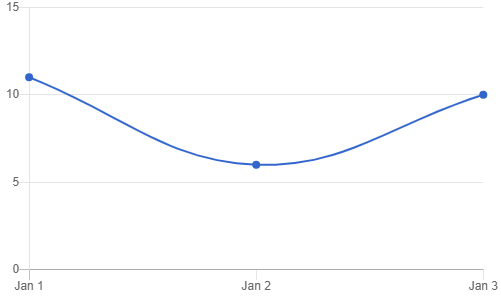
Once we did that, we get:

https://thewebdev.info/wp-content/uploads/2020/05/linechart.png

To create a bar chart, we can write:

import React from "react";
import { BarChart } from "react-chartkick";
import "chart.js";

const data = [["eat", 32], ["drink", 100]];
export default function App() {
  return (
    <div className="App">
      <BarChart data={data} />
    </div>
  );
}

The data structure and component to import are different, but we can create one without much effort.

Once we wrote the code above, we get:

https://thewebdev.info/wp-content/uploads/2020/05/barchart.png

The React Chartkick package support many other kinds of charts like pie charts, area charts, geo charts, and more.

Options

We can customize the options of the charts to suit our needs.

For instance, we can set the min and max values for the x-axis.

We can use the xmin and xmax props as follows:

import React from "react";
import { LineChart } from "react-chartkick";
import "chart.js";

const data = { "2020-01-01": 11, "2020-01-02": 6, "2020-01-03": 10 };

export default function App() {
  return (
    <div className="App">
      <LineChart data={data} xmin="2020-01-01" xmax="2020-01-03" />
    </div>
  );
}

We make sure that our data matches the x-axis ranges.

Likewise, we can set the range for the y-axis by writing:

import React from "react";
import { LineChart } from "react-chartkick";
import "chart.js";

const data = { "2020-01-01": 11, "2020-01-02": 6, "2020-01-03": 10 };

export default function App() {
  return (
    <div className="App">
      <LineChart
        data={data}
        min={0}
        max={20}
        xmin="2020-01-01"
        xmax="2020-01-03"
      />
    </div>
  );
}

To change the color of the line, we can use the colors prop:

import React from "react";
import { LineChart } from "react-chartkick";
import "chart.js";

const data = { "2020-01-01": 11, "2020-01-02": 6, "2020-01-03": 10 };

export default function App() {
  return (
    <div className="App">
      <LineChart data={data} colors={["green"]} />
    </div>
  );
}

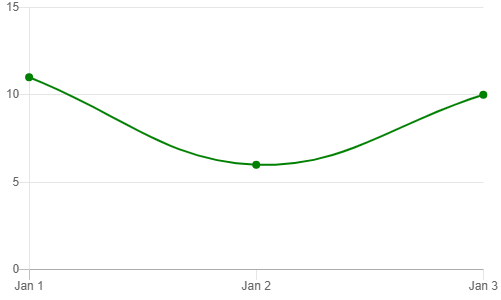
We just pass in an array to change the line color.

One we wrote our code, we get:

https://thewebdev.info/wp-content/uploads/2020/05/green.png

Labels and Legends

The React Chartkick NPM package provides with props to enable a legend.

We set the legend prop to true to display a legend.

Then we use the label prop to add text to the legend.

To set the titles for the x and y axes, we can use the xtitle and ytitle props respectively.

For instance, we can write:

import React from "react";
import { LineChart } from "react-chartkick";
import "chart.js";

const data = { "2020-01-01": 11, "2020-01-02": 6, "2020-01-03": 10 };

export default function App() {
  return (
    <div className="App">
      <LineChart
        data={data}
        label="Population"
        legend={true}
        xtitle="Time"
        ytitle="Population"
      />
    </div>
  );
}

Once we did that, we get:

https://thewebdev.info/wp-content/uploads/2020/05/labels.png

The React Chartkick NPM package has chart components that take many more props to let us create charts.

It’s one of the easiest libraries for us to create charts in React apps.

Categories
JavaScript Nodejs

Add Logging to a Koa App with koa-logger

Koa doesn’t come with any logger built-in. Therefore, to see what’s happening with our app, we’ve to log them with a 3rd party logger.

One logger that’s compatible with the Koa framework is the koa-logger package.

Getting Started

To install it, we just run:

npm install koa-logger

and then we can use it by writing:

const logger = require('koa-logger')
const Koa = require('koa')

const app = new Koa()
app.use(logger())

app.use(async ctx => {
  ctx.body = 'Hello World';
});

app.listen(3000);

All we did is to call use with the return value of the logger middleware passed in, then we get logging automatically.

Now when we start our app, we some output logged.

If we run the code above, we get the following output:

Server {
  insecureHTTPParser: undefined,
  _events: [Object: null prototype] {
    request: [Function: handleRequest],
    connection: [Function: connectionListener]
  },
  _eventsCount: 2,
  _maxListeners: undefined,
  _connections: 0,
  _handle: TCP {
    reading: false,
    onconnection: [Function: onconnection],
    [Symbol(owner)]: [Circular]
  },
  _usingWorkers: false,
  _workers: [],
  _unref: false,
Hint: hit control+c anytime to enter REPL.
Server {
  insecureHTTPParser: undefined,
  _events: [Object: null prototype] {
    request: [Function: handleRequest],
    connection: [Function: connectionListener]
  },
  _eventsCount: 2,
  _maxListeners: undefined,
  _connections: 0,
  _handle: TCP {
    reading: false,
    onconnection: [Function: onconnection],
    [Symbol(owner)]: [Circular]
  },
  _usingWorkers: false,
  _workers: [],
  _unref: false,
  allowHalfOpen: true,
  pauseOnConnect: false,
  httpAllowHalfOpen: false,
  timeout: 120000,
  keepAliveTimeout: 5000,
  maxHeadersCount: null,
  headersTimeout: 40000,
  _connectionKey: '6::::3000',
  [Symbol(IncomingMessage)]: [Function: IncomingMessage],
  [Symbol(ServerResponse)]: [Function: ServerResponse],
  [Symbol(kCapture)]: false,
  [Symbol(asyncId)]: 6
}
  <-- GET / [
Hint: hit control+c anytime to enter REPL.
Server {
  insecureHTTPParser: undefined,
  _events: [Object: null prototype] {
    request: [Function: handleRequest],
    connection: [Function: connectionListener]
  },
  _eventsCount: 2,
  _maxListeners: undefined,
  _connections: 0,
  _handle: TCP {
    reading: false,
    onconnection: [Function: onconnection],
    [Symbol(owner)]: [Circular]
  },
  _usingWorkers: false,
  _workers: [],
  _unref: false,
  allowHalfOpen: true,
  pauseOnConnect: false,
  httpAllowHalfOpen: false,
  timeout: 120000,
  keepAliveTimeout: 5000,
  maxHeadersCount: null,
  headersTimeout: 40000,
  _connectionKey: '6::::3000',
  [Symbol(IncomingMessage)]: [Function: IncomingMessage],
  [Symbol(ServerResponse)]: [Function: ServerResponse],
  [Symbol(kCapture)]: false,
  [Symbol(asyncId)]: 6
}
  <-- GET /
  --> GET / 200 8ms 11b

Custom Logging

The logger middleware function can take an optional callback as an argument.

The callback has the str parameter with the logging output as a string.

args has extra information about the request that’s made, including response time and the size of the response.

We can customize the logging by writing:

const logger = require('koa-logger')
const Koa = require('koa')

const app = new Koa()
app.use(logger((str, args) => {
  console.log(str, args);
}))

app.use(async ctx => {
  ctx.body = 'Hello World';
});

app.listen(3000);

We have the callback:

(str, args) => {
  console.log(str, args);
}

Instead of nothing that we have in the previous example.

The result of this change is the following output:

Server {
  insecureHTTPParser: undefined,
  _events: [Object: null prototype] {
    request: [Function: handleRequest],
    connection: [Function: connectionListener]
  },
  _eventsCount: 2,
  _maxListeners: undefined,
  _connections: 0,
  _handle: TCP {
    reading: false,
    onconnection: [Function: onconnection],
    [Symbol(owner)]: [Circular]
  },
  _usingWorkers: false,
  _workers: [],
  _unref: false,
  allowHalfOpen: true,
  pauseOnConnect: false,
  httpAllowHalfOpen: false,
  timeout: 120000,
  keepAliveTimeout: 5000,
  maxHeadersCount: null,
  headersTimeout: 40000,
  _connectionKey: '6::::3000',
  [Symbol(IncomingMessage)]: [Function: IncomingMessage],
  [Symbol(ServerResponse)]: [Function: ServerResponse],
  [Symbol(kCapture)]: false,
  [Symbol(asyncId)]: 6
}
  <-- GET / [
  '  \u001b[90m<--\u001b[39m \u001b[1m%s\u001b[22m \u001b[90m%s\u001b[39m',
  'GET',
  '/'
]
  --> GET / 200 13ms 11b [
  '  \u001b[90m-->\u001b[39m \u001b[1m%s\u001b[22m \u001b[90m%s\u001b[39m \u001b[32m%s\u001b[39m \u001b[90m%s\u001b[39m \u001b[90m%s\u001b[39m',
  'GET',
  '/',
  200,
  '13ms',
  '11b'
]

We get extra information from the args object.

Alternatively, we can pass in an object with the transporter property to logger:

app.use(logger({
  transporter: (str, args) => {
    // ...
  }
}))

We can add logging to a Koa app with the koa-logger package, which is very simple to use.

With this, we don’t have to create our own logging solution.

Categories
JavaScript React

Set the Default Checked Value of a React Radio Button

To create a radio button group with React and set the default checked value of it, we have to set the value to the state that we want.

Then we’ve to set the checked prop to be the expression to compare the value of the radio button with the currently selected value.

This way, React will check the right one.

We also need an onChange handler to update the state to the right value.

To do all that, we write:

import React, { useState } from "react";

const fruits = ["orange", "apple", "grape"];

export default function App() {
  const [fruit, setFruit] = useState("apple");
  return (
    <div className="App">
      {fruits.map(f => (
        <>
          <input
            type="radio"
            name="fruit"
            value={f}
            checked={fruit === f}
            onChange={e => setFruit(e.currentTarget.value)}
          />{" "}
          {f}
        </>
      ))}
      <p>{fruit}</p>
    </div>
  );
}

We have the fruits array, which we use to map the values to radio buttons.

Radio buttons are input elements with type 'radio'.

The name attribute also have to be set to the same name so that we know that they’re in the same group.

The value attribute is set to the fruit state, so that we can update the checked value by comparison fruit with the value of the value attribute of the radio button.

We have:

onChange={e => setFruit(e.currentTarget.value)}

which gets the e.currentTarget.value property, which has the currently checked radio buttons’ value and set it as the value of the fruit state.

This will update the radio button when we click on it.

Then we display the value of the radio button that’s checked below so that we can see what we actually selected.

To set the default value, we just set the initial value of the fruit state since we used that as the value of the value prop.

The button that’s clicked should have the same value that’s displayed.

To set the default value of a React radio button element, we just have to set the value prop to the state value that we want.