Categories
TypeScript Best Practices

TypeScript Best Practices — Type Assertions and Type Annotations

TypeScript is an easy to learn extension of JavaScript. It’s easy to write programs that run and does something. However, it’s hard to account for all the uses cases and write robust TypeScript code.

In this article, we’ll look at the best practices to following when writing code with TypeScript, including type assertions and having explicit type annotations.

Enforce Consistent Usage of Type Assertions

Type assertion styles should be consistent across our project.

Type assertions are also referred to as data type casting in TypeScript.

However, they’re technically different.

We can either use the as keyword or <> to add type assertions to our values.

For instance, we can either stick with:

let x = "foo" as string;

or:

let x = <string>"foo";

const is also allowed with the rule. It’s available since TypeScript 3.4 and it allows us to make something read-only.

For instance, we can write:

let x = "foo" as const;

or:

let x = <const>"foo";

Consistent Type Definitions with interface or type

In TypeScript, we can define interfaces for annotating types.

Also, we can create type alias with the type keyword to do the same thing.

It’s a good idea to be consistent with what we use when we define types.

For instance, we can either stick with interfaces:

interface Foo {
  a: string;
  b: number;
}

or type aliases:

type Foo = {
  a: string;
  b: number;
};

Require Explicit Return Types on Functions and Class Methods

It’s a good idea to add return type annotations for functions and class methods.

This way, we know what each function or method returns.

For instance, instead of writing:

function foo() {
  return 'bar';
}

We can write:

function foo: string() {
  return 'bar';
}

Likewise, with class methods, instead of writing:

class Foo{
  method() {
    return 'bar';
  }
}

We write:

class Foo{
  method(): string {
    return 'bar';
  }
}

If our method returns nothing, we use the void return type:

function foo(): void {
  return;
}

or:

class Foo{
  method(): void {
    return;
  }
}

Require Explicit Accessibility Modifiers on Class Properties and Methods

If we leave out the accessibility modifiers in classes, then it may be hard for people to understand whether a class property or method is accessible or not.

By default, if we leave them out, the class member is public.

So we may also want to restrict access to some members in most cases.

Therefore, we should include them.

So instead of writing:

class Foo {
  foo() {
    console.log("foo");
  }

  bar() {
    //...
  }
}

We may want to restrict access to some members by writing:

class Foo {
  foo() {
    console.log("foo");
  }

  private bar() {
    //...
  }
}

This way, the TypeScript compiler will give us an error if we try to compile it.

Access modifiers include public , private , readonly and protected .

A public member is available to everything.

A private member is only available within the class.

A readonly member is public but it’s read-only.

A protected member is only available within the class or any child class.

Require Explicit Return and Argument Types on Exported Functions and Classes’ Public Class Methods

To make working with functions and public methods of classes easier, we should add explicit argument and return types so that we can get autocomplete and errors when we work with them.

For instance, instead of writing:

export function test() {
  return;
}

We write:

export function test(): void {
  return;
}

And instead of writing:

class Foo {
  method() {
    return;
  }
}

We write:

export class Foo {
  method(): void {
    return;
  }
}

Likewise, with argument types, we write:

export class Foo {
  method(foo: string): string {
    return foo;
  }
}

and:

export function test(foo: string): string{
  return foo;
}

Now we don’t have to guess or look up the types of exported classes and functions.

Conclusion

We should annotate return and argument types so don’t have to look up the types of functions and class methods that are exported.

Consistent usage of type assertions notation may also be a good idea.

Also, it may be a good idea to have consistent usage of interface or type to create new types.

Categories
TypeScript Best Practices

TypeScript Best Practices — Classes, Types, and Overloads

TypeScript is an easy to learn extension of JavaScript. It’s easy to write programs that run and does something. However, it’s hard to account for all the uses cases and write robust TypeScript code.

In this article, we’ll look at the best practices to following when writing code with TypeScript, including member overloads, class instance variables, and restricting types.

Member Overloads Should be Consecutive

If we have member overloads, then they should be consecutive so that we can spot them easily.

For instance, instead of writing:

declare namespace Foo {

export function foo(s: string): void;

export function foo(n: number): void;

export function bar(): void;

export function foo(sn: string | number): void;

}

We write:

declare namespace Foo {
  export function foo(s: string): void;
  export function foo(n: number): void;
  export function foo(sn: string | number): void;
  export function bar(): void;
}

This also applies to interfaces, classes, type aliases, and exports.

We should write:

interface Foo {
  foo(s: string): void;
  foo(n: number): void;
  foo(sn: string | number): void;
  bar(): void;
}

or:

class Foo {
  foo(s: string): void;
  foo(n: number): void;
  foo(sn: string | number): void {}
  bar(): void {}
}

or:

export function foo(s: string): void;
export function foo(n: number): void;
export function foo(sn: string | number): void;
export function bar(): void;

Use [] or Array<T> for Arrays

To restrict the types of arrays, we can use T[] or Array<T> to restrict the types that an array can hold.

For instance, instead of writing:

const arr = [1, 2, 3];

We write:

const arr: Array<number> = [1, 2, 3];

or:

const arr: number[] = [1, 2, 3];

So that arr can only hold numbers.

If we want our array to be read-only, we can write:

const arr: ReadonlyArray<number> = [1, 2, 3];

No Awaiting Something that’s Not Then-able

If something doesn’t have a then method, then we shouldn’t put await before it.

Usually, await should be used for promises rather than any object that has a then method.

For instance, instead of writing:

const foo = async () => await "value";

We should write:

const foo = async () => {
  await Promise.resolve(1);
};

No Comments With Prefix @ts Should be Used

@ts is used to suppress TypeScript compiler errors.

Therefore, we probably shouldn’t use them since they may lead to errors later.

Instead of writing:

// @ts-nocheck

We don’t write any comment that starts with @ts .

Prevent Specific Types from Being Used

We may want to prevent some types to be used.

For instance, we may want to prevent String from being used instead of string .

We can do that in our tsconfig.json , by writing:

{
  "@typescript-eslint/ban-types": ["error", {
    "types": {
      "String": {
        "message": "Use string instead",
        "fixWith": "string"
      },"{}": {
        "message": "Use object instead",
        "fixWith": "object"
      }
    }
  }]
}

The config above prevents String from being used and if it’s used, the compiler will show the message ‘Use string instead’ and won’t compile.

We did the same thing with the {} type.

Class Literals Should be Exposed in a Consistent Style

We should have a consistent style when exposing class members to the outside.

There are a few styles that we can adopt.

We can use the ‘fields’ style as follows:

class Foo {
  public readonly foo = 1;
  public readonly bar = [1, 2, 3];
  private readonly ['baz'] = 'hello';

  public get qux() {
    return `qux ${foo + 1}`;
  }
}

If we have the ‘fields’ style, then we don’t have getters for our instance variables if they have read-only values.

Alternatively, we can use the ‘getters’ style by writing:

class Foo {
  public readonly foo = 1;
  public readonly bar = [1, 2, 3];
  public static get baz() {
    return 1;
  }

  private get qux() {
    return 'qux';
  }
}

We have getters for any code that isn’t defined as read-only.

We can take our pick, but it’s a good idea to be consistent.

Conclusion

We can restrict types of array entries by specifying the types that we want the array to be.

Also, we can restrict types for the whole project by changing the configuration of our project.

We can also restrict that overloads of the same function be placed together.

Finally, we can stick to one style of declaring class instance variables.

Categories
Angular TypeScript

How to Build a Barcode Scanner App That Gets Prices From eBay

eBay has a free API for accessing their listing data, and HTML has a camera API for getting images from a camera via a web page. This means that we can create apps that scan barcodes from your web app, get the code, and send it to the eBay API for querying.

In this story, we will build a PHP app for querying the eBay API, and then we will build a web app for getting the barcode and sending it to our API. The back end is simple. It is just a script for getting data from the eBay API via the ISBN code. Create a folder for the back-end app and put in the following:

<?php
use SymfonyComponentHttpFoundationRequest;
use SymfonyComponentHttpFoundationResponse;
use GuzzleHttpClient;

$ebay = $app['controllers_factory'];
$ebayAppId = $_ENV['EBAY_APP_ID'];
$client = new Client([
    'base_uri' => '[http://svcs.ebay.com'](http://svcs.ebay.com%27)
]);

$ebay->get('/find-by-code/{code}/{page}', function ($code, $page) use ($app, $client, $ebayAppId) {
    if (strlen($code) == 10 || strlen($code) == 13){
        $type = 'ISBN';
    }
    else if (strlen($code) == 12){
        $type = 'UPC';
    }
    else{
        return $app->json(['error' => 'invalid code'], 400);
    }

    if (!is_int(intval($page)) || $page <= 0){
        return $app->json(['error' => 'invalid page'], 400);
    }

$response = $client->request('GET', "/services/search/FindingService/v1?OPERATION-NAME=findItemsByProduct&SERVICE-VERSION=1.0.0&SECURITY-APPNAME=$ebayAppId&RESPONSE-DATA-FORMAT=JSON&REST-PAYLOAD&paginationInput.entriesPerPage=10&productId.[@type](http://twitter.com/type "Twitter profile for @type")=$type&productId=$code&paginationInput.pageNumber=$page");
    return $app->json(json_decode($response->getBody(), true));
});

return $ebay;

We call that ebay.php. The function ($code, $page) use ($app, $client, $ebayAppId) part allows the route to access outside variables since the callback is in a different scope that the outside variables.

Then in index.php, we put

<?php
require_once 'vendor/autoload.php';

$app = new SilexApplication();
$dotenv = new DotenvDotenv('.');
$dotenv->load();
$app->register(new JDesrosiersSilexProviderCorsServiceProvider(), [
    "cors.allowOrigin" => "*",
]);

$app['debug']= true;

$app->get('/hello/{name}', function($name) use($app) {
    return 'Hello '.$app->escape($name);
});

$app->mount('/ebay', include 'ebay.php');
$app["cors-enabled"]($app);
$app->run();

so that we can access our routes.

In composer.json, we put

{
    "require": {
        "silex/silex": "^2.0",
        "vlucas/phpdotenv": "^2.4",
        "jdesrosiers/silex-cors-provider": "~1.0",
        "guzzlehttp/guzzle": "~6.0"
    }
}

so we can run composer install to install our dependencies if Composer is installed.

Now that we have the back end done. We can do the front end. The app is going to be built with Angular. We scaffold the app with the Angular CLI. We run ng new frontend to scaffold the app.

The only things different from our typical apps is that HTTPS is required to access the camera, so we have to generate our own HTTPS certificate for our development server. We should have theserver.crt and server.key file in the same folder as the front-end app files.

The serve section of our angular.json should have:

"serve": {
  "builder": "[@angular](http://twitter.com/angular "Twitter profile for @angular")-devkit/build-angular:dev-server",
  "options": {
    "browserTarget": "frontend:build",
    "sslKey": "server.key",
    "sslCert": "server.cert"
  },
  "configurations": {
    "production": {
      "browserTarget": "frontend:build:production"
    },
    "mobile": {
      "browserTarget": "frontend:build:mobile"
    }
  }
},

where

"sslKey": "server.key",
"sslCert": "server.cert"

should be referencing the path of your certificates.

Then to run the Angular CLI development server, we run:

ng serve --ssl

When you go to https://localhost:4200, you will see an insecure connection error in most browsers. Click proceed to continue.

If your camera is on your Android device, we can debug remotely. In Chrome, press F12 to open the console, click on the top-right menu with the three vertical dots. Then click Remote Devices, connect your Android device to your computer, and enable remote debugging according to the instructions.

Instead of running ng serve --ssl, you run ng serve --ssl --host 0.0.0.0

Once all that is done, you should see the following:
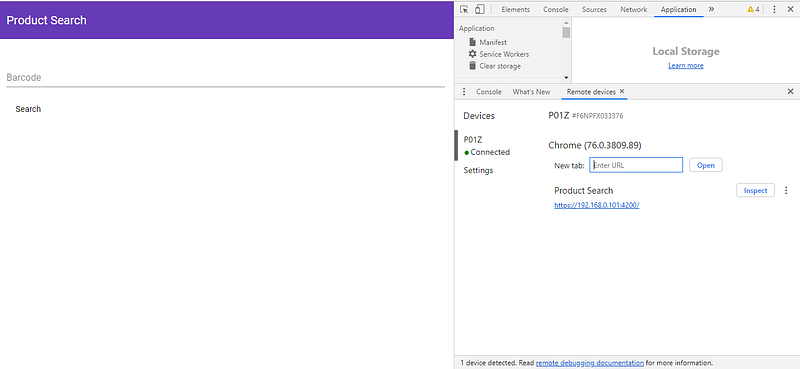
once the app is built.

We install a library for accessing the device’s camera and our flux store by running:

npm i @zxing/ngx-scanner @ngrx/store @angular/material @angular/cdk

In app.module.ts, we put:

import { BrowserModule } from '@angular/platform-browser';
import { NgModule } from '@angular/core';
import { ZXingScannerModule } from '@zxing/ngx-scanner';
import { BrowserAnimationsModule } from '@angular/platform-browser/animations';
import { MatToolbarModule } from '@angular/material/toolbar';
import { MatInputModule } from '@angular/material/input';
import { MatButtonModule } from '@angular/material/button';
import { MatTabsModule } from '@angular/material/tabs';
import { MatCardModule } from '@angular/material/card';
import { HttpClientModule } from '@angular/common/http';
import { MatPaginatorModule } from '@angular/material/paginator';
import { MatTableModule } from '@angular/material/table';
import { MatSelectModule } from '@angular/material/select';

import { AppRoutingModule } from './app-routing.module';
import { AppComponent } from './app.component';
import { HomePageComponent } from './home-page/home-page.component';
import { StoreModule } from '[@ngrx/store](http://twitter.com/ngrx/store "Twitter profile for @ngrx/store")';
import { barCodeReducer } from './bar-code-reducer';
import { FormsModule } from '@angular/forms';
import { EbayTabComponent } from './ebay-tab/ebay-tab.component';

@NgModule({
  declarations: [
    AppComponent,
    HomePageComponent,
    EbayTabComponent
  ],
  imports: [
    BrowserModule,
    AppRoutingModule,
    ZXingScannerModule,
    BrowserAnimationsModule,
    MatButtonModule,
    MatToolbarModule,
    MatInputModule,
    MatTabsModule,
    StoreModule.forRoot({ barCode: barCodeReducer }),
    FormsModule,
    MatCardModule,
    HttpClientModule,
    MatPaginatorModule,
    MatTableModule,
    MatSelectModule
  ],
  providers: [],
  bootstrap: [AppComponent]
})
export class AppModule { }

This incorporates the Angular Material components and our flux store.

Now we have to make a centralized store for our data. We create a file called bar-code-reducer.ts and add the following:

export const SET_BARCODE = 'SET_BARCODE';

export function barCodeReducer(state: string = '', action) {
    switch (action.type) {
        case SET_BARCODE:
            return action.payload;
        default:
            return state;
    }
}

Now we can add our front-end components. We run:

ng g component ebayTab
ng g component homePage

This adds the page to display our barcode scanner and a section to display our eBay data.

Next, we create a service to create our HTTP request by running:

ng g service productSearch

After that, we should have produce-search.service.ts. We put the following in there:

import { Injectable } from '@angular/core';
import { HttpClient } from '@angular/common/http';
import { environment } from 'src/environments/environment';

@Injectable({
  providedIn: 'root'
})
export class ProductSearchService {

  constructor(
    private http: HttpClient
  ) { }

  searchProduct(barcode: string, currentPage: number) {
    return this.http.get(`${environment.apiUrl}/ebay/find-by-code/${barcode}/${currentPage}`)
  }
}

In ebay-tab.component.ts, we put:

import { Component, OnInit } from '@angular/core';
import { Store, select } from '@ngrx/store';
import { Observable } from 'rxjs';
import { ProductSearchService } from '../product-search.service';
import { ConstantPool } from '@angular/compiler';

@Component({
  selector: 'app-ebay-tab',
  templateUrl: './ebay-tab.component.html',
  styleUrls: ['./ebay-tab.component.css']
})
export class EbayTabComponent implements OnInit {

barcode$: Observable<string>;
  barcodeValue: string;
  products: any[] = [];
  totalPages: number = 0;
  totalEntries: number = 0;
  entriesPerPage: number = 0;
  currentPage: number = 1;
  displayedColumns: string[] = [
    'itemId',
    'title',
    'location',
    'country',
    'shippingServiceCost',
    'currentPrice',
    'convertedCurrentPrice',
    'bestOfferEnabled',
    'buyItNowAvailable',
    'listingType'
  ];

constructor(
    private store: Store<any>,
    private productSearchService: ProductSearchService
  ) {
    this.barcode$ = store.pipe(select('barCode'))
    this.barcode$.subscribe(barcode => {
      this.barcodeValue = barcode;
      this.products = [];
      this.searchProduct(this.barcodeValue, this.currentPage);
    }, err => {

})
  }

  ngOnInit() {
  }

  searchProduct(barcodeValue, currentPage) {
    this.productSearchService.searchProduct(barcodeValue, currentPage)
      .subscribe((res: any) => {
        try {
          this.products = res.findItemsByProductResponse[0].searchResult[0].item as any[];
          this.products = this.products.map(p => {
            let shippingServiceCost = p.shippingInfo[0].shippingServiceCost;
            let sellingStatus = p.sellingStatus;
            return {
              itemId: p.itemId,
              title: p.title,
              country: p.country,
              location: p.location,
              shippingServiceCost: Array.isArray(shippingServiceCost) ? `${shippingServiceCost[0]['__value__']} ${shippingServiceCost[0]['@currencyId`]} : '',
              currentPrice: Array.isArray(sellingStatus) ? `${sellingStatus[0].currentPrice[0]['__value__']} ${sellingStatus[0].currentPrice[0]['@currencyId']}` : '',
              convertedCurrentPrice: Array.isArray(sellingStatus) ? `${sellingStatus[0].convertedCurrentPrice[0]['__value__']} ${sellingStatus[0].convertedCurrentPrice[0]['@currencyId']}` : '',
              bestOfferEnabled: p.listingInfo[0].bestOfferEnabled[0],
              buyItNowAvailable: p.listingInfo[0].buyItNowAvailable[0],
              listingType: p.listingInfo[0].listingType[0]
            }
          })
          this.totalPages = res.findItemsByProductResponse[0].paginationOutput[0].totalPages[0];
          this.totalEntries = res.findItemsByProductResponse[0].paginationOutput[0].totalEntries[0];
          this.entriesPerPage = res.findItemsByProductResponse[0].paginationOutput[0].entriesPerPage[0];
        }
        catch (ex) {
          this.products = [];
        }
      }, err => {
        this.products = [];
      })
  }

getProducts(event) {
    this.currentPage = event.pageIndex + 1;
    this.searchProduct(this.barcodeValue, this.currentPage);
  }
}

And in ebay-tab.component.html, we have:

<div *ngIf='products.length > 0'>
  <table mat-table [dataSource]="products" class="mat-elevation-z8">
    <ng-container matColumnDef="itemId">
      <th mat-header-cell *matHeaderCellDef> Item ID </th>
      <td mat-cell *matCellDef="let element"> {{element.itemId}} </td>
    </ng-container>

    <ng-container matColumnDef="title">
      <th mat-header-cell *matHeaderCellDef> Title </th>
      <td mat-cell *matCellDef="let element"> {{element.title}} </td>
    </ng-container>

    <ng-container matColumnDef="location">
      <th mat-header-cell *matHeaderCellDef> Location </th>
      <td mat-cell *matCellDef="let element"> {{element.location}} </td>
    </ng-container>

    <ng-container matColumnDef="country">
      <th mat-header-cell *matHeaderCellDef> Country </th>
      <td mat-cell *matCellDef="let element"> {{element.country}} </td>
    </ng-container>

    <ng-container matColumnDef="shippingServiceCost">
      <th mat-header-cell *matHeaderCellDef> Shipping Cost </th>
      <td mat-cell *matCellDef="let element"> {{element.shippingServiceCost}} </td>
    </ng-container>

    <ng-container matColumnDef="currentPrice">
      <th mat-header-cell *matHeaderCellDef> Current Price </th>
      <td mat-cell *matCellDef="let element"> {{element.currentPrice}} </td>
    </ng-container>

    <ng-container matColumnDef="convertedCurrentPrice">
      <th mat-header-cell *matHeaderCellDef> Converted Current Price </th>
      <td mat-cell *matCellDef="let element"> {{element.convertedCurrentPrice}} </td>
    </ng-container>

    <ng-container matColumnDef="bestOfferEnabled">
      <th mat-header-cell *matHeaderCellDef> Best Offer Enabled </th>
      <td mat-cell *matCellDef="let element"> {{element.bestOfferEnabled}} </td>
    </ng-container>

    <ng-container matColumnDef="buyItNowAvailable">
      <th mat-header-cell *matHeaderCellDef> Buy It Now </th>
      <td mat-cell *matCellDef="let element"> {{element.buyItNowAvailable}} </td>
    </ng-container>

    <ng-container matColumnDef="listingType">
      <th mat-header-cell *matHeaderCellDef> Listing Type </th>
      <td mat-cell *matCellDef="let element"> {{element.listingType}} </td>
    </ng-container>

    <tr mat-header-row *matHeaderRowDef="displayedColumns"></tr>
    <tr mat-row *matRowDef="let row; columns: displayedColumns;"></tr>
  </table>

<mat-paginator [length]="totalEntries" [pageSize]="entriesPerPage" (page)='getProducts($event)'>
  </mat-paginator>
</div>
<div *ngIf='products.length == 0' class="center">
  <h1>No Results</h1>
</div>

In home-page.component.ts, we put:

import { Component, OnInit, ViewChild } from '@angular/cor';
import { Store } from '@ngrx/store';
import { Observable } from 'rxjs';
import { SET_BARCODE } from '../bar-code-reducer';
import { NgForm } from '@angular/forms")';
import { BarcodeFormat } from '@zxing/library';
import { ZXingScannerComponent } from '@zxing/ngx-scanner';

@Component({
  selector: 'app-home-page',
  templateUrl: './home-page.component.html',
  styleUrls: ['./home-page.component.css']
})
export class HomePageComponent implements OnInit {

  barcodeValue: number;
  webCamAvailable: boolean = true;
  barcode$: Observable<string>;
  searching: boolean = false;
  allowedFormats = [
    BarcodeFormat.QR_CODE,
    BarcodeFormat.EAN_13,
    BarcodeFormat.CODE_128,
    BarcodeFormat.DATA_MATRIX,
    BarcodeFormat.UPC_A,
    BarcodeFormat.UPC_E,
    BarcodeFormat.UPC_EAN_EXTENSION,
    BarcodeFormat.CODABAR,
    BarcodeFormat.CODE_39,
    BarcodeFormat.CODE_93
  ];
  hasCameras = false;
  hasPermission: boolean;
  qrResultString: string;

  availableDevices: MediaDeviceInfo[];
  selectedDevice: MediaDeviceInfo;
  [@ViewChild](http://twitter.com/ViewChild "Twitter profile for @ViewChild")('scanner')
  scanner: ZXingScannerComponent;

  constructor(
    private store: Store<any>
  ) {

  }

  ngOnInit() {
    this.scanner.camerasFound.subscribe((devices: MediaDeviceInfo[]) => {
      this.hasCameras = true;
      this.availableDevices = devices;

});

    this.scanner.permissionResponse.subscribe((answer: boolean) => {
      this.hasPermission = answer;
    });
  }

  onValueChanges(result) {
    this.barcodeValue = result.codeResult.code;
    this.searching = true;
    this.store.dispatch({ type: SET_BARCODE, payload: this.barcodeValue });
  }

  searchProduct(barCodeForm: NgForm) {
    this.searching = false;
    if (barCodeForm.invalid) {
      return;
    }
    this.searching = true;
    this.store.dispatch({ type: SET_BARCODE, payload: this.barcodeValue });
  }

  scanSuccessHandler(event) {
    console.log(event);
    this.barcodeValue = event;
    this.store.dispatch({ type: SET_BARCODE, payload: this.barcodeValue });
  }

  onDeviceSelectChange(selectedValue: string) {
    this.selectedDevice = this.scanner.getDeviceById(selectedValue);
  }

  scanErrorHandler(event) {
    console.log(event);
  }

  scanFailureHandler(event) {
    console.log(event);
  }

  scanCompleteHandler(event) {
    console.log(event);
    this.barcodeValue = event.text;
    this.store.dispatch({ type: SET_BARCODE, payload: this.barcodeValue });
  }
}

In addition to scanning, you can also enter the barcode manually. If a camera is present, you should see a preview box. After scanning, we get the barcode value and propagate that to the ebay-tab component that we created via the flux store.

Categories
TypeScript

Great New Features Released with TypeScript 3.4

TypeScript is improving every day. We keep getting new features with every release. In this article, we’ll look at the new stuff that’s released with TypeScript 3.4.

New features include better type inference for higher-order generic functions. changes to readonly types and faster builds with the --increment flag, and more.

New Features in TypeScript 3.4

–incremental Flag

To speed up builds after the first build, the --incremental flag of the TypeScript compiler will let us build only based on what’s changed.

We can add the option to tsconfig.json of our project to get this feature, under the compilerOptions section, as follows:

{
    "compilerOptions": {
        "incremental": true,
        "outDir": "./lib"
    },
    "include": ["./src"]
}

It works by looking for the .tsbuildinfo which is created with the first build. If it doesn’t exist, then it’ll be generated. It’ll use this file to know what has been built and what has not.

It can be safely deleted and not impact our build. We can name the file with a different name by adding a tsBuildInfoFile option to the compilerOptions section tsconfig.json as follows:

{
    "compilerOptions": {
        "incremental": true,
        "tsBuildInfoFile": "./front-end-app",
        "outDir": "./lib"
    },
    "include": ["./src"]
}

For composite projects, which has composite flag set to true in tsconfig.json, references between different projects can also be built incrementally. These projects will always generate a .tsbuildinfo files.

When the outFile option is used, then the build information file name will be based on the output file’s name. For example, if the output file is foo.js then the build information file will be foo.tsbuildinfo.

Higher-Order Type Inference in Generic Functions

When we have functions that take other functions as parameters, we’ll get type inference for the types of functions that are passed in and returned.

For example, if we have a function that composes multiple functions to return a new function as follows:

function compose<A, B, C, D>(
    f: (arg: A) => B,
    g: (arg: B) => C,
    h: (arg: C) => D
): (arg: A) => D {
    return x => h(g(f(x)));
}

When we fill in the types for the generic markers as follows:

function compose<A, B, C, D>(
    f: (arg: A) => B,
    g: (arg: B) => C,
    h: (arg: C) => D
): (arg: A) => D {
    return x => h(g(f(x)));
}

interface Employee {
    name: string;
}

const getName = (employee) => employee.name;
const splitString = (name) => name.split('');
const getLength = (name) => name.length;

const fn = compose(getName, splitString, getLength)

Then we can call the fn function by writing:

const len: number = fn(<Employee>{ name: 'Joe' });

TypeScript 3.4 or later is smart enough to go through the chain of function calls and infer the types of each function automatically and the return type of the function returned from compose.

It can infer that fn returns a number.

TypeScript versions older than 3.4 will infer the empty object type and we get errors with the assignment expression above.

ReadonlyArray and readonly tuples

Using read-only array types is now easier with TypeScript 3.4. We can now declare a read-only array with the readonly keyword.

For example, if we want a read-only string array, we can write:

const strArr: readonly string[] = ['a', 'b', 'c'];

Now we have an array that we can’t push to, change entries or anything else that modifies the array.

This is much more compact compared to the ReadOnlyArray<string> type.

With TypeScript 3.4, we have the new read-only tuple type. We can declare a read-only tuple as follows:

const strTuple: readonly [string, string] = ['foo', 'bar'];

The readonly modifier on mapped types will convert to array-like types to their corresponding readonly counterparts.

For example, if we have the type:

type ReadOnly<T> = {
    readonly [K in keyof T]: T[K]
}

Then when we pass in a type into the generic type placeholder of Readonly as follows:

type foo = Readonly<{foo: number, bar: string}>;

We get that the foo type is:

type foo = {
    readonly foo: number;
    readonly bar: string;
}

As we can see, both fields have become readonly , which isn’t the case before TypeScript 3.4.

We can also use mapped types to remove the readonly modifier from all the fields. To do this, we add a - before the readonly modifier.

For example, we can write:

type Writable<T> = {
    -readonly [K in keyof T]: T[K]
}

interface Foo{
    readonly foo: string;
    readonly bar: number;
}

type foo = Writable<Foo>;

Then we get:

type WriteFoo = {
    foo: string;
    bar: number;
}

For the type foo .

The readonly modifier can only be used for syntax on array types and tuple types. It can’t be used on anything else.

Photo by Erin Wilson on Unsplash

Const Assertions

A constructor called const assertions is introduced with TypeScript 3.4. When we use it, we signal that literal types can’t change to a type that’s wider in scope, like going from 1 to string . Objects literals get readonly properties. Array literals become readonly tuples.

For example, the following is valid:

let x: 'foo' = "foo" as const;

We get that x is type 'foo' when we inspect its type.

Another example would be a number array:

let x = [1, 2] as const;

When we hover over x , we get that the type is readonly [1, 2] .

Conclusion

With TypeScript 3.4, we have multiple changes for read-only types, including using the readonly keyword to declare read-only arrays and tuples.

Also, we can add and remove the readonly modifier with mapped types with the readonly and -readonly modifiers before the index signature or field name.

The const assertion is for converting a value into a read-only entity.

High order generic functions that let us compose multiple functions together to return a new composed function also have smarter type inference than in earlier versions.

Finally, we have the --incremental flag to create incremental builds, which makes code build faster on subsequent builds.

Categories
TypeScript

Introduction to TypeScript Interfaces — Indexable Types

The big advantage of TypeScript over plain JavaScript is that it extends the features of JavaScript by adding functionality that ensures the type safety of our program’s objects. It does this by checking the shape of the values that objects take on.

Checking the shape is called duck typing or structural typing. Interfaces are one way to fill the role naming data types in TypeScript. It’s very useful for defining contracts within our code in TypeScript programs. In the last article, we looked at how to define a TypeScript interface and adding required and optional properties to it. In this article, we’ll continue to look at other properties of TypeScript interfaces like indexable types.

Indexable Types

We can define indexable types for data like arrays. Any object that uses bracket notation like arrays and dynamic object types can be designated with indexable types. Indexable types have an index signature that describes the types that we can use as an index for our object, alongside the return type for the corresponding index. It’s very handy for designating the types for dynamic objects. For example, we can design an array that only accepts strings like in the following code:

interface NameArray {
    [index: number]: string;
}

let nameArray: NameArray = ["John", "Jane"];
const john = nameArray[0];
console.log(john);

In the code above, we defined the NameArray interface that takes in a index that is of type number as the index signature, and the return type of the corresponding index signature is a string. Then when we designate a variable with the NameArray type then we can use the index to get the entries of the array. However, with this code, the array methods and operators aren’t available since we only have the [index: number] index signature and nothing, so the TypeScript compiler isn’t aware that it’s an array even though it looks like one to the human eye.

Index signatures support 2 types. They can either be strings or numbers. It’s possible to support both types of indexes, but the type returned from a numeric indexer must be a subtype of the one returned by the string indexes. This is because JavaScript will convert numeric indexes to strings when it’s trying to accessing entries or properties with numeric properties. This ensures that it’s possible to get different results returned for the same index.

For example, the following code would give us an error from the TypeScript compiler:

class Animal {
  name: string = '';
}

class Cat extends Animal {
  breed: string = '';
}

interface Zoo {
    [x: number]: Animal;
    [x: string]: Cat;
}

If we try to compile the code above, we would get “Numeric index type ‘Animal’ is not assignable to string index type ‘Cat’.(2413)”. This is because we have Cat as a return type of the string index, which is a subtype of Animal. We can’t have this since if we have 2 index signatures with different types, then the supertype must be the return type of the index signature with the string type, and the index signature with the number type must have the subtype of the of returned by the one with the string index signature. This means that if we flip the return types around, then code will be compiled and run:

class Animal {
  name: string = '';
}

class Cat extends Animal {
  breed: string = '';
}

interface Zoo {
    [x: number]: Cat;
    [x: string]: Animal;
}

Since Animal is a supertype of Cat, we must have Animal as the return type of the string index signature, and the Cat type as the return type of the number index signature.

Photo by Nathalie SPEHNER on Unsplash

Index signatures enforce that all normal property matches their return type in addition to the ones that are accessed by the bracket notation since in JavaScript obj.prop and obj['prop'] are the same. This means that if we have the following code:

interface Dictionary {
  [x: string]: string;
}

let dict: Dictionary = {};
dict.prop = 1;

Then we would get the error “Type ‘1’ is not assignable to type ‘string’.(2322)” since we specified that all properties are strings in the variable that has the Dictionary type. If we want to accept other types in the properties of our objects, we have to use union types. For example, we can write the following interface to let the properties of the object with the given type accept both string and numbers as values:

interface Dictionary {
  [x: string]: string | number;
  num: number;
}

let dict: Dictionary = { num: 0 };

In the example above, we accept both string and number as both types of our values. So we add a property with a number type without the TypeScript compiler rejecting the code with an error. Therefore, in the last line of the code above, we can add a num property to the object with the value 0.

We can also make an index signature readonly so that we can prevent assignment to their indices. For example, we can mark an index signature as read only with the following code:

interface Dictionary {
  readonly [x: string]: string;
}

let dict: Dictionary = {'foo': 'foo'};

Then when we try to assign another value to dict['foo'] like in the code below, the TypeScript compiler will reject the code and won’t compile it:

interface Dictionary {
  readonly [x: string]: string;
}

let dict: Dictionary = {'foo': 'foo'};
dict['foo'] = 'foo';

If we try to compile the code above, we’ll get the error “Index signature in type ‘Dictionary’ only permits reading.(2542)”. This means that we can only set the properties and values of a read only property when the object is being initialized, but subsequent assignments will fail.

Conclusion

Indexable types are very handy for defining the return values of the properties of dynamic objects. It takes advantage of the fact that we can access JavaScript properties by using the bracket notation. This is handy for properties that have invalid names if defined without the bracket notation or anything that we want to be able to be accessed by the bracket notation and we want type checking on those properties or entries. With indexable types, we make sure that properties that are assigned and set by the bracket notation have the designated types.

Also, this also works for regular properties since bracket notation is the same as the dot notation for accessing properties. Also, we can designate index signatures as readonly so that they can be written to when the object with a type with indexable types is initialized but not after. If we have both number and string index signatures, then the string indexable signature must have the return type that’s the super-type of the one with the number index signature so that we get consistent types for objects when we access properties.