Categories
Vuetify

Vuetify — Desktop Tabs

Vuetify is a popular UI framework for Vue apps.

In this article, we’ll look at how to work with the Vuetify framework.

Desktop Tabs

Tab actions can be represented with single icons.

For example, we can write:

<template>
  <v-card>
    <v-toolbar flat>
      <v-app-bar-nav-icon></v-app-bar-nav-icon>
      <v-toolbar-title>App</v-toolbar-title>
      <v-spacer></v-spacer>
      <v-btn icon>
        <v-icon>mdi-magnify</v-icon>
      </v-btn>
      <v-btn icon>
        <v-icon>mdi-dots-vertical</v-icon>
      </v-btn>
      <template v-slot:extension>
        <v-tabs v-model="tabs" fixed-tabs>
          <v-tabs-slider></v-tabs-slider>
          <v-tab href="#mobile-tabs-5-1" class="primary--text">
            <v-icon>mdi-phone</v-icon>
          </v-tab>
          <v-tab href="#mobile-tabs-5-2" class="primary--text">
            <v-icon>mdi-heart</v-icon>
          </v-tab>
          <v-tab href="#mobile-tabs-5-3" class="primary--text">
            <v-icon>mdi-account-box</v-icon>
          </v-tab>
        </v-tabs>
      </template>
    </v-toolbar>

    <v-tabs-items v-model="tabs">
      <v-tab-item v-for="i in 3" :key="i" :value="`mobile-tabs-5-${i}`">
        <v-card flat>
          <v-card-text v-text="text"></v-card-text>
        </v-card>
      </v-tab-item>
    </v-tabs-items>
  </v-card>
</template>
<script>
export default {
  name: "HelloWorld",
  data: () => ({
    tabs: null,
    text: "Lorem ipsum dolor sit amet.",
  }),
};
</script>

We add the v-icon without the text within the v-tab component to add tabs with only icons.

Tabs With Menu

We can add a menu to hold additional tabs.

When we click them, we’ll see the active one moved to the tab bar from the menu.

This can be done with our own logic.

To do that, we write:

<template>
  <v-card>
    <v-toolbar color="deep-purple accent-4" dark flat>
      <v-app-bar-nav-icon></v-app-bar-nav-icon>
      <v-toolbar-title>App</v-toolbar-title>
      <v-spacer></v-spacer>
      <v-btn icon>
        <v-icon>mdi-magnify</v-icon>
      </v-btn>
      <v-btn icon>
        <v-icon>mdi-dots-vertical</v-icon>
      </v-btn>

      <template v-slot:extension>
        <v-tabs v-model="currentItem" fixed-tabs slider-color="white">
          <v-tab v-for="item in items" :key="item" :href="`#tab-${item}`">{{ item }}</v-tab>

          <v-menu v-if="more.length" bottom left>
            <template v-slot:activator="{ on, attrs }">
              <v-btn text class="align-self-center mr-4" v-bind="attrs" v-on="on">
                more
                <v-icon right>mdi-menu-down</v-icon>
              </v-btn>
            </template>

            <v-list class="grey lighten-3">
              <v-list-item v-for="item in more" :key="item" @click="addItem(item)">{{ item }}</v-list-item>
            </v-list>
          </v-menu>
        </v-tabs>
      </template>
    </v-toolbar>

    <v-tabs-items v-model="currentItem">
      <v-tab-item v-for="item in items.concat(more)" :key="item" :value="`tab-${item}`">
        <v-card flat>
          <v-card-text>
            <h2>{{ item }}</h2>
            {{ text }}
          </v-card-text>
        </v-card>
      </v-tab-item>
    </v-tabs-items>
  </v-card>
</template>
<script>
export default {
  name: "HelloWorld",
  data: () => ({
    currentItem: "tab-Web",
    items: ["Web", "Offers", "Videos", "Hames"],
    more: ["News", "Maps", "Books", "Flights", "Play"],
    text:
      "Lorem ipsum dolor sit amet.",
  }),

  methods: {
    addItem(item) {
      const removed = this.items.splice(0, 1);
      this.items.push(...this.more.splice(this.more.indexOf(item), 1));
      this.more.push(...removed);
      this.$nextTick(() => {
        this.currentItem = `tab-${item}`;
      });
    },
  },
};
</script>

In the extension slot, we have the v-tab component with the tabs displayed on the tab bar.

And the v-menu has the additional tab buttons.

When we click on the ones on the menu, the addItem method to remove the entry from the menu and put that on the tab bar by adding it to the items array.

The menu is created with the v-btn component by passing it in the on with the v-on attribute and v-bind has the attributes for the styling the menu button.

v-on has the listeners to make the menu open and close.

Conclusion

We can make tab buttons display in a menu and move it to the tab bar when clicked.

Categories
Vue

Blur Web Page Elements Easily with V-Blur for Vue.js

Blurring elements are useful when you want something hidden. For example, it’s handy to blur something for paywalls. With CSS, blurring content is easy with the blur property. However, if you want to change the blurring dynamically, then the blur settings have to be changed by JavaScript. For Vue.js apps, there’s the V-Blur library to help us achieve the dynamic blur effect. This makes changing the blur setting as easy as adding a few lines of code.

In this article, we will make a newsreader app that lets users blur and unblur headline content. There will be a home page where you can get headlines by country and a search page for searching headlines by keyword. We will get our content from the News API, located at https://newsapi.org/docs. To start, we will run the Vue CLI by running:

npx @vue/cli create news-app

In the wizard, we select the ‘Manually select features’ and select Vue Router and Babel.

Next, we install some packages. We will use Axios for making HTTP requests, BootstrapVue for styling, the Country-List for getting a list of country names and codes, V-Blur for adjusting the blur effects, and Vee-Validate for form validation. To install them, we run:

npm i axios bootstrap-vue country-list v-blur vee-validate

With all the libraries installed, we can start writing our news app. First, we create an .env file in the project’s root folder and add our API key there. The key of the entry should be VUE_APP_APIKEY and the value should be the API key you got from the News API website.

Next, we create amixins folder in the src folder and create a file called requestsMixin.js file. In there, we add:

const APIURL = "https://newsapi.org/v2";
const axios = require("axios");

export const requestsMixin = {
  methods: {
    getHeadlines(country) {
      return axios.get(
        `${APIURL}/top-headlines?country=${country}&apiKey=${process.env.VUE_APP_APIKEY}`
      );
    },

    getEverything(keyword) {
      return axios.get(
        `${APIURL}/everything?q=${keyword}&apiKey=${process.env.VUE_APP_APIKEY}`
      );
    }
  }
};

This file has the code to get the headlines by country and keyword from the News API.

Next in the views folder, we replace the code in the Home.vue file with:

<template>
  <div class="page">
    <h1 class="text-center">Headlines</h1>
    <ValidationObserver ref="observer" v-slot="{ invalid }">
      <b-form @submitprevent="getHeadlinesByCountry" novalidate>
        <b-form-group>
          <ValidationProvider name="country" rules="required" v-slot="{ errors }">
            <b-form-select v-model="country"@change="getHeadlinesByCountry">
              <option :value="c.code" v-for="c of countries" :key="c.code">{{c.name}}</option>
            </b-form-select>
            <b-form-invalid-feedback :state="errors.length == 0">Country is requied.</b-form-invalid-feedback>
          </ValidationProvider>
        </b-form-group>
      </b-form>
    </ValidationObserver>

    <b-card
      v-for="(h, i) in headlines"
      :title="h.title"
      :img-src="h.urlToImage"
      img-bottom
      :key="i"
    >
      <b-card-text v-blur="blurConfigs[i]">{{h.content}}</b-card-text>
      <b-button
        variant="primary"
        @click="blurConfigs[i].isBlurred = !blurConfigs[i].isBlurred"
      >Toggle Summary</b-button>
      <b-button :href="h.url" target="_blank" variant="primary">Read</b-button>
    </b-card>
  </div>
</template>

<script>
// @ is an alias to /src
const { getName, getData } = require("country-list");
import { requestsMixin } from "@/mixins/requestsMixin";

export default {
  name: "home",
  mixins: [requestsMixin],
  data() {
    return {
      countries: getData(),
      country: "US",
      headlines: [],
      blurConfigs: []
    };
  },
  beforeMount() {
    this.getHeadlinesByCountry();
  },
  methods: {
    async getHeadlinesByCountry() {
      const { data } = await this.getHeadlines(this.country);
      this.headlines = data.articles;
      this.blurConfigs = this.headlines.map(h => ({
        isBlurred: true,
        opacity: 0.3,
        filter: "blur(1.2px)",
        transition: "all .3s linear"
      }));
    }
  }
};
</script>

We have the password form in this component. The form includes name, URL, username, and password fields. All of them are required. We use Vee-Validate to validate the form fields. The ValidationObserver component is for validating the whole form, while the ValidationProvider component is for validating the form fields that it wraps around. The validation rule is specified by the rule prop of each field. The state prop is for setting the validation state which shows the green when errors has length 0 and red otherwise. The error messages are shown in the b-form-invalid-feedback component. This page only has the countries drop down. The data in the drop down is populated with the country-list package we installed.

In the beforeMount hook, we run the getHeadlinesByCountry to get the headlines by running the this.getHeadlines from the requestsMixin, with the initial value for country , which is set to the "US”. Once we get the data, we map them to the default blur config so that we can toggle it in the template. In the template, we have the cards to display the headlines. They are blurred by default. Below the headline, we have a toggle button to toggle the blurring of the news summary for each entry.

Next, we add a Search.vue file in the views folder and add:

<template>
  <div class="page">
    <h1 class="text-center">Search</h1>
    <ValidationObserver ref="observer" v-slot="{ invalid }">
      <b-form @submitprevent="onSubmit" novalidate>
        <b-form-group label="Keyword">
          <ValidationProvider name="keyword" rules="required" v-slot="{ errors }">
            <b-form-input
              type="text"
              v-model="form.name"
              placeholder="Keyword"
              name="keyword"
              :state="errors.length == 0"
            ></b-form-input>
            <b-form-invalid-feedback :state="errors.length == 0">Keyword is requied.</b-form-invalid-feedback>
          </ValidationProvider>
        </b-form-group>
        <b-button type="submit" variant="primary">Search</b-button>
      </b-form>
    </ValidationObserver>

    <b-card
      v-for="(h, i) in headlines"
      :title="h.title"
      :img-src="h.urlToImage"
      img-bottom
      :key="i"
    >
      <b-card-text v-blur="blurConfigs[i]">{{h.content}}</b-card-text>
      <b-button
        variant="primary"
        @click="blurConfigs[i].isBlurred = !blurConfigs[i].isBlurred"
      >Toggle Summary</b-button>
      <b-button :href="h.url" target="_blank" variant="primary">Read</b-button>
    </b-card>
  </div>
</template>

<script>
// @ is an alias to /src
const { getName, getData } = require("country-list");
import { requestsMixin } from "@/mixins/requestsMixin";

export default {
  name: "search",
  mixins: [requestsMixin],
  data() {
    return {
      form: {},
      headlines: [],
      blurConfigs: []
    };
  },
  methods: {
    async onSubmit() {
      const isValid = await this.$refs.observer.validate();
      if (!isValid) {
        return;
      }
      const { data } = await this.getEverything(this.form.keyword);
      this.headlines = data.articles;
      this.blurConfigs = this.headlines.map(h => ({
        isBlurred: true,
        opacity: 0.3,
        filter: "blur(1.2px)",
        transition: "all .3s linear"
      }));
    }
  }
};
</script>

In this file, we added a form to let users search for news headlines by keyword. We call onSubmit when the user clicks Search on the form. We get the validation state of the form by using this.$refs.observer.validate(); . The ref refers to the ref of the ValidationObserver . If it resolves to true , then we call the this.getEverything function from the requestsMixin to get the headlines by keyword. Once we get the headlines, we map them to the default blur config so that we can toggle it in the template. In the template, we have the cards to display the headlines. They are blurred by default. Below the headline, we have a toggle button to toggle the blurring of the news summary for each entry.

Next in App.vue , we replace the existing code with:

<template>
  <div id="app">
    <b-navbar toggleable="lg" type="dark" variant="info">
      <b-navbar-brand to="/">News App</b-navbar-brand>

      <b-navbar-toggle target="nav-collapse"></b-navbar-toggle>

      <b-collapse id="nav-collapse" is-nav>
        <b-navbar-nav>
          <b-nav-item to="/" :active="path  == '/'">Home</b-nav-item>
          <b-nav-item to="/search" :active="path  == '/search'">Search</b-nav-item>
        </b-navbar-nav>
      </b-collapse>
    </b-navbar>
    <router-view />
  </div>
</template>

<script>
export default {
  data() {
    return {
      path: this.$route && this.$route.path
    };
  },
  watch: {
    $route(route) {
      this.path = route.path;
    }
  }
};
</script>

<style lang="scss">
.page {
  padding: 20px;
}

button,
.btn.btn-primary {
  margin-right: 10px !important;
}

.button-toolbar {
  margin-bottom: 10px;
}
</style>

to add a Bootstrap navigation bar to the top of our pages, and a router-view to display the routes we define.

Next in main.js , replace the code with:

import Vue from "vue";
import App from "./App.vue";
import router from "./router";
import BootstrapVue from "bootstrap-vue";
import { ValidationProvider, extend, ValidationObserver } from "vee-validate";
import { required } from "vee-validate/dist/rules";
import "bootstrap/dist/css/bootstrap.css";
import "bootstrap-vue/dist/bootstrap-vue.css";
import vBlur from "v-blur";

Vue.component("ValidationProvider", ValidationProvider);
Vue.component("ValidationObserver", ValidationObserver);
extend("required", required);
Vue.use(vBlur);
Vue.use(BootstrapVue);

Vue.config.productionTip = false;

new Vue({
  router,
  store,
  render: h => h(App)
}).$mount("#app");

so that we add the libraries we installed to our app so we can use it in our components. We call extend from Vee-Validate to add the form validation rules that we want to use. Also, we add the V-Blur library here so we can use it in all our components. We imported the Bootstrap CSS in this file to get the styles.

In router.js , we replace the existing code with:

import Vue from "vue";
import Router from "vue-router";
import Home from "./views/Home.vue";
import Search from "./views/Search.vue";

Vue.use(Router);

export default new Router({
  mode: "history",
  base: process.env.BASE_URL,
  routes: [
    {
      path: "/",
      name: "home",
      component: Home
    },
    {
      path: "/search",
      name: "search",
      component: Search
    }
  ]
});

to include our home and search pages.

Finally, in index.html , replace the existing code with:

<!DOCTYPE html>
<html lang="en">
  <head>
    <meta charset="utf-8" />
    <meta http-equiv="X-UA-Compatible" content="IE=edge" />
    <meta name="viewport" content="width=device-width,initial-scale=1.0" />
    <link rel="icon" href="<%= BASE_URL %>favicon.ico" />
    <title>News App</title>
  </head>
  <body>
    <noscript>
      <strong
        >We're sorry but v-blur-tutorial-app doesn't work properly without
        JavaScript enabled. Please enable it to continue.</strong
      >
    </noscript>
    <div id="app"></div>
    <!-- built files will be auto injected -->
  </body>
</html>

to change the title.

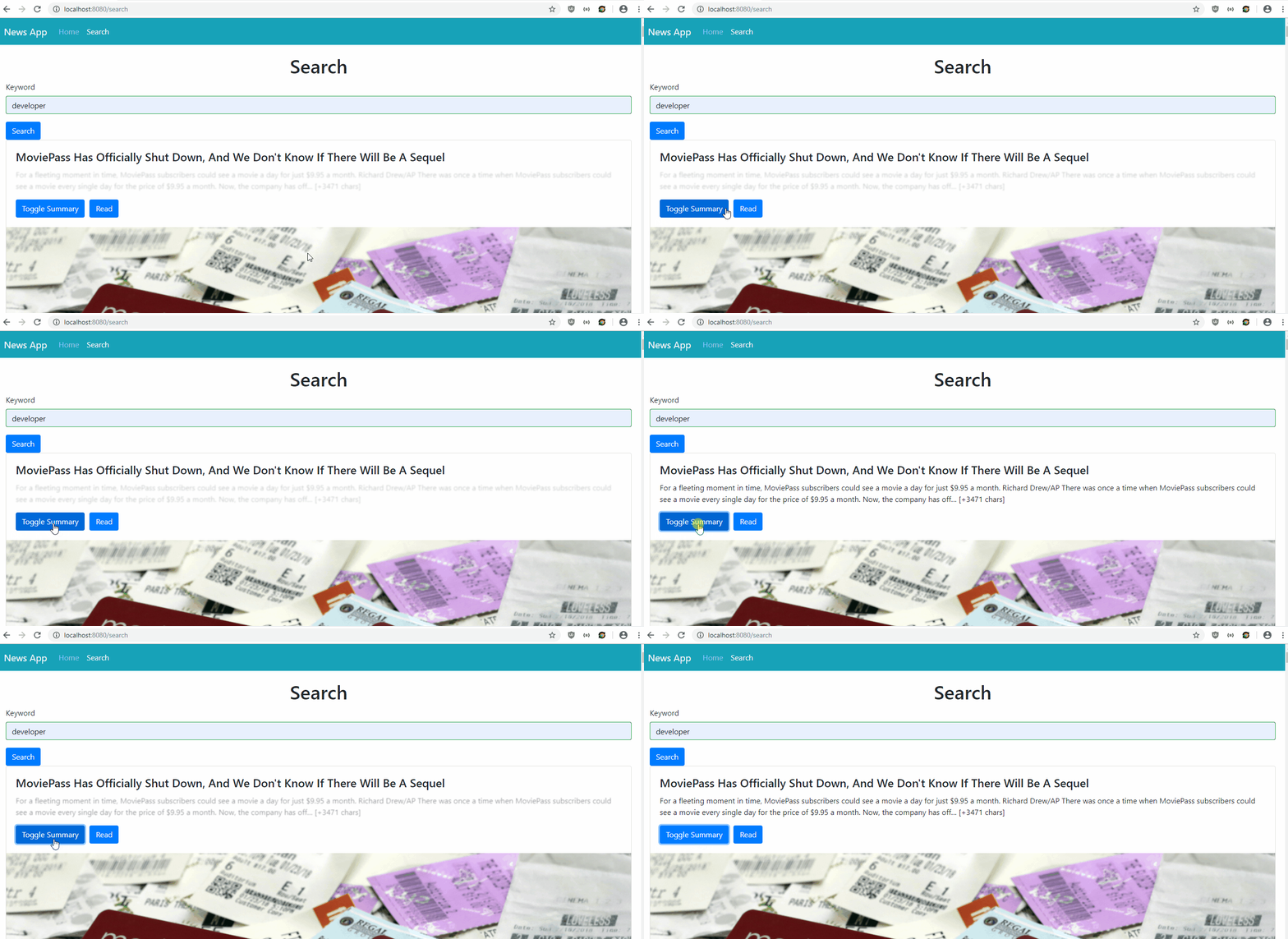
After all the hard work, we can start our app by running npm run serve. Finally, we get:

Categories
Vue

Add Popups and Menus Easily with V-Click-Outside

Popups and menus are common features in web apps. It’s often used for giving a place for exposing users to add functionality in an app. The frequency of its use led to developers developing libraries for us to use to add popups and menus to apps. UI libraries like Bootstrap have menus built-in. For customized menus, we can add one by creating a div with a button that toggles the opening and closing of the menu.

When users click outside the menu and the button, then the menu closes. For Vue.js apps, we have the V-Click-Outside library for handling clicks outside an element. We can use it easily to add popups and menus to our apps.

In this article, we will write a note-taking app that lets users take notes. There will be a table to display the notes and a popup menu in each row that lets users click a button to edit or delete a note. To start building the project, we run the Vue CLI by running:

npx @vue/cli create bookmark-app

When the wizard runs, we select ‘Manually select features’, and select Babel, CSS preprocessor, Vuex, and Vue Router.

Next, we install some packages. We need Axios to make HTTP requests to our back end, Bootstrap-Vue for styling, Vee-Validate for form validation, and V-Click-Outside for handling the focus state of the inputs. To install the packages, we run npm i axios bootstrap-vue vee-validate v-click-outside. After installing the packages we can start building our note-taking app.

First, we create our form for letting users add and edit their bills. In the components folder, create a file called NoteForm.vue and add:

<template>
  <ValidationObserver ref="observer" v-slot="{ invalid }">
    <b-form @submit.prevent="onSubmit" novalidate>
      <b-form-group>
        <ValidationProvider name="name" rules="required" v-slot="{ errors }">
          <label>Name</label>
          <b-form-input
            type="text"
            v-model="form.name"
            placeholder="Name"
            name="name"
            :state="errors.length == 0"
          ></b-form-input>
          <b-form-invalid-feedback :state="errors.length == 0">Name is requied.</b-form-invalid-feedback>
        </ValidationProvider>
      </b-form-group>

      <b-form-group>
        <ValidationProvider name="note" rules="required" v-slot="{ errors }">
          <label>Note</label>
          <b-form-textarea
            type="text"
            :state="errors.length == 0"
            v-model="form.note"
            required
            placeholder="Note"
            name="note"
            rows="5"
          ></b-form-textarea>
          <b-form-invalid-feedback :state="errors.length == 0">{{errors.join('. ')}}</b-form-invalid-feedback>
        </ValidationProvider>
      </b-form-group>

      <b-button type="submit" variant="primary" style="margin-right: 10px">Submit</b-button>
      <b-button type="reset" variant="danger" @click="cancel()">Cancel</b-button>
    </b-form>
  </ValidationObserver>
</template>

<script>
import { requestsMixin } from "@/mixins/requestsMixin";

export default {
  name: "NoteForm",
  mixins: [requestsMixin],
  props: {
    note: Object,
    edit: Boolean
  },
  methods: {
    async onSubmit() {
      const isValid = await this.$refs.observer.validate();
      if (!isValid) {
        return;
      }

      if (this.edit) {
        await this.editNote(this.form);
      } else {
        await this.addNote(this.form);
      }
      const { data } = await this.getNotes();
      this.$store.commit("setNotes", data);
      this.$emit("saved");
    },
    cancel() {
      this.$emit("cancelled");
    }
  },
  data() {
    return {
      form: {}
    };
  },
  watch: {
    note: {
      handler(val) {
        this.form = JSON.parse(JSON.stringify(val || {}));
      },
      deep: true,
      immediate: true
    }
  }
};
</script>

This form lets users search for dishes with the given keyword, then return a list of ingredients for the dishes and then the user can add them to a list with the duplicates removed. We use Vee-Validate to validate our inputs. We use the ValidationObserver component to watch for the validity of the form inside the component and ValidationProvider to check for the validation rule of the inputted value of the input inside the component. Inside the ValidationProvider , we have our BootstrapVue input for the text input fields. In the b-form-input components. We also add Vee-Validate validation to make sure that users have filled out the date before submitting. We make the name and note fields required in the rules prop so that users will have to enter all of them to save the note.

We validate the values in the onSubmit function by running this.$refs.observer.validate() . If that resolves to true , then we run the code to save the data by calling the functions in the if block, then we call getNotes to get the notes. These functions are from the requestsMixin that we will add. The obtained data are stored in our Vuex store by calling this.$store.commit .

In this component, we also have a watch block to watch the note value, which is obtained from the Vuex store that we have to build. We get the latest list of ingredients as the note value is updated so that the latest can be edited by the user as we copy the values to this.form .

Next, we create a mixins folder and add requestsMixin.js into the mixins folder. In the file, we add:

const APIURL = "[http://localhost:3000](http://localhost:3000)";
const axios = require("axios");

export const requestsMixin = {
  methods: {
    getNotes() {
      return axios.get(`${APIURL}/notes`);
    },

    addNote(data) {
      return axios.post(`${APIURL}/notes`, data);
    },

    editNote(data) {
      return axios.put(`${APIURL}/notes/${data.id}`, data);
    },

    deleteNote(id) {
      return axios.delete(`${APIURL}/notes/${id}`);
    }
  }
};

These are the functions we use in our components to make HTTP requests to our back end to save the bookmarks.

Next in Home.vue , replace the existing code with:

<template>
  <div class="page">
    <h1 class="text-center">Note Taking App</h1>
    <b-button-toolbar>
      <b-button @click="openAddModal()">Add Note</b-button>
    </b-button-toolbar>
    <br />
    <b-table-simple responsive>
      <b-thead>
        <b-tr>
          <b-th>Name</b-th>
          <b-th>Note</b-th>
          <b-th></b-th>
        </b-tr>
      </b-thead>
      <b-tbody>
        <b-tr v-for="n in notes" :key="n.id">
          <b-td>{{n.name}}</b-td>
          <b-td>{{n.note}}</b-td>
          <b-td>
            <b-button @click="toggleMenu(n.id)" class="menu-button">Menu</b-button>
            <div class="dropdown" v-show="openMenu[n.id]" v-click-outside="onClickOutside">
              <b-list-group>
                <b-list-group-item @click="openEditModal(n)">Edit</b-list-group-item>
                <b-list-group-item @click="deleteOneNote(n.id)">Delete</b-list-group-item>
              </b-list-group>
            </div>
          </b-td>
        </b-tr>
      </b-tbody>
    </b-table-simple>

    <b-modal id="add-modal" title="Add Note" hide-footer>
      <NoteForm [@saved](http://twitter.com/saved "Twitter profile for @saved")="closeModal()" [@cancelled](http://twitter.com/cancelled "Twitter profile for @cancelled")="closeModal()" :edit="false"></NoteForm>
    </b-modal>

    <b-modal id="edit-modal" title="Edit Note" hide-footer>
      <NoteForm [@saved](http://twitter.com/saved "Twitter profile for @saved")="closeModal()" [@cancelled](http://twitter.com/cancelled "Twitter profile for @cancelled")="closeModal()" :edit="true" :note="selectedNote"></NoteForm>
    </b-modal>
  </div>
</template>

<script>
// @ is an alias to /src
import NoteForm from "@/components/NoteForm.vue";
import { requestsMixin } from "@/mixins/requestsMixin";

export default {
  name: "home",
  components: {
    NoteForm
  },
  mixins: [requestsMixin],
  computed: {
    notes() {
      return this.$store.state.notes;
    }
  },
  beforeMount() {
    this.getAllNotes();
  },
  data() {
    return {
      selectedNote: {},
      openMenu: {}
    };
  },
  methods: {
    toggleMenu(id) {
      this.$set(this.openMenu, id, !this.openMenu[id]);
    },
    onClickOutside(event, el) {
      if (!event.target.className.includes("menu-button")) {
        this.openMenu = {};
      }
    },
    openAddModal() {
      this.$bvModal.show("add-modal");
    },

    openEditModal(note) {
      this.$bvModal.show("edit-modal");
      this.selectedNote = note;
    },

    closeModal() {
      this.$bvModal.hide("add-modal");
      this.$bvModal.hide("edit-modal");
      this.selectedNote = {};
      this.getAllNotes();
    },

    async deleteOneNote(id) {
      await this.deleteNote(id);
      this.getAllNotes();
    },

    async getAllNotes() {
      const { data } = await this.getNotes();
      this.$store.commit("setNotes", data);
    }
  }
};
</script>

<style lang="scss" scoped>
.dropdown {
  position: absolute;
  max-width: 100px;
}

.list-group-item {
  cursor: pointer;
}
</style>

This is where we display the bills in a BootstrapVue table. The columns are the name, the amount, and the due date, along with the Edit button to open the edit modal, and Delete button to delete an entry when it’s clicked. We also added an ‘Add Bill’ button to open the modal to let users add a bill. The notes are obtained from the back end by running the this.getAllNotes function in the beforeMount hook which stores the data in our Vuex store.

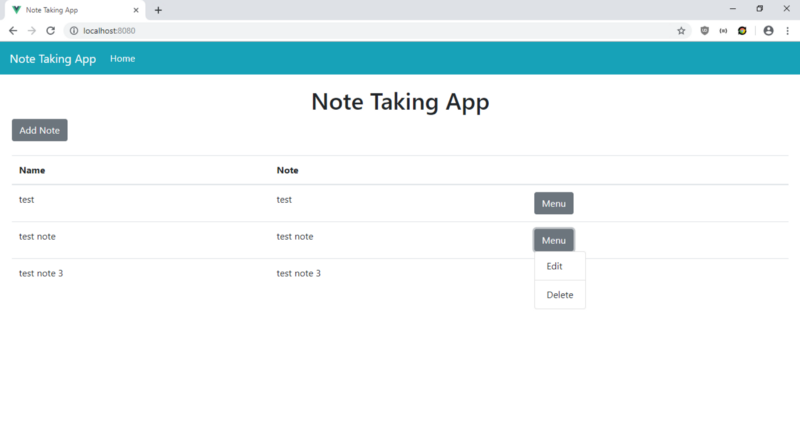
In the table, we have the notes displayed in the table rows. On the rightmost column, we have the menu that we built from scratch. We added a Menu button to each row and a div below it to serve as the container of the list group, which contains our Edit and Delete items for users to click on to Edit and Delete the note respectively. We toggle the menu with the toggleMenu function when the user clicks the Menu button. Notice that we need to call the this.$set function to force Vue.js to refresh since we’re modifying an entry in an object. Vue cannot detect changes within an object automatically. For more details about this function, see https://vuejs.org/v2/api/#Vue-set.

In the styles section, we style out menu popup by setting the dropdown class with absolute position and set its max-width to 100px. The absolute position will make it stack on top of our table, right below the button for each row.

The openAddModal, openEditModal, closeModal open the open and close modals, and close the modal respectively. When openEditModal is called, we set the this.selectedNote variable so that we can pass it to our NoteForm .

Next in App.vue , we replace the existing code with:

<template>
  <div id="app">
    <b-navbar toggleable="lg" type="dark" variant="info">
      <b-navbar-brand to="/">Note Taking App</b-navbar-brand>

<b-navbar-toggle target="nav-collapse"></b-navbar-toggle>

<b-collapse id="nav-collapse" is-nav>
        <b-navbar-nav>
          <b-nav-item to="/" :active="path  == '/'">Home</b-nav-item>
        </b-navbar-nav>
      </b-collapse>
    </b-navbar>
    <router-view />
  </div>
</template>

<script>
export default {
  data() {
    return {
      path: this.$route && this.$route.path
    };
  },
  watch: {
    $route(route) {
      this.path = route.path;
    }
  }
};
</script>

<style lang="scss">
.page {
  padding: 20px;
}

button,
.btn.btn-primary {
  margin-right: 10px !important;
}

.button-toolbar {
  margin-bottom: 10px;
}
</style>

to add a Bootstrap navigation bar to the top of our pages, and a router-view to display the routes we define. This style section isn’t scoped so the styles will apply globally. In the .page selector, we add some padding to our pages. We add some padding to the buttons in the remaining style code.

Then in main.js , replace the existing code with:

import Vue from "vue";
import App from "./App.vue";
import router from "./router";
import store from "./store";
import BootstrapVue from "bootstrap-vue";
import { ValidationProvider, extend, ValidationObserver } from "vee-validate";
import { required } from "vee-validate/dist/rules";
import "bootstrap/dist/css/bootstrap.css";
import "bootstrap-vue/dist/bootstrap-vue.css";
import vClickOutside from "v-click-outside";

Vue.use(BootstrapVue);
Vue.use(vClickOutside);
Vue.component("ValidationProvider", ValidationProvider);
Vue.component("ValidationObserver", ValidationObserver);
extend("required", required);

Vue.config.productionTip = false;

new Vue({
  router,
  store,
  render: h => h(App)
}).$mount("#app");

We added all the libraries we need here, including BootstrapVue JavaScript and CSS , and the Vee-Validate components along with the required validation rule. We also include our V-Click-Outside library here so we can use it in any component.

In router.js we replace the existing code with:

import Vue from "vue";
import Router from "vue-router";
import Home from "./views/Home.vue";

Vue.use(Router);

export default new Router({
  mode: "history",
  base: process.env.BASE_URL,
  routes: [
    {
      path: "/",
      name: "home",
      component: Home
    }
  ]
});

to include the home page in our routes so users can see the page.

And in store.js , we replace the existing code with:

import Vue from "vue";
import Vuex from "vuex";

Vue.use(Vuex);

export default new Vuex.Store({
  state: {
    notes: []
  },
  mutations: {
    setNotes(state, payload) {
      state.notes = payload;
    }
  },
  actions: {}
});

to add our notes state to the store so we can observe it in the computed block of NoteForm and HomePage components. We have the setNotes function to update the notes state and we use it in the components by call this.$store.commit(“setNotes”, data); like we did in NoteForm and HomePage .

Finally, in index.html , we replace the existing code with:

<!DOCTYPE html>
<html lang="en">
  <head>
    <meta charset="utf-8" />
    <meta http-equiv="X-UA-Compatible" content="IE=edge" />
    <meta name="viewport" content="width=device-width,initial-scale=1.0" />
    <link rel="icon" href="<%= BASE_URL %>favicon.ico" />
    <title>Note Taking App</title>
  </head>
  <body>
    <noscript>
      <strong
        >We're sorry but v-click-outside-tutorial-app doesn't work properly
        without JavaScript enabled. Please enable it to continue.</strong
      >
    </noscript>
    <div id="app"></div>
    <!-- built files will be auto injected -->
  </body>
</html>

to change the title of our app.

After all the hard work, we can start our app by running npm run serve.

To start the back end, we first install the json-server package by running npm i json-server. Then, go to our project folder and run:

json-server --watch db.json

In db.json, change the text to:

{
  "`notes`": []
}

So we have the notes endpoints defined in the requests.js available.

After all the hard work, we get:

Categories
Vue

Add Money Inputs to Your Vue.js App with V-Money

Money input is handy for apps that need users to enter monetary amounts. Building an input component specifically for monetary input is tedious work. You have to add labels to indicate that it’s a money input, and you have to check that the input is valid. Some inputs also need prefixes, suffixes, and input masks, which makes building the input tougher. Fortunately, for Vue.js, there is the V-Money library, which is readily available for developers.

In this article, we will build a bill tracker app that tracks the expenses of the user. It lets users enter the name of the bill, the amount, and the due date, and also edit and delete them. To start building the project, we run the Vue CLI by running:

npx @vue/cli create bill-tracker

When the wizard runs, we select ‘Manually select features’, and select Babel, CSS preprocessor, Vuex, and Vue Router.

Next we install some packages. We need Axios to make HTTP requests to our back end, Bootstrap-Vue for styling, Vee-Validate for form validation, and V-Money for the money input. To install the packages, we run npm i axios bootstrap-vue vee-validate v-money. After installing the packages we can start building our bill tracker app.

First, we create our form for letting users add and edit their bills. In the components folder, create a file called BillForm.vue and add:

<template>
  <ValidationObserver ref="observer" v-slot="{ invalid }">
    <b-form @submit.prevent="onSubmit" novalidate>
      <b-form-group label="Name">
        <ValidationProvider name="name" rules="required" v-slot="{ errors }">
          <b-form-input
            type="text"
            :state="errors.length == 0"
            v-model="form.name"
            required
            placeholder="Name"
            name="name"
          ></b-form-input>
          <b-form-invalid-feedback :state="errors.length == 0">Name is requied.</b-form-invalid-feedback>
        </ValidationProvider>
      </b-form-group>

<b-form-group label="Amount">
        <ValidationProvider name="amount" rules="required|min_value:0" v-slot="{ errors }">
          <money
            v-model="form.amount"
            v-bind="money"
            class="form-control"
            :class="{'is-valid': errors.length == 0, 'is-invalid': errors.length > 0}"
          ></money>
          <b-form-invalid-feedback :state="errors.length == 0">{{errors.join('. ')}}</b-form-invalid-feedback>
        </ValidationProvider>
      </b-form-group>

<b-form-group label="Due Date">
        <ValidationProvider name="dueDate" rules="required|date" v-slot="{ errors }">
          <b-form-input
            type="text"
            :state="errors.length == 0"
            v-model="form.dueDate"
            required
            placeholder="Due Date"
            name="dueDate"
          ></b-form-input>
          <b-form-invalid-feedback :state="errors.length == 0">{{errors.join('. ')}}</b-form-invalid-feedback>
        </ValidationProvider>
      </b-form-group>

<b-button type="submit" variant="primary" style="margin-right: 10px">Submit</b-button>
      <b-button type="reset" variant="danger" @click="cancel()">Cancel</b-button>
    </b-form>
  </ValidationObserver>
</template>

<script>
import { requestsMixin } from "@/mixins/requestsMixin";

export default {
  name: "BillForm",
  mixins: [requestsMixin],
  props: {
    bill: Object,
    edit: Boolean
  },
  methods: {
    async onSubmit() {
      const isValid = await this.$refs.observer.validate();
      if (!isValid) {
        return;
      }

const offDate = new Date(this.form.date);
      const correctedDate = new Date(
        offDate.getTime() + Math.abs(offDate.getTimezoneOffset() * 60000)
      );

const params = {
        ...this.form,
        date: correctedDate
      };

if (this.edit) {
        await this.editBill(params);
      } else {
        await this.addBill(params);
      }
      const { data } = await this.getBills();
      this.$store.commit("setBills", data);
      this.$emit("saved");
    },
    cancel() {
      this.$emit("cancelled");
    }
  },
  data() {
    return {
      form: {},
      money: {
        decimal: ".",
        thousands: ",",
        prefix: "$ ",
        precision: 2,
        masked: false
      }
    };
  },
  watch: {
    bill: {
      handler(val) {
        this.form = JSON.parse(JSON.stringify(val || {}));
      },
      deep: true,
      immediate: true
    }
  }
};
</script>

This form lets users search for dishes with the given keyword, then return a list of ingredients for the dishes and then the user can add them to a list with the duplicates removed. We use Vee-Validate to validate our inputs. We use the ValidationObserver component to watch for the validity of the form inside the component and ValidationProvider to check for the validation rule of the inputted value of the input inside the component. Inside the ValidationProvider , we have our BootstrapVue input for the text input fields. In the b-form-input components. We also add Vee-Validate validation to make sure that users have filled out the date before submitting it. We make the name , amount , and dueDate fields required in the rules prop so that users will have to enter all of them to save the bill.

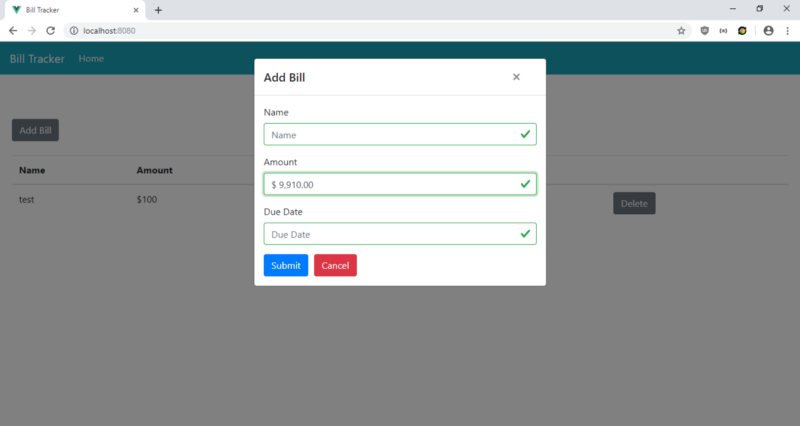
For the amount field input, we use the money component from the V-Money library to add the money input for the bill amount. The v-bind directive is used for setting the options for the money input. The money object in the data field has the options. We specified that the decimal point is marked by a period, a comma separates every 3 digits with the thousands option, and prefix the amount with a dollar sign to make the input clear. precision 2 means that we let users enter up to 2 digits, and masked false means that we disabled the input mask. We applied our CSS classes for Bootstrap directly on the money component so that we make the styles consistent with the other 2 inputs. Both static and dynamic classes work properly with the money component.

We validate the values in the onSubmit function by running this.$refs.observer.validate() . If that resolves to true , then we run the code to save the data by calling the functions in the if block, then we call getNotes to get the notes. These functions are from the requestsMixin that we will add. The obtained data are stored in our Vuex store by calling this.$store.commit .

In this component, we also have a watch block to watch the bill value, which is obtained from the Vuex store that we have to build. We get the latest list of ingredients as the billvalue is updated so that the latest can be edited by the user as we copy the values to this.form .

Next, we create a mixins folder and add requestsMixin.js into the mixins folder. In the file, we add:

const APIURL = "http://localhost:3000)";
const axios = require("axios");

export const requestsMixin = {
  methods: {
    getBills() {
      return axios.get(`${APIURL}/bills`);
    },

    addBill(data) {
      return axios.post(`${APIURL}/bills`, data);
    },

    editBill(data) {
      return axios.put(`${APIURL}/bills/${data.id}`, data);
    },

    deleteBill(id) {
      return axios.delete(`${APIURL}/bills/${id}`);
    }
  }
};

These are the functions we use in our components to make HTTP requests to our back end to save the bills.

Next in Home.vue , replace the existing code with:

<template>
  <div class="page">
    <h1 class="text-center">Bill Tracker</h1>
    <b-button-toolbar>
      <b-button @click="openAddModal()">Add Bill</b-button>
    </b-button-toolbar>
    <br />
    <b-table-simple responsive>
      <b-thead>
        <b-tr>
          <b-th>Name</b-th>
          <b-th>Amount</b-th>
          <b-th>Due Date</b-th>
          <b-th></b-th>
          <b-th></b-th>
        </b-tr>
      </b-thead>
      <b-tbody>
        <b-tr v-for="b in bills" :key="b.id">
          <b-td>{{b.name}}</b-td>
          <b-td>${{b.amount}}</b-td>
          <b-td>{{b.dueDate}}</b-td>
          <b-td>
            <b-button @click="openEditModal(b)">Edit</b-button>
          </b-td>
          <b-td>
            <b-button @click="deleteOneBill(b.id)">Delete</b-button>
          </b-td>
        </b-tr>
      </b-tbody>
    </b-table-simple>

    <b-modal id="add-modal" title="Add Bill" hide-footer>
      <BillForm @saved="closeModal()" @cancelled="closeModal()" :edit="false"></BillForm>
    </b-modal>

    <b-modal id="edit-modal" title="Edit Bill" hide-footer>
      <BillForm @saved="closeModal()" @cancelled="closeModal()" :edit="true" :bill="selectedBill"></BillForm>
    </b-modal>
  </div>
</template>

<script>
import BillForm from "@/components/BillForm.vue";
import { requestsMixin } from "@/mixins/requestsMixin";

export default {
  name: "home",
  components: {
    BillForm
  },
  mixins: [requestsMixin],
  computed: {
    bills() {
      return this.$store.state.bills;
    }
  },
  beforeMount() {
    this.getAllBills();
  },
  data() {
    return {
      selectedBill: {}
    };
  },
  methods: {
    openAddModal() {
      this.$bvModal.show("add-modal");
    },
    openEditModal(bill) {
      this.$bvModal.show("edit-modal");
      this.selectedBill = bill;
    },
    closeModal() {
      this.$bvModal.hide("add-modal");
      this.$bvModal.hide("edit-modal");
      this.selectedBill = {};
      this.getAllBills();
    },
    async deleteOneBill(id) {
      await this.deleteBill(id);
      this.getAllBills();
    },
    async getAllBills() {
      const { data } = await this.getBills();
      this.$store.commit("setBills", data);
    }
  }
};
</script>

This is where we display the bills in a BootstrapVue table. The columns are the name, the amount, and the due date, along with the Edit button to open the edit modal, and Delete button to delete an entry when it’s clicked. We also added an ‘Add Bill’ button to open the modal to let users add a bill. The notes are obtained from the back end by running the this.getAllBills function in the beforeMount hook which stores the data in our Vuex store.

The openAddModal, openEditModal, closeModal open the open and close modals, and close the modal respectively. When openEditModal is called, we set the this.selectedNote variable so that we can pass it to our NoteForm .

Next in App.vue , we replace the existing code with:

<template>
  <div id="app">
    <b-navbar toggleable="lg" type="dark" variant="info">
      <b-navbar-brand to="/">Bill Tracker</b-navbar-brand>

      <b-navbar-toggle target="nav-collapse"></b-navbar-toggle>

      <b-collapse id="nav-collapse" is-nav>
        <b-navbar-nav>
          <b-nav-item to="/" :active="path  == '/'">Home</b-nav-item>
        </b-navbar-nav>
      </b-collapse>
    </b-navbar>
    <router-view />
  </div>
</template>

<script>
export default {
  data() {
    return {
      path: this.$route && this.$route.path
    };
  },
  watch: {
    $route(route) {
      this.path = route.path;
    }
  }
};
</script>

<style lang="scss">
.page {
  padding: 20px;
}

button,
.btn.btn-primary {
  margin-right: 10px !important;
}

.button-toolbar {
  margin-bottom: 10px;
}
</style>

to add a Bootstrap navigation bar to the top of our pages, and a router-view to display the routes we define. This style section isn’t scoped so the styles will apply globally. In the .page selector, we add some padding to our pages. We add some padding to the buttons in the remaining style code.

Then in main.js , replace the existing code with:

import Vue from "vue";
import App from "./App.vue";
import router from "./router";
import store from "./store";
import money from "v-money";
import VueFilterDateFormat from "vue-filter-date-format";
import BootstrapVue from "bootstrap-vue";
import { ValidationProvider, extend, ValidationObserver } from "vee-validate";
import { required, min_value } from "vee-validate/dist/rules";
import "bootstrap/dist/css/bootstrap.css";
import "bootstrap-vue/dist/bootstrap-vue.css";

extend("required", required);
extend("min_value", min_value);
extend("date", {
  validate: value => {
    return /([12]d{3}-(0[1-9]|1[0-2])-(0[1-9]|[12]d|3[01]))/.test(value);
  },
  message: "Date must be in YYYY-MM-DD format."
});
Vue.use(BootstrapVue);
Vue.component("ValidationProvider", ValidationProvider);
Vue.component("ValidationObserver", ValidationObserver);
Vue.use(money, { precision: 4 });
Vue.use(VueFilterDateFormat);

Vue.config.productionTip = false;

new Vue({
  router,
  store,
  render: h => h(App)
}).$mount("#app");

We added all the libraries we need here, including BootstrapVue JavaScript and CSS and Vee-Validate components along with the required validation rule and a date rule for validating that the due date is YYYY-MM-DD format.

In router.js we replace the existing code with:

import Vue from "vue";
import Router from "vue-router";
import Home from "./views/Home.vue";

Vue.use(Router);

export default new Router({
  mode: "history",
  base: process.env.BASE_URL,
  routes: [
    {
      path: "/",
      name: "home",
      component: Home
    }
  ]
});

to include the home page in our routes so users can see the page.

And in store.js , we replace the existing code with:

import Vue from "vue";
import Vuex from "vuex";

Vue.use(Vuex);

export default new Vuex.Store({
  state: {
    bills: []
  },
  mutations: {
    setBills(state, payload) {
      state.bills = payload;
    }
  },
  actions: {}
});

to add our bills state to the store so we can observe it in the computed block of BillForm and HomePage components. We have the setBills function to update the notes state and we use it in the components by call this.$store.commit(“setBills”, data); like we did in BillForm and HomePage .

Finally, in index.html , we replace the existing code with:

<!DOCTYPE html>
<html lang="en">
  <head>
    <meta charset="utf-8" />
    <meta http-equiv="X-UA-Compatible" content="IE=edge" />
    <meta name="viewport" content="width=device-width,initial-scale=1.0" />
    <link rel="icon" href="<%= BASE_URL %>favicon.ico" />
    <title>Bill Tracker</title>
  </head>
  <body>
    <noscript>
      <strong
        >We're sorry but v-money-tutorial-app doesn't work properly without
        JavaScript enabled. Please enable it to continue.</strong
      >
    </noscript>
    <div id="app"></div>
    <!-- built files will be auto injected -->
  </body>
</html>

to change the title of our app.

After all the hard work, we can start our app by running npm run serve.

To start the back end, we first install the json-server package by running npm i json-server. Then, go to our project folder and run:

json-server --watch db.json

In db.json, change the text to:

{
  "`bills`": []
}

So we have the bills endpoints defined in the requests.js available.

After all the hard work, we get:
Categories
Vue

Introduction to the Vue Composition API

Vue.js is an easy to use web app framework that we can use to develop interactive front end apps.

In this article, we’ll take a look at the Vue Composition API plugin for Vue 2.x to create our components in ways that are closer to the Vue 3.x way.

Vue Composition API

The Vue Composition API lets us move reusable code into composition functions, which any component can use with the setup component option.

With it, we don’t have to worry about name clashes between mixin members and component members because all the members are encapsulated in their own function and we can import them with new names.

Also, we don’t have to recreate component instances to reuse logic from different components.

The Composition API is built with large projects in mind, where there’re lots of reusable code.

In addition to the benefits that are listed above, we also have better type inference. It’s also more readable because we can trace all the code back to their composition function where the code is declared in the setup method.

The Vetur VS Code extension, which helps with developing Vue apps with VS Code, provides type inference when it’s used with the Composition API.

How to Use It?

With Vue 2.x projects, we can use it by installing the Vue Composition API package as follows for Vue CLI projects:

npm install @vue/composition-api

It’s also available for projects that don’t use the Vue CLI as a library that we can add via a script tag as follows:

<script src="https://unpkg.com/@vue/composition-api/dist/vue-composition-api.umd.js"></script>

The rest of the steps assumes that we’re building a Vue CLI project.

Once we installed it, we can use it by first registering the plugin as follows in main.js:

import Vue from "vue";
import App from "./App.vue";
import VueCompositionApi from "@vue/composition-api";

Vue.use(VueCompositionApi);

Vue.config.productionTip = false;

new Vue({
  render: h => h(App)
}).$mount("#app");

Next, we’ll actually use the Vue Composition API plugin to build our components.

First, we create a file called Search.vue in the components folder as follows:

<template>
  <div class="hello">
    <form @submit.prevent="handleSubmit">
      <label>{{label}}</label>
      <input type="text" v-model="state.name">
      <input type="submit" value="search">
    </form>
  </div>
</template>

<script>
import { reactive } from "@vue/composition-api";

export default {
  name: "Search",
  props: {
    label: String
  },
  setup({ label }, { emit }) {
    const state = reactive({
      name: ""
    });

    return {
      handleSubmit(event) {
        emit("search", state.name);
      },
      state
    };
  }
};
</script>

In the code above, we have created a component that takes a prop called label , which is a string.

Then we can get the value of the prop by getting it from the first argument of the setup method instead of getting the prop as a property of this with the original Vue API.

Also, the emit method is retrieved from the object that’s passed into setup as the 2nd argument of it instead of a property of this .

To hold states, we call the reactive function from the Composition API package by passing in an object with the state properties to it.

state and reactive are equivalent to the object that we return in the data method with the regular Vue API.

The state constant is return as a property of the object so that we can reference the states as properties of state in our template.

To add methods with the Vue Composition API, we add them to the object that we return instead of as a property of the methods property like we did without the Vue Composition API.

We did that with the handleSubmit method.

In our template, we bind v-model to state.name rather than just name . But we reference the handleSubmit method like we do with methods before.

The search event is emitted when we type in something to the input and the click search.

Next, in App.vue , we write the following code:

<template>
  <div id="app">
    <Search label="name" @search="search"/>
    <div>{{state.data.name}}</div>
  </div>
</template>

<script>
import Search from "./components/Search";
import { reactive } from "@vue/composition-api";

export default {
  name: "App",
  components: {
    Search
  },
  setup() {
    const state = reactive({
      data: {}
    });

    return {
      state,
      async search(ev) {
        const res = await fetch(`https://api.agify.io/?name=${ev}`);
        state.data = await res.json();
      }
    };
  }
};
</script>

In the code above, we have similar structure as in Search.vue . Something that we didn’t have in this file is listening to events.

We have the search method which listens to the search event emitted from Search.vue . In the search method, we get some data, assign it to the state , and display it on the template.

Also, we assigned the retrieved data to state.data instead.

We can add computed properties with the computed function from the Vue Composition API package.

For instance, we can replace App.vue with the following to create a computed property and use it:

<template>
  <div id="app">
    <Search label="name" @search="search"/>
    <div>{{state.name}}</div>
  </div>
</template>

<script>
import Search from "./components/Search";
import { computed, reactive } from "@vue/composition-api";

export default {
  name: "App",
  components: {
    Search
  },
  setup() {
    const state = reactive({
      data: {},
      name: computed(() =>
        state.data.name ? `The name is: ${state.data.name}` : ""
      )
    });

    return {
      state,
      async search(ev) {
        const res = await fetch(`https://api.agify.io/?name=${ev}`);
        state.data = await res.json();
      }
    };
  }
};
</script>

In the code above, we changed App.vue slightly by importing the computed function to create a computed property.

To create the property, we added:

computed(() => state.data.name ? `The name is: ${state.data.name}` : "")

Then in the template, we referenced it by writing:

<div>{{state.name}}</div>

Now when we type in something and clicked search, we get ‘The name is (whatever you typed in)’ displayed.

Conclusion

The Vue Composition API is useful for creating components in a complex app. It’s organized that reduces clashes of names and provides better type inference in our components.

We still have everything that we’re used to like states, methods, events, templates and computed properties. It’s just that they’re in different places.