Categories
Vue 3

Vue 3 — Inputs, Loops. and Components

Vue 3 is in beta and it’s subject to change.

Vue 3 is the up and coming version of Vue front end framework.

It builds on the popularity and ease of use of Vue 2.

In this article, we’ll look at how to handle user interactions with Vue 3.

Handling User Input

The v-model directive lets us bind our input value to a model property.

For instance, we can write:

<!DOCTYPE html>
<html lang="en">
  <head>
    <title>App</title>
    <script src="https://unpkg.com/vue@next"></script>
  </head>
  <body>
    <div id="app">
      <input v-model="name" />
      <p>{{ name }}</p>
    </div>
    <script>
      const app = {
        data() {
          return {
            name: ""
          };
        }
      };

      Vue.createApp(app).mount("#app");
    </script>
  </body>
</html>

We added the name property to the object we return in the data method in app .

Now we can use the name variable as the value in v-model .

Also, we added interpolation of the name value to our template.

Now when we type in something into the input box, we get the same value displayed below it.

This is because v-model does the hard work getting the input value, setting it as the value name and vice versa.

Conditionals and Loops

We can render something conditionally with the v-if directive.

For instance, we can write:

<!DOCTYPE html>
<html lang="en">
  <head>
    <title>App</title>
    <script src="https://unpkg.com/vue@next"></script>
  </head>
  <body>
    <div id="app">
      <button v-on:click="toggle">toggle</button>
      <p v-if="seen">Now you see me</p>
    </div>
    <script>
      const app = {
        data() {
          return {
            seen: true
          };
        },
        methods: {
          toggle() {
            this.seen = !this.seen;
          }
        }
      };

      Vue.createApp(app).mount("#app");
    </script>
  </body>
</html>

We have the button which calls toggle .

The toggle method toggles the rthis.seen state to its opposite value.

Since we used that with v-if , it’ll render the p element if seen is true and not rendering it if it’s false .

We can also use it with transition effects.

Loops

We can display items in an array with the v-for directive.

For example, we can use it by writing:

<!DOCTYPE html>
<html lang="en">
  <head>
    <title>App</title>
    <script src="https://unpkg.com/vue@next"></script>
  </head>
  <body>
    <div id="app">
      <ol>
        <li v-for="p in people">
          {{ p.name }}
        </li>
      </ol>
    </div>
    <script>
      const app = {
        data() {
          return {
            people: [{ name: "mary" }, { name: "jane" }, { name: "bob" }]
          };
        },
        methods: {
          toggle() {
            this.seen = !this.seen;
          }
        }
      };

      Vue.createApp(app).mount("#app");
    </script>
  </body>
</html>

We have the people array in the data method.

This is used with the v-for directive to loop through the array and display the items.

p is the loop variable, we use to display the array items.

Components

Components let us component multiple parts of a Vue 3 app.

Each component is a small part of the app.

We can create components by writing:

<!DOCTYPE html>
<html lang="en">
  <head>
    <title>App</title>
    <script src="https://unpkg.com/vue@next"></script>
  </head>
  <body>
    <div id="app">
      <hello />
    </div>
    <script>
      const root = {};

      const app = Vue.createApp(root);

      app.component("hello", {
        template: `<p>hello</p>`
      });

      app.mount("#app");
    </script>
  </body>
</html>

We have the root object.

Then we pass in root to Vue.createApp to create our Vue 3 app.

And then we create our hello component by calling the app.component method with the component and the component object.

template has the template content we want to display.

Then we call mount with the selector string to mount our app to that component.

Conclusion

We can add Vue components with the app.component method.

The v-model directive binds input values to variables.

v-for lets us loop through arrays and render its entries’ data.

Categories
Vue 3

Vue 3 — Component and Vue Instance

Vue 3 is in beta and it’s subject to change.*

Vue 3 is the up and coming version of Vue front end framework.

It builds on the popularity and ease of use of Vue 2.

In this article, we’ll look at how to create components with Vue 3.

Components and Props

Props are attributes that we can add to components to pass data to them.

To create a component that takes a prop, we can write:

<!DOCTYPE html>
<html lang="en">
  <head>
    <title>App</title>
    <script src="https://unpkg.com/vue@next"></script>
  </head>
  <body>
    <div id="app">
      <hello name="mary" />
    </div>
    <script>
      const root = {};

      const app = Vue.createApp(root);

      app.component("hello", {
        props: ["name"],
        template: `<p>hello {{name}}</p>`
      });

      app.mount("#app");
    </script>
  </body>
</html>

We have the name prop that takes a string and we display it.

We can use v-for to render multiple items and render a component for each.

For instance, we can write:

<!DOCTYPE html>
<html lang="en">
  <head>
    <title>App</title>
    <script src="[https://unpkg.com/vue@next](https://unpkg.com/vue@next)"></script>
  </head>
  <body>
    <div id="app">
      <hello v-for="p in people" v-bind:person="p" v-bind:key="p.id" />
    </div>
    <script>
      const root = {
        data() {
          return {
            people: [
              { id: 0, name: "mary" },
              { id: 1, name: "jane" },
              { id: 2, name: "bob" }
            ]
          };
        }
      };

      const app = Vue.createApp(root);

      app.component("hello", {
        props: ["person"],
        template: `<p>hello {{person.name}}</p>`
      });

      app.mount("#app");
    </script>
  </body>
</html>

Since we aren’t passing a string prop, we need the v-bind directive to let us pass non-string values to our component.

The key prop is needed so that Vue 3 can track the items properly.

In the app.component call, we have the props property with a prop name that’s accepted by our component.

And we can get the name property from the object.

Vue 3 components resemble web component spec’s custom elements.

It also implements the slot API so that we can use slots to add different content to our components.

The Vue Instance

The Vue instance is the root of our app.

We create it with the createApp method.

For instance, we can write:

<!DOCTYPE html>
<html lang="en">
  <head>
    <title>App</title>
    <script src="https://unpkg.com/vue@next"></script>
  </head>
  <body>
    <div id="app">
      {{a}}
    </div>
    <script>
      const data = { a: 1 };

      const vm = Vue.createApp({
        data() {
          return data;
        }
      }).mount("#app");
    </script>
  </body>
</html>

We have our data object we which we return in the data method.

Then we can use the a property in our template.

The Vue.createApp method returns the Vue instance.

It should contain the properties of the data object as properties.

If we have:

<!DOCTYPE html>
<html lang="en">
  <head>
    <title>App</title>
    <script src="https://unpkg.com/vue@next"></script>
  </head>
  <body>
    <div id="app">
      {{a}}
    </div>
    <script>
      const data = { a: 1 };

      const vm = Vue.createApp({
        data() {
          return data;
        }
      }).mount("#app");

      console.log(vm.a === data.a);
    </script>
  </body>
</html>

The console log should log true .

And if we change the value of vm.a :

<!DOCTYPE html>
<html lang="en">
  <head>
    <title>App</title>
    <script src="https://unpkg.com/vue@next"></script>
  </head>
  <body>
    <div id="app">
      {{a}}
    </div>
    <script>
      const data = { a: 1 };

      const vm = Vue.createApp({
        data() {
          return data;
        }
      }).mount("#app");

      vm.a = 2;

      console.log(data.a);
    </script>
  </body>
</html>

Then the value of a in the template and the data object should both change to 2.

Conclusion

Components can take props so we can populate it with data dynamically from the outside.

The Vue instance is the root of a Vue app.

It contains the data which can be changed and the change will be reflected everywhere.

Categories
Vue 3

Getting Started with Vue 3

Vue 3 is in beta and it’s subject to change.

Vue 3 is the up and coming version of Vue front end framework.

It builds on the popularity and ease of use of Vue 2.

In this article, we’ll look at how to create our first project with Vue 3.

Installation

We can install the Vue Devtools with by installing the browser extension according to the instructions at https://github.com/vuejs/vue-devtools#vue-devtools.

A standard Electron app is also available.

It can be used to debug our Vue apps.

To install the Vue package, we can run:

npm install vue@next

to install the NPM package.

Vue CLI is also available for create our Vue project.

We can run:

yarn global add @vue/cli@next

or

npm install -g @vue/cli@next

to install the Vue CLI globally.

Vite is a web dev build tool that lets us serve our code faster with the ES module import approach.

We can run:

$ npm init vite-app <project-name>
$ cd <project-name>
$ npm install
$ npm run dev

or

$ yarn create vite-app <project-name>
$ cd <project-name>
$ yarn
$ yarn dev

to create a Vue app with Vite, install the packages, and run the app.

We can also include Vue 3 as script tag.

For instance, we can write:

<script src="https://unpkg.com/vue@next"></script>

to add the script tag.

Get Started

We can get started by creating our first Vue app.

To do that, we can write:

<!DOCTYPE html>
<html lang="en">
  <head>
    <title>App</title>
    <script src="https://unpkg.com/vue@next"></script>
  </head>
  <body>
    <div id="app">
      {{ message }}
    </div>
    <script>
      const app = {
        data() {
          return {
            message: "hello world"
          };
        }
      };

      Vue.createApp(app).mount("#app");
    </script>
  </body>
</html>

to create a simple Vue app.

In the head tag, we add our Vue package.

We add our template in the div with ID app .

Then we create our app object with the data method to return our data.

We pass the object to the Vue.createApp method and call mount with a CSS selector to let us mount the app.

How we should see ‘hello world’ displayed on the screen.

This is because the text is interpolated from the data as indicated by the double curly braces.

In addition to interpolating text on the template, we can also use the v-bind attribute on the template to display the text.

For example, we can write:

<!DOCTYPE html>
<html lang="en">
  <head>
    <title>App</title>
    <script src="https://unpkg.com/vue@next"></script>
  </head>
  <body>
    <div id="app">
      <div v-bind:title="message">{{message}}</div>
    </div>
    <script>
      const app = {
        data() {
          return {
            message: "hello world"
          };
        }
      };

      Vue.createApp(app).mount("#app");
    </script>
  </body>
</html>

The v-bind directive lets us set a dynamic value for an element’s attribute.

Now when we hover over the ‘hello world’ text, we should see the same thing displayed.

Handling User Input

We can use the v-on directive to handle user input.

For example, we can write:

<!DOCTYPE html>
<html lang="en">
  <head>
    <title>App</title>
    <script src="https://unpkg.com/vue@next"></script>
  </head>
  <body>
    <div id="app">
      <p>{{ state }}</p>
      <button v-on:click="toggle">toggle</button>
    </div>
    <script>
      const app = {
        data() {
          return {
            state: true
          };
        },
        methods: {
          toggle() {
            this.state = !this.state;
          }
        }
      };

      Vue.createApp(app).mount("#app");
    </script>
  </body>
</html>

We have the v-on:click directive to let us listen to clicks on an element.

The value we passed in as the value of the directive is the method we’ll call when we click on th button.

It refers to the toggle method to toggle this.state to the opposite value.

Now when we click the toggle button, we’ll see the state on the template toggle between true and false .

Conclusion

We can get started with Vue 3 with a script tag or a package.

Vue Devtools let us debug our Vue app easier.

Once we have the Vue framework package added, we can create simple apps with it.

v-on lets us listen to events and v-bind lets us set attributes.

Categories
GraphQL Vue

How To Use GraphQL APIs in Vue.js Apps

GraphQL is a query language made by Facebook for sending requests over the internet. It uses its own query but still sends data over HTTP. It uses one endpoint only for sending data.

The benefits of using GraphQL include being able to specify data types for the data fields you are sending and being able to specify the types of data fields that are returned.

The syntax is easy to understand, and it is simple. The data are still returned in JSON for easy access and manipulation. This is why GraphQL has been gaining traction in recent years.

GraphQL requests are still HTTP requests. However, you are always sending and getting data over one endpoint. Usually, this is the graphql endpoint. All requests are POST requests, no matter if you are getting, manipulating, or deleting data.

To distinguish between getting and manipulating data, GraphQL requests can be classified as queries and mutations. Below is one example of a GraphQL request:

{
  getPhotos(page: 1) {
    photos {
      id
      fileLocation
      description
      tags
    }
    page
    totalPhotos
  }
}

In this story, we will build a Vue.js app that uses the GraphQL Jobs API located at https://graphql.jobs /to display jobs data. To start building the app, we first install the Vue CLI by running npm i @vue/cli. We need the latest version of Node.js LTS installed. After that, we run vue create jobs-app to create new Vue.js project files for our app.

Then, we install some libraries we need for our app, which include a GraphQL client, Vue Material, and VeeValidate for form validation. We run:

npm i vue-apollo vue-material vee-validate@2.2.14 graphql-tag

This installs the packages. Vue Apollo is the GraphQL client, and graphQL-tag converts GraphQL query strings into queries that are usable by Vue Apollo.

Next, we are ready to write some code. First, we write some helper code for our components. We add a mixin for making the GraphQL queries to the Jobs API. Create a new folder called mixins, and add a file called jobMixins.js to it. Then in the file, we add:

import { gql } from "apollo-boost";

export const jobsMixin = {
  methods: {
    getJobs(type) {
      const getJobs = gql`
      query jobs(
          $input: JobsInput,
        ){
          jobs(
            input: $input
          ) {
            id,
            title,
            slug,
            commitment {
              id,
              title,
              slug
            },
            cities {
              name
            },
            countries {
              name
            },
            remotes {
              name
            },
            description,
            applyUrl,
            company {
              name
            }
          }
        }
      `;
      return this.$apollo.query({
        query: getJobs,
        variables: {
          type
        }
      });
    },

    getCompanies() {
      const getCompanies = gql`
      query companies{
          companies {
            id,
            name,
            slug,
            websiteUrl,
            logoUrl,
            twitter,
            jobs {
              id,
              title
            }
          }
        }
      `;
      return this.$apollo.query({
        query: getCompanies
      });
    }
  }
}

These functions will get the data we require from the GraphQL Jobs API. The gql in front of the string is a tag. A tag is an expression, which is usually a function that is run to map a string into something else.

In this case, it will map the GraphQL query string into a query object that can be used by the Apollo client.

this.$apollo is provided by the Vue Apollo library. It is available since we will include it in main.js.

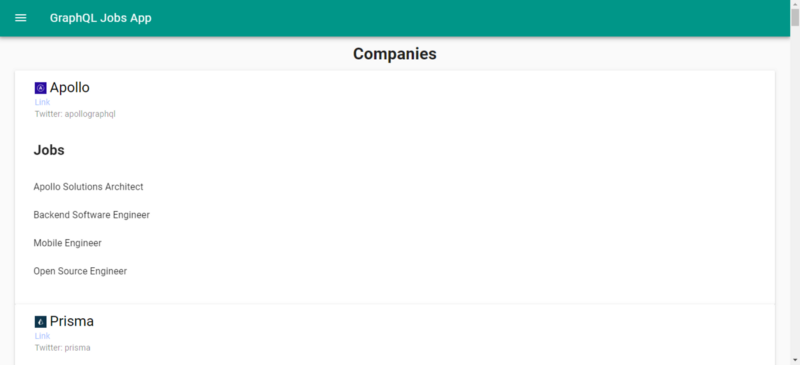
Next, in the view folder, we create a file called Companies.vue, and we add:

<template>
  <div class="home">
    <div class="center">
      <h1>Companies</h1>
    </div>
    <md-card md-with-hover v-for="c in companies" :key="c.id">
      <md-card-header>
        <div class="md-title">
          <img :src="c.logoUrl" class="logo" />
          {{c.name}}
        </div>
        <div class="md-subhead">
          <a :href="c.websiteUrl">Link</a>
        </div>
        <div class="md-subhead">Twitter: {{c.twitter}}</div>
      </md-card-header>

<md-card-content>
        <md-list>
          <md-list-item>
            <h2>Jobs</h2>
          </md-list-item>
          <md-list-item v-for="j in c.jobs" :key="j.id">{{j.title}}</md-list-item>
        </md-list>
      </md-card-content>
    </md-card>
  </div>
</template>

<script>
import { jobsMixin } from "../mixins/jobsMixin";
import { photosUrl } from "../helpers/exports";

export default {
  name: "home",
  mixins: [jobsMixin],
  computed: {
    isFormDirty() {
      return Object.keys(this.fields).some(key => this.fields[key].dirty);
    }
  },
  async beforeMount() {
    const response = await this.getCompanies();
    this.companies = response.data.companies;
  },
  data() {
    return {
      companies: []
    };
  },
  methods: {}
};
</script>

<style lang="scss" scoped>
.logo {
  width: 20px;
}

.md-card-header {
  padding: 5px 34px;
}
</style>

It uses the mixin function that we created to get the companies’ data and displays it to the user.

In Home.vue, we replace the existing code with the following:

<template>
  <div class="home">
    <div class="center">
      <h1>Home</h1>
    </div>
    <form [@submit](http://twitter.com/submit "Twitter profile for @submit")="search" novalidate>
      <md-field :class="{ 'md-invalid': errors.has('term') }">
        <label for="term">Search</label>
        <md-input type="text" name="term" v-model="searchData.type" v-validate="'required'"></md-input>
        <span class="md-error" v-if="errors.has('term')">{{errors.first('term')}}</span>
      </md-field>

      <md-button class="md-raised" type="submit">Search</md-button>
    </form>
    <br />
    <md-card md-with-hover v-for="j in jobs" :key="j.id">
      <md-card-header>
        <div class="md-title">{{j.title}}</div>
        <div class="md-subhead">{{j.company.name}}</div>
        <div class="md-subhead">{{j.commitment.title}}</div>
        <div class="md-subhead">Cities: {{j.cities.map(c=>c.name).join(', ')}}</div>
      </md-card-header>

      <md-card-content>
        <p>{{j.description}}</p>
      </md-card-content>

<md-card-actions>
        <md-button v-on:click.stop.prevent="goTo(j.applyUrl)">Apply</md-button>
      </md-card-actions>
    </md-card>
  </div>
</template>

<script>
import { jobsMixin } from "../mixins/jobsMixin";
import { photosUrl } from "../helpers/exports";

export default {
  name: "home",
  mixins: [jobsMixin],
  computed: {
    isFormDirty() {
      return Object.keys(this.fields).some(key => this.fields[key].dirty);
    }
  },
  beforeMount() {},
  data() {
    return {
      searchData: {
        type: ""
      },
      jobs: []
    };
  },
  methods: {
    async search(evt) {
      evt.preventDefault();
      if (!this.isFormDirty || this.errors.items.length > 0) {
        return;
      }
      const { type } = this.searchData;
      const response = await this.getJobs(this.searchData.type);
      this.jobs = response.data.jobs;
    },

    goTo(url) {
      window.open(url, "_blank");
    }
  }
};
</script>

<style lang="scss">
.md-card-header {
  .md-title {
    color: black !important;
  }
}

.md-card {
  width: 95vw;
  margin: 0 auto;
}
</style>

In the code above, we have a search form to let users search for jobs with the keyword they entered. The results are displayed in the card.

In App.vue, we replace the existing code with the following:

<template>
  <div id="app">
    <md-toolbar>
      <md-button class="md-icon-button" [@click](http://twitter.com/click "Twitter profile for @click")="showNavigation = true">
        <md-icon>menu</md-icon>
      </md-button>
      <h3 class="md-title">GraphQL Jobs App</h3>
    </md-toolbar>
    <md-drawer :md-active.sync="showNavigation" md-swipeable>
      <md-toolbar class="md-transparent" md-elevation="0">
        <span class="md-title">GraphQL Jobs App</span>
      </md-toolbar>

<md-list>
        <md-list-item>
          <router-link to="/">
            <span class="md-list-item-text">Home</span>
          </router-link>
        </md-list-item>

<md-list-item>
          <router-link to="/companies">
            <span class="md-list-item-text">Companies</span>
          </router-link>
        </md-list-item>
      </md-list>
    </md-drawer>

<router-view />
  </div>
</template>

<script>
export default {
  name: "app",
  data: () => {
    return {
      showNavigation: false
    };
  }
};
</script>

<style lang="scss">
.center {
  text-align: center;
}

form {
  width: 95vw;
  margin: 0 auto;
}

.md-toolbar.md-theme-default {
  background: #009688 !important;
  height: 60px;
}

.md-title,
.md-toolbar.md-theme-default .md-icon {
  color: #fff !important;
}
</style>

This adds a top bar and left menu to our app and allows us to toggle the menu. It also allows us to display the pages we created in the router-view element.

In main.js, we put:

import Vue from 'vue'
import App from './App.vue'
import router from './router'
import store from './store'
import VueMaterial from 'vue-material';
import VeeValidate from 'vee-validate';
import 'vue-material/dist/vue-material.min.css'
import 'vue-material/dist/theme/default.css'
import VueApollo from 'vue-apollo';
import ApolloClient from 'apollo-boost';

Vue.config.productionTip = false
Vue.use(VeeValidate);
Vue.use(VueMaterial);
Vue.use(VueApollo);

const client = new ApolloClient({
  uri: '[https://api.graphql.jobs'](https://api.graphql.jobs%27),
  request: operation => {
    operation.setContext({
      headers: {
        authorization: ''
      },
    });
  }
});

const apolloProvider = new VueApollo({
  defaultClient: client,
})

new Vue({
  router,
  store,
  apolloProvider,
  render: h => h(App)
}).$mount('#app')

This adds the libraries we use in the app (such as Vue Material) and adds the Apollo Client to our app so we can use them in our app.

The this.$apollo object is available in our components and mixins because we inserted apolloProvider in the object we use in the argument of new Vue.

In router.js, we put:

import Vue from 'vue'
import Router from 'vue-router'
import Home from './views/Home.vue'
import Companies from './views/Companies.vue'

Vue.use(Router)

export default new Router({
  mode: 'history',
  base: process.env.BASE_URL,
  routes: [
    {
      path: '/',
      name: 'home',
      component: Home
    },
    {
      path: '/companies',
      name: 'companies',
      component: Companies
    }
  ]
})

Now we can see the pages we created when we navigate to them.
Categories
JavaScript Vue

Adding Getters to a Vuex Store

Vue.js is an easy to use web app framework that we can use to develop interactive front end apps.

With Vuex, we can store our Vue app’s state in a central location.

In this article, we’ll look at how to add getters to a Vuex store to add states derived from other store states.

Adding Getters to Our Store

We can add a getter to our Vuex store by adding a getters property as follows:

index.js :

const store = new Vuex.Store({  
  state: {  
    todos: [  
      { id: 1, text: "todo1", done: true },  
      { id: 2, text: "todo2", done: false }  
    ]  
  },  
  getters: {  
    doneTodos: state => {  
      return state.todos.filter(todo => todo.done);  
    }  
  }  
});

new Vue({  
  el: "#app",  
  store,  
  computed: {  
    doneTodos() {  
      return this.$store.getters.doneTodos;  
    },  
    ...Vuex.mapState({  
      todos: "todos"  
    })  
  }  
});

index.html :

<!DOCTYPE html>  
<html>  
  <head>  
    <title>App</title>  
    <meta charset="UTF-8" />  
    <script src="https://unpkg.com/vue/dist/vue.js"></script>  
    <script src="https://unpkg.com/vuex"></script>  
  </head>  
  <body>  
    <div id="app">  
      <div>  
        <p>Todos:</p>  
        <div v-for="todo of todos">{{todo.text}}</div>  
        <p>Done Todos:</p>  
        <div v-for="todo of doneTodos">{{todo.text}}</div>  
      </div>  
    </div>  
    <script src="index.js"></script>  
  </body>  
</html>

In the code, we have a getters object:

getters: {  
  doneTodos: state => {  
    return state.todos.filter(todo => todo.done);  
  }  
}

that derives the state from the todos state.

Then we accessed doneTodos getter by writing:

computed: {  
  doneTodos() {  
    return this.$store.getters.doneTodos;  
  },  
  ...Vuex.mapState({  
    todos: "todos"  
  })  
}

in the Vue instance.

Then the items are rendered in our template and we get:

Todos:todo1  
todo2  
Done Todos:todo1

displayed.

Method-Style Access

We can return a function in a getter function so that we can call the getters from a component with one or more arguments.

For instance, if we want to make a getter that gets a todo by ID, we can write the following:

index.js :

const store = new Vuex.Store({  
  state: {  
    todos: [  
      { id: 1, text: "todo1", done: true },  
      { id: 2, text: "todo2", done: false }  
    ]  
  },  
  getters: {  
    getTodoById: state => id => {  
      return state.todos.find(todo => todo.id === id);  
    }  
  }  
});

new Vue({  
  el: "#app",  
  store,  
  computed: Vuex.mapState({  
    todos: "todos"  
  }),  
  methods: {  
    getTodoById(id) {  
      return this.$store.getters.getTodoById(id);  
    }  
  }  
});

index.html :

<!DOCTYPE html>  
<html>  
  <head>  
    <title>App</title>  
    <meta charset="UTF-8" />  
    <script src="https://unpkg.com/vue/dist/vue.js"></script>  
    <script src="https://unpkg.com/vuex"></script>  
  </head>  
  <body>  
    <div id="app">  
      {{getTodoById(1).text}}  
    </div>  
    <script src="index.js"></script>  
  </body>  
</html>

Then we see todo1 displayed on the screen.

We have the following code to define our getter:

getters: {  
  getTodoById: state => id => {  
    return state.todos.find(todo => todo.id === id);  
  }  
}

The code above returns a function and then returns a todo with the given ID.

Then we access it in our Vue instance by defining the getTodoById method as follows:

getTodoById(id) {  
  return this.$store.getters.getTodoById(id);  
}

Finally, we render it in our template by writing:

{{getTodoById(1).text}}

The mapGetters Helper

We can use the mapGetters helper to map our getters to computed properties as follows:

index.js :

const store = new Vuex.Store({  
  state: {  
    todos: [  
      { id: 1, text: "todo1", done: true },  
      { id: 2, text: "todo2", done: false }  
    ]  
  },  
  getters: {  
    doneTodosCount: state => {  
      return state.todos.filter(todo => todo.done).length;  
    }  
  }  
});

new Vue({  
  el: "#app",  
  store,  
  computed: Vuex.mapGetters(["doneTodosCount"])  
});

index.html :

<!DOCTYPE html>  
<html>  
  <head>  
    <title>App</title>  
    <meta charset="UTF-8" />  
    <script src="https://unpkg.com/vue/dist/vue.j"></script>  
    <script src="https://unpkg.com/vuex"></script>  
  </head>  
  <body>  
    <div id="app">  
      {{doneTodosCount}}  
    </div>  
    <script src="index.js"></script>  
  </body>  
</html>

Then we get 1 displayed since we mapped doneTodosCount getter to a computed property with the same name with:

computed: Vuex.mapGetters(["doneTodosCount"])

Conclusion

We can use getters to add states that are derived from another state.

To define a getter, we add a method to the getters property that returns something derived from the state or a function that derives something from a state.

To include it in our components, we can use the this.$store.getters method or use the mapGetters method.