Categories
JavaScript Vue

Creating Bar Chart with vue-chartjs

vue-chartjs is an easy to use library for adding charts to our Vue app.

We can install it by running:

npm i vue-chartjs chart.js

Then we can use it as follows:

BarChart.vue

<script>
import { Bar } from "vue-chartjs";

export default {
  extends: Bar,
  props: ["data", "options"],
  mounted() {
    this.renderChart(this.data, this.options);
  }
};
</script>

App.vue

<template>
  <div id="app">
    <BarChart :data="data" :options="options"/>
  </div>
</template>

<script>
import BarChart from "./components/BarChart";

export default {
  name: "App",
  components: {
    BarChart
  },
  data() {
    return {
      data: {
        labels: ["January", "February"],
        datasets: [
          {
            label: "Data One",
            backgroundColor: "#f87979",
            data: [40, 30]
          }
        ]
      },
      options: {
        responsive: true,
        maintainAspectRatio: false,
        scales: {
          yAxes: [
            {
              display: true,
              ticks: {
                suggestedMin: 0,
                beginAtZero: true
              }
            }
          ]
        }
      }
    };
  }
};
</script>

The code above just passes the data from App.vue to the BarChart.vue, which renders the bar graph according to the props that we passed in.

We specified the axes options by writing:

scales: {
  yAxes: [
    {
       display: true,
       ticks: {
         suggestedMin: 0,
         beginAtZero: true
       }
    }
  }
}

With the beginAtZero, the scale of the axis will begin at 0.

We specified that the y-axis begins with 0.

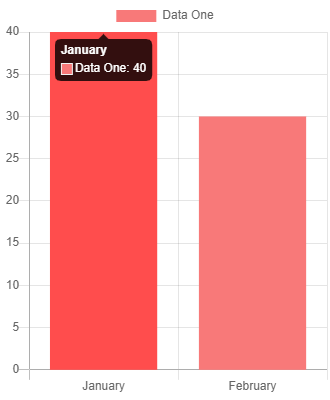
The datasets property has all the data for the bars and the color for the bars.

The label is displayed at the legend.

In the end, we get:

https://thewebdev.info/wp-content/uploads/2020/04/chart.png

Categories
JavaScript Vue

Show Notifications in Vue Apps with vue-notification

The vue-notification is useful for showing popup notifications within our Vue apps.

To use it, we can install it by running:

npm i vue-notification

Then we can use it as follows:

main.js

import Vue from "vue";
import App from "./App.vue";
import Notifications from "vue-notification";

Vue.config.productionTip = false;
Vue.use(Notifications);

new Vue({
  render: h => h(App)
}).$mount("#app");

App.vue

<template>
  <div id="app">
    <notifications group="foo"/>
    <button @click="notify">show alert</button>
  </div>
</template>

<script>
export default {
  name: "App",
  methods: {
    notify() {
      this.$notify({
        group: "foo",
        title: "Hello",
        text: "Hello world!"
      });
    }
  }
};
</script>

All we have to do is to register the plugin in main.js and then we can use the this.$notify method in our components.

Then object we pass in has the title and text properties, which will be displayed as the title and text of the alert.

So when we click on ‘show alert’, that’s what we’ll see.

We also have to set the group prop to the name of the group. It can be anything as long it’s a string and it’s used in the $notify method.

Other props for the notifications component include:

  • classes – class name for styling
  • type – string for the class that’ll be assigned to the notification
  • width – width of the notification
  • position– string for the position that we want to put the notification
  • animation-type – indicate whether we want to use 'css' or 'velocity' to animate the pop up
  • animation-name – name of the animation required for 'css' animation
  • duration – duration of how long a popup will be shown
  • speed – speed of show or hiding the animation
  • max – max number of notifications to show at once
  • reverese – show notification in reverse order
  • ignoreDuplicates – ignore repeated instance of the same popup
  • closeOnClick – boolean indicating whether we close notification when clicked

With the vue-notification library, we can show notifications in our Vue app with ease.

Categories
JavaScript Vue

Handling Form Input with Vue.js with v-model

Vue.js is an easy to use web app framework that we can use to develop interactive front end apps.

In this article, we’ll look at how to handle form inputs with Vue.js for the v-model directive.

Basic Usage

We can use the v-model directive to create 2-way bindings for form input, textarea, and select elements.

It gets the data from the form, sets the data in the Vue instance or component, and update the view accordingly.

It will ignore some initial value, checked or selected attributes found on form elements. It’ll treat the Vue instance data as the source of truth. Therefore, we should set the initial data in the data option of our component.

v-model uses different properties and emit different events for different input elements:

  • text and textarea elements use the value attribute and input event
  • checkboxes and radio buttons use checked property and change event
  • select fields use value attribute and change as an event

v-model doesn’t get updates during IME composition. We can listen to the input event to pick up those updates.

Text Input

A simple example is as follows:

src/index.js :

new Vue({  
  el: "#app",  
  data: {  
    message: "Hello"  
  }  
});

index.html :

<!DOCTYPE html>  
<html>  
  <head>  
    <title>App</title>  
    <meta charset="UTF-8" />  
    <script src="https://cdn.jsdelivr.net/npm/vue/dist/vue.js"></script>  
  </head> <body>  
    <div id="app">  
      <input type="text" v-model="message" />  
      <p>Message is {{message}}</p>  
    </div> <script src="src/index.js"></script>  
  </body>  
</html>

Then when we type something in the input box, we’ll get the same thing displayed below.

Multiline Text

It also works for multiline text. For example, we can write:

src/index.js :

new Vue({  
  el: "#app",  
  data: {  
    message: "Hello"  
  }  
});

index.html :

<!DOCTYPE html>  
<html>  
  <head>  
    <title>App</title>  
    <meta charset="UTF-8" />  
    <script src="https://cdn.jsdelivr.net/npm/vue/dist/vue.js"></script>  
  </head> <body>  
    <div id="app">  
      <textarea type="text" v-model="message"> </textarea>  
      <pre>{{message}}</pre>  
    </div> <script src="src/index.js"></script>  
  </body>  
</html>

Note that only v-model works for model binding, writing <textarea>{{message}}</textarea> won’t work.

Checkbox

We can use v-model on a checkbox as follows:

src/index.js :

new Vue({  
  el: "#app",  
  data: {  
    checked: false  
  }  
});

index.js :

<!DOCTYPE html>  
<html>  
  <head>  
    <title>App</title>  
    <meta charset="UTF-8" />  
    <script src="https://cdn.jsdelivr.net/npm/vue/dist/vue.js"></script>  
  </head> <body>  
    <div id="app">  
      <input type="checkbox" id="checkbox" v-model="checked" />  
      <label for="checkbox">{{ checked }}</label>  
    </div> <script src="src/index.js"></script>  
  </body>  
</html>

Then when we toggle the checkbox, we’ll get true or false displayed depending on if the checkbox is checked or not.

Multiple checkboxes bound to the same model will be bound to the same array.

For instance, we can write the following:

src/index.js :

new Vue({  
  el: "#app",  
  data: {  
    persons: []  
  }  
});

Note that persons must be an array.

index.html :

<!DOCTYPE html>  
<html>  
  <head>  
    <title>App</title>  
    <meta charset="UTF-8" />  
    <script src="https://cdn.jsdelivr.net/npm/vue/dist/vue.js"></script>  
  </head> <body>  
    <div id="app">  
      <label>  
        Joe  
        <input type="checkbox" v-model="persons" value="Joe" />  
      </label>  
      <label>  
        Jane  
        <input type="checkbox" v-model="persons" value="Jane" />  
      </label>  
      <label>  
        Mary  
        <input type="checkbox" v-model="persons" value="Mary" />  
      </label>  
      <p>{{ persons.join(", ") }}</p>  
    </div> <script src="src/index.js"></script>  
  </body>  
</html>

In the code above, we have to bind to the same model, then we have the value attribute values populated in the persons array when the checkbox is checked.

If all 3 are checked, we get something like:

Jane, Joe, Mary

depending on the order that they’re checked.

Radio

We can also use v-model on radio buttons. To use it, we can write:

src/index.js :

new Vue({  
  el: "#app",  
  data: {  
    person: ""  
  }  
});

index.html :

<!DOCTYPE html>  
<html>  
  <head>  
    <title>App</title>  
    <meta charset="UTF-8" />  
    <script src="https://cdn.jsdelivr.net/npm/vue/dist/vue.js"></script>  
  </head> <body>  
    <div id="app">  
      <input type="radio" value="Jane" v-model="person" />  
      <label>Jane</label>  
      <br />  
      <input type="radio" value="Mary" v-model="person" />  
      <label>Mary</label>  
      <br />  
      <p>{{ person }}</p>  
    </div> <script src="src/index.js"></script>  
  </body>  
</html>

Then when we click on a radio button, we get the value attribute value for the radio button displayed when it’s selected.

Select

We can use v-model on select as follows:

src/index.js :

new Vue({  
  el: "#app",  
  data: {  
    selected: ""  
  }  
});

index.html :

<!DOCTYPE html>  
<html>  
  <head>  
    <title>App</title>  
    <meta charset="UTF-8" />  
    <script src="https://cdn.jsdelivr.net/npm/vue/dist/vue.js"></script>  
  </head> <body>  
    <div id="app">  
      <select v-model="selected">  
        <option disabled value="">Select One</option>  
        <option>foo</option>  
        <option>bar</option>  
        <option>baz</option>  
      </select>  
      <br />  
      <span>Selected: {{ selected }}</span>  
    </div> <script src="src/index.js"></script>  
  </body>  
</html>

Then we get the selected option displayed when we select an option.

If the initial value of the v-model expression doesn’t match any options, it’ll render in an unselected state.

Multiselect also works. For instance, we can use it as follows:

src/index.js :

new Vue({  
  el: "#app",  
  data: {  
    selected: []  
  }  
});

Note that it must be an array.

index.html :

<!DOCTYPE html>  
<html>  
  <head>  
    <title>App</title>  
    <meta charset="UTF-8" />  
    <script src="https://cdn.jsdelivr.net/npm/vue/dist/vue.js"></script>  
  </head> <body>  
    <div id="app">  
      <select v-model="selected" multiple>  
        <option>foo</option>  
        <option>bar</option>  
        <option>baz</option>  
      </select>  
      <br />  
      <span>Selected: {{ selected.join(', ') }}</span>  
    </div> <script src="src/index.js"></script>  
  </body>  
</html>

We add the multiple attribute to the select element to allow for multiple selections. Then when we shift-click on multiple options, multiple choices will be displayed.

We can also render options dynamically as follows:

src/index.js :

new Vue({  
  el: "#app",  
  data: {  
    selected: undefined,  
    options: [  
      { text: "One", value: "one" },  
      { text: "Two", value: "two" },  
      { text: "Three", value: "three" }  
    ]  
  }  
});

index.html :

<!DOCTYPE html>  
<html>  
  <head>  
    <title>App</title>  
    <meta charset="UTF-8" />  
    <script src="https://cdn.jsdelivr.net/npm/vue/dist/vue.js"></script>  
  </head> <body>  
    <div id="app">  
      <select v-model="selected">  
        <option v-for="option in options" v-bind:value="option.value">  
          {{ option.text }}  
        </option>  
      </select>  
      <br />  
      <span>Selected: {{ selected }}</span>  
    </div> <script src="src/index.js"></script>  
  </body>  
</html>

The value attribute value of the select option element will be displayed.

Conclusion

We can use the v-model directive on input , textarea , and select elements.

It works on both single and multiple selection elements. When binding data to multiple selection elements, it must be bound to an array.

We can also render choices dynamically for elements with multiple choices with v-for .

Categories
JavaScript Vue

Vue.js Components — Templates and Controlling Updates

Vue.js is an easy to use web app framework that we can use to develop interactive front end apps.

In this article, we look at alternative ways to define templates and controlling updates.

Alternative Ways to Define Templates

Inline Templates

When the inline-template attribute is present on a child component, the component will use its inner content as its template rather than treating it as distributed content.

However, the scope of the data that’s available inside would be confusing since we have access to the child component’s scope instead of the parent’s inside the tags.

For example, if we have:

src/index.js :

Vue.component("bar", {  
  data() {  
    return {  
      baz: "bar"  
    };  
  },  
  template: `  
    <p></p>  
  `  
});

new Vue({  
  el: "#app",  
  data: {  
    foo: "foo"  
  }  
});

index.js :

<!DOCTYPE html>  
<html>  
  <head>  
    <title>App</title>  
    <meta charset="UTF-8" />  
    <script src="https://cdn.jsdelivr.net/npm/vue/dist/vue.js"></script>  
  </head>  
  <body>  
    <div id="app">  
      <bar inline-template>  
        <div>  
          {{baz}}  
        </div>  
      </bar>  
    </div>  
    <script src="src/index.js"></script>  
  </body>  
</html>

Then {{bar}} is referencing baz from the bar component. It also overrides the template that we defined in bar .

X-Templates

Another way to define templates is to use a script tag with type text/x-template . Then it can be referenced with an ID.

For example, we can write:

src/index.js :

Vue.component("hello", {  
  data() {  
    return {  
      hello: "hello"  
    };  
  },  
  template: "#hello-template"  
});

new Vue({  
  el: "#app",  
  data: {  
    foo: "foo"  
  }  
});

index.html :

<!DOCTYPE html>  
<html>  
  <head>  
    <title>App</title>  
    <meta charset="UTF-8" />  
    <script src="https://cdn.jsdelivr.net/npm/vue/dist/vue.js"></script>  
  </head>  
  <body>  
    <script type="text/x-template" id="hello-template">  
      <p>{{hello}}</p>  
    </script>  
    <div id="app">  
      <hello></hello>  
    </div>  
    <script src="src/index.js"></script>  
  </body>  
</html>

The code:

<script type="text/x-template" id="hello-template">  
  <p>{{hello}}</p>  
</script>

is our template and we referenced it by using its ID in:

template: "#hello-template"

So we get hello displayed on the page. This should be avoided for production apps because they separate templates from the rest of the component definition.

Controlling Updates

Vue can control view updates with its reactivity system in most cases. However, there are some edge cases where we want to control the updates ourselves.

Forcing an Update

It’s likely that we made a mistake somewhere if we have to force an update in almost all cases.

In those unlikely cases, we can use $forceUpdate .

Use v-once to Render Static Components

We can use v-once to cache the static content after it’s rendered. This is useful for pages with lots of static content.

For example, we can use it as follows:

src/index.js :

Vue.component("hello", {  
  template: `  
    <div v-once>hello</div>  
  `  
});

new Vue({  
  el: "#app"  
});

index.html :

<!DOCTYPE html>  
<html>  
  <head>  
    <title>App</title>  
    <meta charset="UTF-8" />  
    <script src="https://cdn.jsdelivr.net/npm/vue/dist/vue.js"></script>  
  </head>  
  <body>  
    <div id="app">  
      <hello></hello>  
    </div>  
    <script src="src/index.js"></script>  
  </body>  
</html>

It’s convenient for rare cases when we have to render lots of static content, but it shouldn’t be needed unless we actually see slow rendering.

It may cause trouble if we want to render dynamic content later and when developers aren’t familiar with v-once works on the code. They may be confused about why the component isn’t updating.

Conclusion

We can define templates within a component with the inline-template attribute or using a script element with the type text/x-template .

Then we can reference it by its ID in our component code.

We can use $forceUpdate to force updates and v-once to cache the content after it’s rendered, which may be useful for static content. However, they shouldn’t be used almost all the time.

Categories
JavaScript Vue

Vue.js Components — Components Registration

Vue.js is an easy to use web app framework that we can use to develop interactive front end apps.

In this article, we’ll look at how to register Vue.js components globally and locally.

Component Registration

We can register a Vue component by using the Vue.component method.

It takes 2 arguments. The first is the name of the component as a string. The second argument is the object with various options.

The recommended name style for components with multiple words is kebab case or PascalCase.

However, only names with kebab case are valid for directly embedding in the DOM.

We can define a kebab case component as follows:

Vue.component('component-name', { /* ... */ })

A PascalCase name can be defined as follows:

Vue.component('ComponentName', { /* ... */ })

Global Registration

We register components globally with the Vue.component method. Components that are registered globally are available everywhere.

For example, we can use it as follows:

src/index.js :

Vue.component("component-a", { template: `<div>A</div>` });  
Vue.component("component-b", { template: `<div>B</div>` });
new Vue({  
  el: "#app"  
});

index.html :

<!DOCTYPE html>  
<html>  
  <head>  
    <title>App</title>  
    <meta charset="UTF-8" />  
    <script src="https://cdn.jsdelivr.net/npm/vue/dist/vue.js"></script>  
  </head> <body>  
    <div id="app">  
      <component-a></component-a>  
      <component-b></component-b>  
    </div> <script src="src/index.js"></script>  
  </body>  
</html>

Then we get A and B displayed.

The component are available, so we can nest component-a inside component-b , or component-b inside component-a or any other combination we can think of.

Local Registration

We don’t want to globally register components all the time since we don’t want to include them everywhere.

Including them globally means that the code will bloat because they’re included even though it isn’t being used.

Instead of calling Vue.component , we can define them as plain JavaScript objects and included in the components property of a component as follows:

src/index.js :

const ComponentA = { template: `<div>A</div>` };  
const ComponentB = { template: `<div>B</div>` };
new Vue({  
  el: "#app",  
  components: {  
    "component-a": ComponentA,  
    "component-b": ComponentB  
  }  
});

In the components object, “component-a” and “component-b” are the component names and ComponentA and ComponentB are the components.

index.html :

<!DOCTYPE html>  
<html>  
  <head>  
    <title>App</title>  
    <meta charset="UTF-8" />  
    <script src="https://cdn.jsdelivr.net/npm/vue/dist/vue.js"></script>  
  </head> <body>  
    <div id="app">  
      <component-a></component-a>  
      <component-b></component-b>  
    </div> <script src="src/index.js"></script>  
  </body>  
</html>

We included the components we defined in the src/index.js in the template above.

Locally registered components aren’t available in subcomponents. It’s only available in the component that it’s registered in.

If we want them to be available in other components, we have to register them again.

Using Modules

If we want to register modules locally, we can move them to their own module and export them. Then they can be imported to wherever they have to register.

For example, we can create a new file called component.js and write the following code:

src/component.js :

export const ComponentA = { template: `<div>A</div>` };  
export const ComponentB = { template: `<div>B</div>` };

Then we can import it in index.js :

import { ComponentA, ComponentB } from "./components";
new Vue({  
  el: "#app",  
  components: {  
    "component-a": ComponentA,  
    "component-b": ComponentB  
  }  
});

And index.html is kept the same as before:

<!DOCTYPE html>  
<html>  
  <head>  
    <title>App</title>  
    <meta charset="UTF-8" />  
    <script src="https://cdn.jsdelivr.net/npm/vue/dist/vue.js"></script>  
  </head> <body>  
    <div id="app">  
      <component-a></component-a>  
      <component-b></component-b>  
    </div> <script src="src/index.js"></script>  
  </body>  
</html>

We can also use export default instead of export as follows:

src/component.js :

const ComponentA = { template: `<div>A</div>` };  
export default ComponentA;

src/index.js :

import ComponentA from "./componentA";
new Vue({  
  el: "#app",  
  components: {  
    "component-a": ComponentA  
  }  
});

With default export, we can name ComponentA anything we like when we import it.

index.html :

<!DOCTYPE html>  
<html>  
  <head>  
    <title>App</title>  
    <meta charset="UTF-8" />  
    <script src="https://cdn.jsdelivr.net/npm/vue/dist/vue.js"></script>  
  </head> <body>  
    <div id="app">  
      <component-a></component-a>  
    </div> <script src="src/index.js"></script>  
  </body>  
</html>

Conclusion

In Vue.js, we can register components globally and locally. Global registration makes a module available for everything.

We can register components globally by using the Vue.component method.

Local registration only makes it available to the component it’s registered in.

Locally registered components should be used more often because they won’t be included when it’s not used in the final build.