Categories
Bootstrap HTML

Bootstrap 5 — Input Groups

Bootstrap 5 is in alpha when this is written and it’s subject to change.

Bootstrap is a popular UI library for any JavaScript apps.

In this article, we’ll look at how to add input groups with Bootstrap 5.

Sizing

We can change the size of the file input with the form-file-lg or form-file-sm classes.

For example, we can write:

<div class="form-file form-file-lg mb-3">  
  <input type="file" class="form-file-input" id="large-input">  
  <label class="form-file-label" for="large-input">  
    <span class="form-file-text">Choose a file...</span>  
    <span class="form-file-button">Browse</span>  
  </label>  
</div>

<div class="form-file form-file-sm">  
  <input type="file" class="form-file-input" id="small-input">  
  <label class="form-file-label" for="small-input">  
    <span class="form-file-text">Choose a file...</span>  
    <span class="form-file-button">Browse</span>  
  </label>  
</div>

to add a big and small file input.

Range Slider

Bootstrap 5 comes with styles for a range input.

For example, we can write:

<label for="range-input" class="form-label">range input</label>  
<input type="range" class="form-range" id="range-input">

Then we have a range input where we can drag the handle around.

We set the type to range and use the form-range class to style it.

Min and Max Values

We can set the min and max attribute to limit the values that we can set with it.

For example, we can write:

<label for="range-input" class="form-label">range input</label>  
<input type="range" class="form-range" id="range-input" min="0" max="15">

Steps

Bootstrap 5’s range slider snaps to the nearest integer by default.

To make it snap to a different kind of value, we can use the step attribute,.

For instance, we can write:

<label for="range-input" class="form-label">range input</label>  
<input type="range" class="form-range" id="range-input" min="0" max="15" step="0.5">

to snap to the nearest half instead of the nearest integer.

Input Group

We can extend form control by adding text, buttons, or buttons groups on the left and right side of text input, select, or file input.

To add a basic input group, we can write:

<div class="input-group mb-3">  
  <span class="input-group-text">@</span>  
  <input type="text" class="form-control" placeholder="Username">  
</div>

to add an input group with the span with the input-group-text class.

We can add it to other elements or with different positions or content:

<div class="input-group mb-3">  
  <input type="text" class="form-control" placeholder="username">  
  <span class="input-group-text">[@example](http://twitter.com/example "Twitter profile for @example").com</span>  
</div>

<label for="basic-url" class="form-label">URL</label>  
<div class="input-group mb-3">  
  <span class="input-group-text" id="basic-addon3">https://example.com/</span>  
  <input type="text" class="form-control" id="basic-url">  
</div>

<div class="input-group mb-3">  
  <span class="input-group-text">$</span>  
  <input type="text" class="form-control" aria-label="Amount ">  
  <span class="input-group-text">.00</span>  
</div>

<div class="input-group">  
  <span class="input-group-text">textarea</span>  
  <textarea class="form-control"></textarea>  
</div>

We have inputs with the input-group class added to the div.

Then we have our span with the input-group-text class inside it to add the addons.

Wrapping

By default, the input group wrap with flex-wrap: wrap to accommodate custom form field validation.

We can disable this style with the .flex-nowrap class:

<div class="input-group flex-nowrap">  
  <span class="input-group-text" id="addon-wrapping">@</span>  
  <input type="text" class="form-control" placeholder="Username">  
</div>

Sizing

The sizing of the input group can be changed with the input-group-sm and input-group-lg classes.

For example, we can write:

<div class="input-group input-group-sm mb-3">  
  <span class="input-group-text" id="inputGroup-sizing-sm">Small</span>  
  <input type="text" class="form-control">  
</div>

<div class="input-group mb-3">  
  <span class="input-group-text" id="inputGroup-sizing-default">Default</span>  
  <input type="text" class="form-control">  
</div>

<div class="input-group input-group-lg">  
  <span class="input-group-text" id="inputGroup-sizing-lg">Large</span>  
  <input type="text" class="form-control">  
</div>

Sizing of individual group elements isn’t supported.

Checkboxes and Radios

We can add checkboxes and radios in our input group addons,.

For example, we can write:

<div class="input-group mb-3">  
  <div class="input-group-text">  
    <input class="form-check-input" type="checkbox" value="">  
  </div>  
  <input type="text" class="form-control">  
</div>

<div class="input-group">  
  <div class="input-group-text">  
    <input class="form-check-input" type="radio" value="">  
  </div>  
  <input type="text" class="form-control">  
</div>

to add a checkbox to the left of the first input.

And we add a radio button to the left of the 2nd input.

Conclusion

We can add input groups to add various content besides our input boxes.

Categories
Angular TypeScript

How to Build a Barcode Scanner App That Gets Prices From eBay

eBay has a free API for accessing their listing data, and HTML has a camera API for getting images from a camera via a web page. This means that we can create apps that scan barcodes from your web app, get the code, and send it to the eBay API for querying.

In this story, we will build a PHP app for querying the eBay API, and then we will build a web app for getting the barcode and sending it to our API. The back end is simple. It is just a script for getting data from the eBay API via the ISBN code. Create a folder for the back-end app and put in the following:

<?php
use SymfonyComponentHttpFoundationRequest;
use SymfonyComponentHttpFoundationResponse;
use GuzzleHttpClient;

$ebay = $app['controllers_factory'];
$ebayAppId = $_ENV['EBAY_APP_ID'];
$client = new Client([
    'base_uri' => '[http://svcs.ebay.com'](http://svcs.ebay.com%27)
]);

$ebay->get('/find-by-code/{code}/{page}', function ($code, $page) use ($app, $client, $ebayAppId) {
    if (strlen($code) == 10 || strlen($code) == 13){
        $type = 'ISBN';
    }
    else if (strlen($code) == 12){
        $type = 'UPC';
    }
    else{
        return $app->json(['error' => 'invalid code'], 400);
    }

    if (!is_int(intval($page)) || $page <= 0){
        return $app->json(['error' => 'invalid page'], 400);
    }

$response = $client->request('GET', "/services/search/FindingService/v1?OPERATION-NAME=findItemsByProduct&SERVICE-VERSION=1.0.0&SECURITY-APPNAME=$ebayAppId&RESPONSE-DATA-FORMAT=JSON&REST-PAYLOAD&paginationInput.entriesPerPage=10&productId.[@type](http://twitter.com/type "Twitter profile for @type")=$type&productId=$code&paginationInput.pageNumber=$page");
    return $app->json(json_decode($response->getBody(), true));
});

return $ebay;

We call that ebay.php. The function ($code, $page) use ($app, $client, $ebayAppId) part allows the route to access outside variables since the callback is in a different scope that the outside variables.

Then in index.php, we put

<?php
require_once 'vendor/autoload.php';

$app = new SilexApplication();
$dotenv = new DotenvDotenv('.');
$dotenv->load();
$app->register(new JDesrosiersSilexProviderCorsServiceProvider(), [
    "cors.allowOrigin" => "*",
]);

$app['debug']= true;

$app->get('/hello/{name}', function($name) use($app) {
    return 'Hello '.$app->escape($name);
});

$app->mount('/ebay', include 'ebay.php');
$app["cors-enabled"]($app);
$app->run();

so that we can access our routes.

In composer.json, we put

{
    "require": {
        "silex/silex": "^2.0",
        "vlucas/phpdotenv": "^2.4",
        "jdesrosiers/silex-cors-provider": "~1.0",
        "guzzlehttp/guzzle": "~6.0"
    }
}

so we can run composer install to install our dependencies if Composer is installed.

Now that we have the back end done. We can do the front end. The app is going to be built with Angular. We scaffold the app with the Angular CLI. We run ng new frontend to scaffold the app.

The only things different from our typical apps is that HTTPS is required to access the camera, so we have to generate our own HTTPS certificate for our development server. We should have theserver.crt and server.key file in the same folder as the front-end app files.

The serve section of our angular.json should have:

"serve": {
  "builder": "[@angular](http://twitter.com/angular "Twitter profile for @angular")-devkit/build-angular:dev-server",
  "options": {
    "browserTarget": "frontend:build",
    "sslKey": "server.key",
    "sslCert": "server.cert"
  },
  "configurations": {
    "production": {
      "browserTarget": "frontend:build:production"
    },
    "mobile": {
      "browserTarget": "frontend:build:mobile"
    }
  }
},

where

"sslKey": "server.key",
"sslCert": "server.cert"

should be referencing the path of your certificates.

Then to run the Angular CLI development server, we run:

ng serve --ssl

When you go to https://localhost:4200, you will see an insecure connection error in most browsers. Click proceed to continue.

If your camera is on your Android device, we can debug remotely. In Chrome, press F12 to open the console, click on the top-right menu with the three vertical dots. Then click Remote Devices, connect your Android device to your computer, and enable remote debugging according to the instructions.

Instead of running ng serve --ssl, you run ng serve --ssl --host 0.0.0.0

Once all that is done, you should see the following:
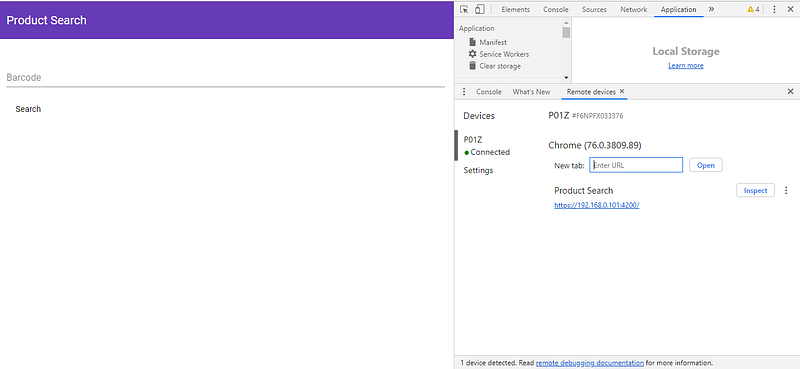
once the app is built.

We install a library for accessing the device’s camera and our flux store by running:

npm i @zxing/ngx-scanner @ngrx/store @angular/material @angular/cdk

In app.module.ts, we put:

import { BrowserModule } from '@angular/platform-browser';
import { NgModule } from '@angular/core';
import { ZXingScannerModule } from '@zxing/ngx-scanner';
import { BrowserAnimationsModule } from '@angular/platform-browser/animations';
import { MatToolbarModule } from '@angular/material/toolbar';
import { MatInputModule } from '@angular/material/input';
import { MatButtonModule } from '@angular/material/button';
import { MatTabsModule } from '@angular/material/tabs';
import { MatCardModule } from '@angular/material/card';
import { HttpClientModule } from '@angular/common/http';
import { MatPaginatorModule } from '@angular/material/paginator';
import { MatTableModule } from '@angular/material/table';
import { MatSelectModule } from '@angular/material/select';

import { AppRoutingModule } from './app-routing.module';
import { AppComponent } from './app.component';
import { HomePageComponent } from './home-page/home-page.component';
import { StoreModule } from '[@ngrx/store](http://twitter.com/ngrx/store "Twitter profile for @ngrx/store")';
import { barCodeReducer } from './bar-code-reducer';
import { FormsModule } from '@angular/forms';
import { EbayTabComponent } from './ebay-tab/ebay-tab.component';

@NgModule({
  declarations: [
    AppComponent,
    HomePageComponent,
    EbayTabComponent
  ],
  imports: [
    BrowserModule,
    AppRoutingModule,
    ZXingScannerModule,
    BrowserAnimationsModule,
    MatButtonModule,
    MatToolbarModule,
    MatInputModule,
    MatTabsModule,
    StoreModule.forRoot({ barCode: barCodeReducer }),
    FormsModule,
    MatCardModule,
    HttpClientModule,
    MatPaginatorModule,
    MatTableModule,
    MatSelectModule
  ],
  providers: [],
  bootstrap: [AppComponent]
})
export class AppModule { }

This incorporates the Angular Material components and our flux store.

Now we have to make a centralized store for our data. We create a file called bar-code-reducer.ts and add the following:

export const SET_BARCODE = 'SET_BARCODE';

export function barCodeReducer(state: string = '', action) {
    switch (action.type) {
        case SET_BARCODE:
            return action.payload;
        default:
            return state;
    }
}

Now we can add our front-end components. We run:

ng g component ebayTab
ng g component homePage

This adds the page to display our barcode scanner and a section to display our eBay data.

Next, we create a service to create our HTTP request by running:

ng g service productSearch

After that, we should have produce-search.service.ts. We put the following in there:

import { Injectable } from '@angular/core';
import { HttpClient } from '@angular/common/http';
import { environment } from 'src/environments/environment';

@Injectable({
  providedIn: 'root'
})
export class ProductSearchService {

  constructor(
    private http: HttpClient
  ) { }

  searchProduct(barcode: string, currentPage: number) {
    return this.http.get(`${environment.apiUrl}/ebay/find-by-code/${barcode}/${currentPage}`)
  }
}

In ebay-tab.component.ts, we put:

import { Component, OnInit } from '@angular/core';
import { Store, select } from '@ngrx/store';
import { Observable } from 'rxjs';
import { ProductSearchService } from '../product-search.service';
import { ConstantPool } from '@angular/compiler';

@Component({
  selector: 'app-ebay-tab',
  templateUrl: './ebay-tab.component.html',
  styleUrls: ['./ebay-tab.component.css']
})
export class EbayTabComponent implements OnInit {

barcode$: Observable<string>;
  barcodeValue: string;
  products: any[] = [];
  totalPages: number = 0;
  totalEntries: number = 0;
  entriesPerPage: number = 0;
  currentPage: number = 1;
  displayedColumns: string[] = [
    'itemId',
    'title',
    'location',
    'country',
    'shippingServiceCost',
    'currentPrice',
    'convertedCurrentPrice',
    'bestOfferEnabled',
    'buyItNowAvailable',
    'listingType'
  ];

constructor(
    private store: Store<any>,
    private productSearchService: ProductSearchService
  ) {
    this.barcode$ = store.pipe(select('barCode'))
    this.barcode$.subscribe(barcode => {
      this.barcodeValue = barcode;
      this.products = [];
      this.searchProduct(this.barcodeValue, this.currentPage);
    }, err => {

})
  }

  ngOnInit() {
  }

  searchProduct(barcodeValue, currentPage) {
    this.productSearchService.searchProduct(barcodeValue, currentPage)
      .subscribe((res: any) => {
        try {
          this.products = res.findItemsByProductResponse[0].searchResult[0].item as any[];
          this.products = this.products.map(p => {
            let shippingServiceCost = p.shippingInfo[0].shippingServiceCost;
            let sellingStatus = p.sellingStatus;
            return {
              itemId: p.itemId,
              title: p.title,
              country: p.country,
              location: p.location,
              shippingServiceCost: Array.isArray(shippingServiceCost) ? `${shippingServiceCost[0]['__value__']} ${shippingServiceCost[0]['@currencyId`]} : '',
              currentPrice: Array.isArray(sellingStatus) ? `${sellingStatus[0].currentPrice[0]['__value__']} ${sellingStatus[0].currentPrice[0]['@currencyId']}` : '',
              convertedCurrentPrice: Array.isArray(sellingStatus) ? `${sellingStatus[0].convertedCurrentPrice[0]['__value__']} ${sellingStatus[0].convertedCurrentPrice[0]['@currencyId']}` : '',
              bestOfferEnabled: p.listingInfo[0].bestOfferEnabled[0],
              buyItNowAvailable: p.listingInfo[0].buyItNowAvailable[0],
              listingType: p.listingInfo[0].listingType[0]
            }
          })
          this.totalPages = res.findItemsByProductResponse[0].paginationOutput[0].totalPages[0];
          this.totalEntries = res.findItemsByProductResponse[0].paginationOutput[0].totalEntries[0];
          this.entriesPerPage = res.findItemsByProductResponse[0].paginationOutput[0].entriesPerPage[0];
        }
        catch (ex) {
          this.products = [];
        }
      }, err => {
        this.products = [];
      })
  }

getProducts(event) {
    this.currentPage = event.pageIndex + 1;
    this.searchProduct(this.barcodeValue, this.currentPage);
  }
}

And in ebay-tab.component.html, we have:

<div *ngIf='products.length > 0'>
  <table mat-table [dataSource]="products" class="mat-elevation-z8">
    <ng-container matColumnDef="itemId">
      <th mat-header-cell *matHeaderCellDef> Item ID </th>
      <td mat-cell *matCellDef="let element"> {{element.itemId}} </td>
    </ng-container>

    <ng-container matColumnDef="title">
      <th mat-header-cell *matHeaderCellDef> Title </th>
      <td mat-cell *matCellDef="let element"> {{element.title}} </td>
    </ng-container>

    <ng-container matColumnDef="location">
      <th mat-header-cell *matHeaderCellDef> Location </th>
      <td mat-cell *matCellDef="let element"> {{element.location}} </td>
    </ng-container>

    <ng-container matColumnDef="country">
      <th mat-header-cell *matHeaderCellDef> Country </th>
      <td mat-cell *matCellDef="let element"> {{element.country}} </td>
    </ng-container>

    <ng-container matColumnDef="shippingServiceCost">
      <th mat-header-cell *matHeaderCellDef> Shipping Cost </th>
      <td mat-cell *matCellDef="let element"> {{element.shippingServiceCost}} </td>
    </ng-container>

    <ng-container matColumnDef="currentPrice">
      <th mat-header-cell *matHeaderCellDef> Current Price </th>
      <td mat-cell *matCellDef="let element"> {{element.currentPrice}} </td>
    </ng-container>

    <ng-container matColumnDef="convertedCurrentPrice">
      <th mat-header-cell *matHeaderCellDef> Converted Current Price </th>
      <td mat-cell *matCellDef="let element"> {{element.convertedCurrentPrice}} </td>
    </ng-container>

    <ng-container matColumnDef="bestOfferEnabled">
      <th mat-header-cell *matHeaderCellDef> Best Offer Enabled </th>
      <td mat-cell *matCellDef="let element"> {{element.bestOfferEnabled}} </td>
    </ng-container>

    <ng-container matColumnDef="buyItNowAvailable">
      <th mat-header-cell *matHeaderCellDef> Buy It Now </th>
      <td mat-cell *matCellDef="let element"> {{element.buyItNowAvailable}} </td>
    </ng-container>

    <ng-container matColumnDef="listingType">
      <th mat-header-cell *matHeaderCellDef> Listing Type </th>
      <td mat-cell *matCellDef="let element"> {{element.listingType}} </td>
    </ng-container>

    <tr mat-header-row *matHeaderRowDef="displayedColumns"></tr>
    <tr mat-row *matRowDef="let row; columns: displayedColumns;"></tr>
  </table>

<mat-paginator [length]="totalEntries" [pageSize]="entriesPerPage" (page)='getProducts($event)'>
  </mat-paginator>
</div>
<div *ngIf='products.length == 0' class="center">
  <h1>No Results</h1>
</div>

In home-page.component.ts, we put:

import { Component, OnInit, ViewChild } from '@angular/cor';
import { Store } from '@ngrx/store';
import { Observable } from 'rxjs';
import { SET_BARCODE } from '../bar-code-reducer';
import { NgForm } from '@angular/forms")';
import { BarcodeFormat } from '@zxing/library';
import { ZXingScannerComponent } from '@zxing/ngx-scanner';

@Component({
  selector: 'app-home-page',
  templateUrl: './home-page.component.html',
  styleUrls: ['./home-page.component.css']
})
export class HomePageComponent implements OnInit {

  barcodeValue: number;
  webCamAvailable: boolean = true;
  barcode$: Observable<string>;
  searching: boolean = false;
  allowedFormats = [
    BarcodeFormat.QR_CODE,
    BarcodeFormat.EAN_13,
    BarcodeFormat.CODE_128,
    BarcodeFormat.DATA_MATRIX,
    BarcodeFormat.UPC_A,
    BarcodeFormat.UPC_E,
    BarcodeFormat.UPC_EAN_EXTENSION,
    BarcodeFormat.CODABAR,
    BarcodeFormat.CODE_39,
    BarcodeFormat.CODE_93
  ];
  hasCameras = false;
  hasPermission: boolean;
  qrResultString: string;

  availableDevices: MediaDeviceInfo[];
  selectedDevice: MediaDeviceInfo;
  [@ViewChild](http://twitter.com/ViewChild "Twitter profile for @ViewChild")('scanner')
  scanner: ZXingScannerComponent;

  constructor(
    private store: Store<any>
  ) {

  }

  ngOnInit() {
    this.scanner.camerasFound.subscribe((devices: MediaDeviceInfo[]) => {
      this.hasCameras = true;
      this.availableDevices = devices;

});

    this.scanner.permissionResponse.subscribe((answer: boolean) => {
      this.hasPermission = answer;
    });
  }

  onValueChanges(result) {
    this.barcodeValue = result.codeResult.code;
    this.searching = true;
    this.store.dispatch({ type: SET_BARCODE, payload: this.barcodeValue });
  }

  searchProduct(barCodeForm: NgForm) {
    this.searching = false;
    if (barCodeForm.invalid) {
      return;
    }
    this.searching = true;
    this.store.dispatch({ type: SET_BARCODE, payload: this.barcodeValue });
  }

  scanSuccessHandler(event) {
    console.log(event);
    this.barcodeValue = event;
    this.store.dispatch({ type: SET_BARCODE, payload: this.barcodeValue });
  }

  onDeviceSelectChange(selectedValue: string) {
    this.selectedDevice = this.scanner.getDeviceById(selectedValue);
  }

  scanErrorHandler(event) {
    console.log(event);
  }

  scanFailureHandler(event) {
    console.log(event);
  }

  scanCompleteHandler(event) {
    console.log(event);
    this.barcodeValue = event.text;
    this.store.dispatch({ type: SET_BARCODE, payload: this.barcodeValue });
  }
}

In addition to scanning, you can also enter the barcode manually. If a camera is present, you should see a preview box. After scanning, we get the barcode value and propagate that to the ebay-tab component that we created via the flux store.


Categories
JavaScript Best Practices

Why it’s Time to Stop Using JavaScript IIFEs

In JavaScript speak, IIFE stands for Immediately Invoked Function Expressions.

It’s a function that’s defined and then executed immediately.

In this article, we’ll look at why it’s time to stop writing IIFEs in our code.

We Can Define Block-Scoped Variables in JavaScript

Since ES6 is released as a standard, we can declare block-scoped variables and constants with let and const. It also introduced stand-alone blocks to isolate variables and constants into their own blocks, unavailable to the outside.

For example, we can write:

{
  let x = 1;
}

Then x wouldn’t be available to the outside.

It’s much cleaner than:

(()=>{
  let x = 1;
})();

Now that ES6 is supported in almost all modern browsers, we should stop using IIFEs to separate variables from the outside world.

Another way to isolate variables are modules, which are also widely supported. As long as we don’t export them, they won’t be available to other modules.

We Don’t Need Closures As Much Anymore

Closures are functions that return another function. The returned function may run code that’s outside of it but inside the enclosing function.

For example, it may commit some side effects as follows:

const id = (() => {
  let count = 0;
  return () => {
    ++count;
    return `id_${count}`;
  };
})();

Again, this is more complex and unnecessary now that we have blocks and modules to isolate data.

We can just put all that in their own module, then we won’t have to worry about exposing data.

It also commits side effects, which isn’t good since we should avoid committing side effects whenever possible. This is because they make functions hard to test as they aren’t pure.

Functions that return functions also introduce nesting when we can avoid it and so it’s more confusing than ones that don’t.

The better alternative is to replace it with a module.

With a module, we can write:

let count = 0;

export const id = () => {
  ++this.count;
  return `id_${count}`
}

In the code above, we have the same count declaration and we export the id function so that it can be available to other modules.

This hides count and exposes the function we want like the IIFE, but there’s less nesting and we don’t have to define another function and run it.

Aliasing Variables

Again, we used to write something like this:

window.$ = function foo() {
  // ...
};

(function($) {
  // ...
})(jQuery);

Now we definitely shouldn’t write IIFEs just to create aliases for variables since we can use modules to do this.

With modules, we can import something with a different name.

Today’s way to do that would be to write:

import { $ as jQuery } from "jquery";

const $ = () => {};

Also, we shouldn’t attach new properties to the window object since this pollutes the global scope.

Capturing the Global Object

With globalThis , we don’t have to worry about the name of the global object in different environments since it’s becoming a standard.

Therefore, we don’t need an IIFE to capture the global object by writing the following in the top-level:

(function(global) {
  // ...
})(this);

Even before globalThis , it’s not too hard to set the global object by writing:

const globalObj = self || window || global;

Or if we want to be more precise, we can write:

const getGlobal = () => {
  if (typeof self !== 'undefined') { return self; }
  if (typeof window !== 'undefined') { return window; }
  if (typeof global !== 'undefined') { return global; }
  throw new Error('unable to locate global object');
};

Then we don’t have to add the extra function call and nesting introduced by the IIFE.

Optimization for Minification

With JavaScript modules, we don’t have to segregate code with IIFEs any more so that our files can minify properly.

Webpack, Browserify, Parcel, Rollup, etc., can all deal with modules properly, so we should use them instead to create much cleaner code.

Conclusion

It’s time to stop writing IIFEs in our code. It adds extra function definitions and nesting.

Also, it’s an anachronism from the times before JavaScript modules are introduced and widely used. In 2020, we should use modules and blocks for segregating code.

Block scoped variables are used for keeping variables from being accessible from the outside within a module.

Categories
JavaScript Best Practices

JavaScript Best Practices — Strings and Functions

JavaScript is a very forgiving language. It’s easy to write code that runs but has mistakes in it.

In this article, we’ll look at using template strings and the best way to define functions.

Use Template Strings

We should use template strings whenever possible. There’re many benefits to using them.

We can put in JavaScript expressions right inside the string, and we can save single and double quotes for quoting text inside the string.

Also, it can be used to create multiline strings since we can add line breaks by just typing them in rather than adding an extra line break character explicitly to do that.

For instance, we can use template strings as follows:

const name = 'jane';
const greeting = `Hi, ${name}`;

In the code above, we have a template string that has the expression name interpolated in it. We do that by using the ${} as the delimiter for interpolating expressions.

We don’t have any spaces between the interpolation delimiter and the expression itself.

This spacing is good because we already have the delimiter to separate the expression from the rest of the string, so we don’t need more space between the expression and the delimiter.

We can create a multiline string as follows:

const name = 'jane';
const greeting = `Hi,
${name}`;

Then we get:

Hi,
jane

as the value of greeting .

As we can see, all we have to do is type in an extra line break. We didn’t have to type out the escaped line break character to create a line break.

A template string is delimited by backticks, so we can use single and double quotes for quoting text inside the string.

Use Function Expressions Instead of Function Declarations

In JavaScript, there’re 2 ways to define functions. One is function expressions and the other is function declarations.

Function declarations are defined as follows:

function foo() {
  // ...
}

We have the function keyword with the name foo and we didn’t assign it to a variable.

Function declarations are hoisted to the top so they can be referenced anywhere in our code.

Function expressions are defined by creating a function and then assigning it to a variable.

For instance, we can create function expressions as follows:

const bar = function() {
  // ...
}

const baz = () => {
  //...
}

In the code above, we defined traditional and arrow functions and assigned each to a variable.

These aren’t hoisted so they can only be referenced after they’re defined.

Function expressions are better because we don’t have to worry about the confusion that arises when we have to think about hoisting.

Hoisting isn’t good for readability since hoisted functions can be referenced anywhere in our code.

Function expressions also work with all kinds of functions rather than just traditional functions.

We can also put a name in the function, but it’s not very useful since we can’t reference it with the name after it’s been assigned to a variable.

For instance, if we have the following code:

const bar = function foo() {
  // ...
}

Then we have to call the function as bar instead of foo . Therefore the extra name isn’t all that useful.

Wrap Immediately Invoked Function Expressions in Parentheses

Immediately Invoked Function Expressions (IIFEs) are functions that are defined and then run immediately afterward.

They’re useful for encapsulating data in the olden days, but now it’s still useful for creating async functions and calling them immediately.

We should wrap IIFEs in parentheses to make sure that everyone knows that it’s an IIFE.

For instance, we can create an async IIFE as follows:

((async () => {
  const foo = await Promise.resolve(1);
  console.log(foo);
})())

In the code above, we wrapped in our async function in parentheses so that we can call it immediately with the opening and closing parentheses.

Then we wrapped the whole expression in parentheses so everyone knows that it’ll run immediately.

Conclusion

If we create strings, we should use template strings. They let us interpolate expressions in a string and frees single and double quotes for quoting text.

We should define functions as function expressions instead of function declarations so that we can only call them after they’re defined. This way, it’s much easier to read since the flow actually goes in sequence.

IIFEs should be wrapped in parentheses so that we all know that it’s an IIFE.

Categories
JavaScript Best Practices

JavaScript Best Practices — Rest Operator

JavaScript is a very forgiving language. It’s easy to write code that runs but has mistakes in it.

In this article, we’ll look at why using the rest operators are better than their older alternatives.

Using Rest Parameters Instead of the arguments Object

Rest parameters are the best way to get all the arguments from a function. It works with all kinds of functions.

Whereas the old arguments object only works with old-style traditional functions.

The rest operator is denoted by the ... symbol in the function argument.

We can use it to put all arguments into an array or just arguments that haven’t been set as values of existing parameters that comes before the rest parameter expression.

For instance, if we have the following function:

const foo = (a, b, ...args) => console.log(a, b, args);

Then when we call it as follows:

foo(1, 2, 3, 4, 5);

We get that a is 1, b is 2, and c is the array [3, 4, 5] .

As we can see, the arguments that haven’t been set as the values of the parameters of the function are all put into an array which we can manipulate easily.

We can also put all arguments into an array by writing the following:

const foo = (...args) => console.log(args);

Then we get that args is [1, 2, 3, 4, 5] when we call it by writing foo(1, 2, 3, 4, 5); .

As we can see, rest parameters works great with arrow functions. It works equally well with traditional functions.

This is much better than what we’re doing before, which is using the arguments .

If we go back to using the arguments , then we have to use traditional functions since arrow functions don’t bind to the arguments object.

For instance, we’ve to define a function as follows to use it:

function foo() {
  console.log(arguments);
}

Then we call it as follows:

foo(1, 2, 3, 4, 5);

We get:

Arguments(5) [1, 2, 3, 4, 5, callee: ƒ, Symbol(Symbol.iterator): ƒ]

in the console log output.

This is because the arguments object isn’t an array. It’s an array-like iterable object.

All we can do is loop through it by its entry using the for loop by its index as we do in the following code:

function foo() {
  for (var i = 0; i < arguments.length; i++) {
    console.log(arguments[i]);
  }
}

As we can see, the arguments object has a length property, so we can loop through the entries by its index by using the brackets notation as we do with arrays.

We can also loop through with the for...of loop since it’s an array-like iterable object. Therefore, we can write the following code:

function foo() {
  for (const a of arguments) {
    console.log(a);
  }
}

However, we can’t do anything with it that an array can do like calling the map or filter method on it.

Most likewise, we’ve to convert the arguments object to an array so we can do something with it. If we want to convert it to an array, then we have to do extra work to convert it to an array so that we can do more with it.

To do that we’ve to call the slice method on an empty and then convert the this that we used in slice to the arguuments object so that it’ll return an array.

For instance, we can write the following code to convert the arguments object to an array:

function foo() {
  const args = [].slice.call(arguments, 0);
  console.log(args);
}

In the code above, we converted the arguments object into an array by calling the array prototype’s slice method with the this value set as arguments so that it’ll return an array.

This works because the slice method loops through the array to do the slicing. As we can see, we can loop through the argument object with a regular loop since it has a length property and we can access its values by its index.

We can also write the following instead of what we have in the previous example:

function foo() {
  const args = Array.prototype.slice.call(arguments, 0);
  console.log(args);
}

It does the same thing in that it calls the slice array instance method, but using call to change the this inside the slice method to the arguments object.

If we come back to modern times, we can also use the spread operator to convert the arguments object into an array as follows:

function foo() {
  const args = [...arguments];
  console.log(args);
}

Conclusion

Rest parameters is a useful feature in modern JavaScript. It lets us get the arguments of a function as an array. It’s much better than the old way with the arguments object since it only works with traditional functions and we’ve to do work to convert it to an array.

