Categories
Angular

How To Build Android Apps With the Ionic Framework

Building Android apps can be a pain. You have to learn the Android SDK inside-out to be productive.

However, if you already have experience developing modern front-end web applications, then building Android apps can be fun and easy.

The Ionic framework provides an easy way for front-end developers to build their web applications using Angular components that Ionic developers provide.

Version 4 of Ionic also has components for React and Vue.js, so you can use your favorite front-end framework to build Android apps.

Ionic is used to build applications. It has components for inputs, grids, scrolling, date and time pickers, cards, and other common components that Android applications have.

In this piece, we will build a currency converter.


Building the App

To start building, we can use Ionic’s CLI. If you’ve used Angular’s CLI, it should be familiar to you.

To install the Ionic CLI, run npm install -g ionic.

Then, to generate the skeleton code for our app, run ionic start currency-converter-mobile sidemenu.

currency-converter-mobile is our app’s name and sidemenu specifies that we want a side menu in our app.

We also need to install ngx-custom-validators for form validation. We need this package because number-range validation is not built-in in Angular.

After that, we can run ionic serve to see our app in the browser. The browser tab should refresh automatically when we make changes.

Now, we can start writing code for the currency converter.

Run ng g service currency.

This will create currency.service.ts.

In this file, we add:

import { Injectable } from '@angular/core';
import { HttpClient } from '@angular/common/http';

const APIURL = 'https://api.exchangeratesapi.io'

@Injectable({
  providedIn: 'root'
})
export class CurrencyService {

  constructor(
    private httpClient: HttpClient
  ) { }

  getLatest() {
    return this.httpClient.get(`${APIURL}/latest`);
  }

  getExchangeRate(from: string, to: string) {
    return this.httpClient.get(`${APIURL}/latest?base=${from}&symbols=${to}`);
  }
}

This allows us to get currency exchange data from https://exchangeratesapi.io/.

Then, run ionic g component convertPage and ionic g component homePage to add our currency converter form and home page, respectively.

The home page is the entry point of our Android app, just like a regular web app.

Then, in app-routing.module.ts, we change the code to:

import { NgModule } from '@angular/core';
import { PreloadAllModules, RouterModule, Routes } from '@angular/router';
import { HomePageComponent } from './home-page/home-page.component';
import { ConvertPageComponent } from './convert-page/convert-page.component';

const routes: Routes = [
  {
    path: '',
    redirectTo: 'home',
    pathMatch: 'full'
  },
  {
    path: 'home',
    component: HomePageComponent
  },
  {
    path: 'convert',
    component: ConvertPageComponent
  }
];

@NgModule({
  imports: [
    RouterModule.forRoot(routes, { preloadingStrategy: PreloadAllModules })
  ],
  exports: [RouterModule]
})
export class AppRoutingModule { }

In app.component.ts, we replace what’s there with:

import { Component } from '@angular/core';

import { Platform } from '@ionic/angular';
import { SplashScreen } from '@ionic-native/splash-screen/ngx';
import { StatusBar } from '@ionic-native/status-bar/ngx';
import { environment } from 'src/environments/environment';

@Component({
  selector: 'app-root',
  templateUrl: 'app.component.html'
})
export class AppComponent {
  public appPages = [
    {
      title: 'Home',
      url: '/home',
      icon: 'home'
    },
    {
      title: 'Convert Currency',
      url: '/convert',
      icon: 'cash'
    }
  ];

  constructor(
    private platform: Platform,
    private splashScreen: SplashScreen,
    private statusBar: StatusBar,
  ) {
    this.initializeApp();
  }

  initializeApp() {
    this.platform.ready().then(() => {
      this.statusBar.styleDefault();
      this.splashScreen.hide();
    });
  }
}

And, in app.component.html, we replace the default code with:

<ion-app>
  <ion-split-pane>
    <ion-menu type="overlay">
      <ion-header>
        <ion-toolbar>
          <ion-title>Menu</ion-title>
        </ion-toolbar>
      </ion-header>
      <ion-content>
        <ion-list>
          <ion-menu-toggle auto-hide="false" *ngFor="let p of appPages">
            <ion-item [routerDirection]="'root'" [routerLink]="[p.url]">
              <ion-icon slot="start" [name]="p.icon"></ion-icon>
              <ion-label>
                {{p.title}}
              </ion-label>
            </ion-item>
          </ion-menu-toggle>
        </ion-list>
      </ion-content>
    </ion-menu>
    <div class="ion-page" main>
      <ion-header>
        <ion-toolbar>
          <ion-buttons slot="start">
            <ion-menu-button>
              <ion-icon name="menu"></ion-icon>
            </ion-menu-button>
          </ion-buttons>
          <ion-title>Currency Converter</ion-title>
        </ion-toolbar>
      </ion-header>
      <ion-content>
        <ion-router-outlet main></ion-router-outlet>
      </ion-content>
    </div>
  </ion-split-pane>
</ion-app>

In convert-page.component.ts, we replace what we have with:

import { Component, OnInit, ChangeDetectorRef } from '@angular/core")';
import { currencies as c } from '../currencies';
import { CurrencyService } from '../currency.service';
import { NgForm } from '@angular/form")';
import { ToastController } from '@ionic/angular';
import { Store, select } from '@ngrx/store")';

const currencies = c;

@Component({
  selector: 'app-convert-page',
  templateUrl: './convert-page.component.html',
  styleUrls: ['./convert-page.component.scss'],
})
export class ConvertPageComponent implements OnInit {
  currencyOptions: any = <any>{};
  fromCurrencies: any[] = Object.assign([], currencies);
  toCurrencies: any[] = Object.assign([], currencies);
  result: any = <any>{};
  showResult: boolean;

  constructor(
    private currencyService: CurrencyService,
    public toastController: ToastController,
    private store: Store<any>
  ) {
    store.pipe(select('recentCoversion'))
      .subscribe(recentCoversion => {
        if (!recentCoversion) {
          return;
        }
        this.currencyOptions = recentCoversion;
      });
  }

  ngOnInit() { }

  setToCurrencies(event) {
    if (!event.detail || !event.detail.value) {
      return;
    }
    this.toCurrencies = Object.assign([], currencies.filter(c => c.abbreviation != event.detail.value));
  }

  setFromCurrencies(event) {
    if (!event.detail || !event.detail.value) {
      return;
    }
    this.fromCurrencies = Object.assign([], currencies.filter(c => c.abbreviation != event.detail.value));
  }

  convert(convertForm: NgForm) {
    this.showResult = false;
    if (convertForm.invalid) {
      return;
    }
    this.currencyService.getExchangeRate(this.currencyOptions.from, this.currencyOptions.to)
      .subscribe((res: any) => {
        let recentConversions = [];
        if (localStorage.getItem('recentConversions')) {
          recentConversions = JSON.parse(localStorage.getItem('recentConversions'));
        }
        recentConversions.push(this.currencyOptions);
        recentConversions = Array.from(new Set(recentConversions));
        localStorage.setItem('recentConversions', JSON.stringify(recentConversions));
        const rate = res.rates[this.currencyOptions.to];
        this.result = +this.currencyOptions.amount * rate;
        this.showResult = true;
      }, err => {
        this.showError();
      })
  }

  async showError() {
    const toast = await this.toastController.create({
      message: 'Exchange rate not found.',
      duration: 2000
    });
    toast.present();
  }
}

And, in convert-page.component.html, we replace what we have with:

<ion-content [scrollEvents]="true">
  <form #convertForm='ngForm' (ngSubmit)='convert(convertForm)'>
    <ion-list>
      <ion-item no-padding>
        <h1>Convert Currency</h1>
      </ion-item>
      <ion-item no-padding>
        <ion-label>Amount</ion-label>
        <ion-input [(ngModel)]='currencyOptions.amount' name='amount' #amount='ngModel' required [min]='0'></ion-input>
      </ion-item>
      <ion-item no-padding>
        <ion-label>Currencies to Convert From</ion-label>
        <ion-select [(ngModel)]='currencyOptions.from' name='from' #from='ngModel' required
          (ionChange)='setToCurrencies($event)' (ionBlur)='setToCurrencies($event)'>
          <ion-select-option [value]='c.abbreviation' *ngFor='let c of fromCurrencies; let i = index'>
            {{c.currency}}
          </ion-select-option>
        </ion-select>
      </ion-item>
      <ion-item no-padding>
        <ion-label>Currencies to Convert To</ion-label>
        <ion-select [(ngModel)]='currencyOptions.to' name='to' #to='ngModel' required
          (ionChange)='setFromCurrencies($event)' (ionBlur)='setFromCurrencies($event)'>
          <ion-select-option [value]='c.abbreviation' *ngFor='let c of toCurrencies; let i = index'>
            {{c.currency}}
          </ion-select-option>
        </ion-select>
      </ion-item>
    </ion-list>
    <ion-button type='submit'>Convert</ion-button>
    <ion-list *ngIf='showResult'>
      <ion-item no-padding>
        {{currencyOptions.amount}} {{currencyOptions.from}} is {{result}} {{currencyOptions.to}}.
      </ion-item>
    </ion-list>
  </form>
</ion-content>

The code above will provide a form for people to enter their currency amount in the ion-input element. Then, with the two ion-select elements, you can select the currency to convert from and to.

It will also remove the currency you already selected from the choices in the drop-down that doesn’t have selection applied. This is achieved by handling the ionChanged event and then removing the value that is selected from the ion-select.

Then, in home-page.component.ts:

import { Component, OnInit } from '@angular/core';
import { CurrencyService } from '../currency.service';
import { Store } from '@ngrx/store';
import { SET_RECENT_CONVERSION } from '../reducers/recent-coverions-reducer';
import { Router } from '@angular/router';

@Component({
  selector: 'app-home-page',
  templateUrl: './home-page.component.html',
  styleUrls: ['./home-page.component.scss'],
})
export class HomePageComponent implements OnInit {
  rates: any = <any>{};
  recentConversions: any[] = []

constructor(
    private currencyService: CurrencyService,
    private store: Store<any>,
    private router: Router,
  ) {
    router.events.subscribe((val) => this.recentConversions = this.getRecentConversions())
  }

  ngOnInit() {
    this.getLatest();
    this.recentConversions = this.getRecentConversions();
  }

  getLatest() {
    this.currencyService.getLatest()
      .subscribe(res => {
        this.rates = res;
      })
  }
}

In home-page.compone.html, change to:

<ion-content [scrollEvents]="true">
  <ion-list>
    <ion-item no-padding>
      <h1>Currency Exchange Rates</h1>
    </ion-item>
    <ion-item no-padding *ngFor='let r of rates.rates | keyvalue'>
      USD : {{r.key}} - 1 : {{r.value}}
    </ion-item>
  </ion-list>
</ion-content>

Finally, in app.module.ts, replace what we have with:

import { NgModule } from '@angular/core';
import { BrowserModule } from '@angular/platform-browser';
import { RouteReuseStrategy } from '@angular/router';

import { IonicModule, IonicRouteStrategy } from '@ionic/angular';
import { SplashScreen } from '@ionic-native/splash-screen/ngx';
import { StatusBar } from '@ionic-native/status-bar/ngx';

import { AppComponent } from './app.component';
import { AppRoutingModule } from './app-routing.module';
import { HomePageComponent } from './home-page/home-page.component';
import { ConvertPageComponent } from './convert-page/convert-page.component';
import { HttpClientModule } from '@angular/common/http';
import { FormsModule } from '@angular/forms';
import { CustomFormsModule } from 'ngx-custom-validators';
import { CurrencyService } from './currency.service';
import { StoreModule } from '@ngrx/store';
import { reducers } from './reducers';
import { AdMobFree } from '@ionic-native/admob-free/ngx';

@NgModule({
  declarations: [
    AppComponent,
    HomePageComponent,
    ConvertPageComponent
  ],
  entryComponents: [],
  imports: [
    BrowserModule,
    IonicModule.forRoot(),
    AppRoutingModule,
    HttpClientModule,
    FormsModule,
    CustomFormsModule
  ],
  providers: [
    StatusBar,
    SplashScreen,
    { provide: RouteReuseStrategy, useClass: IonicRouteStrategy },
    CurrencyService
  ],
  bootstrap: [AppComponent]
})
export class AppModule { }

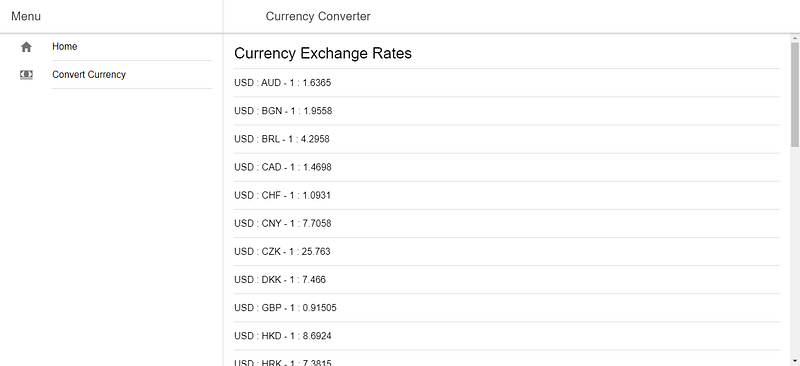
You should see a list of current exchanges when you go to [http://localhost:8100/home](http://localhost:8100/home).

Testing in the Genymotion Emulator

It is easy to test it in Genymotion. First, sign up for a Genymotion account, download Genymotion, and install it following the instructions. Then, run the program.

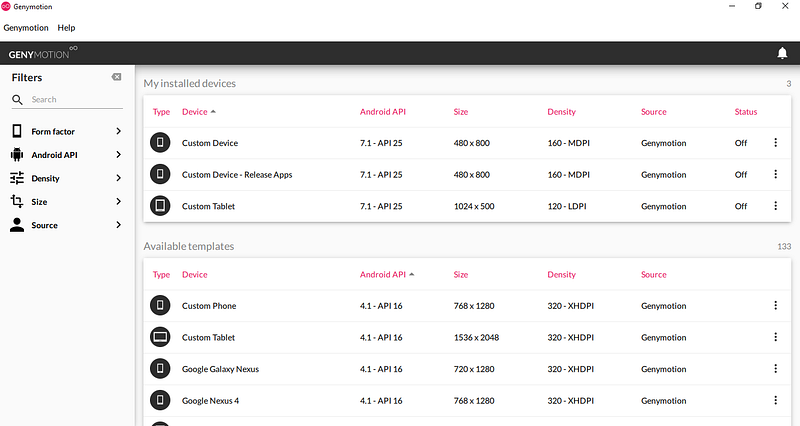
Once you open Genymotion, add an emulator by selecting what is available in the available templates section.

Once you add an emulator, you should see something like this:
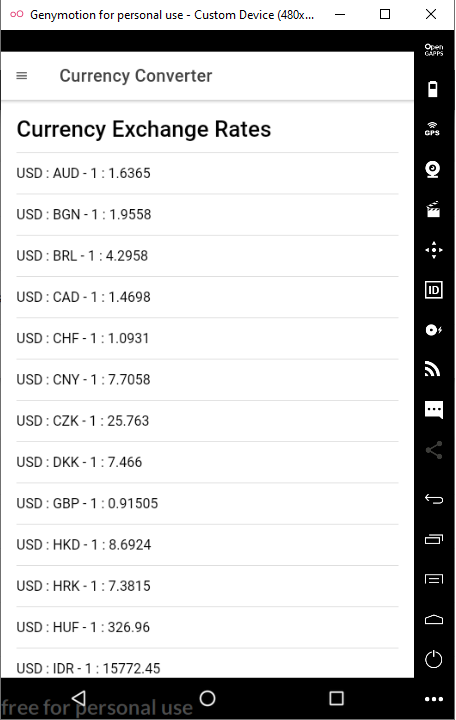
Doubling-click on your emulator. Once you do that, you should see the emulator window. Run ionic cordova run android in the Node command prompt to see the app running in Genymotion.

Once the command is finished, you should see:

Building for Production

First, you have to sign your app. To do this, you have to run a command to generate keystore:

keytool -genkey -v -keystore my-release-key.jks -keyalg RSA -keysize 2048 -validity 10000 -alias my-alias

Run ionic cordova build — prod — release android to build the app in production mode.

After that, you can sign it with your keystore by running:

jarsigner -verbose -sigalg SHA1withRSA -digestalg SHA1 -keystore path/to/my-release-key.jks path/to/app-release-unsigned.apk alias_name

Optimize the APK by running [zipalign](https://developer.android.com/studio/command-line/zipalign):

zipalign -v 4 app-release-unsigned.apk currency-converter-mobile.apk

You’ll get a signed APK that you can submit to Android app stores, such as Google Play and Amazon.

Ionic makes it easy to build Android applications that don’t require too much native functionality, such as interacting with hardware.

With recent advances in HTML APIs for interacting with hardware, such as microphones, Ionic is going to be more useful for building these kinds of apps.

Performance is decent compared to native for simple apps and it is a lot easier to develop.

Categories
Angular

Build a Whiteboard App With Konva and Angular

The HTML canvas is part of the HTML specification that allows developers to easily add graphics and interactivity to their apps.

In the HTML canvas, you can add images, text, and shapes with different colors, fills, and gradients. It is supported by almost all recent browsers.

To add something to a canvas, you first add a canvas element to your page. Then, you can add lines to your canvas in the shape that you want.

For example, to add a line and a circle to your canvas element, in your HTML file you do the following:

<canvas id="canvas" width="200" height="100" style="border:2px solid #000000;">  
</canvas>

Then, in your JavaScript file, you do this:

If you want to add anything more complex, it will be difficult to do.

Therefore, the Konva library abstracts the hard work of adding items to the canvas. It allows you to add many more shapes by simply writing a few lines of code.

You can also allow users to move and transform your shapes easily, which you would have to write yourself if you wanted to do it in the HTML Canvas API.

In this piece, Konva will be combined with Angular to create a whiteboard where the user can add circles, rectangles, lines, and text, and move them and transform them within the whiteboard.

How it works: Konva creates a stage and a layer in the stage which will allow you to add the lines, shapes, and text that you want.


Getting Started

To start, we create an Angular app by running ng new whiteboard-app. Be sure to include the routing module when asked.

I’m assuming that you have the Angular CLI installed. If not, run npm i -g @angular/cli.

After that, we need to install the Konva library and Angular Material, which will allow us to manipulate the canvas and make our UI look pretty without a lot of effort.

To do this, run npm i konva @angular/material.

Then, we need to create Angular services to abstract some of the repetitive logic by running ng g service shape and ng g service textNode.

The logic for generating shapes and text will be placed in these files.

We also need to create a page for the whiteboard. Run ng g component whiteboardPage to make the component.

In app-routing.module.ts, add:

To make sure that we can see the page when we go to http://localhost:4200/, follow the instructions below.

In app.module.js, replace what was generated with:

In shape.service.ts, add the following:

Konva is available as an ES6 module, so we can import it.

Also, TypeScript definitions are built into the library, so autocomplete is available and they are correct (for the most part).

The three functions above will return line, circle, and rectangle shapes respectively, with pre-filled colors, strokes, and dimensions.

However, they can easily be changed to dynamic ones by adding parameters to the functions and setting the values in the object.

As we want to be able to move them, we set draggable to true for circle and rectangle. For a line, we only allow dragging in brush mode as we also use the line for creating the erase feature later.

In text-node.service.ts, enter the following code:

The code above will return the editable text box as shown in the Konva documentation, along with the transformer object which allows you to transform the text.

Now that we have the code to generate all the elements, we can build the UI in the whiteboard-page.component.

In whiteboard-page.component.ts, replace the existing code with:

And, in whiteboard-page.component.html, replace what is there with:

The two pieces of code above will highlight the button when it is clicked with the setSelection function. The setSelection function will set the dictionary which sets the color according to whether the button is clicked or not.

The addShape function will add the shape according to which button is clicked. It will call the service functions according to the shapes, which will return the Konva object for the shape.

This will be added to the layer object, which has already been added to the stage. The transformer object is attached to the shape objects at this time as well so you can change the size of the objects on screen.

this.layer.draw() is called which will redraw the canvas so you get the latest items displayed in the canvas.

To make the eraser for the line, it just adds another line (which is always white), on top of the existing line. The line will not be in brush mode so it will be white when created.

If we want undo functionality, we have to track the shapes and transformer objects that are added. To do this, we put them in the shapes array and the transformers array respectively after we add them.

Then, when the undo button is clicked, this is called:

In the undo function, the transformers for the shape are detached, so the transform handles for the removed shapes will go away. Then, we called remove() on the removed shape and redraw. We no longer get the shape and the handle.

Categories
TypeScript

Great New Features Released with TypeScript 3.4

TypeScript is improving every day. We keep getting new features with every release. In this article, we’ll look at the new stuff that’s released with TypeScript 3.4.

New features include better type inference for higher-order generic functions. changes to readonly types and faster builds with the --increment flag, and more.

New Features in TypeScript 3.4

–incremental Flag

To speed up builds after the first build, the --incremental flag of the TypeScript compiler will let us build only based on what’s changed.

We can add the option to tsconfig.json of our project to get this feature, under the compilerOptions section, as follows:

{
    "compilerOptions": {
        "incremental": true,
        "outDir": "./lib"
    },
    "include": ["./src"]
}

It works by looking for the .tsbuildinfo which is created with the first build. If it doesn’t exist, then it’ll be generated. It’ll use this file to know what has been built and what has not.

It can be safely deleted and not impact our build. We can name the file with a different name by adding a tsBuildInfoFile option to the compilerOptions section tsconfig.json as follows:

{
    "compilerOptions": {
        "incremental": true,
        "tsBuildInfoFile": "./front-end-app",
        "outDir": "./lib"
    },
    "include": ["./src"]
}

For composite projects, which has composite flag set to true in tsconfig.json, references between different projects can also be built incrementally. These projects will always generate a .tsbuildinfo files.

When the outFile option is used, then the build information file name will be based on the output file’s name. For example, if the output file is foo.js then the build information file will be foo.tsbuildinfo.

Higher-Order Type Inference in Generic Functions

When we have functions that take other functions as parameters, we’ll get type inference for the types of functions that are passed in and returned.

For example, if we have a function that composes multiple functions to return a new function as follows:

function compose<A, B, C, D>(
    f: (arg: A) => B,
    g: (arg: B) => C,
    h: (arg: C) => D
): (arg: A) => D {
    return x => h(g(f(x)));
}

When we fill in the types for the generic markers as follows:

function compose<A, B, C, D>(
    f: (arg: A) => B,
    g: (arg: B) => C,
    h: (arg: C) => D
): (arg: A) => D {
    return x => h(g(f(x)));
}

interface Employee {
    name: string;
}

const getName = (employee) => employee.name;
const splitString = (name) => name.split('');
const getLength = (name) => name.length;

const fn = compose(getName, splitString, getLength)

Then we can call the fn function by writing:

const len: number = fn(<Employee>{ name: 'Joe' });

TypeScript 3.4 or later is smart enough to go through the chain of function calls and infer the types of each function automatically and the return type of the function returned from compose.

It can infer that fn returns a number.

TypeScript versions older than 3.4 will infer the empty object type and we get errors with the assignment expression above.

ReadonlyArray and readonly tuples

Using read-only array types is now easier with TypeScript 3.4. We can now declare a read-only array with the readonly keyword.

For example, if we want a read-only string array, we can write:

const strArr: readonly string[] = ['a', 'b', 'c'];

Now we have an array that we can’t push to, change entries or anything else that modifies the array.

This is much more compact compared to the ReadOnlyArray<string> type.

With TypeScript 3.4, we have the new read-only tuple type. We can declare a read-only tuple as follows:

const strTuple: readonly [string, string] = ['foo', 'bar'];

The readonly modifier on mapped types will convert to array-like types to their corresponding readonly counterparts.

For example, if we have the type:

type ReadOnly<T> = {
    readonly [K in keyof T]: T[K]
}

Then when we pass in a type into the generic type placeholder of Readonly as follows:

type foo = Readonly<{foo: number, bar: string}>;

We get that the foo type is:

type foo = {
    readonly foo: number;
    readonly bar: string;
}

As we can see, both fields have become readonly , which isn’t the case before TypeScript 3.4.

We can also use mapped types to remove the readonly modifier from all the fields. To do this, we add a - before the readonly modifier.

For example, we can write:

type Writable<T> = {
    -readonly [K in keyof T]: T[K]
}

interface Foo{
    readonly foo: string;
    readonly bar: number;
}

type foo = Writable<Foo>;

Then we get:

type WriteFoo = {
    foo: string;
    bar: number;
}

For the type foo .

The readonly modifier can only be used for syntax on array types and tuple types. It can’t be used on anything else.

Photo by Erin Wilson on Unsplash

Const Assertions

A constructor called const assertions is introduced with TypeScript 3.4. When we use it, we signal that literal types can’t change to a type that’s wider in scope, like going from 1 to string . Objects literals get readonly properties. Array literals become readonly tuples.

For example, the following is valid:

let x: 'foo' = "foo" as const;

We get that x is type 'foo' when we inspect its type.

Another example would be a number array:

let x = [1, 2] as const;

When we hover over x , we get that the type is readonly [1, 2] .

Conclusion

With TypeScript 3.4, we have multiple changes for read-only types, including using the readonly keyword to declare read-only arrays and tuples.

Also, we can add and remove the readonly modifier with mapped types with the readonly and -readonly modifiers before the index signature or field name.

The const assertion is for converting a value into a read-only entity.

High order generic functions that let us compose multiple functions together to return a new composed function also have smarter type inference than in earlier versions.

Finally, we have the --incremental flag to create incremental builds, which makes code build faster on subsequent builds.

Categories
TypeScript

Great New Features Released with TypeScript 3.5

TypeScript is improving every day. We keep getting new features with every release. In this article, we’ll look at the new stuff that was released with TypeScript 3.5.

New features include speed improvements to incremental builds, new Omit helper type, better excess property checks in union types, and type inference for the composition of constructors.

Speed Improvements

With the --incremental build mode, subsequent builds are faster because of the caching of references, file locations, and other build related data.

Omit Helper Type

The Omit helper type was introduced in TypeScript 3.5 to let us create a new type from existing types by excluding some properties from the original.

For example, given the Person type defined in the following code:

type Person = {
    name: string;
    age: number;
    address: string;
};

We can create a new type without the address property by using Omit:

type NewPerson = Omit<Person, "address">;

Which is the same as:

type NewPerson = {
    name: string;
    age: number;
}

Better Excess Property Checks in Union Types

Before TypeScript 3.5, excess property checks didn’t catch properties in some cases. If we have a union type, then TypeScript versions before 3.5 allows a property with the same name as the type of a union type but with a different type than what’s specified in the type definition.

For example, if we have:

type Person = {
    name: string;
    age: number;
};

type Address = {
    address: string;
}

const person: Person | Address = {
    name: 'Joe',
    age: 1,
    address: true
};

We can set address to something that’s not a string, which isn’t something that should be allowed.

This has been fixed in TypeScript 3.5. Now address has to be a string since it’s specified to be a string.

The --allowUmdGlobalAccess Flag

UMD global declarations files can now be referenced in TypeScript 3.5 using the new --allowUmdGlobalAccess flag.

It adds more flexibility for mixing and matching 3rd party libraries. Now the globals that libraries declare can be consumed, even from within modules.

Smarter Union Type Checking

We would get an error with the following union type definition and variable assignment before TypeScript 3.5:

type Foo = { done: boolean, value: string }
type Bar =
    | { done: false, value: string }
    | { done: true, value: string };

declare let source: Foo;
declare let target: Bar;

target = source;

Before 3.5, done would be recognized as having a literal type with the value instead of the boolean type.

Now it recognizes the type for the done field as being boolean. This now works boolean can only be true or false .

Higher-Order Type Inference From Generic Constructors

When we compose generic constructors as we do in the following function:

function composeConstructors<T, U, V>(
    F: new (x: T) => U, G: new (y: U) => V): (x: T) => V {
    return x => new G(new F(x))
}

TypeScript 3.5 can infer the type T , U , and V by inferring the chain of types that are formed from the composition.

If we have the following code:

class Foo<T> {
    value: T;
    constructor(value: T) {
        this.value = value;
    }
}

class Bar<U> {
    value: U;
    constructor(value: U) {
        this.value = value;
    }
}

let f = composeConstructors(Foo, Bar);
let a = f('foo');

Now we’ll get that a has the type Bar<Foo<string>> . Versions before 3.5 has the type Bar<{}> for a .

TypeScript 3.5 is smarter now. It can infer types formed by the composition of constructors.

With TypeScript 3.5, it’s smarter and faster. It can infer types formed by the composition of constructors by going through the chain of composition.

Excess property checks are checked for union types, which didn’t happen in earlier versions.

Also, we have the -- allowUmdGlobalAccess flag to run access global variables from UMD modules.

Finally, we have the Omit type for creating a new type from existing types with some properties removed.

Categories
HTML JavaScript

Introducing the Page Visibility API

Since most modern browsers are tabbed, it’s possible that a webpage may reside in a tab that stays in the background and not visible to the user.

The Page Visibility API can provide us with insight as to whether a page is visible to the user.

In this article, we’ll look at the Page Visibility API, its use cases, and how to use it.

Visibility Change Event

When a user minimizes the window or switches to another tab, the Page Visibility API sends a visibilitychange event to let listeners know that the state of the page has changed.

We can handle the event when it’s triggered and do something according to the visibility state. For example, we can pause the video when the page is hidden from view.

The visibility state of an iframe is the same as the parent document that the iframe is in. Hiding an iframe with CSS doesn’t trigger visibility events or change the state of the document contained within the iframe .

Use Cases

There’re many use cases for using the API. Some of them include the following:

  • pausing an image carousel when the page is hidden
  • stop polling the server for information when the page is hidden
  • prerendering a page to keep an accurate count of page views
  • switch off the sound when the page is not being viewed

Without the Page Visibility API, developers resort to imperfect solutions like listening to the blur or focus events of the window to help detect whether the page is visible or not.

They don’t tell if they’re hidden or not, just whether they’re in focus or not.

Policies that Help Background Page Performance

Most browsers do a few things to help save resources when a page isn’t in view.

requestAnimationFrame callback won’t be called to improve performance and battery life when a page is in the background.

setTimeout and other timers are throttles in the background or inactive tabs to improve performance.

Throttling is also done in browsers to limit CPU usage by background tabs.

Each background tab has its own time budget between -150ms and 50ms.

Browser windows are subjected to throttling after 30 seconds in Firefox and 10 seconds in Chrome.

Timer tasks are only permitted when the time budget is non-negative.

Once the timer’s code finishes running, the duration it takes to execute is subtracted from the time budget.

The budget regenerates at a rate of 10ms per second in both Firefox and Chrome.

Some processes ate exempt from throttling behavior. Tabs that are playing audio are considered foreground tabs and aren’t subject to throttling.

Code that uses real-time network connections goes unthrottled to prevent the closing of these connections.

IndexedDB processes are also left unthrottled to avoid timeouts.

The Page Visibility API can let us stop these things manually if we want to do so.

Using the Page Visibility API

The Page Visibility API is part of the document object.

We can use it by checking the document.hidden property or the document.visibilityState property. They’re both read-only.

To watch for changes in both, we can listen to the visibilitychange event.

To do this we can use the following example. Our example will pause a video when we switch to a different tab. First, we add the HTML code for the video as follows:

<video controls src='[https://sample-videos.com/video123/mp4/240/big_buck_bunny_240p_30mb.mp4'](https://sample-videos.com/video123/mp4/240/big_buck_bunny_240p_30mb.mp4%27)></video>

Then in our JavaScript code, we can listen to the visibilitychange event as follows:

const video = document.querySelector('video');

document.addEventListener('visibilitychange', () => {
  if (document.visibilityState !== 'visible') {
    video.pause();
  }
})

In our event listener callback, we pause the video when the visibilityState isn’t ‘visible’ , which means the user can’t see the tab either by navigating away from the tab or window, minimizing the window, or turned the screen off.

The alternative to this is to set the event handler to the onvisibilitychange property of document.

document.visibilityState can take on these 3 values:

  • visible — the page is visible to the user as a foreground tab
  • hidden — the page isn’t visible to the user, either because it’s in the background, or the minimized or the device’s screen is off.
  • prerender — the page is being prerendered and isn’t visible to the user. A document may start in this state, but will never switch to this state from any other state since it can only prerender once. Not all browsers support prerendering.
  • unloaded — the page is being unloaded from memory. Not all browsers support this.

Compatibility

This API has been supported for a while. Chrome since version 33 supports this API. Edge, Firefox, IE 10 or later, and Safari 7 or later all support this API. Mobile versions of these browsers also support this API.

The Page Visibility API is useful for detecting the visibility state of the page. We can listen to the visibilitychange event and then get the visibility state with document.visibilityState and so what we want with it.