Categories
JavaScript Vue

Adding Form Validation with vue-form-generator

Creating forms with validation can be a pain in a Vue.js project.

Therefore, solutions exists to let us create forms easily.

One of them if the vue-form-generator package.

To use it, we install the package by running:

npm install vue-form-generator

Then we can use it by including the library in our app:

main.js

import Vue from "vue";
import App from "./App.vue";
import VueFormGenerator from "vue-form-generator";
import "vue-form-generator/dist/vfg.css";

Vue.use(VueFormGenerator);
Vue.config.productionTip = false;

new Vue({
  render: h => h(App)
}).$mount("#app");

We include the CSS file that comes with the package.

Also, we call Vue.use with the package name to include the package.

Then we in App.vue, we write:

<template>
  <div id="app">
    <vue-form-generator :schema="schema" :model="model" :options="formOptions"></vue-form-generator>
    <p>{{model}}</p>
  </div>
</template>

<script>
import VueFormGenerator from "vue-form-generator";
VueFormGenerator.validators.email = value => {
  if (!/\S+@\S+\.\S+/.test(value)) {
    return ["invalid email"];
  } else {
    return [];
  }
};

export default {
  name: "App",
  data() {
    return {
      model: {
        id: 1,
        name: "jane smith",
        skills: ["Javascript"],
        email: "janesmith@example.com",
        status: true
      },
      schema: {
        fields: [
          {
            type: "input",
            inputType: "text",
            label: "ID ",
            model: "id",
            readonly: true,
            disabled: true
          },
          {
            type: "input",
            inputType: "text",
            label: "Name",
            model: "name",
            placeholder: "name",
            featured: true,
            required: true
          },
          {
            type: "select",
            label: "Skills",
            model: "skills",
            values: ["Javascript", "VueJS", "CSS3", "HTML5"]
          },
          {
            type: "input",
            inputType: "email",
            label: "E-mail",
            model: "email",
            placeholder: "e-mail address",
            validator: VueFormGenerator.validators.email
          },
          {
            type: "checkbox",
            label: "Status",
            model: "status",
            default: true
          }
        ]
      },
      formOptions: {
        validateAfterLoad: true,
        validateAfterChanged: true,
        validateAsync: true
      }
    };
  }
};
</script>

We import the vue-form-generator package’s VueFormGenerator component, then we add our own validator function by writing:

VueFormGenerator.validators.email = value => {
  if (!/\S+@\S+\.\S+/.test(value)) {
    return ["invalid email"];
  } else {
    return [];
  }
};

We just check if what we entered matched the email format and return an array with our form validation error message if it doesn’t.

Otherwise, we return an empty array, which indicates that what we entered is valid.

Then in our data method, we return:

{
  model: {
    id: 1,
    name: "jane smith",
    skills: ["Javascript"],
    email: "janesmith@example.com",
    status: true
  },
  schema: {
    fields: [{
        type: "input",
        inputType: "text",
        label: "ID ",
        model: "id",
        readonly: true,
        disabled: true
      },
      {
        type: "input",
        inputType: "text",
        label: "Name",
        model: "name",
        placeholder: "name",
        featured: true,
        required: true
      },
      {
        type: "select",
        label: "Skills",
        model: "skills",
        values: ["Javascript", "VueJS", "CSS3", "HTML5"]
      },
      {
        type: "input",
        inputType: "email",
        label: "E-mail",
        model: "email",
        placeholder: "e-mail address",
        validator: VueFormGenerator.validators.email
      },
      {
        type: "checkbox",
        label: "Status",
        model: "status",
        default: true
      }
    ]
  },
  formOptions: {
    validateAfterLoad: true,
    validateAfterChanged: true,
    validateAsync: true
  }
};

We use the validator function we created as the value of the validator property.

The schema property is used to define the form field behavior with various properties.

The model property will be the value that’s populated when we enter something into the form.

formOptions includes form options for changing validation behavior. We specified that we want to validate after the form is loaded or changed, and do both asynchronously

In the template, we have the vue-form-generator component, with the schema and model returned in the object returned by the data method.

In the end, we get:

https://thewebdev.info/wp-content/uploads/2020/05/form.png

It’s easy to create a form with validation with the vue-form-generator package.

All we have to do is to pass in some objects as props into the vue-form-generator component including the models and form field options and then we’re set.

Categories
JavaScript React

Create Good Looking Charts with the React Chartkick NPM Package

To create charts in React apps, wd can use the React Chartkick NPM package.

We can get started easily.

Create Charts

We run the following commands to install the packages we need:

yarn add react-chartkick chart.js

Chart.js is a dependency required for React Chartkick, so we have to install it.

Then we can create our chart as follows:

import React from "react";
import { LineChart } from "react-chartkick";
import "chart.js";

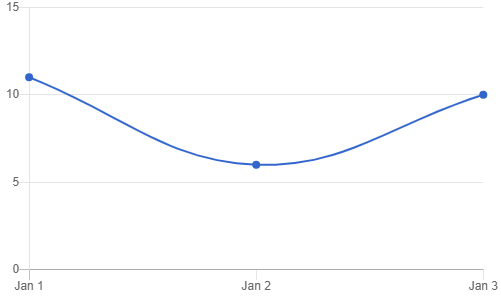
const data = { "2020-01-01": 11, "2020-01-02": 6, "2020-01-03": 10 };
export default function App() {
  return (
    <div className="App">
      <LineChart data={data} />
    </div>
  );
}

We just create an object with the x-axis labels as the keys and the corresponding values for the y-axis.

Once we did that, we get:

https://thewebdev.info/wp-content/uploads/2020/05/linechart.png

To create a bar chart, we can write:

import React from "react";
import { BarChart } from "react-chartkick";
import "chart.js";

const data = [["eat", 32], ["drink", 100]];
export default function App() {
  return (
    <div className="App">
      <BarChart data={data} />
    </div>
  );
}

The data structure and component to import are different, but we can create one without much effort.

Once we wrote the code above, we get:

https://thewebdev.info/wp-content/uploads/2020/05/barchart.png

The React Chartkick package support many other kinds of charts like pie charts, area charts, geo charts, and more.

Options

We can customize the options of the charts to suit our needs.

For instance, we can set the min and max values for the x-axis.

We can use the xmin and xmax props as follows:

import React from "react";
import { LineChart } from "react-chartkick";
import "chart.js";

const data = { "2020-01-01": 11, "2020-01-02": 6, "2020-01-03": 10 };

export default function App() {
  return (
    <div className="App">
      <LineChart data={data} xmin="2020-01-01" xmax="2020-01-03" />
    </div>
  );
}

We make sure that our data matches the x-axis ranges.

Likewise, we can set the range for the y-axis by writing:

import React from "react";
import { LineChart } from "react-chartkick";
import "chart.js";

const data = { "2020-01-01": 11, "2020-01-02": 6, "2020-01-03": 10 };

export default function App() {
  return (
    <div className="App">
      <LineChart
        data={data}
        min={0}
        max={20}
        xmin="2020-01-01"
        xmax="2020-01-03"
      />
    </div>
  );
}

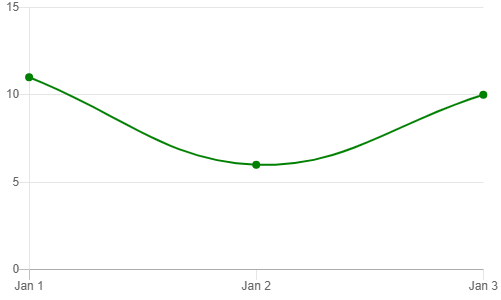
To change the color of the line, we can use the colors prop:

import React from "react";
import { LineChart } from "react-chartkick";
import "chart.js";

const data = { "2020-01-01": 11, "2020-01-02": 6, "2020-01-03": 10 };

export default function App() {
  return (
    <div className="App">
      <LineChart data={data} colors={["green"]} />
    </div>
  );
}

We just pass in an array to change the line color.

One we wrote our code, we get:

https://thewebdev.info/wp-content/uploads/2020/05/green.png

Labels and Legends

The React Chartkick NPM package provides with props to enable a legend.

We set the legend prop to true to display a legend.

Then we use the label prop to add text to the legend.

To set the titles for the x and y axes, we can use the xtitle and ytitle props respectively.

For instance, we can write:

import React from "react";
import { LineChart } from "react-chartkick";
import "chart.js";

const data = { "2020-01-01": 11, "2020-01-02": 6, "2020-01-03": 10 };

export default function App() {
  return (
    <div className="App">
      <LineChart
        data={data}
        label="Population"
        legend={true}
        xtitle="Time"
        ytitle="Population"
      />
    </div>
  );
}

Once we did that, we get:

https://thewebdev.info/wp-content/uploads/2020/05/labels.png

The React Chartkick NPM package has chart components that take many more props to let us create charts.

It’s one of the easiest libraries for us to create charts in React apps.

Categories
JavaScript Nodejs

Add Logging to a Koa App with koa-logger

Koa doesn’t come with any logger built-in. Therefore, to see what’s happening with our app, we’ve to log them with a 3rd party logger.

One logger that’s compatible with the Koa framework is the koa-logger package.

Getting Started

To install it, we just run:

npm install koa-logger

and then we can use it by writing:

const logger = require('koa-logger')
const Koa = require('koa')

const app = new Koa()
app.use(logger())

app.use(async ctx => {
  ctx.body = 'Hello World';
});

app.listen(3000);

All we did is to call use with the return value of the logger middleware passed in, then we get logging automatically.

Now when we start our app, we some output logged.

If we run the code above, we get the following output:

Server {
  insecureHTTPParser: undefined,
  _events: [Object: null prototype] {
    request: [Function: handleRequest],
    connection: [Function: connectionListener]
  },
  _eventsCount: 2,
  _maxListeners: undefined,
  _connections: 0,
  _handle: TCP {
    reading: false,
    onconnection: [Function: onconnection],
    [Symbol(owner)]: [Circular]
  },
  _usingWorkers: false,
  _workers: [],
  _unref: false,
Hint: hit control+c anytime to enter REPL.
Server {
  insecureHTTPParser: undefined,
  _events: [Object: null prototype] {
    request: [Function: handleRequest],
    connection: [Function: connectionListener]
  },
  _eventsCount: 2,
  _maxListeners: undefined,
  _connections: 0,
  _handle: TCP {
    reading: false,
    onconnection: [Function: onconnection],
    [Symbol(owner)]: [Circular]
  },
  _usingWorkers: false,
  _workers: [],
  _unref: false,
  allowHalfOpen: true,
  pauseOnConnect: false,
  httpAllowHalfOpen: false,
  timeout: 120000,
  keepAliveTimeout: 5000,
  maxHeadersCount: null,
  headersTimeout: 40000,
  _connectionKey: '6::::3000',
  [Symbol(IncomingMessage)]: [Function: IncomingMessage],
  [Symbol(ServerResponse)]: [Function: ServerResponse],
  [Symbol(kCapture)]: false,
  [Symbol(asyncId)]: 6
}
  <-- GET / [
Hint: hit control+c anytime to enter REPL.
Server {
  insecureHTTPParser: undefined,
  _events: [Object: null prototype] {
    request: [Function: handleRequest],
    connection: [Function: connectionListener]
  },
  _eventsCount: 2,
  _maxListeners: undefined,
  _connections: 0,
  _handle: TCP {
    reading: false,
    onconnection: [Function: onconnection],
    [Symbol(owner)]: [Circular]
  },
  _usingWorkers: false,
  _workers: [],
  _unref: false,
  allowHalfOpen: true,
  pauseOnConnect: false,
  httpAllowHalfOpen: false,
  timeout: 120000,
  keepAliveTimeout: 5000,
  maxHeadersCount: null,
  headersTimeout: 40000,
  _connectionKey: '6::::3000',
  [Symbol(IncomingMessage)]: [Function: IncomingMessage],
  [Symbol(ServerResponse)]: [Function: ServerResponse],
  [Symbol(kCapture)]: false,
  [Symbol(asyncId)]: 6
}
  <-- GET /
  --> GET / 200 8ms 11b

Custom Logging

The logger middleware function can take an optional callback as an argument.

The callback has the str parameter with the logging output as a string.

args has extra information about the request that’s made, including response time and the size of the response.

We can customize the logging by writing:

const logger = require('koa-logger')
const Koa = require('koa')

const app = new Koa()
app.use(logger((str, args) => {
  console.log(str, args);
}))

app.use(async ctx => {
  ctx.body = 'Hello World';
});

app.listen(3000);

We have the callback:

(str, args) => {
  console.log(str, args);
}

Instead of nothing that we have in the previous example.

The result of this change is the following output:

Server {
  insecureHTTPParser: undefined,
  _events: [Object: null prototype] {
    request: [Function: handleRequest],
    connection: [Function: connectionListener]
  },
  _eventsCount: 2,
  _maxListeners: undefined,
  _connections: 0,
  _handle: TCP {
    reading: false,
    onconnection: [Function: onconnection],
    [Symbol(owner)]: [Circular]
  },
  _usingWorkers: false,
  _workers: [],
  _unref: false,
  allowHalfOpen: true,
  pauseOnConnect: false,
  httpAllowHalfOpen: false,
  timeout: 120000,
  keepAliveTimeout: 5000,
  maxHeadersCount: null,
  headersTimeout: 40000,
  _connectionKey: '6::::3000',
  [Symbol(IncomingMessage)]: [Function: IncomingMessage],
  [Symbol(ServerResponse)]: [Function: ServerResponse],
  [Symbol(kCapture)]: false,
  [Symbol(asyncId)]: 6
}
  <-- GET / [
  '  \u001b[90m<--\u001b[39m \u001b[1m%s\u001b[22m \u001b[90m%s\u001b[39m',
  'GET',
  '/'
]
  --> GET / 200 13ms 11b [
  '  \u001b[90m-->\u001b[39m \u001b[1m%s\u001b[22m \u001b[90m%s\u001b[39m \u001b[32m%s\u001b[39m \u001b[90m%s\u001b[39m \u001b[90m%s\u001b[39m',
  'GET',
  '/',
  200,
  '13ms',
  '11b'
]

We get extra information from the args object.

Alternatively, we can pass in an object with the transporter property to logger:

app.use(logger({
  transporter: (str, args) => {
    // ...
  }
}))

We can add logging to a Koa app with the koa-logger package, which is very simple to use.

With this, we don’t have to create our own logging solution.

Categories
JavaScript React

Set the Default Checked Value of a React Radio Button

To create a radio button group with React and set the default checked value of it, we have to set the value to the state that we want.

Then we’ve to set the checked prop to be the expression to compare the value of the radio button with the currently selected value.

This way, React will check the right one.

We also need an onChange handler to update the state to the right value.

To do all that, we write:

import React, { useState } from "react";

const fruits = ["orange", "apple", "grape"];

export default function App() {
  const [fruit, setFruit] = useState("apple");
  return (
    <div className="App">
      {fruits.map(f => (
        <>
          <input
            type="radio"
            name="fruit"
            value={f}
            checked={fruit === f}
            onChange={e => setFruit(e.currentTarget.value)}
          />{" "}
          {f}
        </>
      ))}
      <p>{fruit}</p>
    </div>
  );
}

We have the fruits array, which we use to map the values to radio buttons.

Radio buttons are input elements with type 'radio'.

The name attribute also have to be set to the same name so that we know that they’re in the same group.

The value attribute is set to the fruit state, so that we can update the checked value by comparison fruit with the value of the value attribute of the radio button.

We have:

onChange={e => setFruit(e.currentTarget.value)}

which gets the e.currentTarget.value property, which has the currently checked radio buttons’ value and set it as the value of the fruit state.

This will update the radio button when we click on it.

Then we display the value of the radio button that’s checked below so that we can see what we actually selected.

To set the default value, we just set the initial value of the fruit state since we used that as the value of the value prop.

The button that’s clicked should have the same value that’s displayed.

To set the default value of a React radio button element, we just have to set the value prop to the state value that we want.

Categories
JavaScript React

Set a Default Value for a React Select Element

We can set the default value of a React select element by using the useState hook.

The default value can be set as the default value of the hook. Then we can set it as the value of the value prop of the select element.

For instance, we can write:

import React, { useState } from "react";

const fruits = ["orange", "apple", "grape"];

export default function App() {
  const [fruit, setFruit] = useState("apple");
  return (
    <div className="App">
      <select
        value={fruit}
        onChange={e => setFruit(fruits[e.target.selectedIndex])}
      >
        {fruits.map(f => (
          <option value={f}>{f}</option>
        ))}
      </select>
      <p>{fruit}</p>
    </div>
  );
}

We set the value prop to fruit so that we set the initial value of it.

We map the fruits entries to the option elements.

Then we add an onChange handler to call setFruit as we change selection.

We get the selected value from the fruits array by writing:

fruits[e.target.selectedIndex]

so that we get the string given the index of the selected option.

Then we display the selected value so that we can see what we selected below the select element.

Since we set the initial value of the fruit state to 'apple', that’s what we display when we load the select element, which means that it’s the default value.

Now we can have default values for our React select elements.