Categories
Chart.js JavaScript

Chart.js Time Series Example

Plotting time series data with Chart.js is easy.

We can plot time series data with a line chart, which is a chart type that’s built into Chart.js

To use Chart.js, we first include it with a script tag by writing:

<script src='https://cdnjs.cloudflare.com/ajax/libs/Chart.js/2.9.3/Chart.min.js'></script>
<script src='https://cdnjs.cloudflare.com/ajax/libs/moment.js/2.24.0/moment.min.js'></script>

<canvas id="timeSeriesChart" width="400" height="400"></canvas>

The chart will be rendered in the canvas element.

Then we create our chart by writing:

const ctx = document.getElementById('timeSeriesChart').getContext('2d');

const startDate = new Date(2020, 0, 1);
const labels = [];
for (let i = 0; i < 6; i++) {
  const date = moment(startDate).add(i, 'days').format('YYYY-MM-DD');
  labels.push(date.toString());
}

const chart = new Chart(ctx, {
  type: 'line',
  data: {
    labels,
    datasets: [{
      label: '# of Votes',
      data: [12, 19, 3, 5, 2, 3],
      borderWidth: 1
    }]
  },
  options: {}
});

The labels array has the labels on the x-axis. They are all dates.

data in datasets has the values on the y-axis.

label in datasets has the label for the legend.

After that code is written, we get:

https://thewebdev.info/wp-content/uploads/2020/04/timseries.png

We’ll see that the line chart has color-filled below the line.

We can disable that by changing the options.

To change the line color, we change the borderColor option in the datasets entry.

We can write:

const ctx = document.getElementById('timeSeriesChart').getContext('2d');

const startDate = new Date(2020, 0, 1);
const labels = [];
for (let i = 0; i < 6; i++) {
  const date = moment(startDate).add(i, 'days').format('YYYY-MM-DD');
  labels.push(date.toString());
}

const chart = new Chart(ctx, {
  type: 'line',
  data: {
    labels,
    datasets: [{
      label: '# of Votes',
      data: [12, 19, 3, 5, 2, 3],
      borderWidth: 5,
      fill: false,
      borderColor: 'green'
    }]
  },
  options: {}
});

With the borderWidth to change the thickness of the line, fill set to false to disable the fill color between the line and the x-axis, and borderColor set to 'green' to change the line to the color green.

Then we get:

https://thewebdev.info/wp-content/uploads/2020/04/greentimeseries.png

As we can see from the Chart.js time series example above, it doesn’t take much effort to display simple time-series data with it.

Categories
JavaScript

JavaScript Events Handlers — ondragleave and ondragover

In JavaScript, events are actions that happen in an app. They’re triggered by various things like inputs being entered, forms being submitted, and changes in an element like resizing, or errors that happen when an app is running, etc. We can assign event handler to handle these events. Events that happen to DOM elements can be handled by assigning an event handler to properties of the DOM object for the corresponding events. In this article, we will look at the ondragleave and ondragover event handlers and how to use them.

ondragleave

The ondragleave property of a DOM element let us set the an event handler function to handle the dragleave event. The dragleave event is fired when the dragged element or text selection leave a valid drop target. For example, we can check where the draggable box is moving away from by adding the following HTML code:

<p id='drag-leave-tracker'></p>  
<div id='drag-box' draggable="true">  
</div>  
<div id='drop-zones'>  
  <div id='drop-zone'>  
  </div>
  <div id='drop-zone-2'>  
  </div>  
</div>

The code above is better than passing in dragBox directly into appendChild since it’s much more generic than the original version of the event handler function. We can attach it to any draggable object we want. For example, if we have more than one draggable div element like in the following HTML code:

<div id='drag-box' draggable="true">  
</div>
<div id='drag-box-2' draggable="true">  
</div>
<div id='drop-zone'>  
</div>

And we change the CSS to style both draggable div elements like in the code below:

#drag-box {  
  width: 100px;  
  height: 100px;  
  background-color: red;  
}

#drag-box-2 {  
  width: 100px;  
  height: 100px;  
  background-color: green;  
}

#drop-zone {  
  width: 200px;  
  height: 200px;  
  background-color: purple  
}

Then we can write the following JavaScript code to use one ondragleave event handler function to handle the dropping of both draggable div elements like we have in the code below:

const dragBox = document.getElementById('drag-box');  
const dropZone = document.getElementById('drop-zone');  
const dropZone2 = document.getElementById('drop-zone-2');  
const dragLeaveTracker = document.getElementById('drag-leave-tracker');

const dragEnterHandler = (e) => {  
  if (e.toElement.id.includes('drop-zone')) {  
    e.toElement.appendChild(document.getElementById('drag-box'));  
  }  
}

const dragLeaveHandler = (e) => {  
  if (e.toElement.id.includes('drop-zone')) {  
    dragLeaveTracker.innerHTML = `Leaving ${e.target.id}`;  
  }  
}

dropZone.ondragenter = dragEnterHandler;  
dropZone.ondragleave = dragLeaveHandler;  
dropZone2.ondragenter = dragEnterHandler;  
dropZone2.ondragleave = dragLeaveHandler;

In the code above, we created a dragLeaveHandler function, which has an e parameter with the DragEvent object to get the DOM element that the draggable element is moving away from. It can also move away from itself since it’s also a valid drop target. We only care about moving away from the 2 drop-zone div elements so we added a check if the ID of the element that it’s moving away from with the e.toElement.id.includes(‘drop-zone’) line. Then we set the innerHTML property of the dragLeaveTracker DOM element to display which one the 2 div elements the drag-box div is moving away from.

Also, we have the dragEnterHandler to handle the actual dropping of the drag-box element into the drop-zone div element by using the appendChild method to append the drag-box inside the drop-zone div .

ondragover

We can assign an event handler to the ondragover property of a DOM element to handle the dragover event, which is triggered when an element or text selection is being dragged over a valid drop target every few hundred milliseconds. For example, we can add the following HTML code to add a p element for displaying the ID of the element that the draggable element is dropped into, a draggable div element and 2 div elements that we can drop the draggable div element into, by writing the following code:

<p id='drag-over-tracker'></p>  
<div id='drag-box' draggable="true">  
</div>  
<div id='drop-zones'>  
  <div id='drop-zone'>  
  </div>
  <div id='drop-zone-2'>  
  </div>  
</div>

Then we style the elements we have in the HTML code by changing the color and the size of each div with the following CSS code:

#drag-box {  
  width: 100px;  
  height: 100px;  
  background-color: red;  
}

#drop-zones {  
  display: flex;  
}

#drop-zone {  
  width: 200px;  
  height: 200px;  
  background-color: purple  
}

#drop-zone-2 {  
  width: 200px;  
  height: 200px;  
  background-color: green;  
}

We put the 2 div elements that we can drop our draggable div into side by side by using the display: flex property and value. Then we can assign our own event handler function to the ondragover property of our 2 div elements where we can drop our draggable div element into by writing the following code:

const dragBox = document.getElementById('drag-box');  
const dropZone = document.getElementById('drop-zone');  
const dropZone2 = document.getElementById('drop-zone-2');  
const dragOverTracker = document.getElementById('drag-over-tracker');

const dragEnterHandler = (e) => {  
  if (e.toElement.id.includes('drop-zone')) {  
    e.toElement.appendChild(document.getElementById('drag-box'));  
  }  
}

const dragOverHandler = (e) => {  
  console.log(e);  
  if (e.toElement.id.includes('drop-zone')) {  
    dragOverTracker.innerHTML = `Dragging over  ${e.target.id}, coordinate (${e.clientX}, ${e.clientY})`;  
  }  
}

dropZone.ondragenter = dragEnterHandler;  
dropZone.ondragover = dragOverHandler;  
dropZone2.ondragenter = dragEnterHandler;  
dropZone2.ondragover = dragOverHandler;

In the code above, we have the dragOverHandler function to handle the dragover event for the drop-zone and drop-zone-2 div elements. When the drag-box div element is dragged over one of the drop-zone div elements, we can see that the console.log statement inside the dragOverHandler function outputs data multiple times if we keep the drag-box div over either of the drop-zone divs . This is because the dragover event is fired every few milliseconds when we drag a draggable element over a valid drop target, which are the 2 drop-zone div elements. As long as we drag it over either of the 2 div elements, we will see new output from the console.log . Also, as we move drag-box inside either of the 2 drop-zone div elements, the coordinate that the drag-box within the screen will also be updated as it’s being moved by the mouse or touchscreen. We will see the ID of the div element that the drag-box is dragged over by getting the value of the e.toElement.id property and we also get the ID the drag-box is dragging over from the e parameter. The e parameter is an DragEvent object, which has properties like the drag coordinates with the clientX and clientY properties and the element being dragged over with the toElement property.

Also, we have the dragEnterHandler to handle the actual dropping of the drag-box element into the drop-zone div element by using the appendChild method to append the drag-box inside the drop-zone div .

The ondragleave property of a DOM element let us set the an event handler function to handle the dragleave event. The dragleave event is fired when the dragged element or text selection leave a valid drop target. It’s handy for getting which drop target element the element being dragged is leaving. We can assign an event handler to the ondragover property of a DOM element to handle the dragover event, which is triggered when an element or text selection is being dragged over a valid drop target every few hundred milliseconds. It’s handy for identifying which element we’re dragging over as well as getting the coordinates on the screen that the element being dragged is in.

Categories
JavaScript Vue

Introduction to Vue.js Testing

With apps getting more complex than ever, it’s important to test them automatically. We can do this with unit tests, and then we don’t have to test everything by hand.

In this article, we’ll look at how to test Vue.js apps by writing a simple app and testing it.

Getting Started

To get started, we create an app that gets a joke from the Chuck Norris Jokes API.

We start by creating an empty folder, going into it, and running the Vue CLI by running:

npx vue create .

In the wizard, we select Unit Tests, then choose Jest and then proceed.

Now that we have the files generated, we can change some code. We can delete the components folder and replace the code in App.vue with:

<template>  
  <div id="app">  
    <button @click='toggleJoke()'>{{jokeHidden ? 'Show' : 'Hide'}} Joke</button>  
    <p v-if="!jokeHidden">{{data.value.joke}}</p>  
  </div>  
</template>

<script>  
export default {  
  name: "app",  
  data() {  
    return {  
      jokeHidden: false,  
      data: { value: {} }  
    };  
  },  
  beforeMount() {  
    this.getJoke();  
  },  
  methods: {  
    async getJoke() {  
      const res = await fetch("http://api.icndb.com/jokes/random");  
      this.data = await res.json();  
    }, 

    toggleJoke() {  
      this.jokeHidden = !this.jokeHidden;  
    }  
  }  
};  
</script>

<style>  
#app {  
  font-family: "Avenir", Helvetica, Arial, sans-serif;  
  -webkit-font-smoothing: antialiased;  
  -moz-osx-font-smoothing: grayscale;  
  text-align: center;  
  color: #2c3e50;  
  margin-top: 60px;  
}  
</style>

The code just gets a joke from the API and then display it. Also, it has a button to show and hide the joke.

Our app looks something like the following:

https://thewebdev.info/wp-content/uploads/2020/04/chuck.png

Creating the Tests

Now that we have something to test, we can actually write the tests.

In the tests/unit folder, we delete what we have then create app.spec.js in that folder.

Then we open the file we created and add:

import { mount } from '@vue/test-utils';  
import App from '@/App.vue'

const mockResponse = {  
  "type": "success",  
  "value": {  
    "id": 178,  
    "joke": "In an act of great philanthropy, Chuck made a generous donation to the American Cancer Society. He donated 6,000 dead bodies for scientific research.",  
    "categories": []  
  }  
}

To import the component that we’ll test, the mount function to let the Vue Test Utils build and render the component for testing, and the mockResponse object that we’ll use to set the mock data.

Then we add the skeleton for our test by writing:

describe('App.vue', () => {  
  beforeEach(() => {  
    jest.clearAllMocks()  
  })  
})

We have the string description for our test suite and a callback which we add out tests to.

Inside the callback, we have the beforeEach hook to clear all the mocks by running jest.clearAllMocks() .

We need this because we’ll mock some of the functions in our component later.

Adding our First Test

Next, we write our first test. This test will simulate getting the data from the API and then displaying the joke on the screen.

It won’t actually get the joke from the server since we want our test to run anywhere and at any time. Getting it from the server won’t let us do that.

The API returns something different every time we call it and also it might not always be available.

With that in mind, we write:

it('renders joke', async () => {  
    const wrapper = mount(App, {  
      methods: {  
        getJoke: jest.fn()  
      }  
    });  
    wrapper.vm.data = mockResponse;  
      expect(wrapper.find('p').text()).toMatch(mockResponse.value.joke)  
  })

in the callback we passed into the describe function after the beforeEach call.

The test above calls mount on our App component to build and render the component and returns a Wrapper object to let us access it.

In the second argument, we pass in the options with the methods property so that we can mock the getJoke method with Jest with jest.fn(). We want to mock it so that our test doesn’t call the API.

Once we have the wrapper then we run:

wrapper.vm.data = mockResponse;

to set the mockResponse data to the data property of our component instance.

Once we did that, we check that we get the joke in our mockResponse rendered by writing:

expect(wrapper.find('p').text()).toMatch(mockResponse.value.joke)

since we put our joke in the p tag in our App component.

The expect method and toMatch are from Jest.

Writing Test that Interacts with UI Elements

Writing a test that does something to UI elements like buttons isn’t that much more work.

To test the button that we added to our app actually shows and hides the joke, we write:

it('toggles joke', () => {  
    const wrapper = mount(App, {  
      methods: {  
        getJoke: jest.fn()  
      }  
    });  
    wrapper.vm.data = mockResponse;  
    expect(wrapper.find('button').text()).toMatch('Hide Joke');  
      expect(wrapper.find('p').text()).toMatch(mockResponse.value.joke); wrapper.find('button').trigger('click');  
    expect(wrapper.find('button').text()).toMatch('Show Joke');  
    expect(wrapper.find('p').exists()).toBe(false); wrapper.find('button').trigger('click');  
    expect(wrapper.find('button').text()).toMatch('Hide Joke');  
      expect(wrapper.find('p').text()).toMatch(mockResponse.value.joke);  
  }
)

The first part:

const wrapper = mount(App, {  
  methods: {  
    getJoke: jest.fn()  
  }  
});  
wrapper.vm.data = mockResponse;

is the same as before. We mock the getJoke function with jest.fn() so that our test won’t call the API. Then set the mock data.

Next, we check the button text by writing:

expect(wrapper.find('button').text()).toMatch('Hide Joke');

and that our mocked joke is shown in the p element:

expect(wrapper.find('p').text()).toMatch(mockResponse.value.joke);

Then we click our button by running:

wrapper.find('button').trigger('click');

And then check for the text of the button and whether the p element is removed by our v-if directive:

expect(wrapper.find('button').text()).toMatch('Show Joke');  
expect(wrapper.find('p').exists()).toBe(false);

Finally, we can do the click again and check if the joke is shown again as follows:

wrapper.find('button').trigger('click');  
expect(wrapper.find('button').text()).toMatch('Hide Joke');  
expect(wrapper.find('p').text()).toMatch(mockResponse.value.joke);

Running the Tests

Together, we have the following test code in app.test.js :

import { mount } from '@vue/test-utils';  
import App from '@/App.vue'

const mockResponse = {  
  "type": "success",  
  "value": {  
    "id": 178,  
    "joke": "In an act of great philanthropy, Chuck made a generous donation to the American Cancer Society. He donated 6,000 dead bodies for scientific research.",  
    "categories": []  
  }  
}

describe('App.vue', () => {  
  beforeEach(() => {  
    jest.clearAllMocks()  
  }) 

  it('renders joke', async () => {  
    const wrapper = mount(App, {  
      methods: {  
        getJoke: jest.fn()  
      }  
    });  
    wrapper.vm.data = mockResponse;  
      expect(wrapper.find('p').text()).toMatch(mockResponse.value.joke)  
  }) 

  it('toggles joke', () => {  
    const wrapper = mount(App, {  
      methods: {  
        getJoke: jest.fn()  
      }  
    });  
    wrapper.vm.data = mockResponse;  
    expect(wrapper.find('button').text()).toMatch('Hide Joke');  
      expect(wrapper.find('p').text()).toMatch(mockResponse.value.joke); wrapper.find('button').trigger('click');  
    expect(wrapper.find('button').text()).toMatch('Show Joke');  
    expect(wrapper.find('p').exists()).toBe(false); wrapper.find('button').trigger('click');  
    expect(wrapper.find('button').text()).toMatch('Hide Joke');  
    expect(wrapper.find('p').text()).toMatch(mockResponse.value.joke);  
  })  
})

Then we run the tests by npm run test:unit .

We should get:

PASS  tests/unit/app.spec.js  
  App.vue  
    √ renders joke (19ms)  
    √ toggles joke (11ms)
Test Suites: 1 passed, 1 total  
Tests:       2 passed, 2 total  
Snapshots:   0 total  
Time:        2.102s  
Ran all test suites.

every time that we run our tests since we mocked the data.

Conclusion

Vue CLI creates a project that has unit testing built-in if we choose to include it. This saves us lots of work.

Jest is an easy test runner with lots of features like mocking and expect matchers that we can use.

To test UI components, we use the wrapper object returned by mount , which has the rendered component. Then we can use find to search the DOM for what we want to look for.

If the element exists, we can also trigger events on it by calling the trigger method with the event that we want to fire.

Finally, we have the exists method to check if the element we look for actually exists.

Categories
JavaScript TypeScript

Introduction to TypeScript Interfaces — Enforcing Class Implementation

The big advantage of TypeScript over plain JavaScript is that it extends the features of JavaScript by adding type safety to our program’s objects. It does this by checking the shape of the values that an object takes on. Checking the shape is called duck typing or structural typing.

Interfaces are one way to fill the role of naming data types in TypeScript. It’s very useful for defining a contract within our code in TypeScript programs. In this article, we will look at how we use interfaces for enforcing the implementation of classes.

Class Types

We can use TypeScript interfaces to make sure classes meet a specific contract as specified by interfaces like in other programming languages such as C# and Java. For example, we can define a class that implements the items specified by the interface with the implements keyword like we do in the code below:

interface PersonInterface {  
  name: string;  
}

class Person implements PersonInterface {  
  name: string = 'Mary';      
}

In the code above, we implemented the class Person which implements the items outlined in the PersonInterface. Since the PersonInterface has the field name which is a string, we follow that contract in the Person class that we implemented below that. The code above implements all the items outlined in the interface, so the TypeScript compiler will accept the code above as being valid. If we didn’t implement the items in the interface but we used the implements keyword, then we’ll get an error:

interface PersonInterface {  
  name: string;    
  age: number;    
}

class Person implements PersonInterface {      
  name: string = 'Mary';    
  foo: any = 'abc';  
}

For example, if we have the code above, then the TypeScript compiler will reject it with an error since we only have the name field in the Person, but instead of the age field, we have foo instead. So if we try to compile the code above, we would get an error message “Class ‘Person’ incorrectly implements interface ‘PersonInterface’. Property ‘age’ is missing in type ‘Person’ but required in type ‘PersonInterface’.”

However, after we implemented all the items in the interface, we can add extra items that aren’t specified in the interface and the TypeScript compiler would accept the code:

interface PersonInterface {  
  name: string;      
}

class Person implements PersonInterface {      
  name: string = 'Mary';    
  age: number = 20;  
}

The code above would be accepted by the TypeScript compiler since we have all the things in the interface and we added stuff to the class which isn’t in the interface, which is acceptable in TypeScript.

We can also describe methods that we will implement in classes with an interface. To do this, we can add method signatures along with their return type in our interfaces, like in the code below:

interface PersonInterface {  
  name: string;  
  age: number;  
  setName(name: string): string;  
  setAge(age: number): number;  
}

class Person implements PersonInterface {      
  name: string = 'Mary';    
  age: number = 20;  
  setName(name: string) {  
    this.name = name;  
    return name;  
  } 

  setAge(age: number) {  
    this.age = age;  
    return age;  
  }  
}

In the code above, we put 2 method signatures that are to be implemented in the class that implements the interface in the PersonInterface. We have the method signature for the setName method and another one for the setAge method. Inside the parentheses of each we specified the required parameters for each method. In the setName method, we specified that we require the name parameter and is of the type string. In the setAge method, we specified that we have an age parameter and is of type number. That’s the part on the left of the colon. On the right of the colon, we have the return type of each method. For the setName method, we specified that it returns a string. In the signature of the setAge method, we specified that it returns a number.

Then in the Person class, we just following the implementation as it’s outlined in the interface. So we added the name and age fields, which we designate as type string and number respectively. Then we add the setName and setAge methods as we outlined in the PersonInterface. Note that the type designation in the parameters of the methods are required, but the return type is not since it can be inferred by TypeScript but the parameter types have to checked explicitly. This means that if we have something like the following code with the parameter type omitted:

interface PersonInterface {  
  name: string;  
  age: number;  
  setName(name: string): string;  
  setAge(age: number): number;  
}

class Person implements PersonInterface {      
  name: string = 'Mary';    
  age: number = 20;  
  setName(name) {  
    this.name = name;  
    return name;  
  } 

  setAge(age) {  
    this.age = age;  
    return age;  
  }  
}

Then the TypeScript compiler will reject the code with the error messages “Parameter ‘name’ implicitly has an ‘any’ type.(7006)” for the setName method and “Parameter ‘age’ implicitly has an ‘any’ type.(7006)”. As we can see from the errors, parameters that have no type designation attached to it will be implicitly designated the any type, which isn’t what’s specified in the PersonInterface .

Interfaces only describe the public side of classes, rather than both the public and private side. This means that we can’t use it for checking private fields and methods.

Static Side vs Instance Side of Classes

In TypeScript, interfaces only check the instance side of classes, so anything that’s related to the static side of classes isn’t checked. For example, if we have the following code:

interface PersonInterface {  
  new (name: string, age: number);  
}

class Person implements PersonInterface {      
  constructor(name: string, age: number) {}  
}

We would get the error “Class ‘Person’ incorrectly implements interface ‘PersonInterface’. Type ‘Person’ provides no match for the signature ‘new (name: string, age: number)” since the static side of a class can’t be checked by an interface, and the constructor is on the static side. Instead we have to add different interfaces for each part of the static side. We can do this like in the code below:

interface PersonConstructor {  
  new (name: string, age: number): PersonInterface;  
}

interface PersonInterface {  
  name: string;  
  age: number;  
  greet(name: string): void;  
}

const createPerson = (ctor: PersonConstructor, name: string, age: number): PersonInterface =>{  
  return new ctor(name, age);      
}

class Person implements PersonInterface {      
  name: string;  
  age: number;  
  constructor(name: string, age: number) {  
    this.name = name;  
    this.age = age;  
  }  
  greet(name: string) {  
    console.log(`Hello ${this.name}. You're ${this.age} years old.`)  
  }  
}

let person = createPerson(Person, 'Jane', 20);  
console.log(person);

With the code above, the PersonInterface only has the public members, which are name , age , and the greet method. This forces us to implement these members in our Person class. The constructor isn’t checked by the PersonInterface since it’s a static member. We leave the check for that in the createPerson function. In createPerson, we check that the ctor parameter implements the PersonConstructor correctly, since we have the new method with the name and age parameters in the signature and we checked that it returns a PersonInterface which means that the constructor is returning an instance of some class that implements the PersonInterface . The code above will be accepted by the TypeScript compiler since we checked the static side separately from the instance side since we created the createPerson to let us check the static side, which is the constructor .

Another powerful feature of TypeScript is that we can use interfaces to check what we implemented in our classes by using interfaces. It’s useful for checking non-static members of a class. However, for static members like constructor , we have to check them outside the interface that we use for implementing classes since they can’t check for static members like the constructor method.

Categories
JavaScript

Introduction to Shared Workers

Shared workers are special web workers that can be accessed by multiple browser contexts like browser tabs, windows, iframes, or other workers, etc.

They’re different from dedicated workers in that they are instances of SharedWorkers and have a different global scope.

All browser contexts must be within the same domain in accordance with the same-origin policy.

In this article, we’ll look at the characteristics of shared and workers and how to create one.

Characteristics of Shared Workers

The difference between dedicated and shared workers is that dedicated workers can only be accessed by one script. Shared workers can be accessed by multiple scripts even if each page run inside different windows.

This enables more flexible communication between multiple scripts.

The scripts that access the workers can do so by accessing it through the MessagePort object created using the SharedWorker.port property. If the onmessage event is attached using addEventListener , then the port is manually started using the start method.

When the port is started multiple scripts can post messages to the worker and handle messages sent using the port.postMessage and port.onmessage respectively.

Other than that, scripts still communicate with the shared worker by communication messages to the worker and get messages back from the worker via scripts.

The SharedWorker constructor also takes an option object with the following options:

  • type : a string specifying the type of worker to create. The value can be classic or module and defaults to classic .
  • credentials : a string specifying the type of credentials to use for the worker. The value can be omit (no credentials required), same-origin or include . If it’s not specified, the type is class then omit is the default.
  • name : a string specifying the identifying name for the SharedWorkerGlobalScope representing the scope of the worker. It’s mainly used for debugging.

The constructor will throw a SecurityError if it’s not allowed to start workers, like if the URL is invalid or same-origin policy is violated.

NetworkError is raised if the MIME type of the worker script is incorrect.

SyntaxError is raised is the worker’s URL can’t be parsed.

Creating and Using a Shared Worker

We can create a shared worker and use it without too much hassle. First, we have to create a shared worker. Then we have to create the scripts to use it. Finally, we add the HTML so that we can do something with it.

Start by creating a scripts folder and add a sharedWorker.js file:

onconnect = (ev) => {  
  const [port] = ev.ports; 
  port.onmessage = e => {  
    const [first, second] = e.data;  
    let sum = +first + +second;  
    if (isNaN(sum)) {  
      port.postMessage("Both inputs should be numbers");  
    }  
    else {  
      const workerResult = `Result: ${sum} `;  
      port.postMessage(workerResult);  
    }  
  };  
};

In the code above, we have an onconnect handler assigned to the onconnect property. Then inside the handler function, we get the port that the shared worker uses to communicate with other scripts.

Next, we assign an event handler to the onmesaage property of the port that we got from the parameter of the onconnect handler. Then we can get the data from the parameter of the onmessage handler to and compute the sum.

Inside the handler, we check if both pieces of data sent from the external scripts are numbers and then add the numbers together if they’re and send them to the scripts.

We have to call port.start(); inside the onconnect event handler at the end if we want to use addEventListener to add a listener to the message event instead of assigning an event handler to onmessage .

Other we send a message back to the external scripts indicating that one or not pieces of data sent aren’t a number.

Then we create a main.js and main2.js in the script.js and add:

const sharedWorker = new SharedWorker("scripts/sharedWorker.js");  
const first = document.getElementById("number1");  
const second = document.getElementById("number2");  
const result = document.getElementById("result");  
sharedWorker.port.start();  
first.onkeyup = () => {  
  sharedWorker.port.postMessage([first.value, second.value]);  
};

second.onkeyup = () => {  
  sharedWorker.port.postMessage([first.value, second.value]);  
};

sharedWorker.port.onmessage = e => {  
  result.textContent = e.data;  
};

We get the input from the HTML file which we’ll create and then send it to our shared worker. We have to use the port of the shared worker to do this as we do by using sharedWorker.port.postMessage .

In:

sharedWorker.port.onmessage = e => {  
  result.textContent = e.data;  
};

We get back the data sent from the shared worker.

Both main.js and main2.js do the same thing but they’re used by different pages.

Finally, create index.html and index2.html and add:

<!DOCTYPE html>  
<html>  
  <head>  
    <title>Add Worker</title>  
  </head>  
  <body>  
    <form>  
      <div>  
        <label for="number1">First Number</label>  
        <input type="text" id="number1" value="0" />  
      </div>  
      <div>  
        <label for="number2">Second Number</label>  
        <input type="text" id="number2" value="0" />  
      </div>  
    </form>  
    <p id="result">Result</p>  
    <script src="scripts/main.js"></script>  
  </body>  
</html>

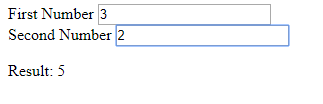
In the end, we get:

https://thewebdev.info/wp-content/uploads/2020/04/shared-worker.png

When we go to index.html or index2.html . We should be able to do calculations on both pages without them interfering with each other.

Creating a shared worker isn’t too different from creating and dedicated worker. The constructor arguments are exactly the same. The only difference is that we can use it with more than one script and we need to get the port object to communicate between external scripts and shared workers.