Categories
TypeScript

Introduction to TypeScript Interfaces — Indexable Types

The big advantage of TypeScript over plain JavaScript is that it extends the features of JavaScript by adding functionality that ensures the type safety of our program’s objects. It does this by checking the shape of the values that objects take on.

Checking the shape is called duck typing or structural typing. Interfaces are one way to fill the role naming data types in TypeScript. It’s very useful for defining contracts within our code in TypeScript programs. In the last article, we looked at how to define a TypeScript interface and adding required and optional properties to it. In this article, we’ll continue to look at other properties of TypeScript interfaces like indexable types.

Indexable Types

We can define indexable types for data like arrays. Any object that uses bracket notation like arrays and dynamic object types can be designated with indexable types. Indexable types have an index signature that describes the types that we can use as an index for our object, alongside the return type for the corresponding index. It’s very handy for designating the types for dynamic objects. For example, we can design an array that only accepts strings like in the following code:

interface NameArray {
    [index: number]: string;
}

let nameArray: NameArray = ["John", "Jane"];
const john = nameArray[0];
console.log(john);

In the code above, we defined the NameArray interface that takes in a index that is of type number as the index signature, and the return type of the corresponding index signature is a string. Then when we designate a variable with the NameArray type then we can use the index to get the entries of the array. However, with this code, the array methods and operators aren’t available since we only have the [index: number] index signature and nothing, so the TypeScript compiler isn’t aware that it’s an array even though it looks like one to the human eye.

Index signatures support 2 types. They can either be strings or numbers. It’s possible to support both types of indexes, but the type returned from a numeric indexer must be a subtype of the one returned by the string indexes. This is because JavaScript will convert numeric indexes to strings when it’s trying to accessing entries or properties with numeric properties. This ensures that it’s possible to get different results returned for the same index.

For example, the following code would give us an error from the TypeScript compiler:

class Animal {
  name: string = '';
}

class Cat extends Animal {
  breed: string = '';
}

interface Zoo {
    [x: number]: Animal;
    [x: string]: Cat;
}

If we try to compile the code above, we would get “Numeric index type ‘Animal’ is not assignable to string index type ‘Cat’.(2413)”. This is because we have Cat as a return type of the string index, which is a subtype of Animal. We can’t have this since if we have 2 index signatures with different types, then the supertype must be the return type of the index signature with the string type, and the index signature with the number type must have the subtype of the of returned by the one with the string index signature. This means that if we flip the return types around, then code will be compiled and run:

class Animal {
  name: string = '';
}

class Cat extends Animal {
  breed: string = '';
}

interface Zoo {
    [x: number]: Cat;
    [x: string]: Animal;
}

Since Animal is a supertype of Cat, we must have Animal as the return type of the string index signature, and the Cat type as the return type of the number index signature.

Photo by Nathalie SPEHNER on Unsplash

Index signatures enforce that all normal property matches their return type in addition to the ones that are accessed by the bracket notation since in JavaScript obj.prop and obj['prop'] are the same. This means that if we have the following code:

interface Dictionary {
  [x: string]: string;
}

let dict: Dictionary = {};
dict.prop = 1;

Then we would get the error “Type ‘1’ is not assignable to type ‘string’.(2322)” since we specified that all properties are strings in the variable that has the Dictionary type. If we want to accept other types in the properties of our objects, we have to use union types. For example, we can write the following interface to let the properties of the object with the given type accept both string and numbers as values:

interface Dictionary {
  [x: string]: string | number;
  num: number;
}

let dict: Dictionary = { num: 0 };

In the example above, we accept both string and number as both types of our values. So we add a property with a number type without the TypeScript compiler rejecting the code with an error. Therefore, in the last line of the code above, we can add a num property to the object with the value 0.

We can also make an index signature readonly so that we can prevent assignment to their indices. For example, we can mark an index signature as read only with the following code:

interface Dictionary {
  readonly [x: string]: string;
}

let dict: Dictionary = {'foo': 'foo'};

Then when we try to assign another value to dict['foo'] like in the code below, the TypeScript compiler will reject the code and won’t compile it:

interface Dictionary {
  readonly [x: string]: string;
}

let dict: Dictionary = {'foo': 'foo'};
dict['foo'] = 'foo';

If we try to compile the code above, we’ll get the error “Index signature in type ‘Dictionary’ only permits reading.(2542)”. This means that we can only set the properties and values of a read only property when the object is being initialized, but subsequent assignments will fail.

Conclusion

Indexable types are very handy for defining the return values of the properties of dynamic objects. It takes advantage of the fact that we can access JavaScript properties by using the bracket notation. This is handy for properties that have invalid names if defined without the bracket notation or anything that we want to be able to be accessed by the bracket notation and we want type checking on those properties or entries. With indexable types, we make sure that properties that are assigned and set by the bracket notation have the designated types.

Also, this also works for regular properties since bracket notation is the same as the dot notation for accessing properties. Also, we can designate index signatures as readonly so that they can be written to when the object with a type with indexable types is initialized but not after. If we have both number and string index signatures, then the string indexable signature must have the return type that’s the super-type of the one with the number index signature so that we get consistent types for objects when we access properties.


Categories
TypeScript

Introduction to TypeScript Enums — Const and Ambient Enums

If we want to define constants in JavaScript, we can use the const keyword. With TypeScript, we have another way to define a set of constants called enums. Enums let us define a list of named constants. It’s handy for defining an entity that can take on a few possible values. In this article, we’ll continue from Part 1 and look at union enums and enum member types, how enums are evaluated at run-time, const enums, and ambient enums.

Union Enums and Enum Member Types

A subset of enum members can act as data types of variables and class members in TypeScript. We can use literal enum members, which are enum members with no specific values assigned to them for annotating data types of our variables and class members. If an enum member has no string literal, numeric literal or a numeric literal with a minus sign before it, then we can use them as data types for other members. For example, we can use them as we do in the following code:

enum Fruit {
  Orange,
  Apple,
  Grape
}

interface OrangeInterface {
  kind: Fruit.Orange;
  color: string;
}

interface AppleInterface {
  kind: Fruit.Apple;
  color: string;
}

class Orange implements OrangeInterface {
  kind: Fruit.Orange = Fruit.Orange;
  color: string = 'orange';
}

class Apple implements AppleInterface{
  kind: Fruit.Apple = Fruit.Apple;
  color: string = 'red';
}

let orange: Orange = new Orange();
let Apple: Orange = new Apple();

In the code above, we used our Fruit enum to annotate the type of the kind field in our OrangeInterface and AppleInterface . We set it so that we can only assign Fruit.Orange to the kind field of the OrangeInterface and the class Orange which implements the OrangeInterface . Likewise, we set the kind field of AppleInterface to the type Fruit.Apple so that we can only assign the kind field to the value of the instances of the Apple class. This way, we can use the kind field as a constant field even though we can’t use the const keyword before a class field.

If we log the values of orange and apple above, we get that orange is:

{kind: 0, color: "orange"}

and apple has the value:

{kind: 1, color: "red"}

When we use enums in if statements, the TypeScript compiler will check that if the enum members are used in a valid way. For example, it’ll prevent us from writing expressions that use enums that always evaluate to true or false . For example, if we write:

enum Fruit {
  Orange,
  Apple,
  Grape
}

function f(x: Fruit) {
  if (
   x !== Fruit.Orange ||
   x !== Fruit.Apple ||
   x !== Fruit.Grape
  ) {

  }
}

Then we get the error message “This condition will always return ‘true’ since the types ‘Fruit.Orange’ and ‘Fruit.Apple’ have no overlap.(2367)“ since at least one of them is always true , so the expression:

x !== Fruit.Orange ||
x !== Fruit.Apple ||
x !== Fruit.Grape

will always evaluate to true . This is because if x can only be of type Fruit , and if x isn’t Fruit.Orange , then it’s either Fruit.Apple or Fruit.Grape , so either of them must be true .

This also means that the enum type itself is the union of each member, since each member can be used as a type. If a data type has the enum as the type, then it must always have one of the members in it as the actual type.

How Enums are Evaluated at Runtime

Enums are converted to real objects when they’re compiled by the TypeScript compiler, so they’re always treated like objects at runtime. This means that if we have an enum, then we can use its member names as property names of an enum object when we need to pass it in as a parameter with it. For example, if we have the following code:

enum Fruit {
  Orange,
  Apple,
  Grape
}

function f(fruit: { Orange: number }) {
  return fruit.Orange;
}
console.log(f(Fruit));

Then we get 0 from the console.log output from the code in the last line since we logged the value of fruit.Orange , which is 0 since we didn’t initialize it to any value. Likewise, we can use the same syntax for the destructuring assignment of an enum like we do in the following code:

enum Fruit {
  Orange,
  Apple,
  Grape
}

let { Orange }: { Orange: number } = Fruit;
console.log(Orange);

In the code above, we treat the Orange member inside the Fruit enum as another property of an object, so we can use it to assign it to a new variable with destructuring assignment like we did above. So if we log Orange like we did on the last line of the code snippet above, then we get 0 again. Also, we can use destructuring assignment to assign it to a variable with a name that’s not the same as the property name like we do in the following code:

let { Orange: orange }: { Orange: number } = Fruit;
console.log(orange);

Then we should get 0 again from the console.log statement on the last line of the code above.

Photo by Gary Bendig on Unsplash

Enums at Compile Time

The only exception to the rule that enums are treated as objects if when we use the keyof keyword with enums. The keyof keyword doesn’t work like typical objects. For example if we have:

let fruit: keyof Fruit;

Then the TypeScript compiler expects that we assign strings with number methods to it. For example, if we try to assign something like a 'Orange' to the expression above, we get the following error:

Type '"Orange"' is not assignable to type '"toString" | "toFixed" | "toExponential" | "toPrecision" | "valueOf" | "toLocaleString"'.(2322)

This isn’t what expect from the typical usage of the keyof keyword since for normal objects, it’s supposed to let us assign the property names of the keys of an object that comes after the keyof keyword. To make TypeScript let us assign 'Orange' , 'Apple' or 'Grape' to it, we can use the typof keyword after the keyof keyword like we do in the following code:

enum Fruit {
  Orange,
  Apple,
  Grape
}

let fruit: keyof typeof Fruit = 'Orange';

The code above would be accepted by the TypeScript compiler and runs because this is what makes TypeScript treats our enum members’ names as key names of an object.

Reverse Mappings

Numeric enums in TypeScript can be mapped from enum values to enum names. We can get an enum member’s name by its value by getting it by the values that are assigned to it. For example, if we have the following enum:

enum Fruit {
  Orange,
  Apple,
  Grape
}

Then we get can the string 'Orange' by getting it by its index like we do with the following code:

console.log(Fruit[0]);

The code above should log 'Orange' since the value of the member Orange is 0 by since we didn’t assign any specific value to it. We can also access it by using the member constant inside the brackets like the following code:

console.log(Fruit[Fruit.Orange]);

Since Fruit.Orange has the value 0, they’re equivalent.

Const Enums

We can add the const keyword before the enum definition to prevent it from being included in the compiled code that’s generated by the TypeScript compiler. This is possible since enums are just JavaScript objects after it’s compiled. For this reason, the values of the enum members can’t be dynamically generated, but they can be computed from other constant values. For example, we can write the following code:

const enum Fruit {
  Orange,
  Apple,
  Grape = Apple + 1
}

let fruits = [
  Fruit.Orange,
  Fruit.Apple,
  Fruit.Grape
]

Then when our code is compiled into ES5, we get:

"use strict";
let fruits = [
    0 /* Orange */,
    1 /* Apple */,
    2 /* Grape */
];

Ambient Enums

To reference an enum that exists somewhere else in the code, we can use the declare keyword before the enum definition to denote that. Ambient enums can’t have values assigned to any members and they won’t be included in compiled code since they’re supposed to reference enums that are defined somewhere else. For example, we can write:

declare enum Fruit {
  Orange,
  Apple,
  Grape
}

If we try to reference an ambient enum that’s not defined anywhere, we’ll get a run-time error since no lookup object is included in the compiled code.

Enum members can act as data types for variables, class members, and any other things that can be typed with TypeScript. An enum itself can also be a data type for these things. Therefore, anything typed with the enum type is a union type of all the member enum types. Enums are included or not depending on what keywords we use before the enum. If they’re defined with const or declare , then they won’t be included in the compiled code. Enums are just objects when converted to JavaScript and the members are converted to properties when compiled to JavaScript. This means that we can use member names as property names of objects in TypeScript.

Categories
HTML

Introduction to the HTML Dialog Element

Dialogs are frequently used in web apps. They’re used for displaying confirmation messages, alerts and other things that are suitable for popups.

Before the existence of the dialog element, we only have alert and confirm functions built into JavaScript to display text-only messages. They can’t be styled and can’t display anything other than text.

Also alert and confirm dialogs can’t have any button other than whatever’s built-in.

To make creating dialogs easier without adding libraries, now we can use the dialog element to create pop-up dialog boxes.

In this article, we’ll take a look at how to add dialog elements to our apps and do something with them.

Photo by Celine Sayuri Tagami on Unsplash

Creating Dialogs

To create dialogs, we’ll add the dialog element as follows:

<dialog open>
  <p>Greetings!</p>
</dialog>

We have a dialog with the open attribute to display the dialog. The default styling depends on the browser.

In Chrome, it looks something like this by default:

We can add any HTML to a dialog element. For example, we can add a form as follows:

<dialog open>
  <form method="dialog">
    <p>
      <label>
        Name:
      </label>
      <input type='type' name='name'>
    </p>

    <p>
      <label>
        Favorite Fruit:
      </label>
      <select name='fruit'>
        <option value='apple' selected>Apple</option>
        <option value='banana'>Banana</option>
        <option value='grape'>Grape</option>
      </select>
    </p>

    <menu>
      <button value="cancel">Cancel</button>
      <button id="confirm-btn" value="default">Confirm</button>
    </menu>
  </form>
</dialog>

<menu>
  <button id="dialog-button">Update Fruit</button>
</menu>

<output></output>

Our dialog has a form element with method set to dialog . This lets us set the return value of the dialog, which we can use after the dialog closes by clicking Confirm.

We also have an input and select element to let us input something into our form.

Also, we have a button with ID dialog-button to open our dialog element

Then in our JavaScript code, we can control the opening and closing of the dialog and get the inputted values as follows:

const dialogButton = document.getElementById('dialog-button');
const dialog = document.querySelector('dialog');
const output = document.querySelector('output');
const input = document.querySelector('input');
const select = document.querySelector('select');
const confirmBtn = document.getElementById('confirm-btn');

dialogButton.addEventListener('click', () => {
  if (typeof dialog.showModal === "function") {
    dialog.showModal();
  }
});

select.addEventListener('change', (e) => {
  confirmBtn.value = [select.value, input.value].join(' ');
});

input.addEventListener('change', (e) => {
  confirmBtn.value = [select.value, input.value].join(' ');
});

dialog.addEventListener('close', () => {
  output.value = dialog.returnValue;
});

To open the dialog we have:

dialogButton.addEventListener('click', () => {
  if (typeof dialog.showModal === "function") {
    dialog.showModal();
  }
});

The showModal method opens the dialog .

Then we have listeners for the select and input to get their values if the user enters anything.

We have:

confirmBtn.value = [select.value, input.value].join(' ');

to get the values from the input and select and set it to the value property of the confirmBtn , which is the Confirm button. This also sets the returnValue of dialog to confirmBtn.value .

Finally, we have:

dialog.addEventListener('close', () => {
  output.value = dialog.returnValue;
});

to get the returnValue , which is obtained from the confirmBtn.value assigned in the input and select listeners.

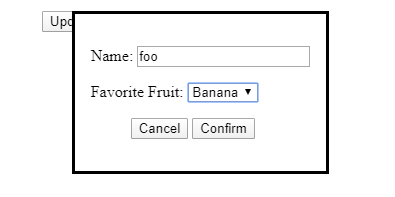
Then we get:

And once we click Confirm, we get:

Styling the Backdrop

To style the dialog ‘s background, we can select it by using the ::backdrop CSS pseudoelement to and apply styles to it. The backdrop is only drawn when the dialog is shown.

For example, we can style it as follows:

dialog::backdrop {
  background-color: lightblue !important;
}

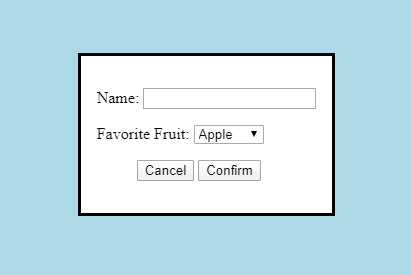
The code above will change the backdrop color from the default to lightblue .

Then we get the following:

The dialog element saves us some effort when creating pop-up dialogs. We don’t need libraries or lots of code to create simple dialogs.

To set the values of dialog.returnValue when the dialog closes, we set the form element’s method to dialog , and set the confirm button’s value attribute to what we want to set it to.

We can use the ::backdrop pseudoelement to style the backdrop’s color when the dialog is open.

Categories
JavaScript Basics

Introduction to JavaScript Symbols

In ES2015, a new primitive type called Symbol is introduced. It is a unique and immutable identifier. Once you have created it, it cannot be copied.

Every time you create a new symbol, it’s a unique one. Symbols are mainly used for unique identifiers in an object. That’s a symbol’s only purpose.

There are also special symbols that we can use to implement various operations or override the default behavior of some operations.


Defining Symbols

There are some static properties and methods of its own that expose the global symbol registry. It is like a built-in object, but it doesn’t have a constructor, so we can’t write new Symbol to construct a symbol object with the new keyword.

To create new symbols, we can write:

const fooSymbol = Symbol('foo')

Note that each time we call the Symbol function, we get a new symbol, so if we write:

Symbol('sym') === Symbol('sym')

The expression above would be false. This is because every symbol is unique.


Built-In Symbols

There are built-in Symbols that are used as identifiers for various methods and values. Methods with some symbols are called when some operators are being used.

Symbol.hasInstance

Symbol.hasInstance is a method that checks if an object is an instance of a given constructor. This method is called when the instanceof operator is invoked.

We can override the Symbol.hasInstance method as follows:

class Foo {
  static [Symbol.hasInstance](instance) {
    return typeof instance.foo != 'undefined';
  }
}
console.log({ foo: 'abc' } instanceof Foo);

In the code above, we defined that an object is an instance of the Foo class if there’s a value for the foo property. Therefore, { foo: ‘abc’ } instanceof Foo should return true since it has the foo property set to 'abc'.

Symbol.isConcatSpreadable

Symbol.isConcatSpreadable is a boolean value that indicates whether an object should be flattened in an array by the array concat method.

We can use it as in the following code:

The first console.log should output:

["a", "b", "c", true, false]

And the second one should output:

["a", "b", "c", Array(2)]

This is because before the second concat call, we set arr2[Symbol.isConcatSpreadable] to false, which prevents the content of arr2 from being spread into the new array that’s returned by the concat method.

Symbol.iterator

This is a method that’s called when we want to return an iterator for the spread operator or the for...of loop. It’s called when the for...of loop is run.

For example, given that we have the following code:

const obj = {
  0: 1,
  1: 2,
  2: 3
};
console.log(obj[0]);

If you try to loop through an array with the for...of loop or the forEach function, or try to use the spread operator with it, the example with the obj object will result in an error since it’s not an iterable object.

We can make it iterable by adding a generator function with the Symbol Symbol.iterator to it like in the following code:

Then, when we iterate the obj object with the for...of loop like the code below:

for (let num of obj) {
  console.log(num);
}

We get back the entries of the new obj object that we made iterable.

The spread operator would also work. If we have the following code:

console.log([...obj]);

We get [1, 2, 3] from the console.log output.

Symbol.match

A boolean property that’s part of a regular expression instance that replaced the matched substring of a string. It’s called by the string’s replace method.

For example, we can use it to let us call the startsWith and endsWith methods with the regular expression strings:

const regexpFoo = /foo/;
regexpFoo[Symbol.match] = false;
console.log('/foo/'.startsWith(regexpFoo));
console.log('/baz/'.endsWith(regexpFoo));

The important part is that we set regexpFoo[Symbol.match] to false, which indicates that the string we called startsWith and endsWith with aren’t regular expression objects since the isRegExp check will indicate that the '/foo/' and '/baz/' strings aren’t regular expression objects.

Otherwise, they’ll be considered regular expression objects even though they’re strings and we’ll get the following error:

Uncaught TypeError: First argument to String.prototype.startsWith must not be a regular expression

Symbol.replace

A regular expression method that replaces matched substrings of a string. Called by the String.prototype.replace method.

We can create our own replace method for our object as follows by using the Symbol.replace symbol as an identifier for the method:

The Replacer class has a constructor that takes a value that can be used to replace the current string instance.

When we run the last line, we should get ‘bar’ since string has the value 'foo' and we call the replace method to replace itself with whatever we passed into the constructor of Replacer.

Symbol.search

A regular expression method that returns the index within a string that matches the regular expression. Called by the String.prototype.search method.

For example, we can implement our own Symbol.search method as we do in the following code:

In the code above, our Symbol.search method looks up if the string, which is the string that we call search on, has whatever we pass into the this.value field which we assign when we call the constructor.

Therefore, we get true from the console.log output since 'bar' is in ‘foobar'. On the other hand, if we call:

console.log('foobar'.search(new Searcher('baz')));

Then we get the value false since ‘baz’ isn’t in 'foobar'.

Symbol.species

A property that has a function as its value that is the constructor function which is used to create derived objects.

Symbol.split

A method that’s part of the regular expression object that splits a string according to the indexes that match the regular expression. It’s called by the string’s split method.

Symbol.toPrimitive

A method that converts an object to a corresponding primitive value. It’s called when the + unary operator is used or converting an object to a primitive string.

For example, we can write our own Symbol.toPrimitive method to convert various values to a primitive value:

Then we get:

10
hello
true
false

From the console.log statements at the bottom of our code.

Symbol.toString

A method that returns a string representation of an object. It’s called whenever an object’s toString method is called.

Symbol.unscopables

An object whose own property names are property names that are excluded from the with environment bindings of the associated objects.


Conclusion

Symbols are a new type of data that was introduced with ES6. They are used to identify the properties of an object. They’re immutable and every instance is considered different, even though they may have the same content.

We can implement various methods identified by special symbols to implement certain operations like instanceof, converting objects to primitive values, and searching for substrings, in our own code.

Categories
TypeScript

Introduction to JavaScript Inheritance

JavaScript is an object-oriented language. However, it’s different from many other OO languages in that it uses prototype-based inheritance instead of class-based inheritance.

Prototype-based inheritance means that objects inherit items from its prototype. A prototype is just another object, which can be inherited by other objects.

This is different from class-based inheritance in that classes are templates for creating new objects. Classes can inherit from other classes to reuse code from the class it’s inheriting from.

Old Syntax of Inheritance

Constructor Functions

Before ES6, we only have constructor functions to serve as templates to create new objects which are instances of the constructor.

For example, we can define a constructor function as follows:

function Person(name, age) {
  this.name = name;
  this.age = age;
}

Then we can create a new instance of Person by writing:

let person = new Person('Joe', 10);

To inherit items from other constructor functions in a constructor function, we have to call the parent constructor function that we want to inherit from with the call method, and then set our constructor’s prototype’s constructor property to the parent constructor function that we want to inherit from.

For example, if we want a Employee constructor function to inherit the properties of the Person constructor, we can write:

function Person(name, age) {
  this.name = name;
  this.age = age;
}

function Employee(name, age, title) {
  this.title = title;
  Person.call(this, name, age);
  this.__proto__.constructor = Person;
}

let employee = new Employee('Joe', 20, 'waiter');
console.log(employee);

The call method takes the value of this we want to set, and the rest are arguments we pass into the function that the call method is called on.

If we look at the __proto__ property of the employee object, which has the prototype for it, we should get that __proto__.constructor of it should be the Person constructor like we set it to.

The properties and the values of the employee object should be what we passed into the Employee constructor when we called it.

Object.create()

The Object.create() method is another way to inherit from a prototype when we create an object.

The argument that it takes is the prototype object that we want the object returned from it to inherit from.

For example, we can use Object.create to create an object with a prototype as follows:

const person = {
  name: 'Joe',
  age: 20
}

let employee = Object.create(person);
employee.title = 'waiter';

console.log(employee);

If we look at the employee object, we’ll see that the __proto__ property will have the age and name properties set with values.

Setting the proto Property Directly

Setting the __proto__ property directly has been officially supported since ES6 and it’s an undocumented way to set the prototype of an object in various browsers before it like Firefox.

We can set an object to the __proto__ property directly, by writing something like:

const person = {
  name: 'Joe',
  age: 20
}

let employee = {
  title: 'waiter'
};

employee.__proto__ = person;
console.log(employee);

We should get the exact structure of the properties and values as we did when we created an object with the Object.create() method.

One thing we have to be careful about is that we don’t want to accidentally set it if we don’t want to change an object’s prototype. This may happen if we use JavaScript objects as maps. With ES6, we can use the Map object for this purpose.

Object.defineProperty

We can also use the defineProperty method to set the prototype of an object. For example, we can write:

const person = {
  name: 'Joe',
  age: 20
}

let employee = {
  title: 'waiter'
};

Object.defineProperty(employee, '__proto__', {
  value: person
});
console.log(employee.__proto__);

When we log the value of employee.__proto__ , we get back the person object.

Note that the prototype is in the value property of the 3rd argument of the defineProperty method call.

Photo by Chiara Daneluzzi on Unsplash

New Class Syntax

With the release of ES6, the new class syntax is introduced. On the surface, it looks like we have class-based inheritance, but underneath the surface, it’s exactly the same as before.

The class syntax is the same as constructor functions. For example,

function Person(name, age) {
  this.name = name;
  this.age = age;
}

is the same as:

class Person {
  constructor(name, age) {
    this.name = name;
    this.age = age;
  }
}

We can instantiate both by writing:

const person = new Person('Joe', 10);

And we get the same object when we inspect its properties.

The class syntax also creates a clear and convenient way to do inheritance that looks like a traditional class-based inheritance.

We can create a super-class and a child class can inherit from it with the extends keyword. For example, we can write:

class Person {
  constructor(name, age) {
    this.name = name;
    this.age = age;
  }
}

class Employee extends Person {
  constructor(name, age, title) {
    super(name, age);
    this.title = title;
  }
}

const employee = new Employee('Joe', 20, 'waiter');

In the code above, we have the extends keyword to indicate which class Employee inherits from. We can only inherit from one class.

The super method is called to call the parent constructor and set its’ properties. In this case, calling super will call the constructor method in the Person class.

this refers to the class that it’s inside in each class.

This is exactly the same as what we did before:

function Person(name, age) {
  this.name = name;
  this.age = age;
}

function Employee(name, age, title) {
  this.title = title;
  Person.call(this, name, age);
  this.__proto__.constructor = Person;
}

let employee = new Employee('Joe', 20, 'waiter');
console.log(employee);

The only thing is that when we inspect the employee object, we get that the __proto__.constructor property shows class instead of function .

The class syntax makes inheritance much more clear than before. It’s much needed syntactic sugar for the prototypical inheritance model that’s in JavaScript since the beginning.

Also, with the class syntax, we don’t have to call the call method on the parent constructor object and set this.__proto__.constructor anymore.

It’s better than using the Object.create() or setting the __proto__ property directly. Setting the __proto__ property has its problems like accidentally setting the wrong prototype.